
What’s new in Blackboard April 2026

In the April update, we want to draw your attention to the following Blackboard enhancements:

  • Assignments
    • Assignment submission type
    • SafeAssign file size
    • Adjusting individual grades in group submissions
  • Tests
  • AI Conversations
  • Discussions
  • Announcements

Blackboard Assignment

Specify assignment submission type

Instructors

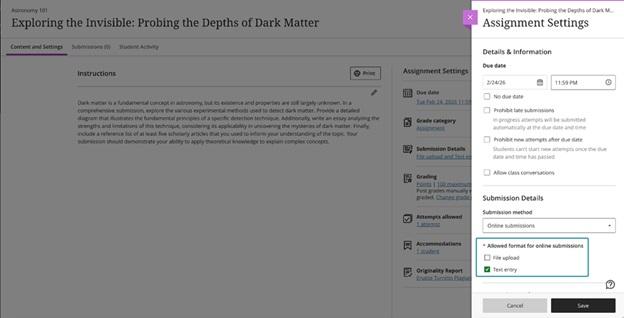
When creating or editing an assignment, instructors can define the expected submission type to guide how students submit their work. Selecting a specific submission type streamlines the student experience and reduces ambiguity about what is required.

Instructors can select one or more expected submission types when configuring an assignment:

  • File upload
  • Text entry

By default, File upload and Text entry are both selected.

The selected submission type is visible in assignment settings and student‑facing details. Instructors can change the selected submission type until students have started submitting attempts.

Image 1: Instructors can choose one or more submission types when configuring an assignment.
Students

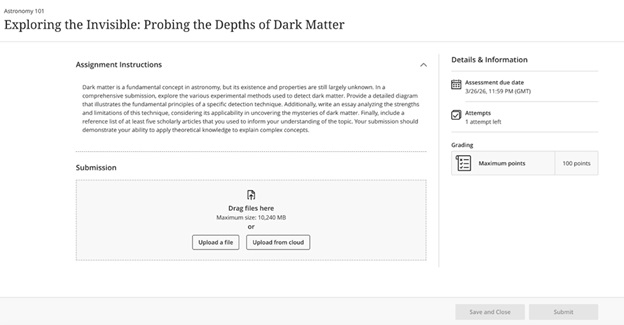
Students are informed of the expected submission type and see a submission workflow optimized for that format.

  • File submissions display a dedicated file drop zone where students can upload, preview (when supported), and remove files.
  • Text submissions provide a streamlined rich text editor experience without a general file attachment option and include access to the Content Market for supported tools.

Image 2: Students have a submission workflow optimized for the selected submission type.
Note that if you are using Blackboard for Panopto assignments, you need to have Text entry enabled.

Increased SafeAssign file size limit to 25 MB for Direct Submit

The SafeAssign file size limit for DirectSubmit submissions increased to 25MB. This change supports larger documents that include images, tables, and complex formatting, reducing submission issues for students.

Existing submissions and SafeAssign reports remain fully compatible, and related system limits were reviewed to ensure continued stability.

Adjust grades for individual student attempts in group submissions

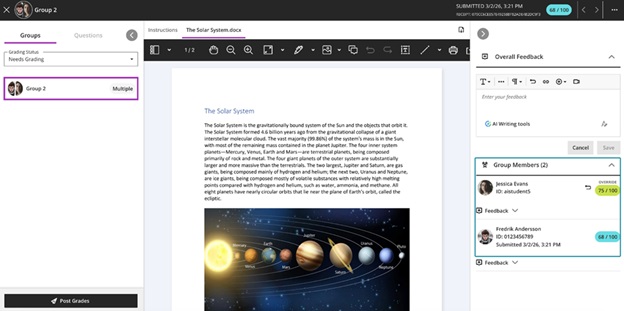
Flexible Grading has been extended to allow instructors to adjust attempt grades for individual students within a group submission. This update ensures that grades for group submissions can accurately reflect each student’s individual contribution, even when work is submitted as a single group attempt.

Instructors can override a group attempt score for individual group members directly from the grading interface. The interface clearly indicates when grades differ across group members, and adjustments can be removed by restoring a student’s grade to match the group attempt score.

Image 1: Instructors can adjust grades for individual students within a group submission.
Tests

Improvements to multiple choice and multiple answer questions

See below for changes to multiple choice and multiple answer questions:

  • For the multiple choice question, the default number of answer options a student can select from 4 to 1 has been modified.
  • When creating or editing a multiple choice or multiple answer question, instructors can change the number of answer options that a student can select.
  • Multiple choice answer options alphabetical labels (A, B, C, D) have also been restored.

AI Conversations

Use Message Limits

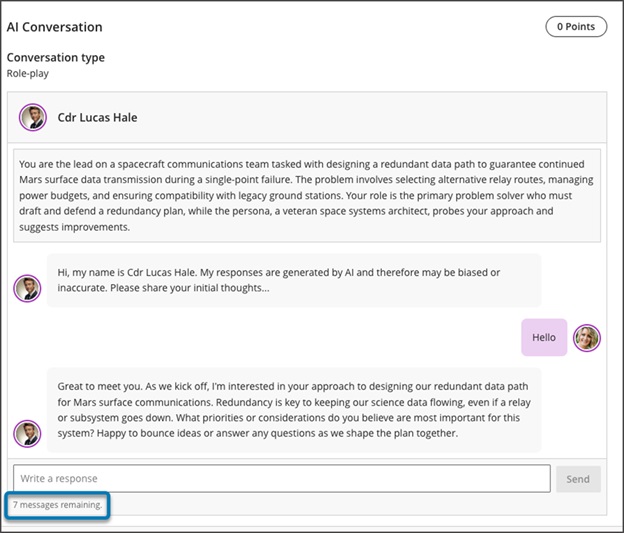
Instructors can now guide the length of AI‑supported conversations, including Socratic Questioning, by setting message limits. These controls help students understand when to complete an interaction and keep conversations focused on the intended learning activity.

Instructors

When instructors configure an AI conversation, they can set a maximum message cap to shape the conversation duration.

Image 1: Message limit settings for an AI conversation
Students

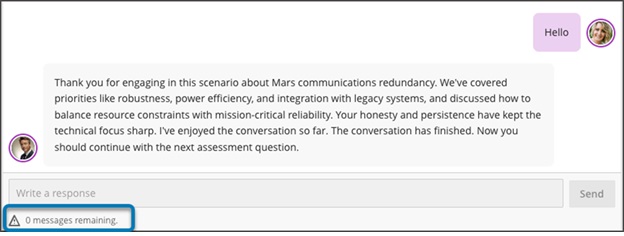
Students track their remaining responses during a conversation through a dynamic label. The label shows a caution icon when two responses remain. After the conversation reaches the message cap, students cannot add more responses. The message limit sets clear expectations for participation and completion.

Image 2: Student messaging guidance during an active interaction.
Discussions

Review both sets of Discussion due dates across multiple views in Blackboard

Blackboard now surfaces both sets of due dates and participation requirements for Discussions across key areas of the application. This improvement builds on the recent addition of a second due date and participation requirement. Instructors and students get clearer expectations wherever they access Discussion details.

Instructors and Students

When instructors create a discussion with two due dates and participation requirements, both sets of requirements appear on the Course Content page, Discussion pages, the Gradebook student and instructor views, and the instructor’s Discussion analysis panel. Students can track expectations throughout the workflow without navigating back to the discussion itself.

Image 1: On the Course Content page, both due dates and participation requirements are displayed. For all entry points for Discussions, both dates and requirements are displayed.
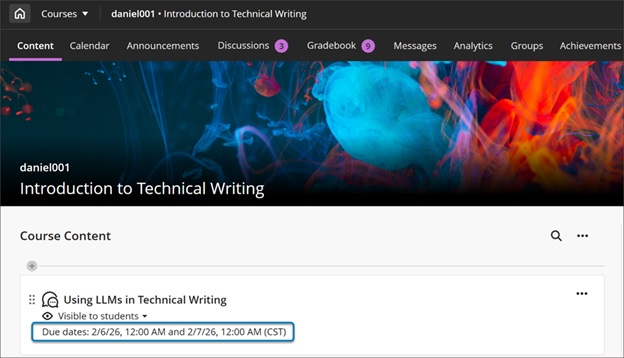
  • On the Course Content and Discussion pages, both due dates and their requirements appear together for quick reference.
  • In the Gradebook student view, both dates appear.
  • Instructors also get a new Due Dates and Requirements section in the grading view for an individual student. This section shows both due dates and the student’s progress toward each requirement.

Announcements 

Handle images as thumbnail links in Announcement emails

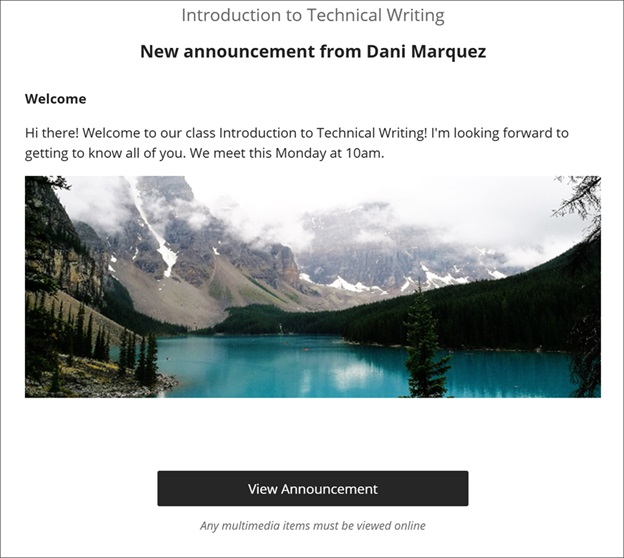
Announcement emails now show images as thumbnail links instead of long URLs. This update gives users a clearer preview of announcement content and provides a direct path back to the full announcement in Blackboard. When users select a thumbnail, the system opens the original announcement so they can read it with full context.

Instructors and students

Announcement emails display a small thumbnail for each image instructors include in an announcement. Each thumbnail links to the announcement in Blackboard, so users return to the complete content instead of opening the image file by itself. Instructors continue to create announcements the same way they have before.

Image 1: Announcement email showing images as thumbnail links that open the announcement in Blackboard.
If you have any enhancements to request from Blackboard, please get in touch with us via elearning@aber.ac.uk.
What’s new in Blackboard March 2026

In the March update, we want to draw your attention to the following Blackboard enhancements:

  • Updates to tests:
    • Anonymous grading by question
    • Question title field relocated
    • Partial credit Multiple Choice Questions and Multiple Answer
  • AI Design Assistant Content Editor
  • Graded Discussions
  • Blackboard Assignment file limits

Anonymous Grading by Question in Blackboard Tests

Instructors can now grade anonymous by question in addition to grading anonymously by student.

When grading anonymous test submissions in Question View, the interface replaces the student’s name, avatar, and ID with an anonymous identifier and a blank avatar. All functionality available when grading non‑anonymous submissions by question is also available when grading anonymously. When anonymous grading is enabled, related APIs no longer return identifying information. This applies to the Essay Question.

Question Title field relocated

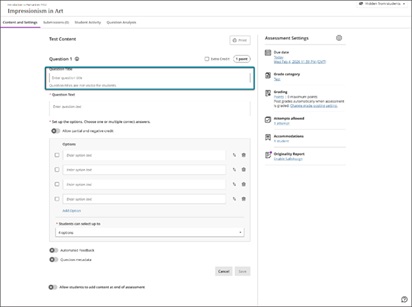
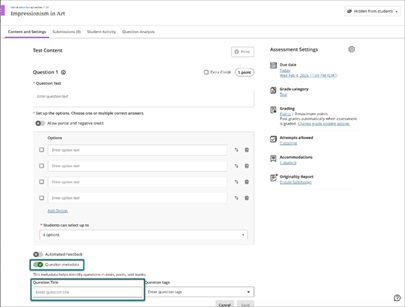
We moved the Question Title field from the beginning of the question authoring workflow to the bottom, underneath the Question metadata field. Moving this field ensures that titles remain an optional metadata element and reduces cognitive load during question creation.

Image 1: Before this enhancement, the Question Title field was at the top of the question authoring workflow.

Image 2: Now, the Question Title field is at the bottom of the question authoring workflow, underneath the Question Metadata field.

Partial credit limits removed for Multiple Choice and Multiple Answer

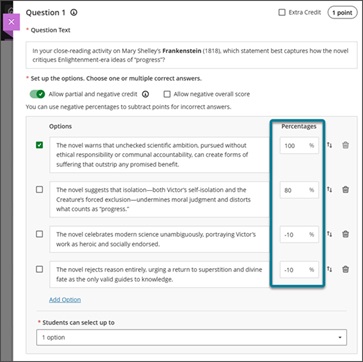
We updated the partial credit system for Multiple Choice and Multiple Answer questions to allow instructors to assign credit values without the requirement that all designated values sum to 100%. This change supports more flexible grading strategies and enables instructors to represent varying levels of conceptual understanding without adjusting values to meet a fixed total.

The system now allows instructors to enter any partial credit value for each option within a range of –100% to +100%. Validation continues to warn instructors if total values exceed 100%, but it no longer blocks question setup. Instructors may now also enter positive credit values for options that are not marked as the correct answer The total partial credit value for correct answers should be at least 100%, and it may exceed 100%. Negative marking continues to operate when enabled. Instructors can adjust credit values during regrading as well.

Image 1: Instructors can have answer options that do not sum to 100%.

Generate Knowledge Checks with AI

We expanded AI‑assisted authoring to support generating multiple choice Knowledge Checks within Documents. This enhancement allows instructors to create just‑in‑time formative assessments using AI‑generated questions based on the content of their Document and any selected course materials.

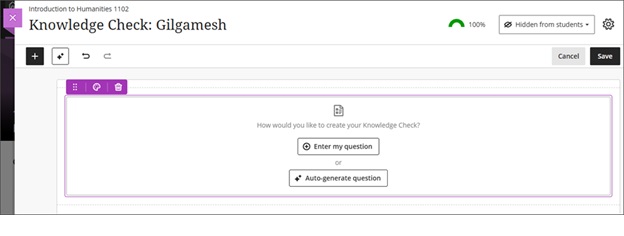
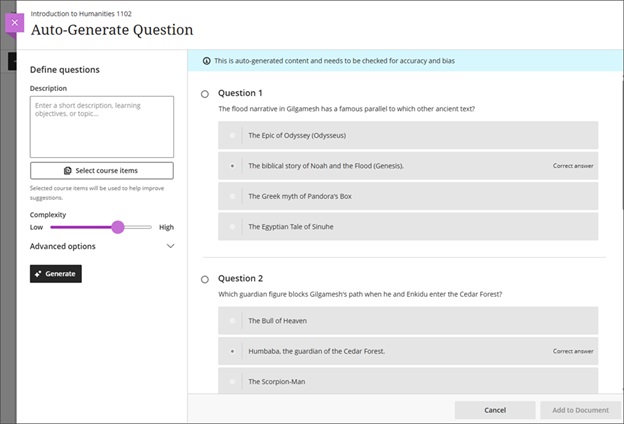
When inserting a Knowledge Check, instructors are now presented with two options: Enter my question or Auto generate question. Selecting Auto-generate question opens the Auto-Generate Question panel, which adapts the existing Question panel used in tests and question banks.

When using the Auto generate question option, instructors can define generation inputs with the following fields:

  • A description text field
  • A selector to choose course items to inform generation
  • A complexity level slider with a range from Low to High
  • Advanced options including an output language selector
  • An informational banner that states: “This is auto-generated content and needs to be checked for accuracy and bias.”

The system generates four multiple choice questions at a time. Each generated question displays with a radio button so that the instructor can select one question to add to the Document. The instructor can then modify the question, answer options, and feedback after insertion. If the instructor opens the Knowledge Check option but does not add a question, the placeholder block remains empty and behaves as other empty content blocks do.

All questions are generated using only text content from the Document. Consideration of additional media or files will be handled as part of a future release.

Image 1: Instructors can select Enter my question or Auto-generate question when creating a knowledge check.

Image 2: After the system generates questions, the instructor selects which question to add to the Document. After adding a question, instructors can edit the question, question options, and question settings.

Use the AI Design Assistant to suggest Document layouts

If you’re looking for ways in which you can make your Blackboard Documents more visually appealing, then use the AI Design Assistant to suggest Document layouts.

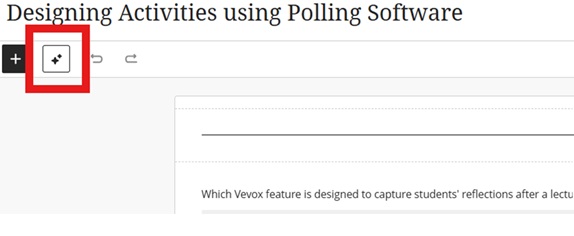
Go to your Document and click to edit the content. Then select the AI Design Assistant icon:

Image 1: AI Design Assistant icon highlighted.

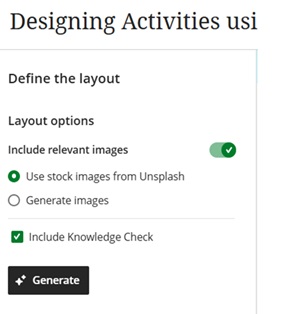
You can provide further information to define the layout:

Image 2: Options available in the layout.

Select Apply layout to save the suggested layout.

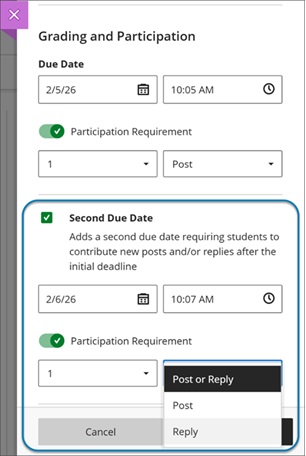
Add a second participation requirement and due date in Discussions

Instructors can now add a second due date with participation requirements for Discussions. This update builds on recent enhancements for discussion participation requirements and gives instructors clearer ways to set expectations for discussion activity. Students get transparent guidance for discussion expectations and progress indicators for their participation.

Instructors

Instructors can set how many posts and replies that students must complete across two due dates.

The option Grade discussion must be selected to add a due dates and participation requirements. Enter a time and date under Due Date and specify participation requirements. Selecting Second Due Date adds another due date with its own requirements.

Instructors can disallow student posts or replies after the final due date by selecting Stop discussion activity after last due date.

Image 1: Instructors can now add a second due date for Discussions. They can also specify the number and type of posts or replies that a student is required to make.

Students

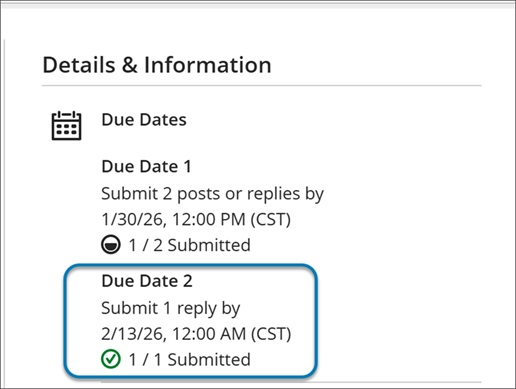
When students open a discussion, they find two clear participation requirements with separate due dates. As they post and reply, progress indicators update in real time.

Students can complete requirements in any order, but contributions after a due date won’t count toward that requirement. Once all requirements are met, the discussion is marked complete and Progress Tracking updates.

Image 2: In a Discussion, a student can find due dates in the Details & Information section in the discussion assignment.

Blackboard Assignment file limits

We increased the maximum supported SafeAssign file size from 10 MB to 25 MB. This enhancement supports modern academic workflows in which students frequently submit large documents. The increased file size applies to assignments and tests. Direct Submit will be included in a later release.

If you have any enhancements to request from Blackboard, please get in touch with us via bbbstaff@aber.ac.uk.

What’s new in Blackboard January 2026

Happy New Year! In the January update, we want to draw your attention to the following Blackboard enhancements:

  • Minor Update to the Blackboard Interface
  • Improvements to Document’s layouts
  • More options for true and false questions
  • Changes to multiple choice and multiple answer workflows

Minor Update to the Blackboard Interface

There is no downtime associated with this update, and Blackboard will continue to function normally during this period.

These changes include:

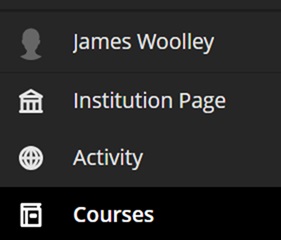
  • Change in order of menu items on the main navigation menu:
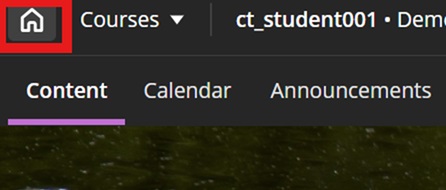
  • A new home button in a course to take you back to the landing page:
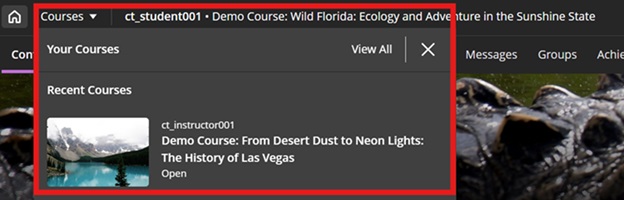
  • A quick link to navigate to your recently accessed courses

In addition to this, to maximise screen space, Blackboard will remove the nested folder view.

Improvements to Document’s layouts

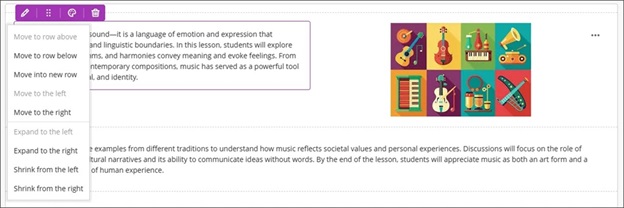
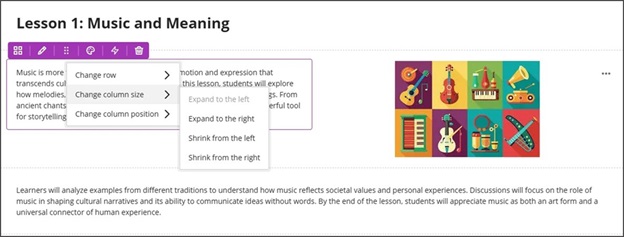
To improve usability and accessibility, we restructured the menu for document block layout. Previously, all options for changing the row, size, or position of a block were in a single dropdown list. Now, these options are organized by type of change (row, size, and position).

Selecting the edit icon for a block prompts a menu with three options: Change row, Change [block/column] size, and Change [block/column] position. Each of these options have a sub-menu, with the related actions.

  • Change row
    • Move to row above
    • Move to row below
    • New row above
  • Change [block/column] size
    • Expand to the left
    • Expand to the right
    • Shrink from the left
    • Shrink from the right
  • Change [block/column] position
    • Move to the left
    • Move to the right

Image 1: How document block styling options displayed before

Image 2: How document block styling options display now

More options for true and false questions

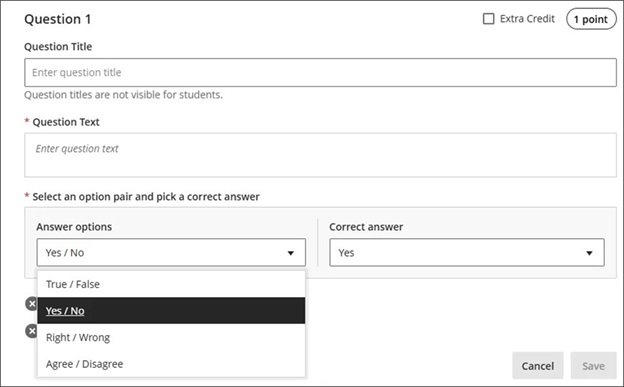
We expanded the display options for true/false questions to include:

  • True/False
  • Yes/No
  • Right/Wrong
  • Agree/Disagree

These additional answer options display when:

  • Instructors create or edit this question type when building a test or in a question bank
  • Students answer the question
  • Instructors grade the question
  • Students review their submission or graded question

Image 1: True/false questions now include additional options.

Changes to multiple choice and multiple answer workflows

 ow students interact with questions. These changes support greater flexibility in assessment design and an improved experience for students.

Instructors

To reduce setup time when creating a multiple choice question, we changed the default number of answer options from three to four. Instructors can add or remove answer options.

Instructors can now define the number of answer selections that a student can make for each multiple choice question. When the student takes the assessment, the system enforces the instructor’s selection limit.

The default is:

  • 4 answer options
  • partial/negative credit is off (no additional changes made to partial/negative credit for this release)
  • students can select up to 4 answers
    • if additional answers are added, selection limit remains at 4
    • if answers are removed, instructor must select the selection limit

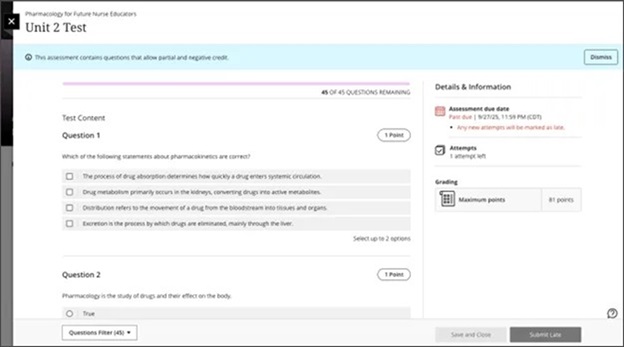
Image 1: Instructors can define the number of answer selections for each multiple choice question.

Students

For questions where students can select only one answer, the selection mechanism is radio buttons. For questions where students can select more than one answer, the selection mechanism is checkboxes.

Image 2: The student’s selection mechanism of checkbox or radio button is determined by how many answers they can select.

If you have any enhancements to request from Blackboard, please get in touch with us via elearning@aber.ac.uk.
What’s new in Blackboard October 2025

In the October update, we want to draw your attention to a new feature with the Learning Object Repository. There is also an important and highly requested update to Fill in the Blank style question, and tagging questions in question banks to help colleagues with question organisation.

Updates to the Learning Object Repository

We were very excited about the launch of the Learning Object Repository. We have already made use of it for the Blackboard standardised template and for Generative AI statements.

This month’s update sees the ability for us to upload files to the Learning Object Repository which colleagues can then copy into their courses.

We can stipulate the availability of the content, so that it can be available or unavailable to students.

See our webpage on the Learning Object Repository for further information.

Updates to the Fill in the Blank Question for Students

The way that Fill in the Blank Questions displays has been updated. This is an enhancement that colleagues have requested so we are pleased to this available.

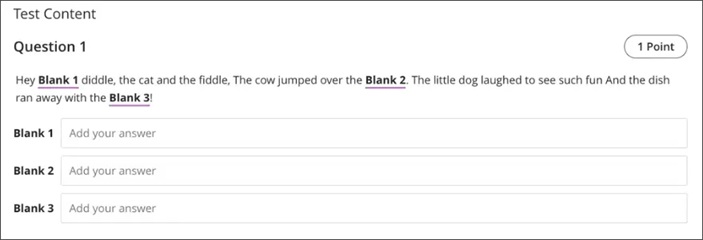
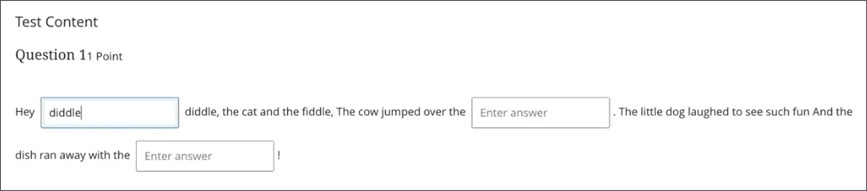
 Fill in the blank questions now display the blanks inline with the surrounding text, whether the question is presented as a sentence, paragraph, or table. We also added hidden ARIA labels to blanks to improve screen reader accessibility.

Image 1: Before this update, the blanks appeared below the question.

Image 2: After this update, the blanks appear in-line with the question.

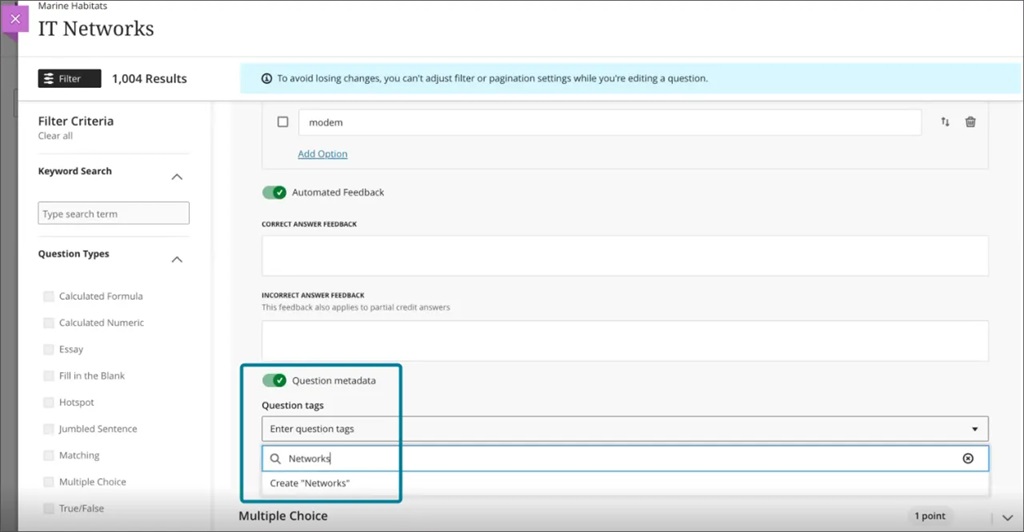
Tag questions with metadata in tests and question banks

Instructors can now tag questions with metadata when creating or editing questions in tests, forms, and banks. 

Instructors

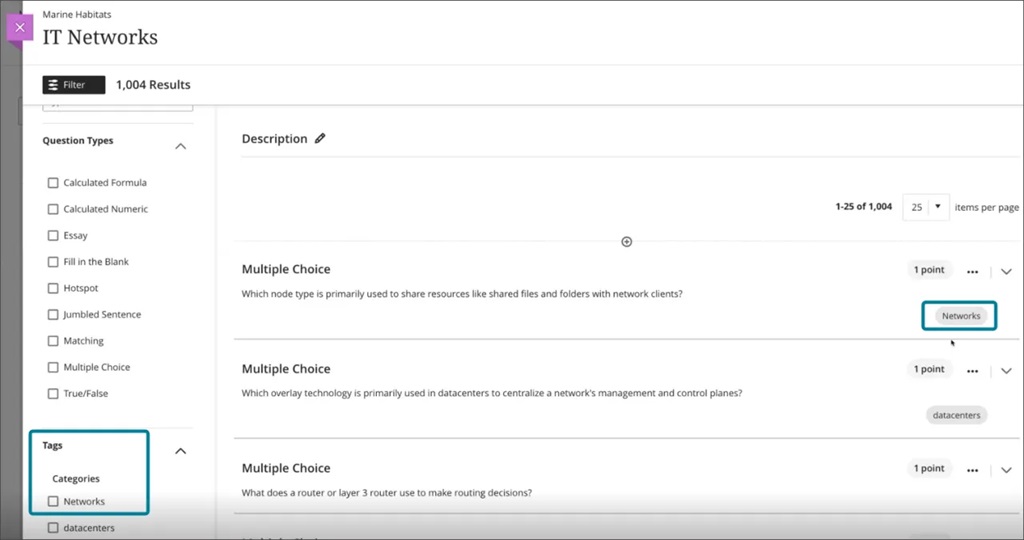
Questions can have multiple tags of the same type. Metadata is visible during question creation/editing and can be used to filter questions when reusing or adding to pools. Metadata is not visible to students during test-taking or review.

Supported metadata types include:

  • Category
  • Topics
  • Levels of Difficulty
  • Keywords

Image 1: Instructors can create and apply a tag to questions.

Image 2: Tags appear as filters in the question bank.

If you have any enhancements to request from Blackboard, please get in touch with us via elearning@aber.ac.uk.
What’s new in Blackboard September 2025

Blog Banner

In the September update, we want to draw your attention to a number of test and question updates, including the ability to add question titles.  

In addition to this, there are enhancements to group tests, time consistency, and enhancing documents with block styling options.

New: Add and manage question titles in tests, forms, and banks

This feature has been requested by colleagues so it’s great to see this live in Blackboard. It’s ideal for colleagues managing large numbers of questions for online exams.

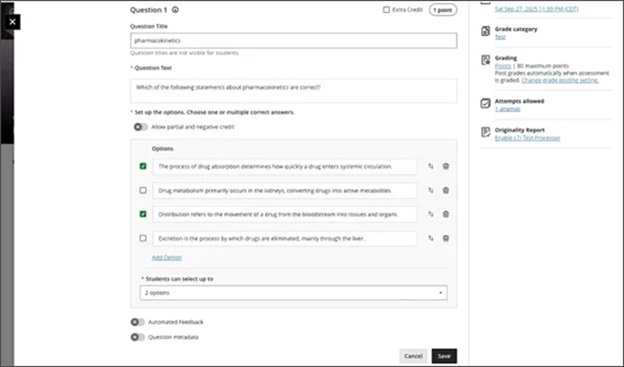
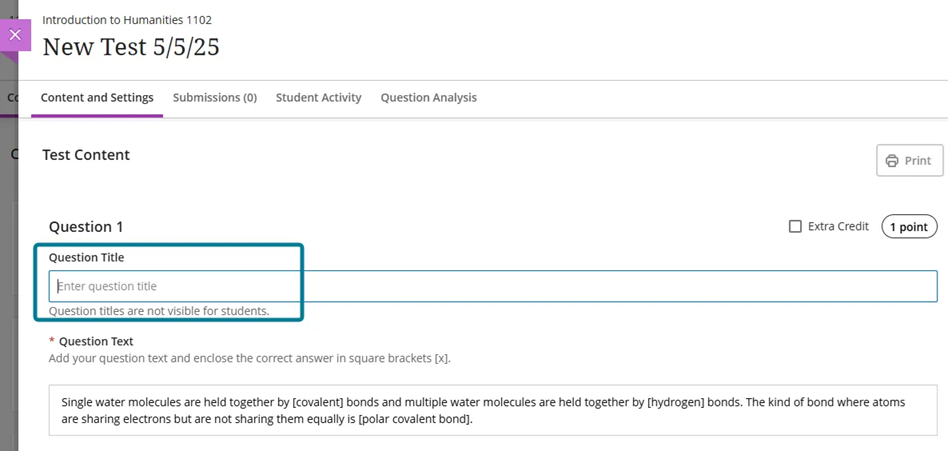
Instructors can now add, view, edit, and delete question titles when working on questions in tests, forms, and banks. Titles are optional and non-unique. Titles are recommended, as they enhance searchability and reuse workflows.

Image 1: Instructors can enter or edit the question title.

In the keyword search in the Reuse question panel, instructors can now search for questions on the question text or the question title.

Titles appear when:

  • Creating or editing questions in tests, forms and banks
  • Viewing or selecting questions via the Reuse questions workflow in tests, forms and banks
  • Adding questions to pools (Add Question Pool workflow)
  • Viewing questions in a pool (View Questions workflow)

Titles do not appear when the instructor views or grades the test and form submissions. Students do not see the question titles when they take a test or review their submission.

Use see-more functionality in Add Question Pool

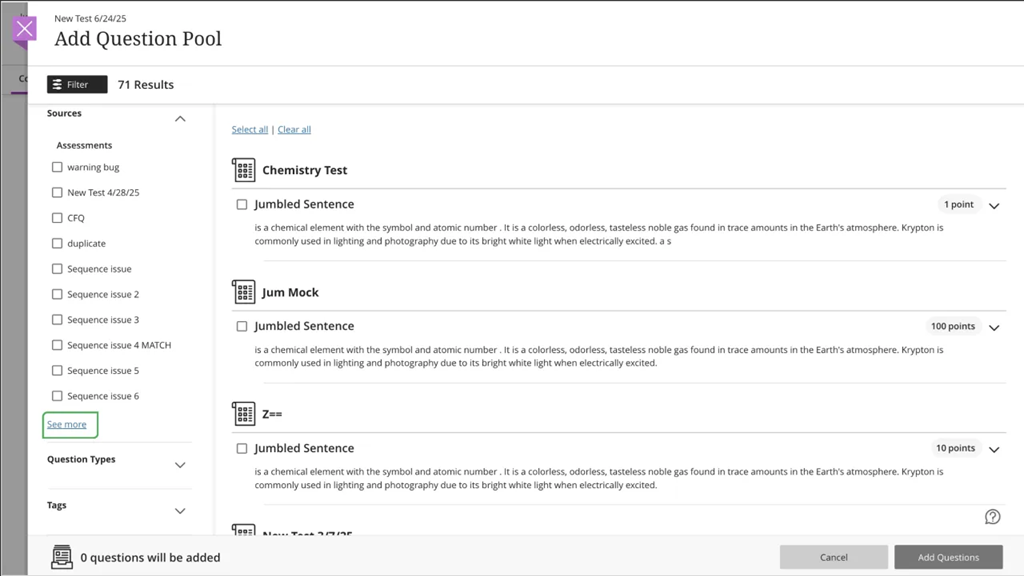
In the Add Question Pool screen, the filter panel now includes See more functionality for Sources, Question Types, and Tags when the number of values in that filter section exceeds 10. Selecting See more expands the list, revealing the full list of values.

Image 1: Selecting See more expands the list, revealing the full list of values.

Display per question feedback to students on group test submissions

Blackboard tests include the option for students to take part in a group submission – answering questions together. This is great for an in person formative style activity, or might offer colleagues other opportunities for group assessment solutions. Group tests use the same options that are available for Group Assignments. Take a look at Blackboard’s support page and contact elearning@aber.ac.uk if you have any questions about this feature.

In this month’s update, Blackboard has improved how feedback is displayed to students with group test submissions.

Students can now view per-question feedback on group test submissions. Instructors have been able to provide per-question feedback, but it was not visible to students until now.

With this update:

  • Students reviewing a graded group test can see feedback for each question.
  • Feedback supports all formats: text, file attachments, and video recordings.
  • Per-question feedback appears alongside overall feedback and rubric scores.

This enhancement ensures that group submissions benefit from the same detailed feedback experience as individual submissions. It also supports:

  • Originality reports (when enabled via SafeAssign).
  • Attempt-level score overrides for individual group members.
  • AI Rewrite for both overall and per question feedback.
  • Navigation between group submissions using Previous/Next controls.  

Display time limits and extra time consistently across roles

Blackboard has improved how time limits and extra time are communicated in Assessments. This change ensures that all users understand exactly how much time is available, including any accommodations or overrides.

Now, all users have the time limits and extra time presented in a consistent format:

Example:

“Time limit: 20 minutes + 10 minutes extra time”

This format appears:

  • When instructors configure or review assessment settings.
  • When students begin or review an assessment.
  • In the preview mode for instructors. 

Enhance Documents with block styling options

Last month we highlighted the new block styling available in Documents. This month, this feature has been developed further with highlight options appearing alongside each text box.

The highlight option gives you the opportunity to clearly indicate whether your content is:

  • Question: Use for prompts or reflective questions. Keep questions concise and open-ended to encourage critical thinking.
  • Tip: Use for tips, insights, or helpful suggestions. Ensure tips are actionable and relevant to the content.
  • Key points: Use to highlight key points or essential facts. Keep these blocks brief and focused to reinforce retention.
  • Next steps: Use for next steps or instructions. Present steps in a clear, logical order and consider using numbered lists for clarity. 

If you’re looking  to make your Blackboard Documents more appealing, we’re running a special 30 minute masterclass on becoming a Document Pro. You can book your place online.

If you have any enhancements to request from Blackboard, please get in touch with us via elearning@aber.ac.uk.
What’s new in Blackboard June 2025

In the June update, we are particularly excited about a new question type: jumbled sentence.

There are enhancements to Discussions, Knowledge Checks (Documents), and Student Activity Logs that we would like to draw your attention to.  

New: Question type: Jumbled Sentence

This question type has been highly requested since our move to Blackboard Ultra, so we are pleased to see it available.

Jumbled Sentence is now an option in the Question Type dropdown. This question type is also available for the AI Design Assistant as well.

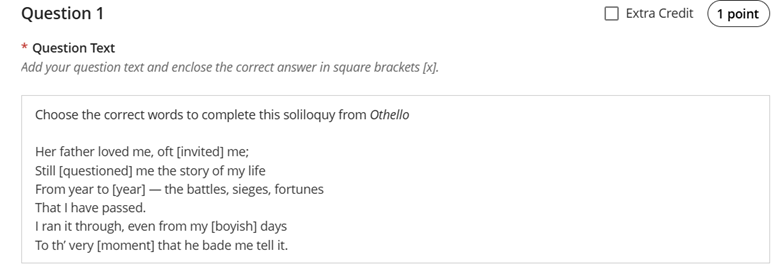
To create a jumbled sentence question:

  1. Select Add Jumbled Sentence question in the question creation canvas:
image showing Jumbled Sentence question

  • Enter your question text putting the gap and correct answer in square brackets:
image showing Jumbled Sentence editor window

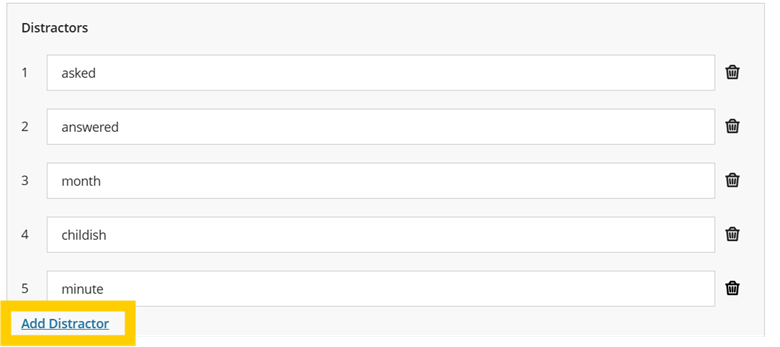
  • Enter distractors which also appear in the dropdown for students to complete the question:
image showing distractor options

  • Save your question and deploy your test as usual.

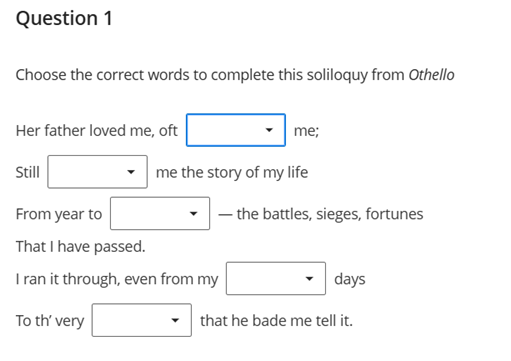
The above question will display to students like this:

image of the Jumbled Sentence question from a students’ perspective

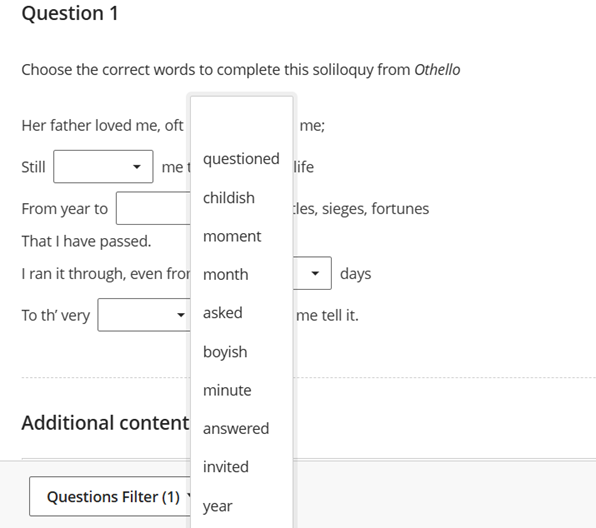
With students clicking on the dropdown to select the correct work which includes all correct answers and any distractors you might have added:

image showing Jumbled Sentence options from dropdown menu

Enhance student engagement with unread discussion activity indicator

Blackboard  improved the discussion experience by adding another indicator of activity. This addition encourages student engagement and makes it easier for instructors to track student activity. 

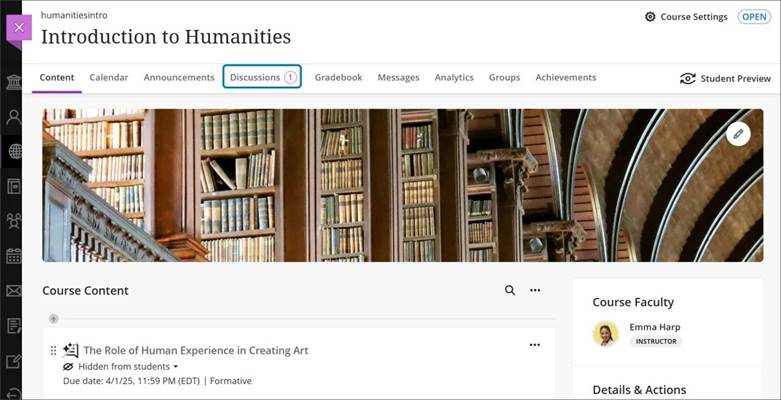
  • Unread Discussion Posts: The Discussions page now shows the number of unread discussion posts from anywhere in a course. 

Image 1. From the Course Content page, the link to the Discussions page now has a number beside it that indicates the number of new discussion posts.

Enhanced overall appearance and usability of Knowledge Checks in Documents

Last September’s release saw the introduction of Knowledge Checks to Documents.

These are a great way to assess students’ knowledge and understanding, whilst also acting as a way to maintain engagement with their Virtual Learning Environment.

The changes include:

Instructors and students 

  • Answer Choices: The letters of answer choices now display at the top of each answer option, rather than in the middle.
  • Answer Labels: Correct and incorrect answer labels have been moved from the side of an answer option to the top.
  • Question Text Padding: Padding on the right side of question text that extended past the answer text has been removed.
  • Small Screen Adjustments: On very small screens, the “Correct answer” label is now shortened to “Correct.” 

Instructors 

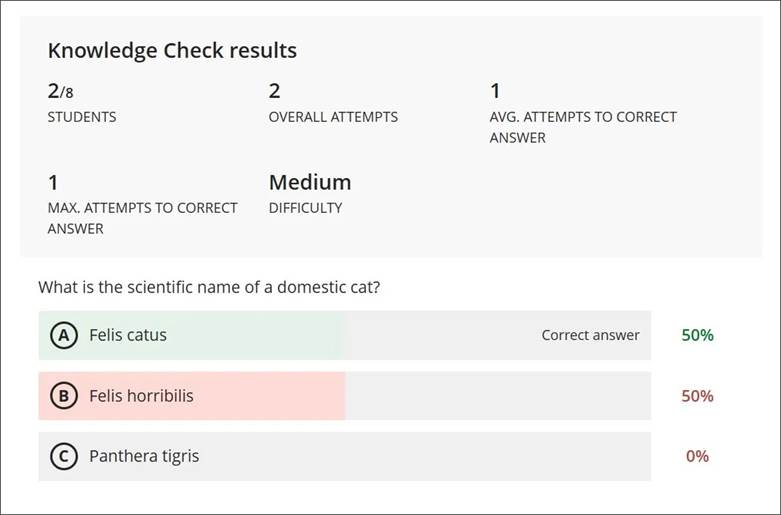
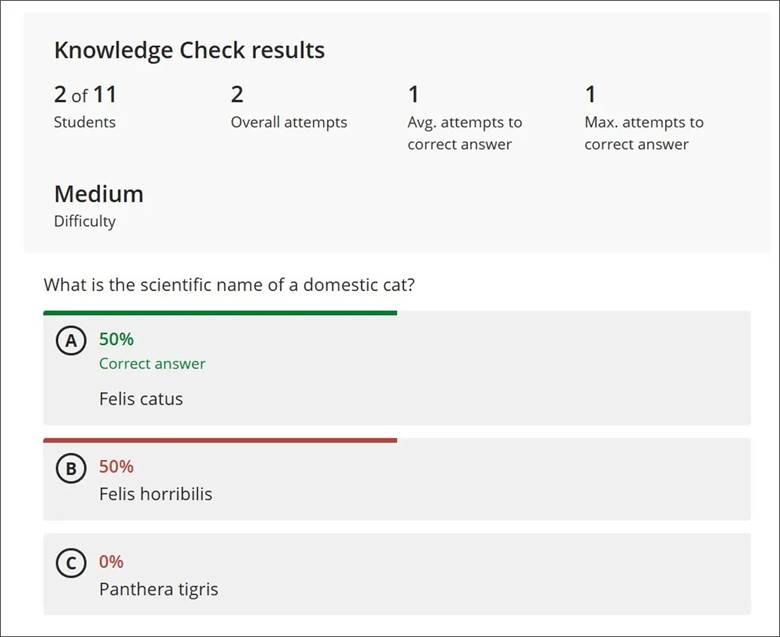
  • Answer Metrics: Answer metrics now appear at the top of answer text alongside the correct and incorrect answer labels.
  • Visual Indicators: Instead of highlighting questions with red and green to indicate the correctness of the answer, a bar now appears at the top of a question.
  • Result Labels: Result labels are now displayed in lowercase instead of all capital letters.
  • Small Screen Padding: Padding to the left and right of the Knowledge Check results has been removed for smaller screens.
  • Participation Count: The number of students who participated is no longer shown as a fraction. Instead, students are described as part of a number. For example, “2 of 8 students participated.” 

Image 1. The instructor view of Knowledge Check results in 3900.116.

Image 2. The instructor view of Knowledge Check results in 3900.118.

Students 

We made several changes to enhance the mobile and small screen experience for students. 

  • Submit Button: The Submit button now occupies the entire space at the bottom of a question, rather than just partial space on the right.
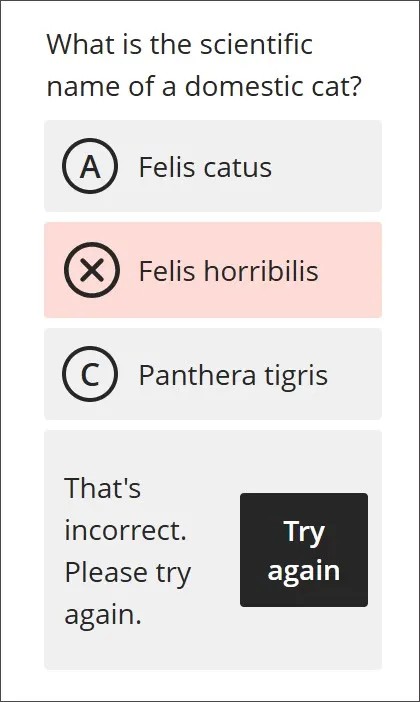
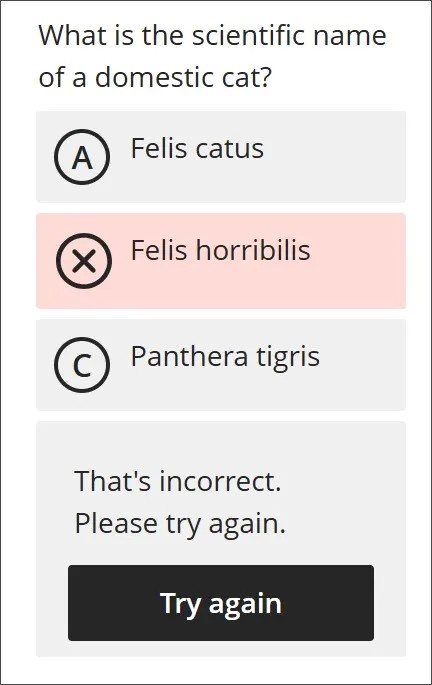
  • Feedback Layout: For correct answers, the checkmark indicator, correct answer feedback, and Reset button now stack vertically instead of being on a single row. This change also applies to incorrect answer feedback and the Try again button.
  • Answer Selection Indicator: On all screens, the answer a student selects now has a purple line to indicate it has been chosen. 

Image 3. The student view of an incorrect answer in a Knowledge Check in 3900.116.

Image 4. The student view of an incorrect answer in a Knowledge Check in 3900.118.

Student Activity Log

Blackboard added two new features to the Student Activity Log to enhance tracking and reviewing student engagement. These updates streamline the evaluation process and provide more comprehensive data for instructors. 

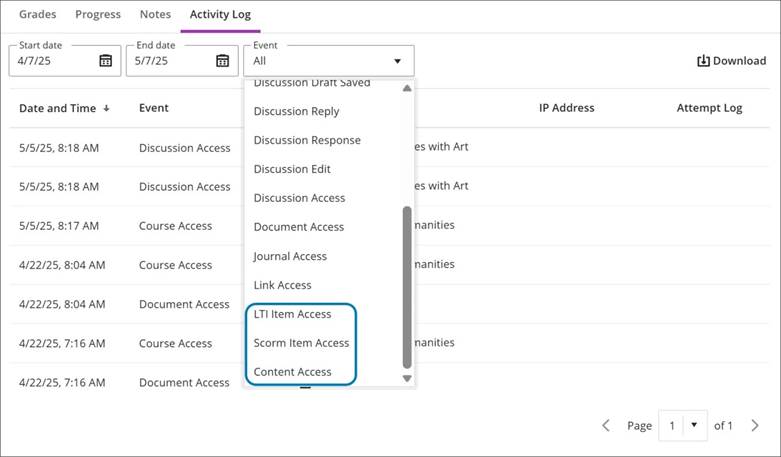
  • Content Access Filter: The Student Activity Log now includes a filter for content access, recording information not available elsewhere, such as Kaltura content. This allows instructors to easily review students’ access without needing to download and manually filter CSV files, saving time and simplifying the process.
  • Enhanced LTI Access Filter: The LTI access filter now includes all types of LTI items, including LTI placeholders. This provides instructors with more detailed insights into how students interact with LTI elements in their courses.

Image 1. The Content Access and LTI Access filters are in the Event menu.

If you have any enhancements to request from Blackboard, please get in touch with us via elearning@aber.ac.uk.
What’s new in Blackboard May 2025

In the May update, we are particularly excited about auto-generate AI Conversations with the AI Design Assistant, Qualitative Rubrics, and Enhancements to Gradebook and Tests.

New: Auto-generate AI Conversations with the AI Design Assistant

Back in November we launched AI Conversations.

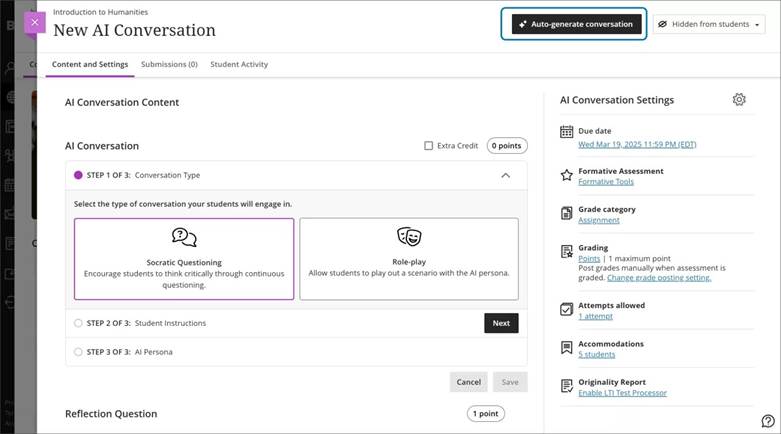
The AI Design Assistant can now auto-generate AI Conversations. AI Conversations are conversations between students and an AI persona.

  • Socratic Questioning: Conversations that encourage students to think critically through continuous questioning.
  • Role-play: Conversations that allow students to play out scenarios with the AI persona, enhancing their learning experience.

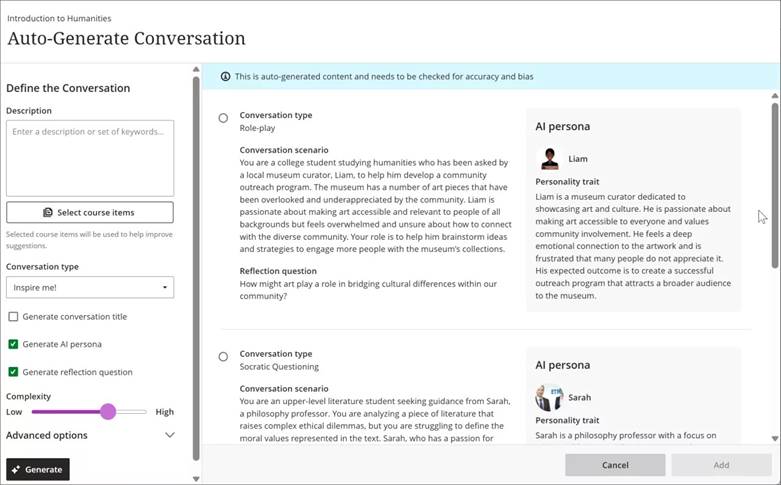
Creating personas and topics for an AI Conversation can take a lot of time. To streamline this process, the AI Design Assistant can generate three suggestions at once. You can select what the AI Design Assistant generates. You can choose to generate:

  • AI Conversation title
  • AI persona
  • Reflection question

These suggestions provide inspiration for an AI Conversation. Instructors can refine the AI Design Assistant’s suggestions in several ways:

  • Provide additional context
  • Adjust the complexity of the question
  • Select context from the course
  • Manually revise the question

Image 1. The auto-generate feature is now available in AI Conversations.

Image 2. There are several ways to customise AI Conversations.

We recommend that you look closely at the AI persona to check for any biases that might be there and edit these.

We would love to hear about your use cases of AI Conversations – do let us know via elearning@aber.ac.uk.

New: Qualitative Rubrics

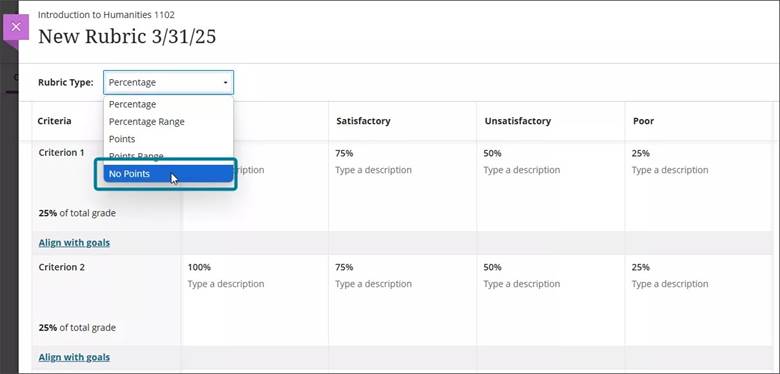
Lecturers can now create and use no-points rubrics for Blackboard Assignments. This rubric type allows instructors to assess student work based on criteria and feedback, rather than numerical values.

Instructors can select No Points as a rubric type when creating or generating a rubric. This option is available alongside existing percentage and points-based rubrics. Instructors can also edit rubrics to switch between different rubric types, including percentage, points range, and no points.

Image 1: No Points option is available in the Rubric Type dropdown.

This feature was requested in our recent Blackboard Assignment (Safe Assign) pilot.

Enhancements to Gradebook and Tests

Accessibility Enhancements to the Gradebook

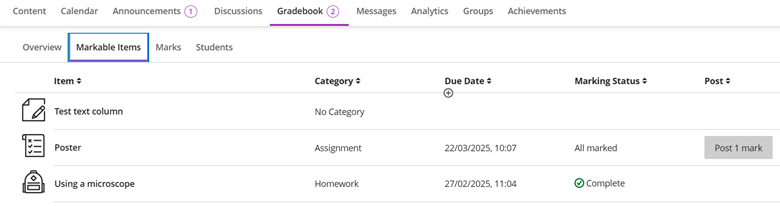
The Markable Items tab in the Gradebook now features a redesigned interface to improve accessibility and navigation for keyboard-only and screen reader users. This enhancement supports an accessible experience for instructors grading student work, reducing the time and effort required to manage student grades.

With this update, the Gradable Items tab uses a table-based layout to enhance usability:

  • Screen reader users can now hear both header and row announcements, allowing for smoother navigation through student submissions.
  • Keyboard users can now move efficiently across rows or down columns using arrow keys.

Image 1: Gradebook with Markable items tab highlighted

New: Text-based columns in the Gradebook

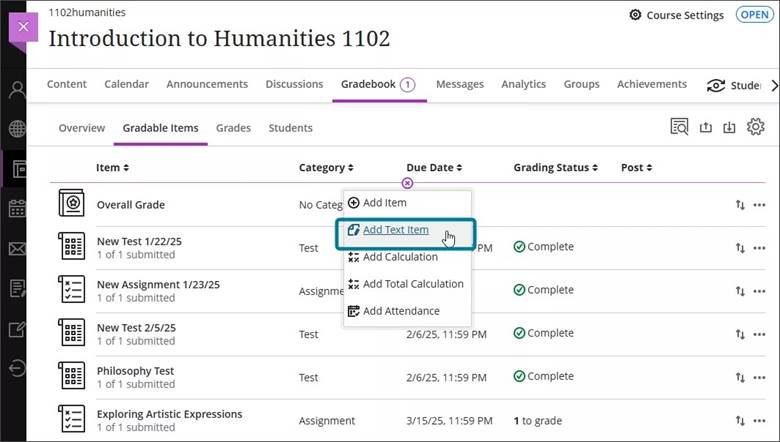
Instructors can now create custom text-based columns in the Gradebook, giving them the ability to record information for an assessment, such as performance code, group membership, and tutoring information.

These columns allow instructors to record up to 32 characters. The column is not restricted to text input.

Colleague might want to use this to record dissertation supervision teams or markers.

Instructors can:

  • Create text-based columns via the Add workflow in both the grid view and Gradable Items page;
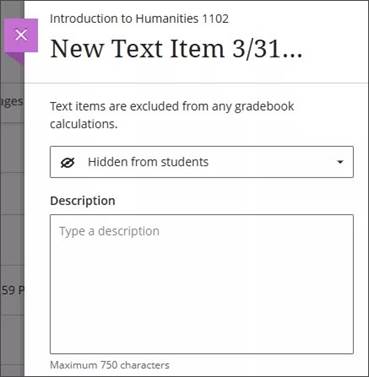
  • Name the column, control student visibility, and add a description;
  • Add and edit text information for a specific student using an inline eidt workflow.

Text-based columns exclude the following:

  • Points values (automatically set to 0 points)
  • Due dates
  • Categories
  • Gradebook calculations and related calculation UIs

Content in text-based columns auto-posts and supports sorting functionality within the Gradebook grid view. Instructors can also download and upload text-based columns using the Gradebook’s upload/download function.

Image 1: Instructors can select Add Text Item to create a text-based column.

Image 2: Instructors can enter column name, set visibility for students, and enter a description for the text-based column.

Students can access text-based columns and associated information in their Gradebook when the column is set to Visible to students.

New test setting: View submission one time

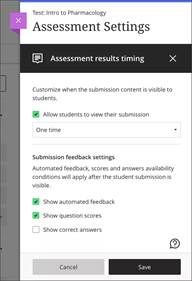
There is a new test result setting option, View submission one time.

When a student completes the test, they can review their answers and detailed feedback, such as which questions were answered correctly.

Image 1: Allow students to view their submission one time highlighted:

Instructors

To access this setting option, select Available after submission in the Assessment results section of the Assessment Settings, then select View submission one time from the Customise when the submission content is visible to students dropdown. This dropdown is available only if Allow students to view their submission is selected.

Note that this setting does not alter the recommended settings for online exams.

Ideas Exchange:

This section aims to keep you updated on progress of enhancements requested on the Blackboard Ideas Exchange.

We are pleased to see the Qualitative Rubric included in this month’s release as this is a feature that was requested as part of the SafeAssign pilot.

If you have any enhancements to request from Blackboard, please get in touch with us via elearning@aber.ac.uk.
What’s new in Blackboard – February 2025

In the February update, Blackboard has improved the workflows for Assignments and Tests and further enhanced the AI Design Assistant. Additionally, there are new options for managing and creating content and some improved accuracy when uploading grades and feedback.
Assignments, Tests, Marking and Grades

Conversion of existing assignments to new assignment workflow

The Create Test and Create Assignment workflows used to share the same content settings, but the workflows have been separated since last August. This month’s update will run an automatic bulk conversion of any assignments created before August 2024 to ensure that all assignments past and present will benefit from this new workflow. See the August 2024 Blog for details on the workflow differences.
Assignments following the conversion: There will be no option to add questions to assignments and attempts will only be created with students interact with the assignment, such as submitting a file or adding content. Clicking on the assignment will not create an attempt.

Tests following the conversion: Tests with questions will remain the same. Any tests without questions will be set to Hidden from students. When you copy tests over from previous modules, they will also be set to Hidden from students. Some assignment-specific options have been removed from the test settings menu:

  • Collect submissions offline
  • Use grading rubric
  • Maximum points
  • 2 grades per student
  • Peer review

Additionally, the functionality for student visibility options and release conditions for tests have been updated. Now, instructors must add one or more questions to their test to make it visible to students or to add release conditions. This ensures that students only see assessments that they can actively engage with.

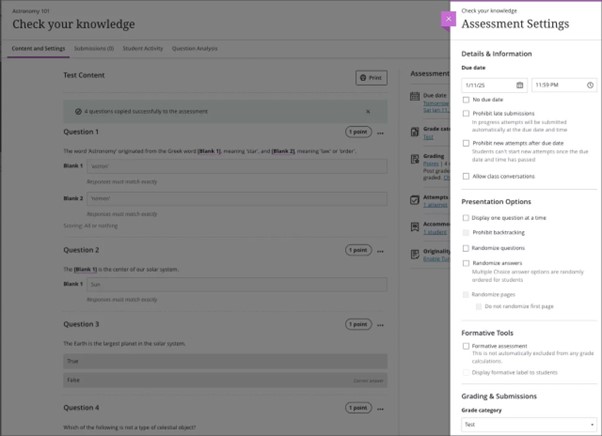
Image 1: Settings panel with assignment-specific options removed.

Settings panel with assignment-specific options removed

Masking access codes for Tests

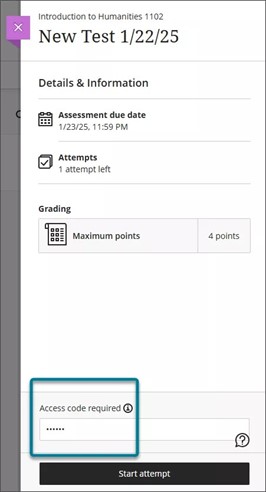
In the past, when an exam invigilator entered an access code for an online exam using Blackboard Tests, the code was visible on the screen when entered. This compromised the security of the testing environment. Now, the code is masked (******) to ensure enhanced security. An option to view the code is available but the default state keeps it hidden which provides better privacy and protection during exams.
Image 2: Masked Access Code.

Screenshot of Masked Access Code

Improved accuracy when uploading grades and feedback

Instructors can now upload grades and feedback for assignments, journals, and discussions with improved accuracy. Previously, uploaded grades were always stored at the override level, which left any underlying attempts or submissions ungraded. This caused the Needs Grading and New Submission flags to remain visible, even when grading had been completed offline. Uploaded grades and feedback are now correctly mapped to the corresponding attempt or submission which reduces confusion and provides better clarity for instructors. See guidance on Working Offline with Grade Data for further information.

AI Design Assistant

More generated questions and Learning Modules

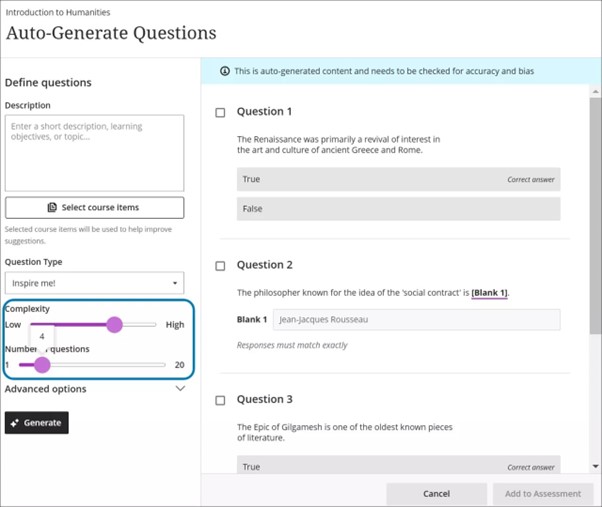
When using the AI Design Assistant, instructors can now set the number of questions generated for tests and question banks to a maximum of 20. The maximum number of learning modules that the AI Design Assistant generates also increased to 20. There is also an added option to exclude descriptions from learning modules generated by the AI Design Assistant. Instructors now have the option to write their own descriptions.

Image 3: The Auto-Generate Questions page displays a new maximum number of questions of 20.

Screenshot of the  Auto-Generate Questions page displays a new maximum number of questions of 20.

For more information on the tools available with the AI Design Assistant see Blackboard AI Design Assistant Tools.

Managing and Creating Content

New image block on Document creator

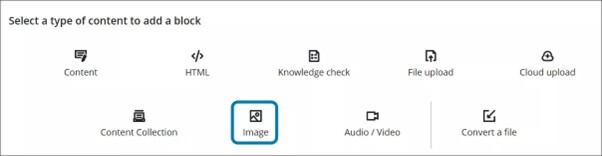
Blackboard have added a new image block to Documents. Image blocks are used to upload your own images, use the AI Design Assistant to generate images, or select images from Unsplash. Image blocks can be moved throughout a Document, just like other block types. You have the option to resize images, set height, and maintain aspect ratios in image blocks.

Image 4: The new image block option in Documents.

A screenshot of the new image block option in Documents.

A dedicated image block makes adding images more apparent. Adding images via the image block also reduces white space around images and provides greater control over content design. For more information on using Documents in Blackboard see Enhancements to Documents.

Changing Folders to Learning Modules

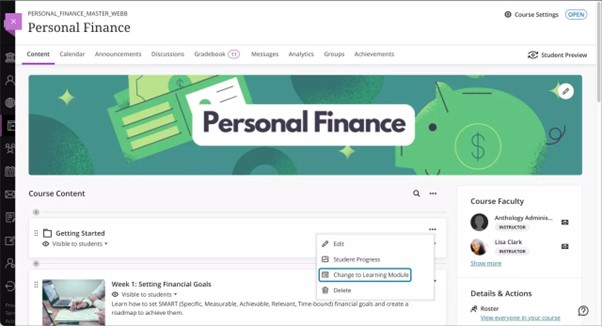
Instructors can now change a folder to a learning module or a learning module to a folder. Benefits of changing a folder to a learning module include:

  • Thumbnail images: Learning modules come with thumbnail images, which provide a visually appealing course experience.
  • Forced sequencing: Instructors can force students to navigate learning modules in linear paths.
  • Progress bar: Learning modules have a progress bar for students that highlights the number of items that they need to complete and their progression on those items.
  • Previous and next navigation: Students can quickly navigate to the next or previous item in a learning module.

It is also possible to convert a learning module to a folder, though we would not recommend this, as it will remove the added benefits of using learning modules as listed above.

Image 5: The new option to change a folder to a learning module in the dropdown menu.

Screenshot of the new option to change a folder to a learning module in the dropdown menu.

Idea Exchange

This section aims to keep you updated on progress of enhancements requested on the Blackboard Anthology Idea Exchange. The following three items have changed their status to ‘Planning to implement’:

  • Support for a Dark Mode in Ultra Courses
  • Ability to add metadata to questions in tests and banks
  • Organising Pools

If you have any enhancements to request from Blackboard, please get in touch with the Digital Education Group.