What’s new in Blackboard July 2026 

In the July update, we want to draw your attention to the following Blackboard enhancements: 

  • Add supplemental content to Learning Object Repository folders and learning modules  
  • Add descriptions to Discussions and Journals  
  • Run a Rubric Evaluation Report for graded activities  
  • Control AI Conversation duration with time limits  
  • Find your favourite courses faster with Course Switcher  

Add supplemental content to Learning Object Repository folders and learning modules 

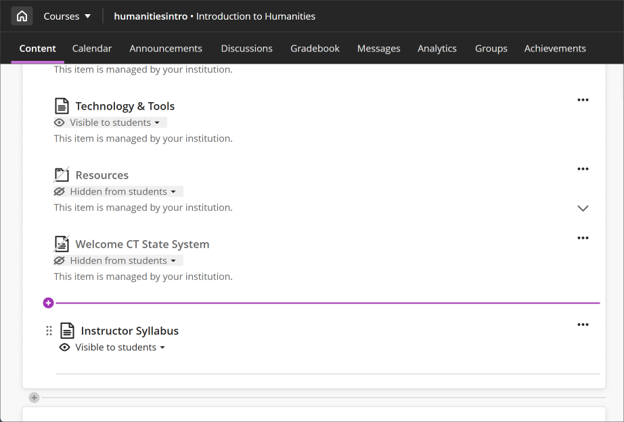
Instructors can now add their own content to folders and learning modules pulled from the LOR. Before, these were locked—you could view them but couldn’t add anything. Now, you can add in your own course-specific materials while the original LOR content stays locked and still updates across courses. Your additions work like normal course content, so you can edit, update, or remove them anytime without affecting other courses. LOR content will always stay at the top, and anything you add appears underneath—it can’t be moved around within the original LOR materials. 

Image 1: The Course Content page will show a learning module added from the LOR, with an instructor document at the bottom. LOR-owned items have the label “This item is managed by your institution.” 
Add descriptions to Discussions and Journals 

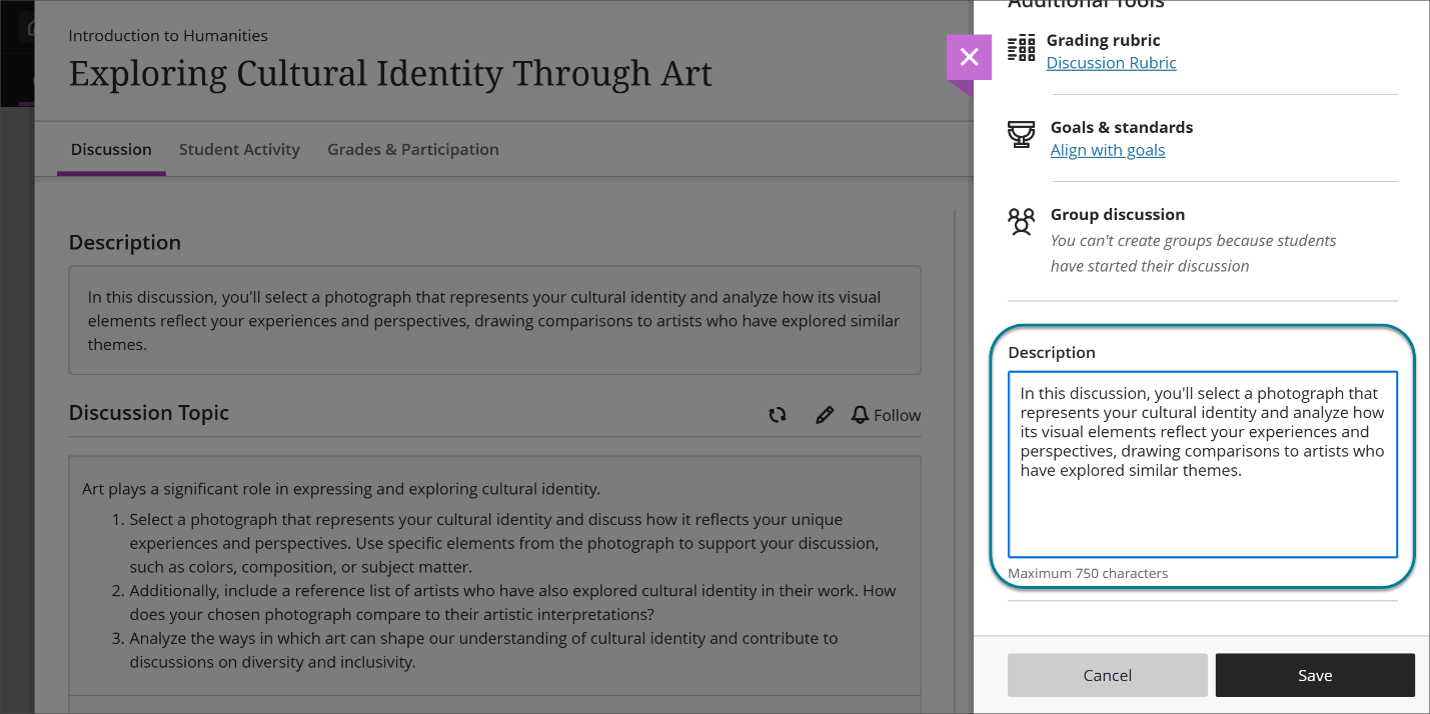
Discussions and Journals now have a Description field, just like other course content, which makes everything on the Course Content page more consistent and easier to scan. Instructors can use this optional field to give quick context or set expectations before students start an activity, while keeping the actual prompt focused on the task or question. The prompt itself no longer shows on the main content page. For students, this means they’ll see a clear, simple overview of what each Discussion or Journal is about before opening it, making it easier to understand what’s coming next. 

Image 2: Instructors can add a description in the Description field for a Discussion. 
Run a Rubric Evaluation Report for graded activities 

Instructors can now run a Rubric Evaluation Report straight from the gradebook for any graded activity that uses a rubric. It pulls together data from all student submissions, giving a quick, clear view of how students are doing against each criterion. 

To use it, open the gradebook, find a column with a rubric, and launch the report from the menu in either Grid or Gradable Items view. You can download it as a PDF or CSV.  

Marks need to already have been posted in order to view the report. If there aren’t enough posted grading data yet, you’ll see a message letting you know. 

The report includes an overview of the assignment, overall average scores, a visual breakdown comparing possible vs achieved points, and a detailed table showing how students performed across criteria, including stats like average, median, and standard deviation. 

Control AI Conversation duration with time limits  

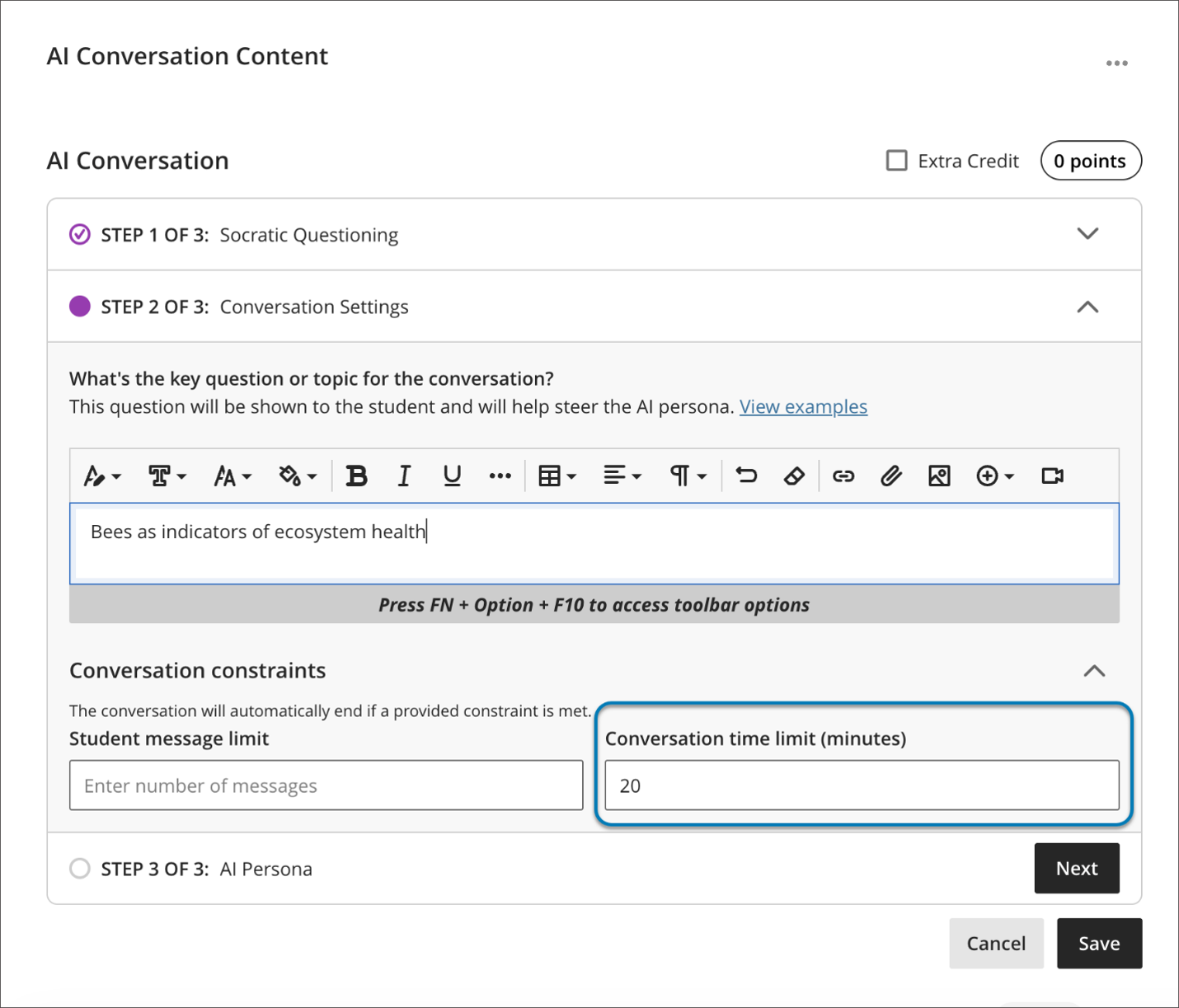
Instructors can now control how long AI Conversations last by adding time limits, making things a bit more structured and easier to manage. There are two different ways to do this, depending on what you want to time — the whole activity or just the conversation part. 

An AI Conversation has two parts: the chat itself and a reflection question that follows. You can either set a time limit for the entire assessment (which includes both parts) or just for the conversation. The full assessment timer already existed — if time runs out, it either auto-submits or gives students extra time, depending on your settings. The new option is a conversation-only timer, which stops the chat after a set time but does not limit students’ time on the reflection question afterward. 

You can’t use both timers at once — it’s one or the other. If you turn one on, the other is automatically disabled. 

Within the conversation constraints, you’ll also now see two controls: a message limit (how many replies students can send) and the new time limit. You can use either, both, or neither. Just note: once a student starts, the time limit is locked in. 

Image 3: You can now set a time limit for either a student’s AI conversation, or their written reflection after the chat. 
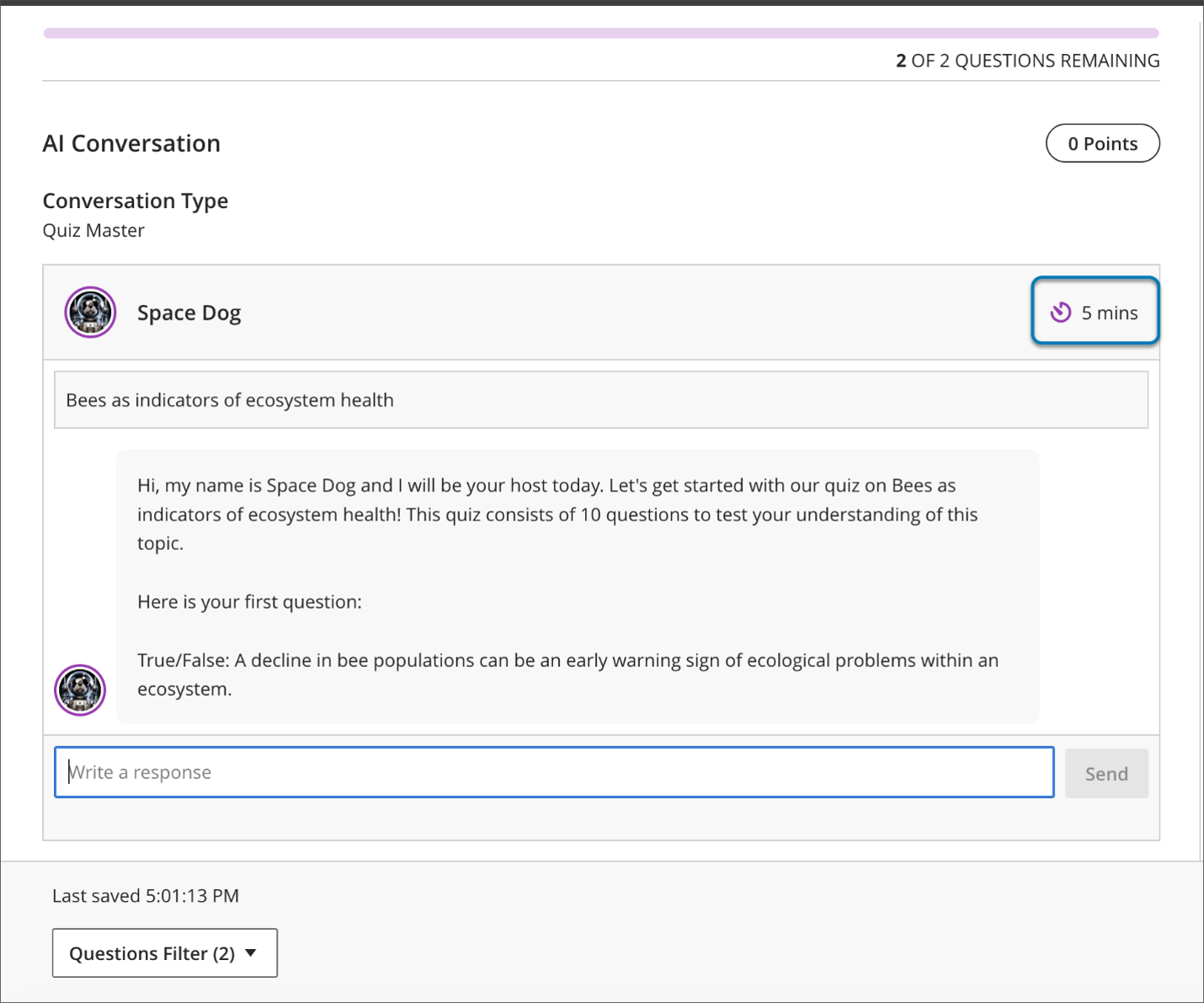
For students, a visible countdown helps them keep track of time. Where it shows up depends on the timer you picked — either inside the chat or at the top of the whole assessment. If only the conversation is timed, they can still complete the reflection question without time pressure. 

Image 4: Depending on the instructor’s settings, the timer is shown when students are completing their chat or during their reflection. 
Overall, this makes expectations clearer, supports accessibility needs, and gives instructors more flexibility when designing AI-based activities. 

Find your favourite courses faster with Course Switcher  

Finding your favourite courses is now easier with the updated Course Switcher. You can now see all your favourited courses right there, so there’s no need to keep jumping back to the Courses page. This builds on recent updates like search and recent courses, making it quicker to move around. 

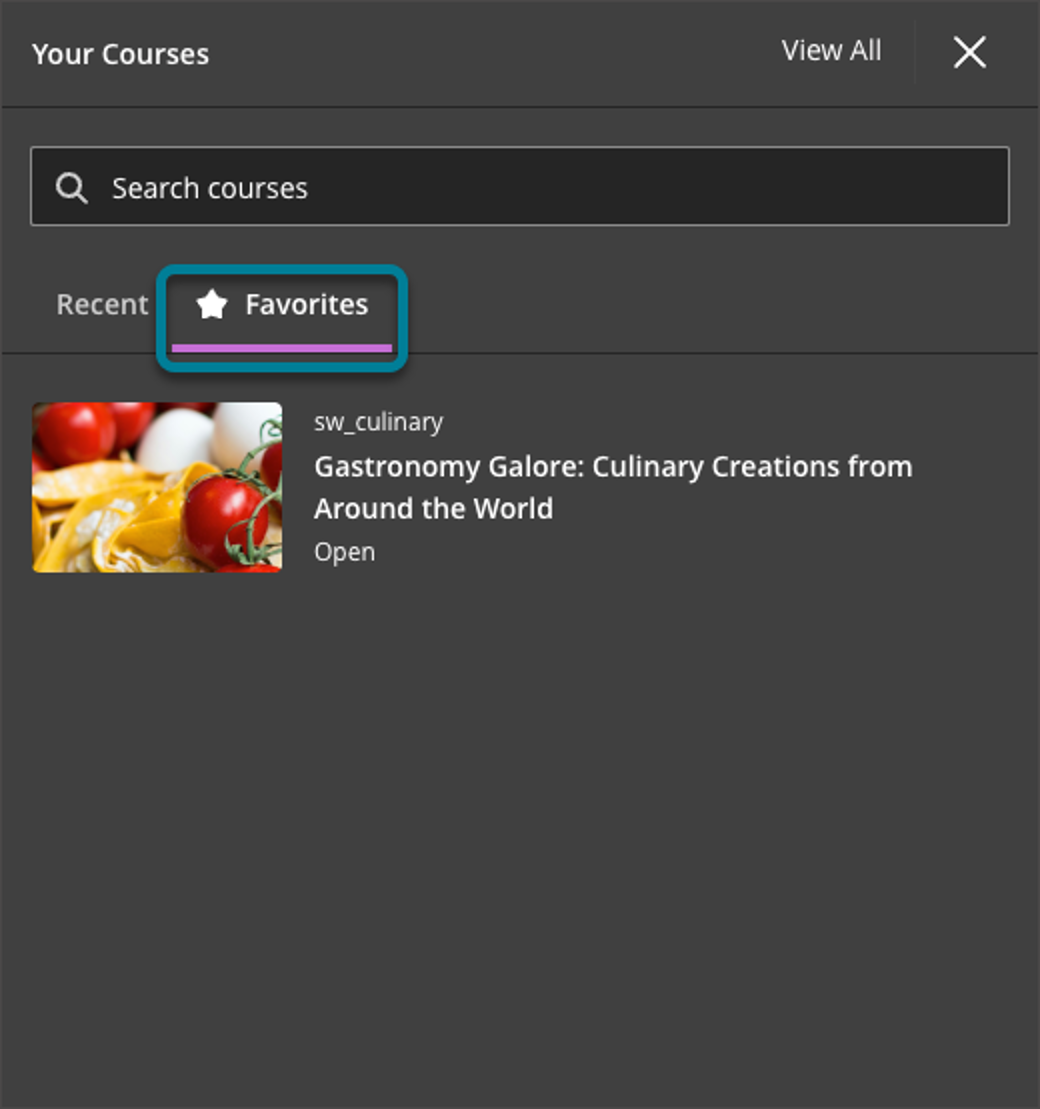
There’s a new Favourites tab that automatically shows what courses you have chosen as your favourites on the main Courses page. It sits alongside Recent and Search, so everything’s in one place. Overall, it’s a simpler, faster way to jump between courses and stay focused without the extra clicks. 

Image 5: The Course Switcher now has a Favourites tab, allowing you to add a personalized list of frequently used courses.. 
What’s new in Blackboard June 2026

In the June update, we want to draw your attention to the following Blackboard enhancements:

  • Grading with rubric
  • Student engagement with announcements

Changes to grading with rubric

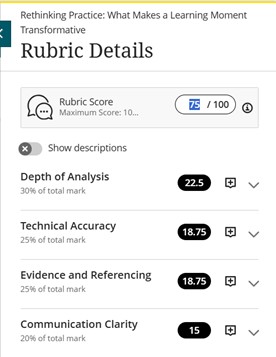
To improve rubric usability, instructors can now edit the rubric grade directly. Changes to the rubric component grades will also update the overall grade immediately.

Image 1: Improved rubric usability when adding or adjusting grades.

In the past, instructors would have been blocked from changing the overall grade via the rubric. Now, the locking mechanism that previously prevented instructors from using the rubric to override a grade has been removed. Otherwise, grades entered into the rubric grade components will update the overall grade immediately.

The update also includes some changes in wording, such as updating the rubric score box label from “Submission” to “Rubric Score”, in order to improve consistency with the Flexible Grading page.

Student engagement with announcements

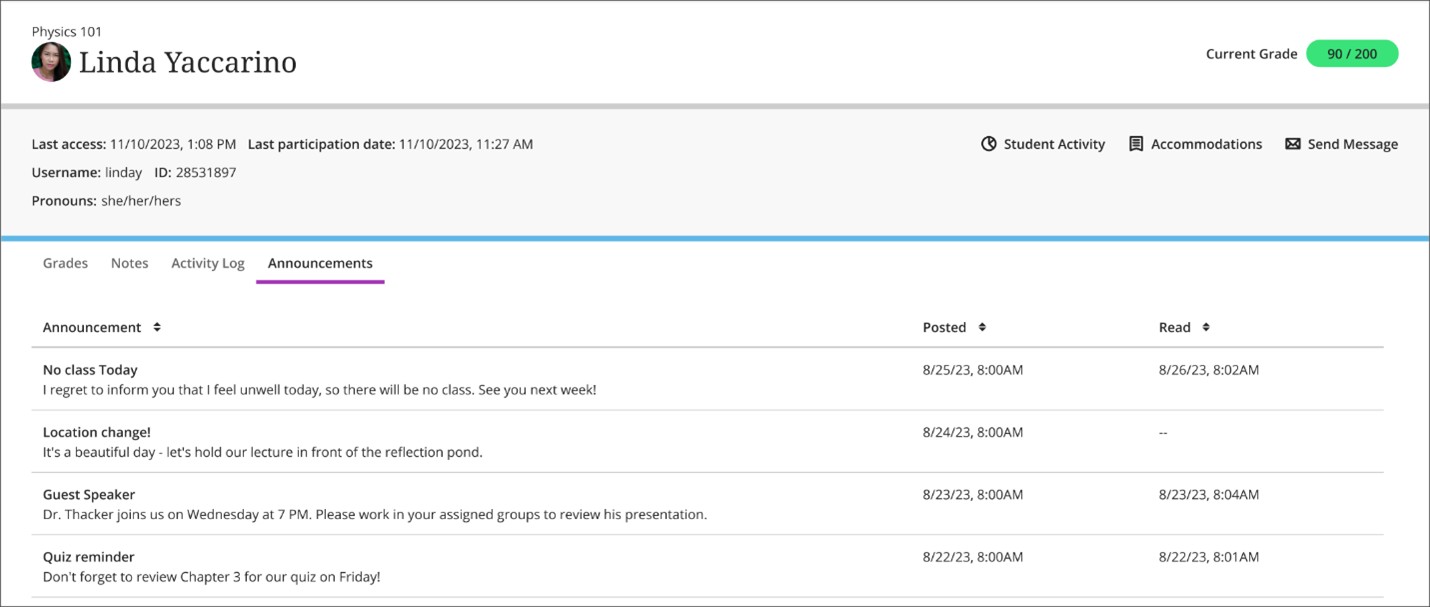
Instructors can now check which announcements a student has read or not read on the new ‘Announcements’ tab of the Student Overview page.

To access this feature, instructors should go to the ‘Class register’ under the ‘Details & Actions’ items on the right-hand side of a course landing page. After selecting a student, a log of whether or not a student has accessed an announcement will be visible for instructors under the new ‘Announcements’ tab of the Student Overview page.

Image 2: The Announcements tab on the Student Overview page shows when an Announcement was posted and when it was read.

If you have any enhancements to request from Blackboard, please get in touch with us via elearning@aber.ac.uk.

What’s new in Blackboard – February 2025

In the February update, Blackboard has improved the workflows for Assignments and Tests and further enhanced the AI Design Assistant. Additionally, there are new options for managing and creating content and some improved accuracy when uploading grades and feedback.

Assignments, Tests, Marking and Grades

Conversion of existing assignments to new assignment workflow

The Create Test and Create Assignment workflows used to share the same content settings, but the workflows have been separated since last August. This month’s update will run an automatic bulk conversion of any assignments created before August 2024 to ensure that all assignments past and present will benefit from this new workflow. See the August 2024 Blog for details on the workflow differences.

Assignments following the conversion: There will be no option to add questions to assignments and attempts will only be created with students interact with the assignment, such as submitting a file or adding content. Clicking on the assignment will not create an attempt.

Tests following the conversion: Tests with questions will remain the same. Any tests without questions will be set to Hidden from students. When you copy tests over from previous modules, they will also be set to Hidden from students. Some assignment-specific options have been removed from the test settings menu:

  • Collect submissions offline
  • Use grading rubric
  • Maximum points
  • 2 grades per student
  • Peer review

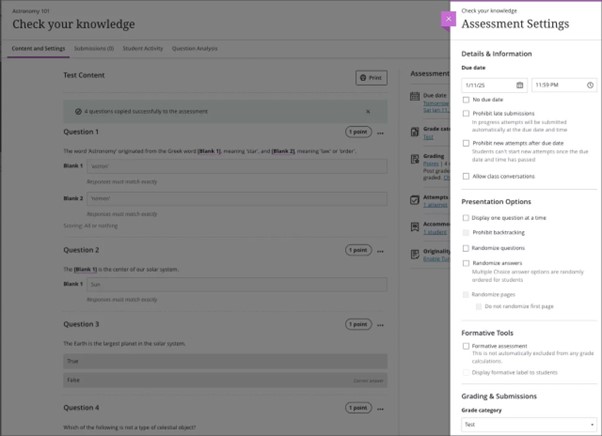
Additionally, the functionality for student visibility options and release conditions for tests have been updated. Now, instructors must add one or more questions to their test to make it visible to students or to add release conditions. This ensures that students only see assessments that they can actively engage with.

Image 1: Settings panel with assignment-specific options removed.

Settings panel with assignment-specific options removed

Masking access codes for Tests

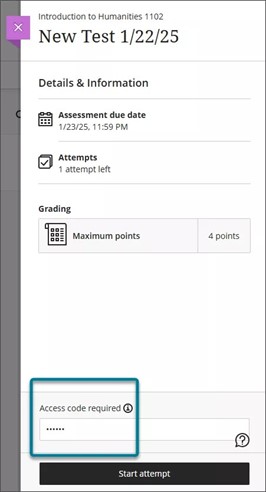
In the past, when an exam invigilator entered an access code for an online exam using Blackboard Tests, the code was visible on the screen when entered. This compromised the security of the testing environment. Now, the code is masked (******) to ensure enhanced security. An option to view the code is available but the default state keeps it hidden which provides better privacy and protection during exams.
Image 2: Masked Access Code.

Screenshot of Masked Access Code

Improved accuracy when uploading grades and feedback

Instructors can now upload grades and feedback for assignments, journals, and discussions with improved accuracy. Previously, uploaded grades were always stored at the override level, which left any underlying attempts or submissions ungraded. This caused the Needs Grading and New Submission flags to remain visible, even when grading had been completed offline. Uploaded grades and feedback are now correctly mapped to the corresponding attempt or submission which reduces confusion and provides better clarity for instructors. See guidance on Working Offline with Grade Data for further information.

AI Design Assistant

More generated questions and Learning Modules

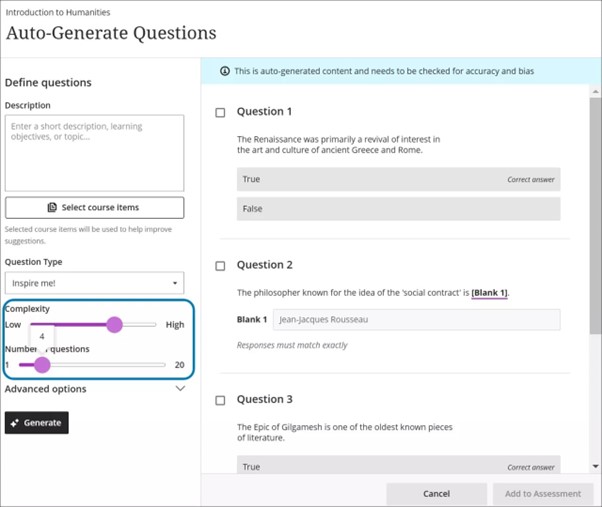
When using the AI Design Assistant, instructors can now set the number of questions generated for tests and question banks to a maximum of 20. The maximum number of learning modules that the AI Design Assistant generates also increased to 20. There is also an added option to exclude descriptions from learning modules generated by the AI Design Assistant. Instructors now have the option to write their own descriptions.

Image 3: The Auto-Generate Questions page displays a new maximum number of questions of 20.

Screenshot of the  Auto-Generate Questions page displays a new maximum number of questions of 20.

For more information on the tools available with the AI Design Assistant see Blackboard AI Design Assistant Tools.

Managing and Creating Content

New image block on Document creator

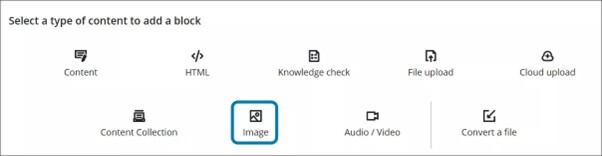
Blackboard have added a new image block to Documents. Image blocks are used to upload your own images, use the AI Design Assistant to generate images, or select images from Unsplash. Image blocks can be moved throughout a Document, just like other block types. You have the option to resize images, set height, and maintain aspect ratios in image blocks.

Image 4: The new image block option in Documents.

A screenshot of the new image block option in Documents.

A dedicated image block makes adding images more apparent. Adding images via the image block also reduces white space around images and provides greater control over content design. For more information on using Documents in Blackboard see Enhancements to Documents.

Changing Folders to Learning Modules

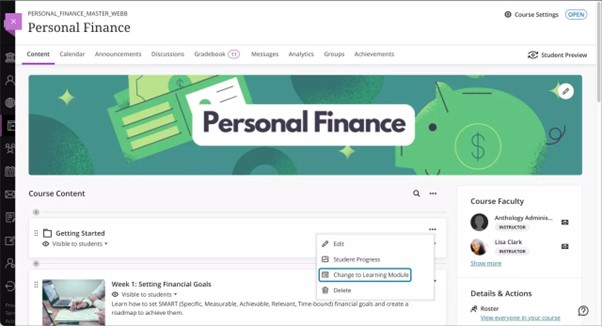
Instructors can now change a folder to a learning module or a learning module to a folder. Benefits of changing a folder to a learning module include:

  • Thumbnail images: Learning modules come with thumbnail images, which provide a visually appealing course experience.
  • Forced sequencing: Instructors can force students to navigate learning modules in linear paths.
  • Progress bar: Learning modules have a progress bar for students that highlights the number of items that they need to complete and their progression on those items.
  • Previous and next navigation: Students can quickly navigate to the next or previous item in a learning module.

It is also possible to convert a learning module to a folder, though we would not recommend this, as it will remove the added benefits of using learning modules as listed above.

Image 5: The new option to change a folder to a learning module in the dropdown menu.

Screenshot of the new option to change a folder to a learning module in the dropdown menu.

Idea Exchange

This section aims to keep you updated on progress of enhancements requested on the Blackboard Anthology Idea Exchange. The following three items have changed their status to ‘Planning to implement’:

  • Support for a Dark Mode in Ultra Courses
  • Ability to add metadata to questions in tests and banks
  • Organising Pools

If you have any enhancements to request from Blackboard, please get in touch with the Digital Education Group.