
In the October update, we want to draw your attention to the following Blackboard enhancements:
- Improvements to the beta Content Editor in Blackboard Documents
- Start AI Conversations in a new immersive experience
- Lock an AI Conversation to a specific language
- Manage rubrics from a dedicated course rubrics page
- Export and import rubrics
- Display username and last access date in the gradebook grid view
- Display points possible in the gradebook list view
- Reveal student identity for anonymous assessments
Improvements to the beta Content Editor in Blackboard Documents
The beta Content Editor has received a broad set of updates aimed at making editing smoother, more accessible and more reliable. Improvements focus on navigation, formatting controls, file handling and support for mathematical content.
Keyboard navigation and accessibility
Instructors can now move around menus and toolbars more intuitively using keyboard controls. Menu behaviour is more predictable, shortcuts are easier to read, and paragraph indentation can be reduced using Delete or Backspace.
Toolbar and menu updates
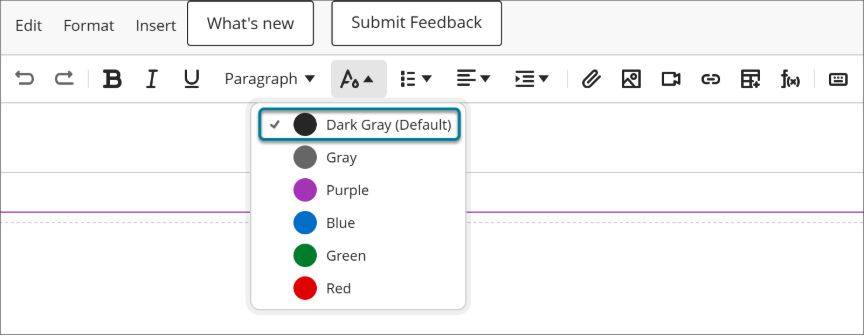
Toolbar updates make it clearer which formatting options are currently active.
Image 1: The List menu includes the section headers Bulleted and Numbered.
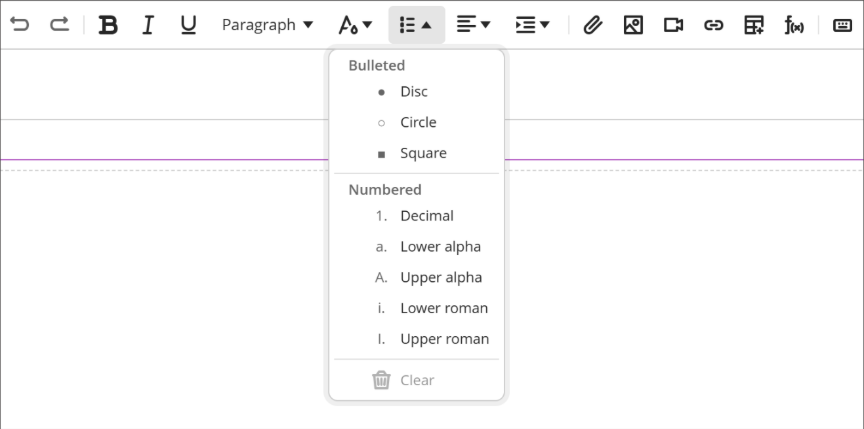
Image 2: The default color is labeled Dark Gray (Default).
List behaviour
List controls are easier to understand, and list editing now behaves more consistently when items are removed.
Image and file handling
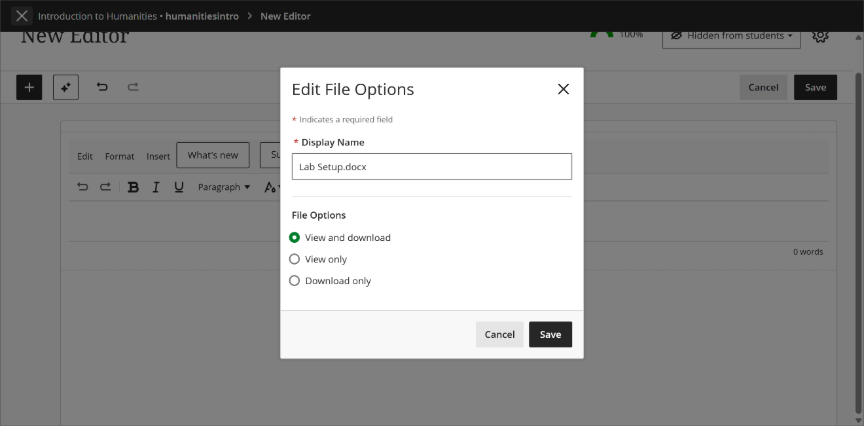
Image and file handling has also been improved. Resized images retain their dimensions after conversion, file settings can be reviewed before insertion, and attachments are preserved when content is migrated to the new editor. Direct file copy-and-paste between editors is currently blocked to avoid permission issues.
Image 3: The Edit File Options window appears when a file is attached.
Code formatting
Code formatting is cleaner, with multiple selected lines now forming a single code block.
Maths authoring
The final very useful update that Blackboard has introduced to its new content editor is the first stage of enhanced maths support. This will allow LaTeX and MathJax equations to display automatically within documents, without having to enter the maths editor.
Start AI Conversations in a new immersive experience
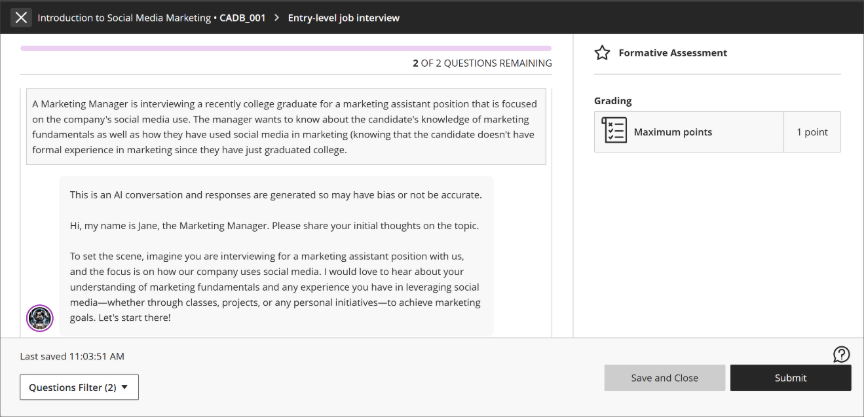
AI Conversations now launch in a dedicated workspace designed to keep students focused on the discussion. Instead of opening immediately, conversations begin when students choose Start conversation.
The new layout removes configuration details and assessment information that can distract from the activity. Students have more space for interacting with the AI while still seeing the standard AI-generated content warning.
The updated experience works across Socratic, Roleplay and AVA Pulse Quiz activities. The instructor setup process remains unchanged.
Image 1: The new AI Conversation immersive experience fills a larger area to help students stay focused on their conversation.
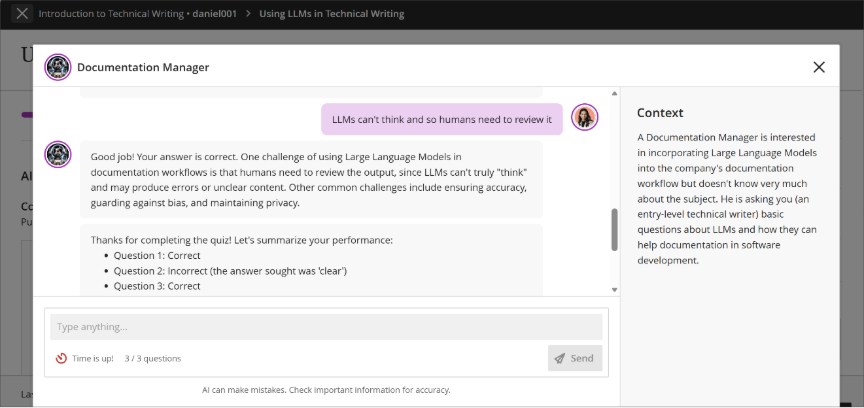
Image 2: The previous student experience of AI conversation included a view of assignment details that were irrelevant to a student’s active participation in a conversation.
Lock an AI Conversation to a specific language
Instructors can now lock AI Conversations to a chosen language. Once enabled, the AI will communicate exclusively in that language throughout the activity.
This is especially useful for language-learning activities where students need to remain immersed in a target language. Even if a student requests a different language, the AI continues using the language selected by the instructor.
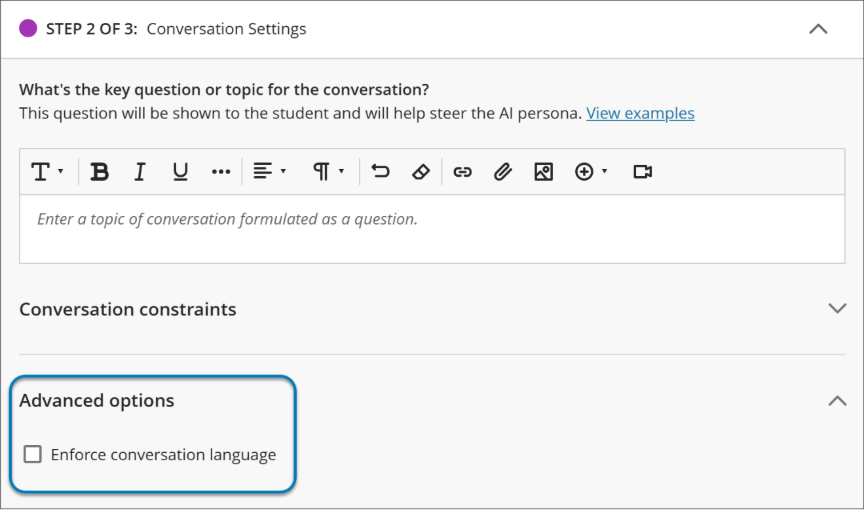
The setting is available through Advanced Options and applies to all supported AI Conversation types.
This update may be particularly useful for courses taught in Welsh, or foreign language courses at the university.
Image 1: Instructors can now select the option to enforce a conversation language in AI Conversation.
Manage rubrics from a dedicated course rubrics page
Rubrics now have their own dedicated management page. The new area provides a searchable and sortable view of all rubrics within a course.
From this page, instructors can create, generate, import, export and manage rubrics more efficiently. Rubrics can also be linked directly to assignments through a simplified workflow.
Note: these rubrics are those used for Blackboard tests and assignments, not those used in Turnitin.
Image 1: The Course Rubrics page displays all rubrics in a sortable, searchable table.
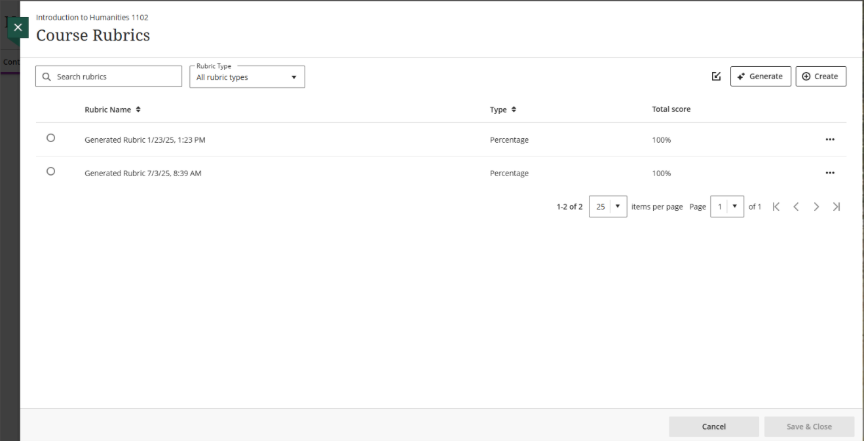
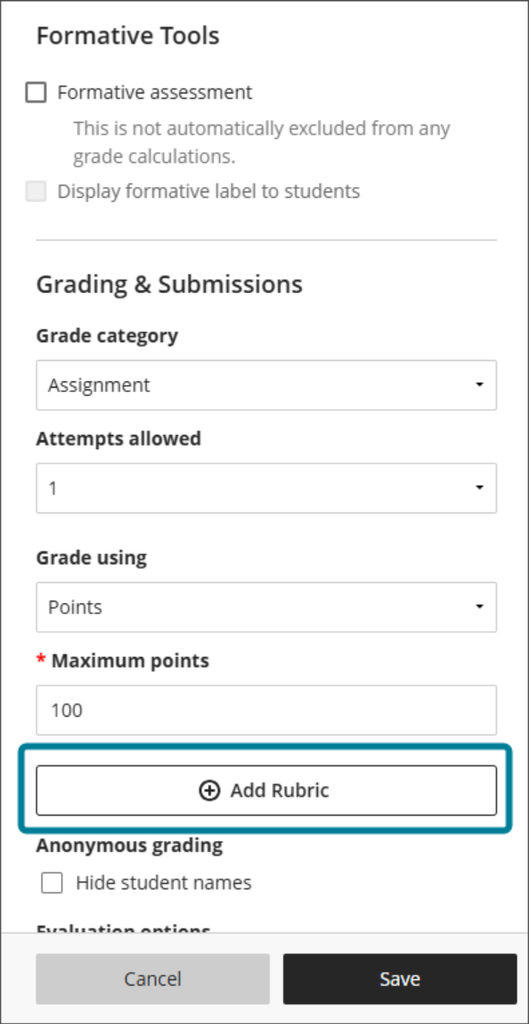
Image 2: Instructors select Add Rubric in Assignment Settings to open the Course Rubrics page.
Export and import rubrics
Blackboard now allows rubrics to be exported and imported between courses, making it easier to reuse assessment criteria across modules.
Exported rubrics are downloaded as ZIP files and can later be imported into another Blackboard course. Duplicate imports are prevented automatically to help keep courses organised.
Note: these rubrics are those used for Blackboard tests and assignments, not those used in Turnitin.
Image 1: The ellipsis menu on a rubric shows the Export option.
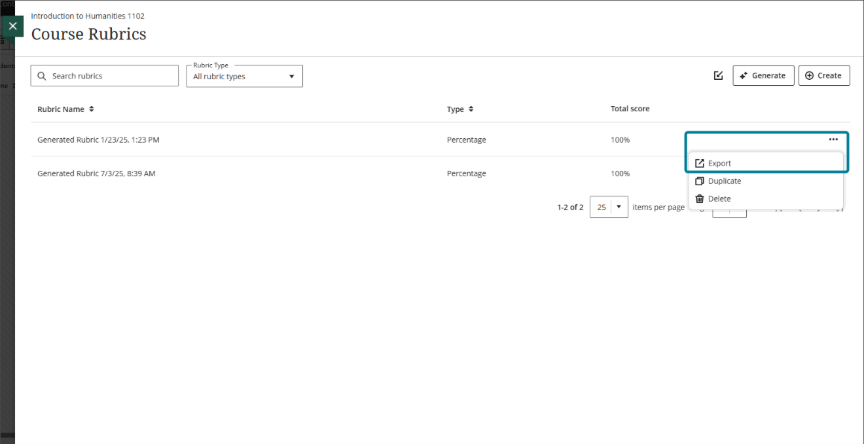
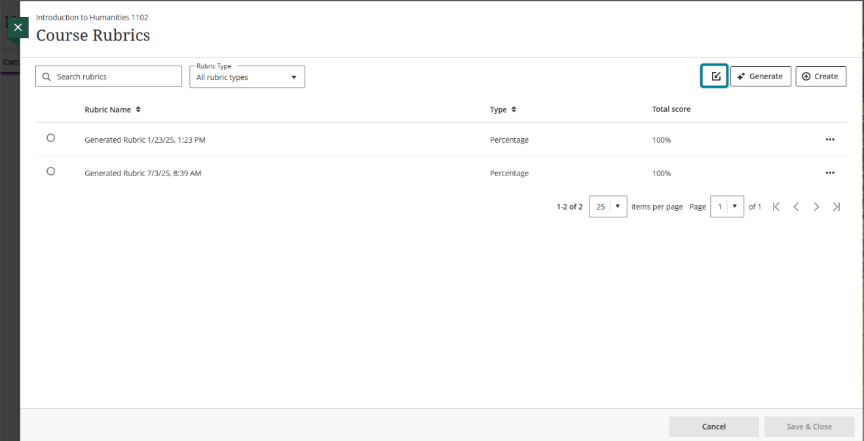
Image 2: The Import icon on the Course Rubrics page.
Display username and last access date in the gradebook grid view
Two new optional columns are available in the Gradebook grid view: Username and Last Access. Both are disabled by default and can be enabled through Gradebook Settings.
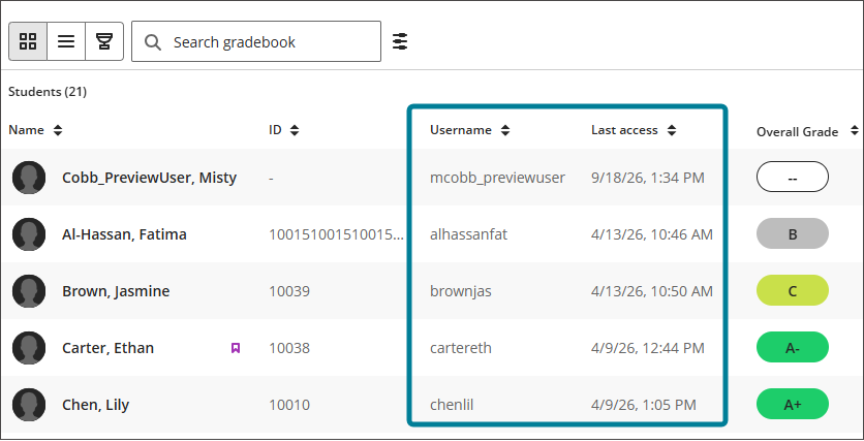
Once activated, the columns appear alongside student names and can be sorted, helping instructors identify users and monitor engagement more easily.
Image 1: The Student options section in Gradebook Settings shows toggles for Student ID, Username, and Last access.
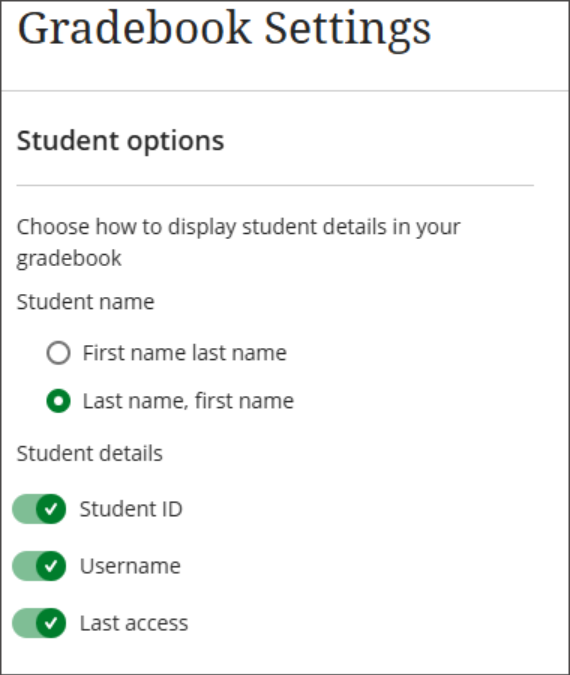
Image 2: The gradebook grid view, including the Username and Last access columns.
Display points possible in the gradebook list view
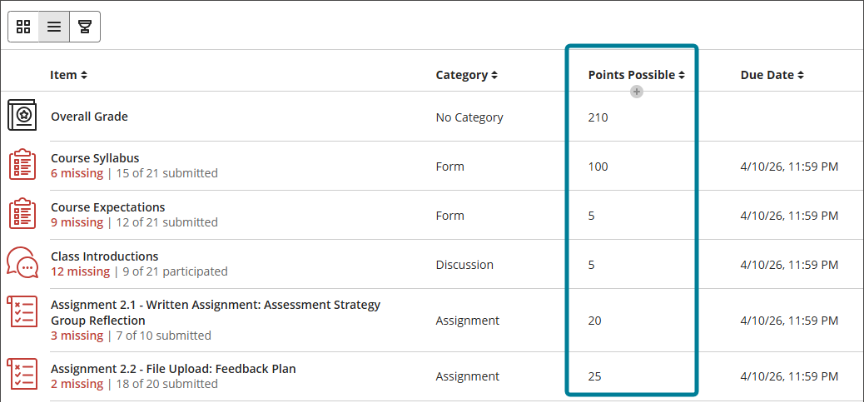
The Gradebook list view now includes a sortable Points Possible column. This gives instructors a quick overview of the value assigned to each gradable item.
The column is populated automatically from existing assessment settings, while items without a points value remain blank.
Image 1: The list view displays a sortable Points Possible column.
Reveal student identity for anonymous assessments
Staff with the right permissions can now temporarily reveal a student’s identity for an individual anonymous submission when needed. Anonymous marking remains in place for everyone else, and all actions are logged so there’s a clear audit trail.
In Flexible Grading, authorised users will see new Reveal student name and Hide student name options for anonymous assessments. When a name is revealed, the student’s profile card, including their name, ID and avatar, is displayed in both Student and Question views.
Image 1: The ellipsis menu in Flexible Grading shows the Reveal student identity option.
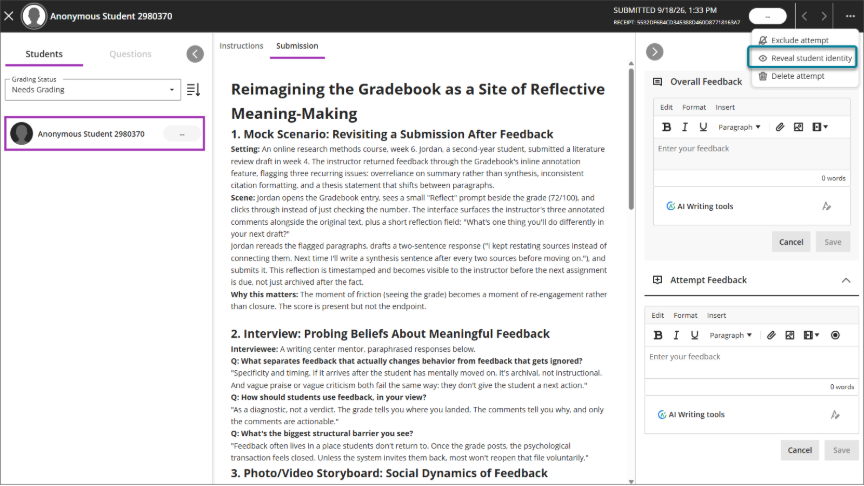
The reveal only applies to that user and session. Student details are automatically hidden again if the user logs out, refreshes the page, closes the browser, or the session times out. If a grader sees a student’s identity while marking any part of a submission, Blackboard records that submission as having been graded non-anonymously.
Note: this feature relates to Blackboard tests and assignments, not Turnitin.