
Global Accessibility Awareness Day

Inclusivity and Accessibility banner

Today (21st  May) is Global Accessibility Awareness Day

Within Student Journey, we have a specialised Accessibility and Wellbeing Team who work with students throughout the year. The Team includes over 50 non-medical helper staff who provide 1:1 mentoring or study skills support for students with a disability or learning difference. 

Last year they supported over 800 of our students – the number of students they support has increased by 34% in the last five years.

Here’s what our students have been saying about the team this year: 

…incredibly invaluable, allowing me to… remain in university through the several challenges that have occurred during my course. 

…really appreciate …[having]…continued support throughout our entire degree from the same people (as opposed to them changing each year). I am autistic and that makes a real difference for me.

[The support worker] has single handily been the most important person in my university experience… without the services I would have less routine and interest from others which have been the two most vital components in my success in university.

We think that this student sums up the service perfectly: “Amazing…Absolutely brilliant…Fantastic…Phenomenal…Invaluable…Top tier”

But it’s not only these staff who are making sure that what we do is as accessible as possible. Here are some of the things that our other teams do.

Blackboard Content

Blackboard Ally is available for all students and staff at the university. This year 59,541 documents have been downloaded in an alternative format by 3,894 users. The most common format is Tagged PDF.

Staff have made 3,417 fixes to content – that’s 3,417 changes that make teaching materials more accessible to use.

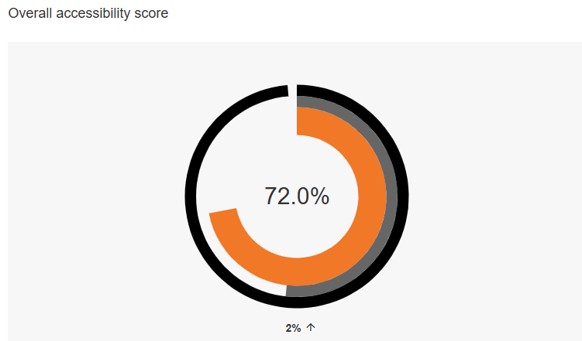
The average Ally course score for 2025-26 courses in Blackboard is 72%.

In November 2025, AU entered the Blackboard Fix Your Content Day and were placed 3rd in the UK for the number of fixes to Blackboard content made.
Delwedd arddull siart cylch sy'n dangos sgôr Hygyrchedd Cyffredinol Ally fel 72% - cynnydd o 2% ers y flwyddyn flaenorol / Pie chart style image showing Ally Overall Accessibility score as 72% - an increase of 2% from the previous year

Pie chart style image showing Ally Overall Accessibility score as 72% – an increase of 2% from the previous year

Books and journal articles

All the book chapter and journal article scans that our digitisation service for reading lists are in an accessible format. They use OCR (Optical Character Recognition) scanning, which means that uploaded scans of book chapters and journal articles in reading lists are fully machine-readable, searchable, and accessible content. As well as complying with legislation, these scans are accessible for all learners. OCR scanned documents are compatible with assistive technologies such as screen readers, as well as having text navigation facilities.

As well as scanning items for reading lists, the team can also create accessible copies for books for students who have declared a disability to the university. We have a licence which allows us to make or find accessible copies of books if a suitable version is not available for us to purchase. If a text is not covered by the licence but we own an original copy, we may still produce an accessible copy for personal study or research. 

This service is free of charge to eligible students and can be accessed by emailing digitisation@aber.ac.uk

Sensory items for wellbeing sessions

Staff in our Wellbeing Service introduced boxes of sensory items that can be offered to students in Wellbeing sessions to help them manage need for self-stimulation (stimming). Here’s an example of the items available:
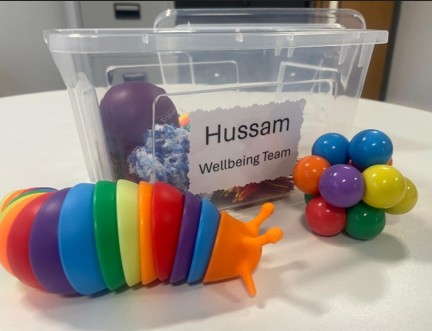
Detholiad o eitemau synhwyraidd mewn lliwiau cynradd / A selection of sensory items in primary colours.

Using AI

Our new AI prompt library which is available to everyone include information about using AI for users with accessibility requirements. You can see some examples of this in some samples from the prompt library

  • Plain Language Rewriting

“Rewrite the following text in plain, easy to understand language while keeping the original meaning. Break complex sentences into shorter steps and remove unnecessary jargon. Highlight any terms that may still require explanation.”

  • Neurodiversity Friendly Step by Step Guide

“Turn this task into a step-by-step guide suitable for neurodivergent learners. Include short, clear steps, optional visuals or metaphors, and a summary of key points. Avoid overwhelming detail. Do not add content unrelated to the task.”

Finding your way around

AccessAble is a brilliant resource that helps to make planning for and navigation of our Campus here at Aberystwyth that bit easier. It provides people with information about things like accessible parking space, ramp access, where hearing loops are and where they can find accessible toilets. This can be really reassuring for people as they plan to attend somewhere that is new and/or unfamiliar.


Keynote Announcement: 14th Education and Student Experience Conference: Dr Hardeep Kaur Basra

We are delighted to announce our keynote for our forthcoming Education and Student Experience Conference (8-10 September).

Dr Hardeep Kaur Basra will be joining us in person for a keynote presentation and a workshop.

We will get so much valuable input from Dr Basra that will really help us to enhance our education and student experience offering as well as build on the incredible work of the Race Equality Charter.

See below for Dr Basra’s biography.

Dr Hardeep Kaur Basra (PFHEA, NTF, CATE) is an Associate Professor of Teaching and Learning and Inclusive Education Lead at De Montfort University. With over two decades of experience in higher education, she is a nationally recognised leader in inclusive, anti-racist and decolonising pedagogies. Her work spans institutional strategy, curriculum transformation and academic development, with a sustained focus on improving student outcomes, belonging and equity.

Hardeep has led major institution-wide initiatives, including advancing inclusive curricula, addressing awarding gaps and shaping Access and Participation strategies. She has played a key role in sector-leading work such as Decolonising DMU, contributing to Race Equality Charter success, and designs impactful staff development programmes including the PG Cert in Empowering Education.

As a Principal Fellow of Advance HE, National Teaching Fellow and CATE award holder, she contributes to national conversations on equity, excellence and transformational change in higher education.

Our call for proposals is currently open – with submissions closing on 22 May.

Alongside this, we’ve got our second year of Education and Student Experience Awards.

Booking is also open.

We’ll be releasing further information about the event in due course.

What’s new in Blackboard May 2026

Tags: Blackboard, Monthly Update, Ultra, Groups, Discussions, Grading, Gradebook, MCQs, Release Conditions, Screen reader, Accessibility, course catalogue

In the May update, we want to draw your attention to the following Blackboard enhancements:

  • Changes to managing groups
  • Graded discussions and flexible grading
  • Tests and questions
  • Content and release conditions
  • Course searching

Changes to managing groups

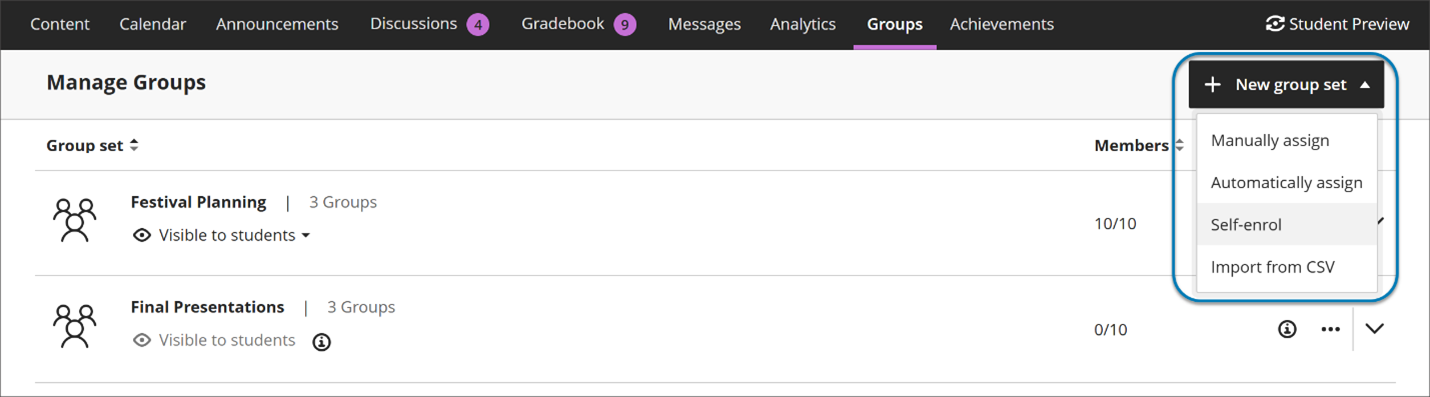
Instructors now start by choosing how they want to structure groups—before managing individual members. The options include:

  • manual assignment
  • automatic assignment
  • self‑enrollment
  • import

Image 1: Instructors now start by creating a group set by choosing how they want to structure groups—before managing individual members.

Automatic enrollment with clearer controls

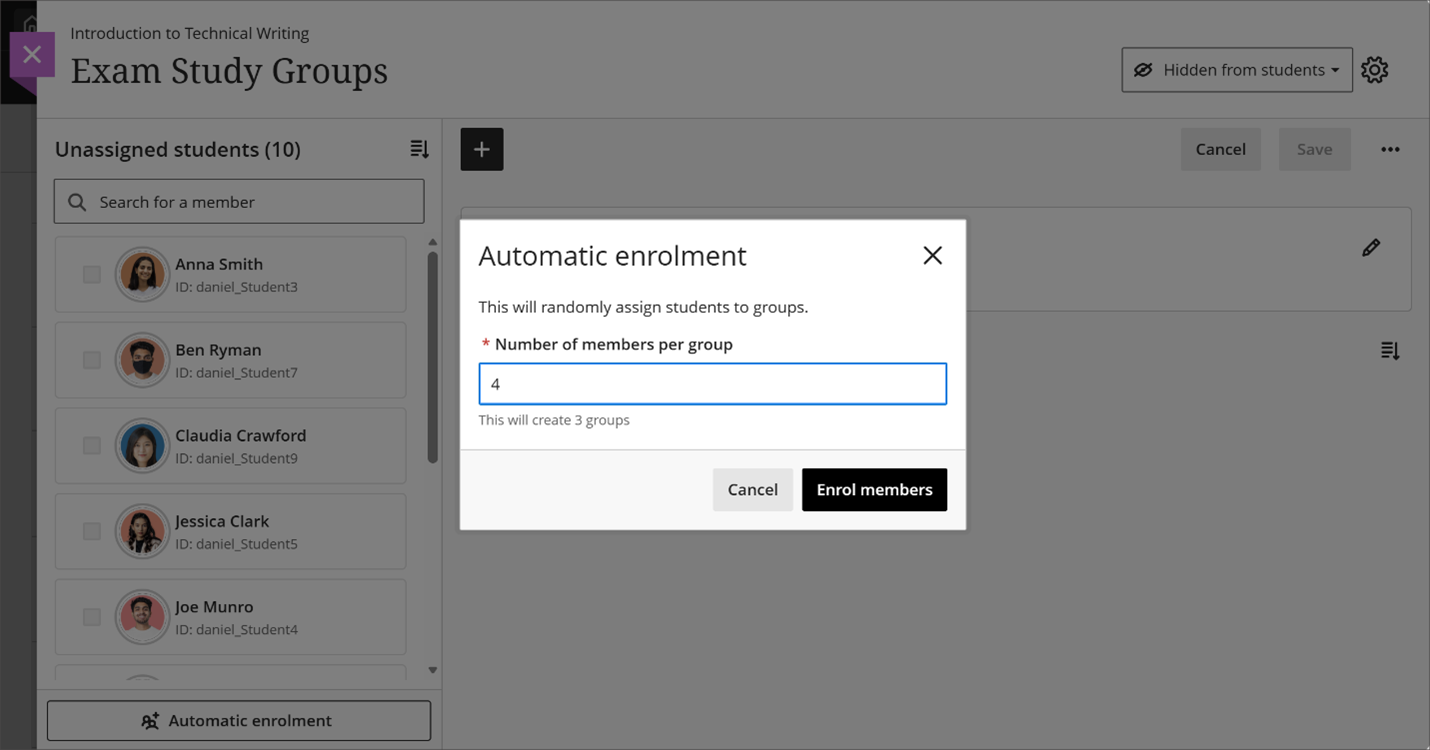
Instructors can automatically assign students to groups by specifying the number of members per group. Blackboard creates the required number of groups and assigns students randomly in a single step, reducing setup time for large courses.

Image 2: Instructors can now automatically assign students to groups by specifying the number of members per group.

More flexible ways to assign students

Instructors can assign and unassign students using multiple methods:

  • Assign students directly from the unassigned list
  • Assign selected students to a specific group
  • Add or remove members from within a group

This flexibility reduces repetitive actions and makes it easier to focus on populating one group at a time or balancing membership across groups.

Sorting for group members and groups

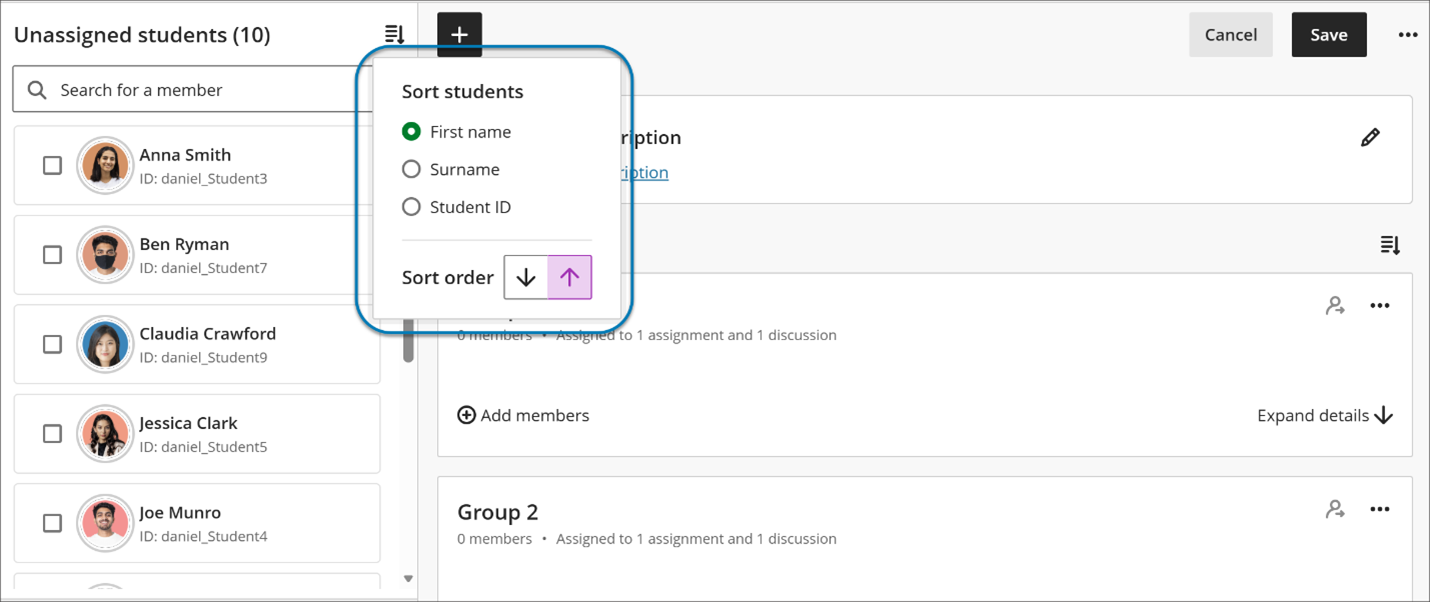
Instructors can now sort:

  • Students by first name or last name (A–Z or Z–A)
  • Student ID
  • Groups by group name
  • Groups by number of members

Image 3. Instructors can now sort group members by first or last name, student ID and sort groups by group name or number of members.

Performance and reliability improvements

Managing groups in large courses is now significantly faster. Save operations that previously took several minutes—especially in courses with thousands of students—now complete in seconds. When a group is being saved, an instructor can close out the page and be assured that it is continuing to save in the background, allowing instructors to continue working without interruption.

Additionally, the previous maximum limits of 5,000 students and 1,000 groups are removed.

These improvements reduce frustration and improve confidence when managing groups at scale.

Second due date for Discussions visible in Gradebook

The second discussion due date now appears in the following pages in Gradebook:

  • Overview
  • Gradable Items

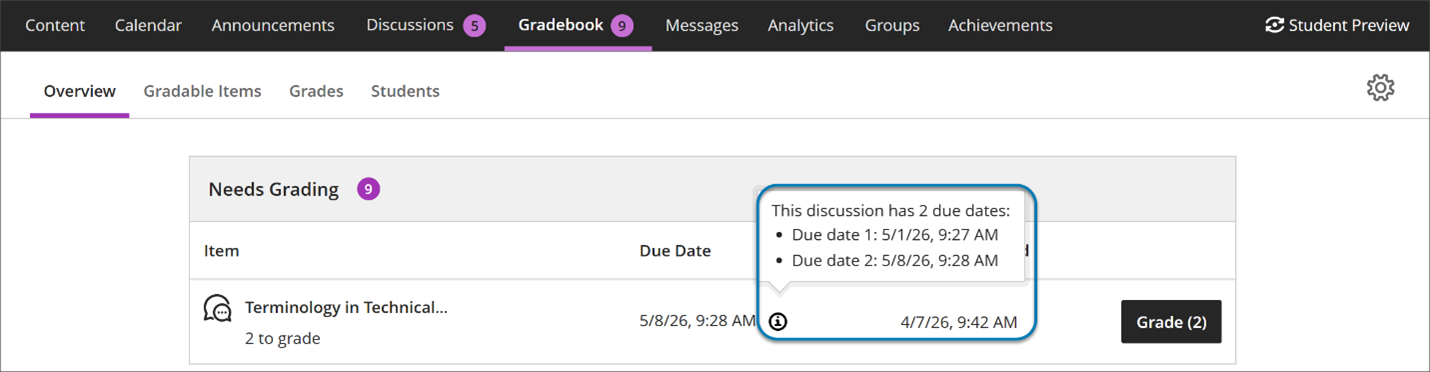
Under Due Date on the Discussion item on each Gradebook page, the item’s second, final due date is displayed. Next to that date is a circle icon with a lower case i inside. Hover over or tab to this icon, and a pop-up bubble displays details of both due dates. For example: This discussion has 2 due dates: Due date 1: 5/1/26, 12:00 PM Due date 2: 5/8/26, 12:00 PM

Image 1: The second discussion due date now appears on the Overview and Gradable Items pages in Gradebook.

Instructors benefit from clearer communication of discussion expectations, reducing the need to clarify deadlines and helping ensure students understand how and when their contributions are graded.

Carry group filter into Flexible Grading

The group filter selected in the Gradebook grid view now carries over into Flexible Grading. Instructors who filter by a group in the Gradebook will find only the students from that group when they enter Flexible Grading, and the active group filter is displayed within the Flexible Grading view. This update reduces the need to re-filter after switching views and keeps instructors focused on the most relevant students for their current grading task.

Provide answer-level feedback for multiple choice and multiple answer questions

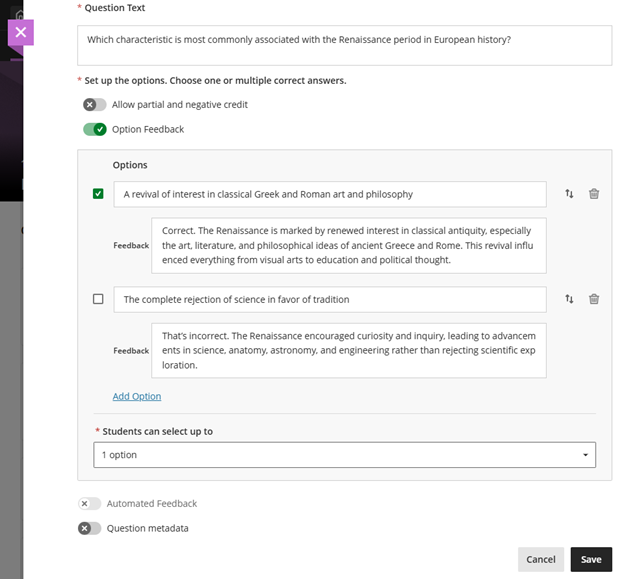
Instructors can now add feedback for each answer option in multiple choice and multiple answer questions. This helps students understand why each choice is correct or incorrect after an attempt is submitted.

Instructors can now add feedback for each answer option in multiple choice and multiple answer questions. This helps students understand why each choice is correct or incorrect after an attempt is submitted.

Instructors

When creating or editing a multiple choice or multiple answer question, instructors can turn on Option Feedback, which prompts Feedback textboxes to appear beneath each answer option. Instructors can enter the answer options and feedback for any of the options.

Image 1: Instructors can enter answer-level feedback.

Turning on Option Feedback disables Automated Feedback option. The Automated Feedback option lets instructors provide feedback for the correct answer and for incorrect answers. Answer-level feedback also allows for automatic feedback, which instructors can configure in the Assessment results section of Assessment Settings.

For answer-level feedback to display for students, enable Show correct answers in the Assessment results section of Assessment Settings.

Students

After submitting an attempt, students receive feedback for each answer option they selected if the instructor has left feedback on that answer option. This helps students understand their performance at a more detailed level and supports learning from incorrect choices.

Lock answer options in a fixed position for multiple choice and multiple answer questions

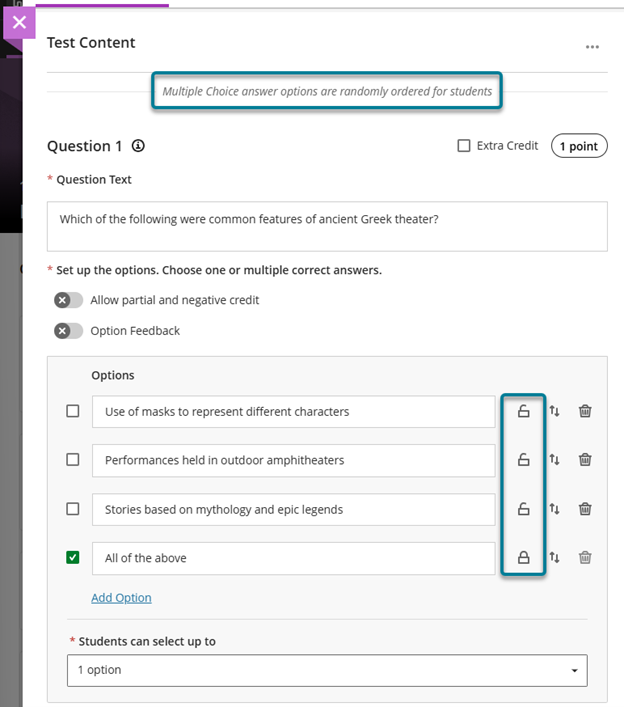
When creating or editing a multiple choice or multiple answer question, instructors can designate specific answer options as locked. To lock an option in place, select Randomise answers in the Assessment Settings, then select the lock icon next to the answer option. Locked options remain in their set position during randomisation while all other options shuffle as expected.

Instructors can remove a lock any time while editing the question. Locking designations can also be updated as part of a regrading flow.

Image 1: Instructors can select the lock icon next to the answer option to lock that option in place. To trigger the lock icons, select Randomise answers in the Assessment Settings.

Visualize release conditions inherited by items in learning modules and folders

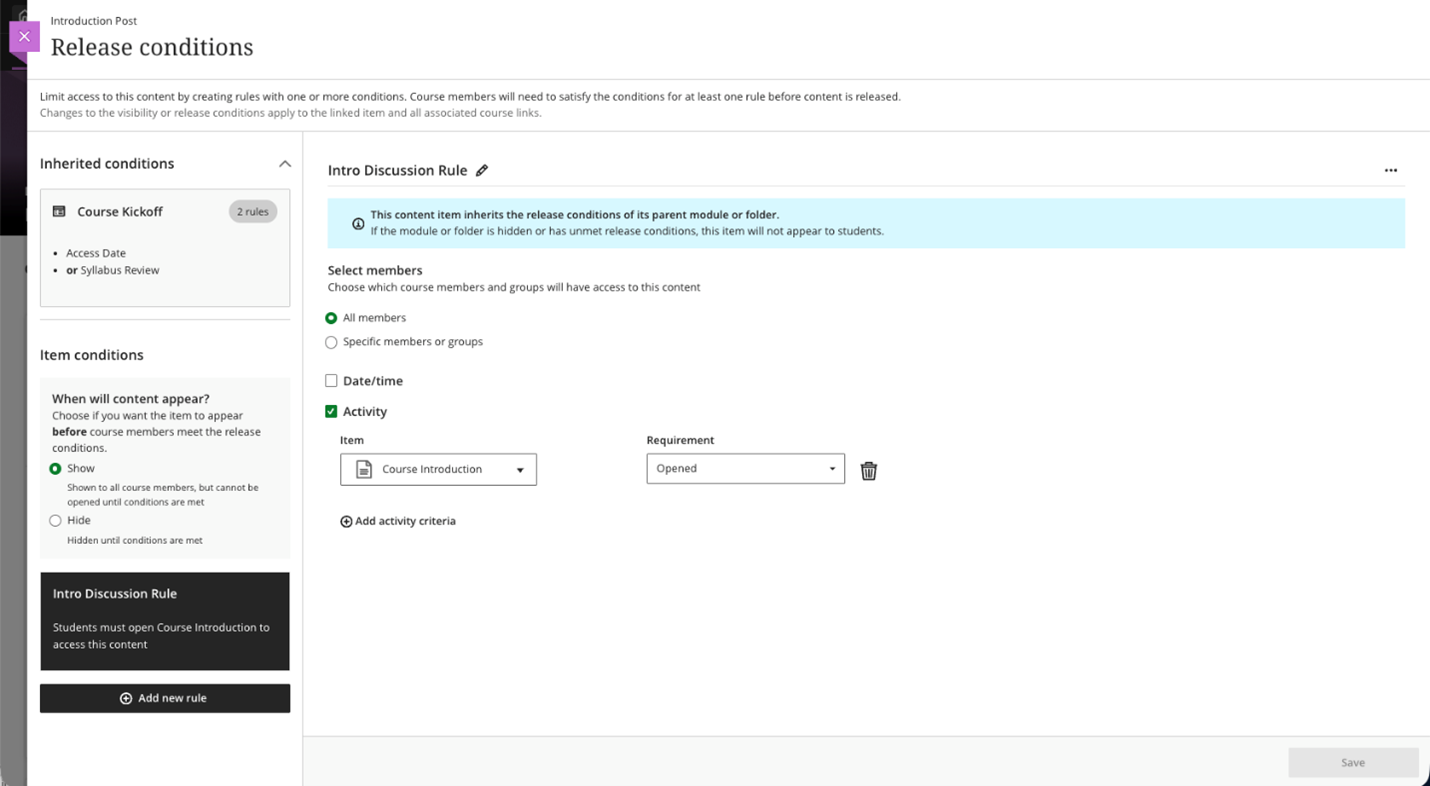
Instructors can now view release conditions inherited from a parent learning module or folder directly within the release conditions panel of individual items. Inherited conditions appear in a read-only format, giving instructors a clear picture of all conditions that apply to an item, including those set directly on the item and those cascading from a parent container.

This update also ensures that discussions hidden within a learning module are no longer accessible from the Discussions tab. Discussions now respect the release conditions applied at the learning module level.

Instructors

When instructors open the Release Conditions panel for an item inside a learning module or folder, a read-only summary of any conditions inherited from the parent container appears alongside any conditions applied directly to the item. This helps instructors understand the full set of access rules in place and determine whether additional conditions are needed.

Image 1: Read-only summary of conditions inherited from the parent container and conditions applied directly to the item appear in the Release Conditions panel.

Improved screen reader experience in Document view mode

Screen reader users now have a cleaner, more focused experience when navigating documents in view mode. Unnecessary row and column announcements have been removed to allow access to primary content in the correct order, left to right, across rows, columns, and blocks. Edit mode behavior is unchanged.

Improved search and navigation in Course Switcher

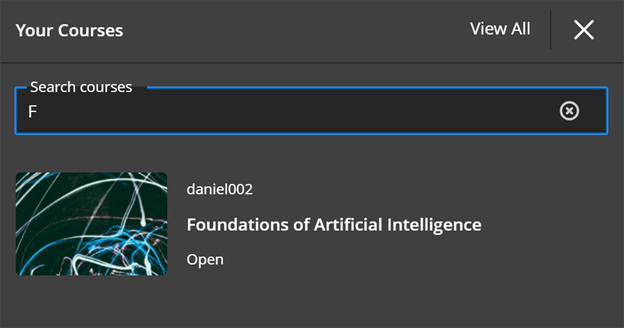
We’ve enhanced the Course Switcher in Blackboard Ultra Course View to make it faster and easier to move between courses. Users can now search for a course directly from the Course Switcher and navigate to it without first returning to the Courses page.

This update builds on the existing quick access to recent courses and helps reduce navigation friction when working across multiple courses.

Instructors and Students

The Course Switcher now includes a search box that allows users to quickly find and open any course they have access to. Instead of browsing the full Courses page, users can open the Course Switcher, search by course name or course ID and navigate directly to the selected course.

This enhancement complements existing options in the Course Switcher:

  • Quick access to the four most recent courses
  • View All link that opens the full Courses page

By combining search with recent‑course access, the Course Switcher provides a centralised and efficient way to move between courses—helping users stay focused on their tasks rather than managing navigation.

Image 1: Course Switcher now has a Search courses capability allowing users to search for courses by course name or course ID.

If you have any enhancements to request from Blackboard, please get in touch with us via elearning@aber.ac.uk.