How to Use PeerMark on Turnitin 

In this blogpost, we want to draw your attention to one of the lesser-known features of Turnitin: it’s peer assessment functionality. Peer assessment helps students take greater ownership of their learning by encouraging reflection, shared responsibility, and active participation in a supportive learning community. It also develops valuable communication, collaboration, and feedback skills, while providing timely feedback that can improve academic performance and employability. This blogpost will show how you can use Turnitin’s PeerMark functionality to achieve some of these outcomes in your assessments.  

  1. Create a Turnitin Assignment and enable PeerMark 

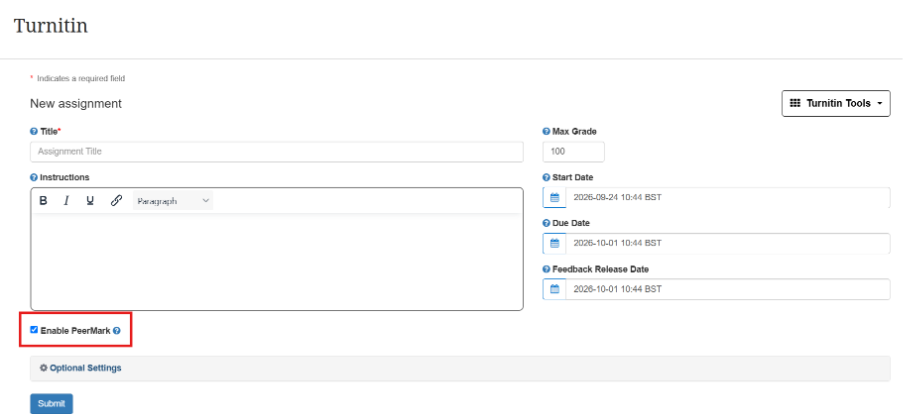
To create a Turnitin Assignment, follow the usual steps on Blackboard by clicking the purple plus sign to create context, then select ‘Additional Tools’ before choosing the option for Turnitin. When configuring the settings for the Turnitin Assignment, remember to tick the Enable PeerMark box before submitting.  
  1. Go back into Turnitin Assignment to set up PeerMark Settings 

After the Turnitin Assignment has been set up, go back to this assignment on the Blackboard course page and click on the assignment to begin setting up the PeerMark settings. The settings for the PeerMark can be changed by clicking on the PeerMark Setup option under the PeerMark Tab. 
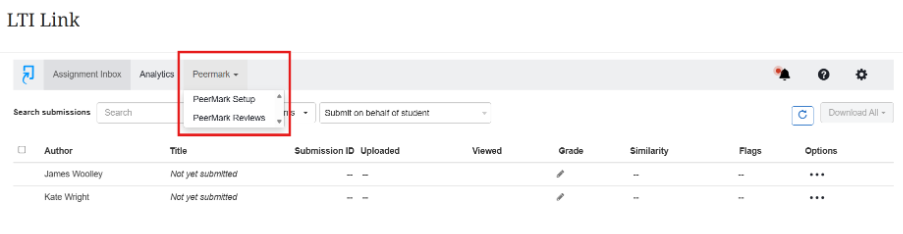
After clicking on this option, you will be presented with three separate tabs relating to the PeerMark setup. More information about these tabs is noted below. 

a. PeerMark Assignment Settings 
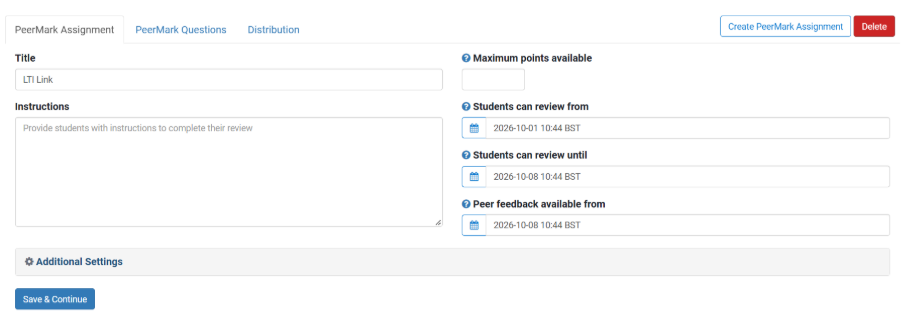
The PeerMark Assignment settings will allow you to select the start, end and feedback release date for the assignment. The maximum points available for the peer marking, the title given for the assignment and any further instructions for the students can also be entered here. This page looks very similar to the usual Turnitin setup. However, it is worth keeping in mind that these are the settings for Peer marking, rather than the overall assignment settings. 

b. PeerMark Question Settings 

The PeerMark questions tab allows instructors to support and guide the peer marking process through questions and scoring. 
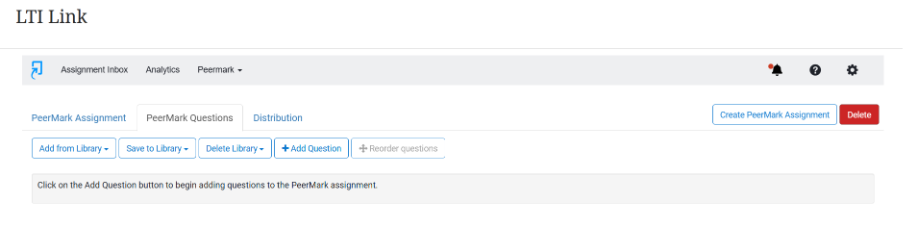
To manually add questions for peer marking, select and add questions to create a new question. 
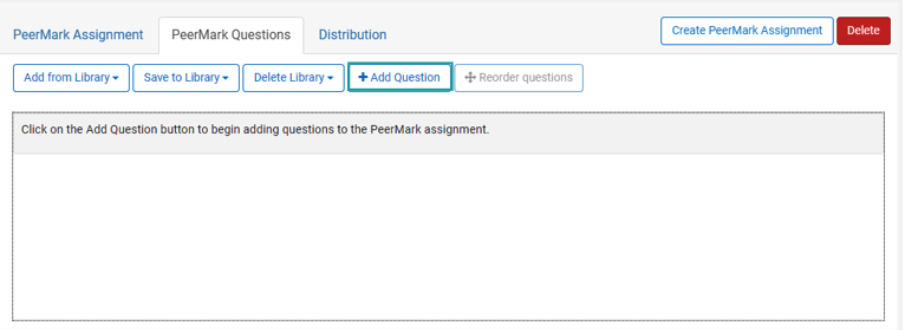
 

This then prompts you to type your question in the question field. After this, you will be prompted to select the question type from the drop-down menu. 

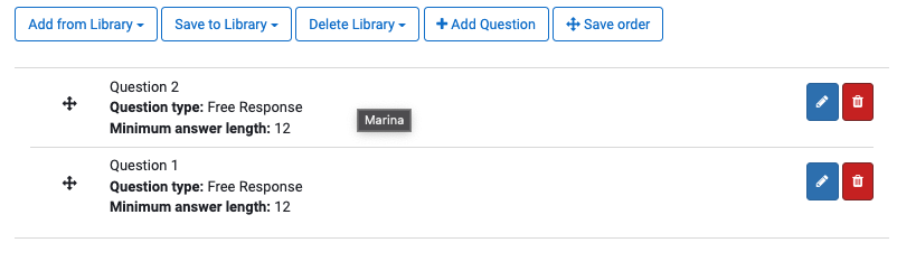
There are two options available for question types. The first of these is a Free response. With a free response, students receive an open text field to record their responses. For this type of question, you must also provide a minimum answer length (in words). 
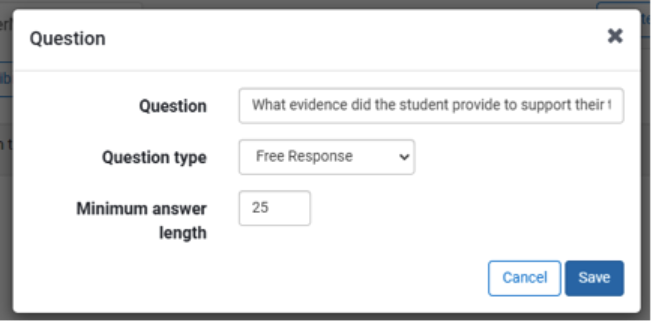
 

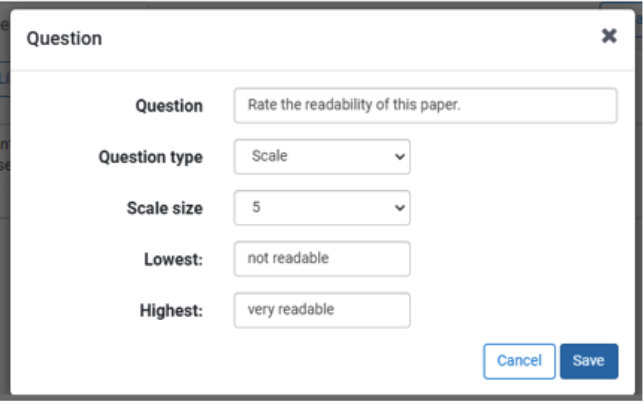
The second type of question that can be selected is a scale response. Scale responses mean that students receive a sliding scale with which to rate the question. For this type of question, you must also provide a scale size and the names for the lowest and highest values. 
 

After you have created your questions, you can select Save to add the question to the PeerMark assignment. There is also the option to add these questions to the PeerMark library for future reuse. Once the PeerMark assignment has been submitted, it can no longer be edited. There are no late submissions allowed with PeerMark. 

Editing, deleting, and reordering PeerMark questions 
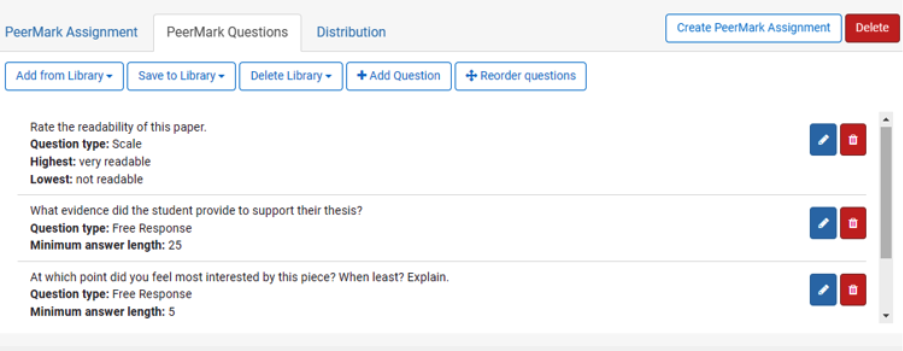

After you initially set up the PeerMark questions, there are options to edit, delete and reorder questions. To edit a question, select the blue pencil button in the same row. To delete a question, select the red rubbish can icon in the same row. To reorder a question, the first step is to select the reorder questions button from the top. Secondly, you have the option to select and drag to reorder PeerMark questions. Finally, click the save order button to save the new order. 
 

c. Distribution Settings 
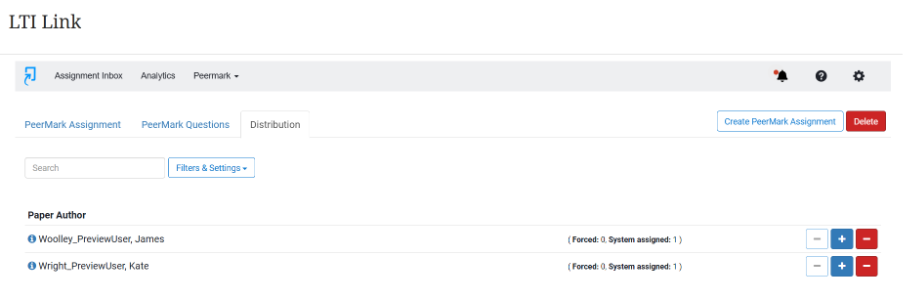
The distributions will allow you to see a list of students enrolled for the assignment. The blue ‘+’ sign and the white ‘-‘ sign will allow instructors to manually assign students to one another for peer marking. If this option is not chosen, Turnitin will automatically and randomly assign students to one another. The information to the right of the student’s names will allow you to see whether the students has been assigned a peer marking partner manually or automatically. 

  1. Students submit to Turnitin submission point 

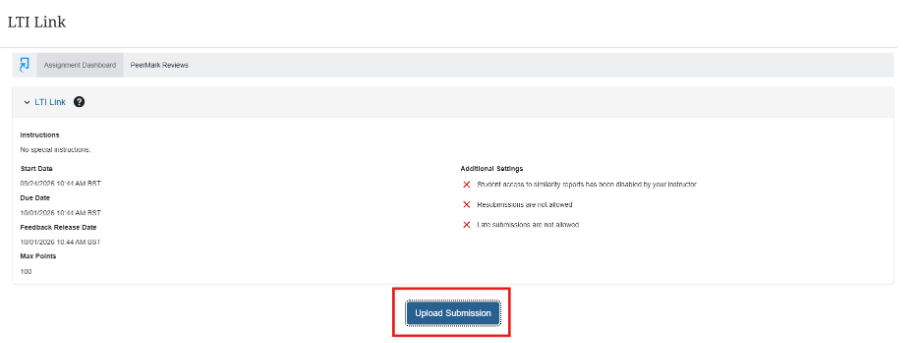
Once the settings have been configured, students will be able to submit to the Turnitin submission point as usual. To do this, students should access the Turnitin submission point from the Blackboard course page. Like other assignments, the submission will then be submitted by selecting upload submission, then choosing a file for upload from your documents before submitting the assignment. 
  1. After PeerMark start date, students are able to view another student’s assignment and leave feedback / scores to questions 

Once work has been submitted and the PeerMark start date has passed, students will then be able to view another student’s assignment and leave feedback and scores to questions.   

To do this, students should access the Turnitin submission point from the Blackboard page. When they open the submission point, there should be a PeerMark Reviews tab alongside the Assignment Dashboard. Click on that tab to begin the PeerMark review process.  
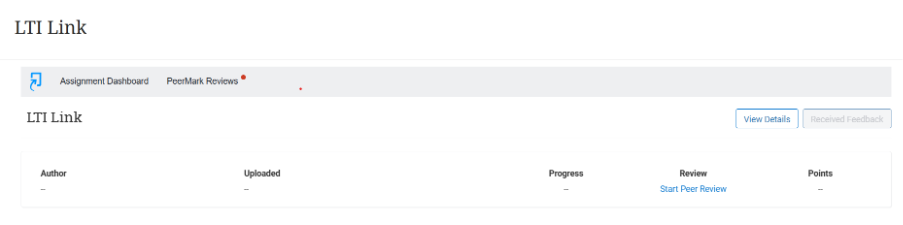
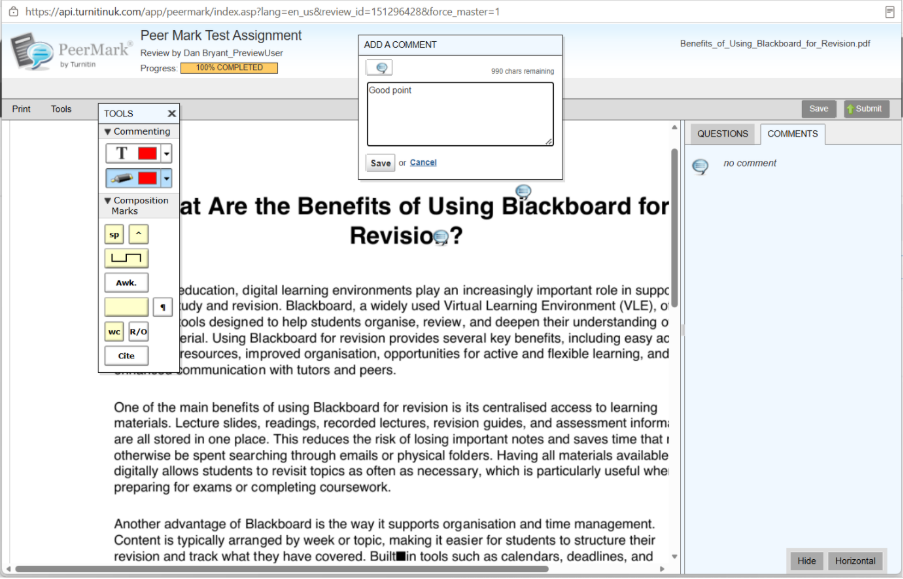
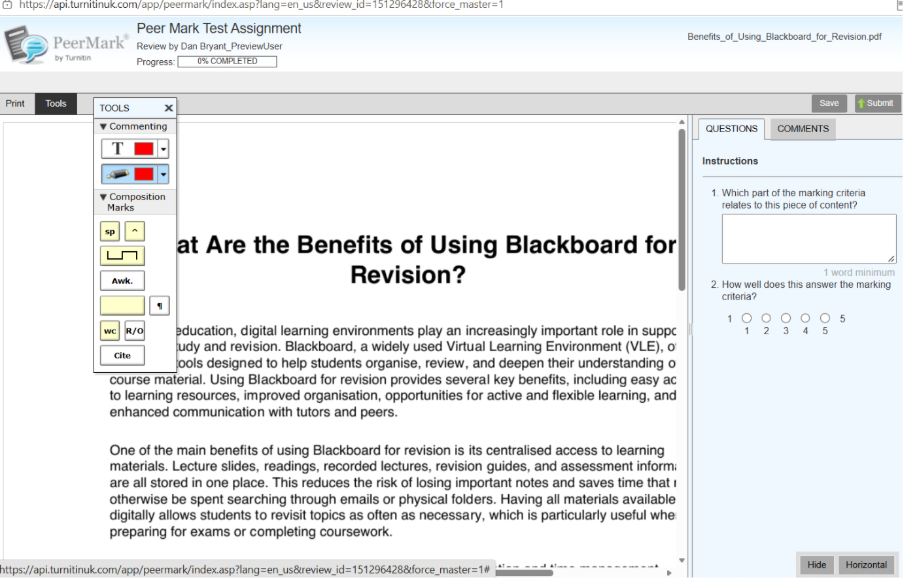
Clicking on Start Peer Review should open up the assignment that has been assigned to the student for reviewing. Once the assignment is open, you will be able to peer mark by providing answers to the preprepared questions set by the instructor and leaving comments on the page by double clicking on the text. Under the tools tab there are also more options to annotate on the assignment, by adding or highlighting text, for example. 
  1. PeerMark feedback is visible to students immediately 

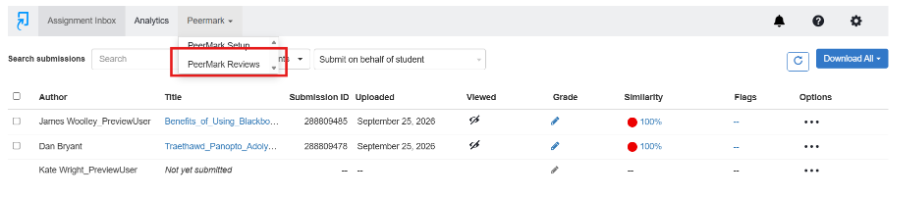
PeerMark feedback is visible to students as long as feedback has been submitted for them. To view the feedback, students should navigate back to the Turnitin submission point and click on PeerMark Reviews under the drop-down options of the PeerMark.  
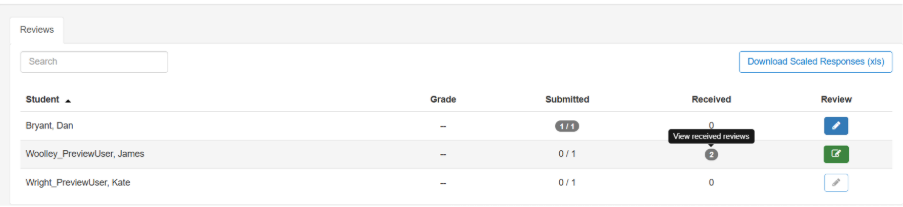
After clicking on this tab, you will be able to see the peer mark reviews by clicking on view received reviews. 
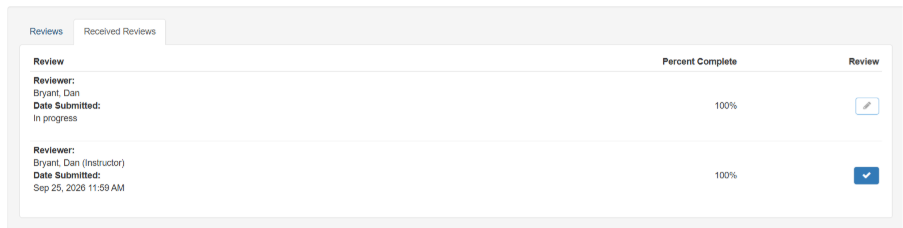
Clicking the review that you want to access from the list will reopen the assignment and should include the feedback from the peer reviewer. 
  1. Lecturer needs to allocate a final mark manually 

Taking into account the PeerMark feedback and scores to questions, the lecturer will then need to enter marks manually in each Turnitin Assignment. This will be done in the usual method by accessing the students’ submissions in the assignment inbox and adding a grade on the top of the Turnitin marking studio. 
Blackboard Assignment with SafeAssign Pilot

A big thank you to all the staff who have signed up to the Blackboard Assignment with SafeAssign pilot. There’s still time to volunteer if you are interested (email elearning@aber.ac.uk).

Since the last blog post, we have made SafeAssign available for use in Blackboard Assignments. We have also held the first two training sessions. More training sessions will be organised for semester one – visit the Events and Training page to book a place.

We’ve been exploring some of the options for marking in Blackboard Assignment that staff might find useful:

  1. Delegated marking allows staff to mark essays by group. If you divide up marking in your modules between several members of staff, then delegated marking will help you.
  2. Parallel marking allows two staff to mark a piece of work independently without seeing each other’s comments or marks.
  3. Anonymous comments. By default, marking comments in Blackboard Assignment contain the name of the staff member marking. If this is not appropriate for your marking, you can make them anonymous (see below).

Please note that deleted Blackboard assignments can be recovered for up to 30 days after deletion. If you need deleted assignments restored, please contact elearning@aber.ac.uk as soon as possible, providing details of module and the assignment name.

Anonymous Comments

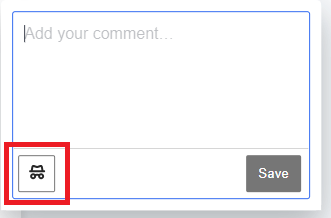
When you create a comment, click on the anonymous marking icon

Screenshot of a Blackboard Assignment comment box with the anonymous marking icon highlighted

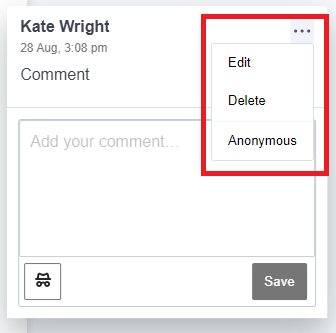
You can edit existing comments to make them anonymous by clicking on the comment.  Click on the three dots in the top right-hand corner of the comment and then click on Anonymous.

Screenshot of a Blackboard Assignment comment box with the three dots and Anonymous option highlighted

For further information on the marking tools available in Blackboard Assignments, see Blackboard Annotate Guidance.

Supporting your students

To help your students use Blackboard Assignment to submit their work and find their feedback, we strongly recommend that you include the following FAQs in Assessment and Feedback Learning Module in your Blackboard course:

SafeAssign

We are looking for volunteers to evaluate an alternative to Turnitin for text-matching and marking. This alternative is called SafeAssign. SafeAssign is part of Blackboard.

Training will be provided, and support will be available during the semester from e-learning support staff. We will ask everyone taking part in the evaluation to complete a short online survey before and after the trial. We will also invite you to a meeting at the end of the semester to share your experiences. 

Please read the information below about this evaluation which will help you decide whether you would like to take part. If you want more information or would like to volunteer, please contact elearning@aber.ac.uk

What is SafeAssign?

SafeAssign is a text-matching tool provided by Blackboard. It is included in our main Blackboard licence. SafeAssign is an alternative to Turnitin.

Why are we evaluating it?

AU used SafeAssign before we started using Turnitin. As part of our commitment to making sure that we are using the best tools available, we would like to evaluate whether SafeAssign would be appropriate for text-matching. This evaluation has been approved by the Academic Enhancement Committee (May 2024).

What will be different if I use SafeAssign instead of Turnitin?

Some aspects of marking and submission will be changed:

  • New submission, marking and text-matching tools
  • A different database of assignments and sources for text-matching. This database won’t include previous years’ submissions from AU.

You’ll see some new features:

  • Text highlighting
  • Welsh language interface for submission and marking
  • View and retrieve previous student submissions

And some features will not be available:

  • You will need to post marks manually rather setting a release date and time. However, this will give you a little more control over when marks are made available to students.
  • Submit on behalf of students
  • Switch off anonymous marking for individual students
  • Rubrics and quick marks can’t be exported from Turnitin, although similar tools are available in Blackboard.

Full details of the features of both Turnitin and SafeAssign are available.

Welsh language

All elements of this evaluation will be available in both Welsh and English. This includes help guides, training, support, and evaluation. SafeAssign itself is translated as part of Anthology’s commitment to Welsh. Welsh language text is including in the text-matching service.

What will I have to do if I volunteer?

We strongly recommend that modules included in the evaluation use SafeAssign use the tool for all e-submissions during the duration of the module. This helps both staff and students become familiar with SafeAssign rather than swapping between multiple submission and marking tools.

All staff involved in the submission, marking and moderation for the module will have to use SafeAssign (note that this includes external examiners). If you volunteer a module that has multiple staff marking on it, please make sure that they are all aware, and have all received appropriate training (see below). We will provide all external examiners with information about the evaluation.

We strongly recommend that you provide a practice submission for your students before their first assignment. This will make sure that they know how to use SafeAssign correctly. We will provide guides and FAQs for students which you can link to from the Assessment and Feedback area of your Blackboard course.

What training and support will be available?

We will publish guides and FAQs for staff and students on the LTEU website. We will also run training sessions on how to create submission points and how to mark. Full support will be available to staff and students throughout the term.

How will it impact my students?

Submission will be different for students; one advantage of using SafeAssign is that students will get an email receipt. Students will also see their feedback in a slightly different way. We will provide full support for students.

Can I talk to someone about this?

Contact elearning@aber.ac.uk for information and to discuss whether SafeAssign is appropriate for your module.

James Wood: Improving feedback literacy through sustainable feedback engagement practices

Banner for Audio Feedback

On Wednesday 10 May, the Learning and Teaching Enhancement Unit welcomed Dr James Wood from Bangor University to give some ideas around student feedback design and engagement.

The recording from the session is on Panopto and the PowerPoint slides can be downloaded below:

In the session, Dr Wood outlined

  • The changes to the feedback NSS questions for 2023
  • The purpose of feedback
  • The move away from feedback transmission to one of action
  • Barriers to student feedback engagement
  • Screencasting your feedback

The next big event for LTEU is our annual Learning and Teaching Conference which is taking place between 4 and 6 July. Bookings for this are already open.

If you have any external speakers that you would like LTEU to invite to next year’s series then please email lteu@aber.ac.uk with your suggestion.

Launch of Turnitin AI writing and ChatGPT Detection Capability

Turnitin icon

On 4 April Turnitin will be launching their new AI writing and ChatGPT detection capability which will be added to the Similarity Report.  Before colleagues start using the AI detector, we thought that we would caveat it with the following quotations from authoritative professional bodies in the sector.

Jisc notes: “AI detectors cannot prove conclusively that text was written by AI.”

— Michael Webb (17/3/2023), AI writing detectors – concepts and considerations, Jisc National Centre for AI

The QAA advises: “Be cautious in your use of tools that claim to detect text generated by AI and advise staff of the institutional position. The output from these tools is unverified and there is evidence that some text generated by AI evades detection. In addition, students may not have given permission to upload their work to these tools or agreed how their data will be stored.”

— QAA (31/1/2023), The rise of artificial intelligence software and potential risks for academic integrity: briefing paper for higher education providers

Please also see the Guidance for Staff compiled by the Generative AI Working Group led by Mary Jacob. The guide outlines suggestions for how we can explain our existing assessments to students in ways that will discourage unacceptable academic practice with AI, and also red flags to consider when marking.

You can read more about the Turnitin AI enhancement in this Turnitin blog post.

For guidance on how to use this tool, take a look at Turnitin’s:

Turnitin also published an AI writing resource page to support educators with teaching resources and to report its progress in developing AI writing detection features.

If you have any questions about using Turnitin’s AI writing and ChatGPT detection capability or interpreting the results, please contact the Learning and Teaching Enhancement Unit (elearning@aber.ac.uk).

External Speaker: James Wood: Improving feedback literacy through sustainable feedback engagement practices 

The Learning and Teaching Enhancement Unit is pleased to announce their next external speaker. On 10 May from 14:00-15:30, James Wood from Bangor University will be hosting an online session on Improving feedback literacy through sustainable feedback engagement practices.

James Wood is Lecturer in Education, Assessment and Taught Postgraduate Lead at Bangor University. Prior to this position, James has worked with Kings College London, University College London, Birkbeck University, Greenwich University and Seoul National University.

Session Abstract

Despite the importance of feedback in supporting learning in higher education, there is still much to learn about nurturing sustainable skills for seeking, engaging with, and using feedback. In practice, many students fail to access feedback, and even if courses offer formative assessment in principle, it is only sometimes engaged with or used effectively. It is often argued that students require ‘feedback literacy’ before engagement with feedback is possible. However, in this workshop, we will explore how feedback literacy and receptivity to feedback can emerge as students experience well-designed dialogic feedback practices that offer the opportunity to consider how learning from feedback occurs, the benefits, what constitutes quality and how to evaluate it and how to develop and execute plans to close the gap between current and target performance. I will also discuss how social and non-human factors entangle with learners’ agency to engage in ways that can serve or limit their participation. I will finish with an overview of how technologies can be used to enhance learners’ ability to use feedback effectively and develop relationships and communities that can offer powerful collaborative learning opportunities, as well as emotional support and encouragement. 

The workshop will take place online using Microsoft Teams. Book your place online.

If you have any questions, please contact the Learning and Teaching Enhancement Unit (lteu@aber.ac.uk).

Contract Cheating: Red Flag Checklist Workshop– Materials Available

Turnitin icon

On 20 May, the Learning and Teaching Enhancement Unit were joined by Dr Mary Davies, Stephen Bunbury,  Anna Krajewska, and Dr Matthew Jones for their online workshop: Contract Cheating Detection for Markers (Red Flags).

With other colleagues, they form the London South East Academic Integrity Network Contract Cheating Working Group and have been doing essential work and research into the increased use of essay mills and contract cheating.

The session included lots of practical tips for colleagues to help detect the use of Contract Cheating whilst marking.

The resources from the session are available below:

Further information on Unfair Academic Practice is available in the Academic Quality Handbook (see section 10).

Many thanks to the presenters. We’ve had such great external speaker sessions this academic year; take a look at our External Speakers blogposts for further information.

LTEU External Speaker Event: Contract Cheating Detection for Markers

Banner for Audio Feedback

The Learning and Teaching Enhancement Unit is pleased to announce its next External Speaker Event.

On 20 May 2022 12:30-13:30, Dr Mary Davies, Principal Lecturer in the Business School at Oxford Brookes University, and colleagues will be running a workshop on their interactive red flag checklist resource Contract Cheating Detection for Markers.

Dr Davies will be joined by Stephen Bunbury, Senior Lecturer in Law at the University of Westminster, Anna Krajewska, Director of the Centre for Excellence in Teaching and Learning at Bloomsbury Institute, and Dr Matthew Jones, Senior Lecturer in Politics and International Relations at the University of Greenwich.

This workshop is designed to help staff participants detect potential contract cheating when marking. The presenters belong to the London and South East Academic Integrity Network Contract Cheating Working Group who put together an interactive ‘red flag’ checklist resource Contract Cheating Detection for Markers.

In the workshop, the presenters will explain the red flags that indicate possible contract cheating, through discussing sections of the checklist: text analysis, referencing and the use of sources, Turnitin similarity and text matching, document properties, the writing process, comparison with students’ previous work, and comparison to cohort. Participants will be provided with opportunities to practise using the checklist and to discuss effective ways to help them identify potential contract cheating in student work.

Resources from previous External Speaker events can be found on our blog.

The workshop will take place online using Microsoft Teams. Book your place online.

Please contact the Learning and Teaching Enhancement Unit if you have any questions (lteu@aber.ac.uk).

Rob Nash: External Speaker Materials Available

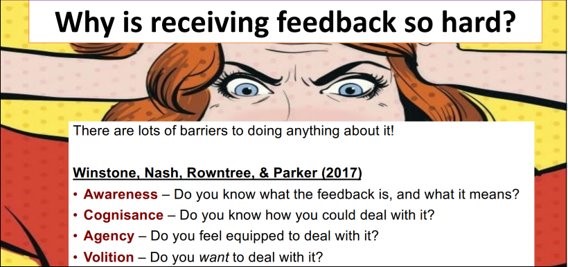
Why is receiving feedback so hard? Screen grab from Rob Nash's talk

On Friday 11 March, the Learning and Teaching Enhancement Unit hosted Dr Rob Nash, a Reader in Psychology from Aston University. Rob is an expert in feedback and ran a workshop looking explicitly at ways in which we can enhance and develop feedback engagement.

A recording of the transmission elements of the session is available on Panopto. You can also view the slides that he used.

For those of you who are interested in further exploring the terrain of feedback, you can take a look at the references that Rob used in his session:

Our next External Speaker event is Dr Mary Davies from Oxford Brookes who’ll be joined by other colleagues to discuss how we can detect potential contract cheating during the marking process. This workshop will be on 20 May 2022, 12:30-13:30. Booking for the session is already open.

A reminder as well that our Call for Proposals for our Annual Learning and Teaching Conference is currently open.