
On November 10, Aberystwyth University will be joining institutions worldwide for Anthology’s Fix Your Content Day 2026, and we need your help! Join the Digital Education Team for a drop-in session in B23 Llandinam and improve the accessibility of your digital course content using Blackboard Ally. Every fix – big or small – makes a difference to our students.
Tag: Blackboard
Our most frequently asked questions from September 2026

- How do I merge Blackboard modules?
- How are staff and students enrolled onto Blackboard modules?
- Where can I find the AI Essentials content?
- How do I link Panopto recordings to Blackboard?
Guidance on merging modules in Blackboard
How do I merge modules?
You can merge modules using the Blackboard Ultra Module Partner tool accessible through myadmin.aber.ac.uk. -> Blackboard Ultra Module Partner.
The Blackboard Ultra Module Partner tool allows you to share the same content across multiple modules by assigning one module as the Primary module and linking one or more modules as a Secondary module.
There is no limit to the number of secondary modules that can be linked, but there can only be one primary module.
Merging modules automatically makes content from the primary module available in all linked secondary modules. This means that you won’t need to upload the same materials to multiple modules. Alternatively, you can email elearning@aber.ac.uk.
An in-depth guide for the Blackboard partner tool can be found by following the link below which will take you to our FAQs:
How do I merge modules in Blackboard (staff)?
Why merge modules?
Merging modules allows module coordinators to link the same content between two or more modules in Blackboard. This is useful for modules that share the same materials, some examples where this could be useful include:
- Taught modules that are available for both 2nd and 3rd year cohorts
- Modules that use the same content across different degree schemes
- Modules that use identical learning materials and reading lists
How do I unmerge modules?
Modules can be unmerged by clicking the pencil icon in the Primary Course ID section and then Click Delete -> Delete
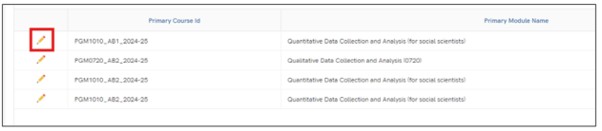
When modules are unlinked, previous submissions, marks etc are retained for students on the module. They will be hidden from staff (to avoid confusion), but if you need to view them contact elearning@aber.ac.uk for advice
What to consider?
- All content can be viewed as soon as the modules are merged (if students are enrolled on the module). In addition to PowerPoints and lecture materials, this also includes Announcements and other interactive tools on your primary module.
- Historical student interactions on a secondary module (such as using blogs or discussion board posts) won’t be available once the modules have been merged.
- Any submission points created on a secondary module before the merge takes place will no longer be able to be viewed. We would advise creating these again in the primary module.
How do I make module content visible to specific cohorts?
All content is automatically visible once modules are merged. Groups and adaptive release can be used if you only want the content to be visible to a specific module cohort.
This may be useful if you have merged a 2nd year and 3rd year module but your students on the different modules have separate assignments. You can use one group for 2nd year students and one for 3rd year students. You can also limit who can see the assignment information and submission point.
See official guidance from the Blackboard help centre on Creating Groups and Release Conditions.
How does merging affect the Gradebook?
After merging, all students will be visible within the primary module’s gradebook. You can, however, view the primary and secondary modules gradebooks separately using the Merged Modules filter found within the primary module’s gradebook.
If you’d like further information on merging modules or have any questions, please email us at elearning@aber.ac.uk.
How are staff and students enrolled onto Blackboard modules?
Overview Enrolment
- Staff enrolments onto Blackboard modules can by managed through the Module Management System or by emailing elearning@aber.ac.uk.
- Students will be automatically enrolled onto their Blackboard modules via AStRA once they have completed registration and any outstanding enrolment tasks. Students should be directed their Student Record to check
Module Management System
- The Module Management System can be used to enrol staff and departmental admins
- The staff section can be found by searching staff
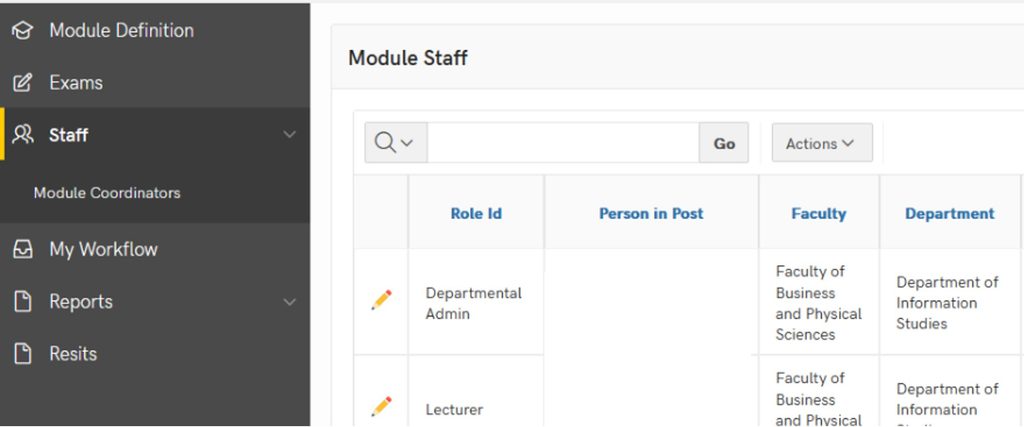
The staff section will show you what staff have access to and what they have updated
Individual staff can be added too:
- A module
- All modules in the department
- All modules in a faculty
- All modules at the institution
The role with the highest level of permission will take priority for, example instructor over grader
How do staff roles appear in the Module Management System and Blackboard?
| Module Management | Blackboard |
| Lecturer | Instructor |
| Tutor | Instructor |
| Assistant | Teaching Assistant |
| Grader | Grader |
| Builder | Course Builder |
| Departmental Administrator | Facilitator |
| Subject Librarian | Course Builder |
| Course Viewer | Viewer |
| External Examiner | Facilitator |
See official guidance from the Blackboard help centre on permissions for each role.
Removing staff and students from courses
- Students can change or withdraw from courses using their student record, if this happens the student will be automatically removed from their current Blackboard course on a Monday night.
- Staff who are removed using the Module management system will also be automatically removed from modules on a Monday night (23.59)
- Modules will still be visible to both staff and students before Monday night (23.59). This means that if a staff member or student is removed on a Tuesday their modules will still be visible.
I can’t see my course in Blackboard?
- (Students) Check your Student Record for missing tasks and outstanding registration then contact your department.
- (Staff) Contact the registry staff in your department
Feel free to also contact elearning@aber.ac.uk.
What to consider?
- Staff should only be enrolled using the Module Management System.
- Technical issues are likely if staff and students are enrolled via the class register in Blackboard.
- It may take up to an hour for changes to appear in Blackboard
If changes have not appeared after one hour, please contact elearning@aber.ac.uk.
Where can I find the AI Essentials content in Blackboard?
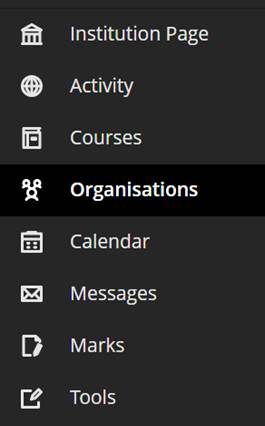
· The AI essentials content can be found in the Organisation section of Blackboard:
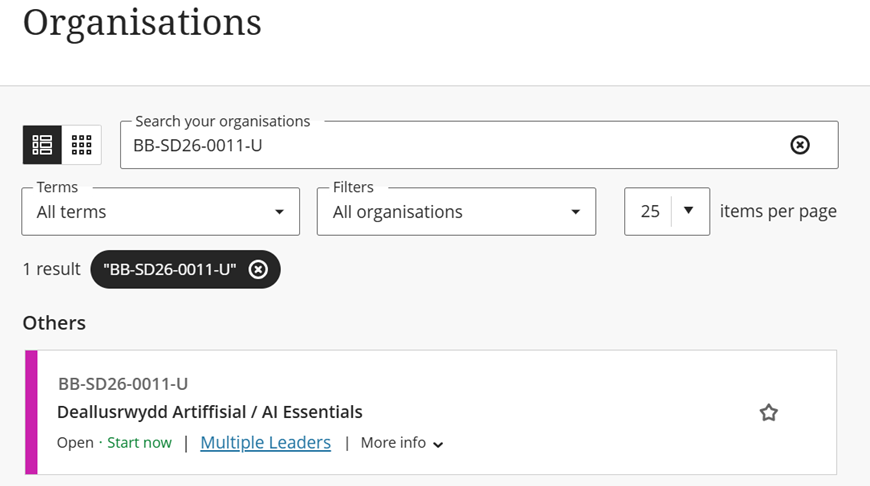
· From here you can use the search feature to search for
BB-SD26-0011:
How do I Link Panopto Recordings to Blackboard?
You can create a link to the Panopto folder in your Blackboard course. This means that students will be able to see the recordings for the course all in one place.
Finding your Panopto folder
Panopto folders for all 2026-27 modules can be found within the 2026-27 folder.
To find the Panopto folder you want to record into:
- Click the dropdown button on the right-hand side of the Folder box.
- Click the dropdown arrow to the left of the academic year folder to expand it.
- Select the Panopto folder you want to record into.
You can also search for the Panopto folder you want to record into:
- In the Folder box start typing the module code or name of the Panopto folder you want to record into.
- Select the folder you want to record into.
What to do if you can’t see your Panopto folder
In a small number of courses, the Panopto folder wasn’t created over the summer. If you can’t find your Panopto folder using the steps above, you can create a folder from Blackboard:
- Login to Blackboard and find your course
- Click on Books and Tools [Llyfrau ac Offer] > View course and institution tools [Gweld cwrs ac offer sefydliad]
- Click on Holl Fideo Panopto / All Panopto Videos
You should then be able to find the Panopto folder to make a recording.
If you have any questions, please contact the Digital Education Team on elearning@aber.ac.uk.
What’s new in Blackboard June 2026
In the June update, we want to draw your attention to the following Blackboard enhancements:
- Grading with rubric
- Student engagement with announcements
Changes to grading with rubric
To improve rubric usability, instructors can now edit the rubric grade directly. Changes to the rubric component grades will also update the overall grade immediately.
Image 1: Improved rubric usability when adding or adjusting grades.
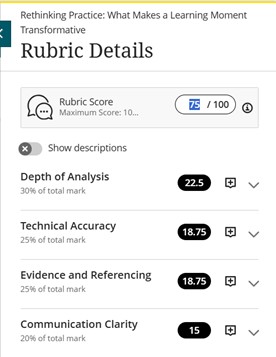
In the past, instructors would have been blocked from changing the overall grade via the rubric. Now, the locking mechanism that previously prevented instructors from using the rubric to override a grade has been removed. Otherwise, grades entered into the rubric grade components will update the overall grade immediately.
The update also includes some changes in wording, such as updating the rubric score box label from “Submission” to “Rubric Score”, in order to improve consistency with the Flexible Grading page.
Student engagement with announcements
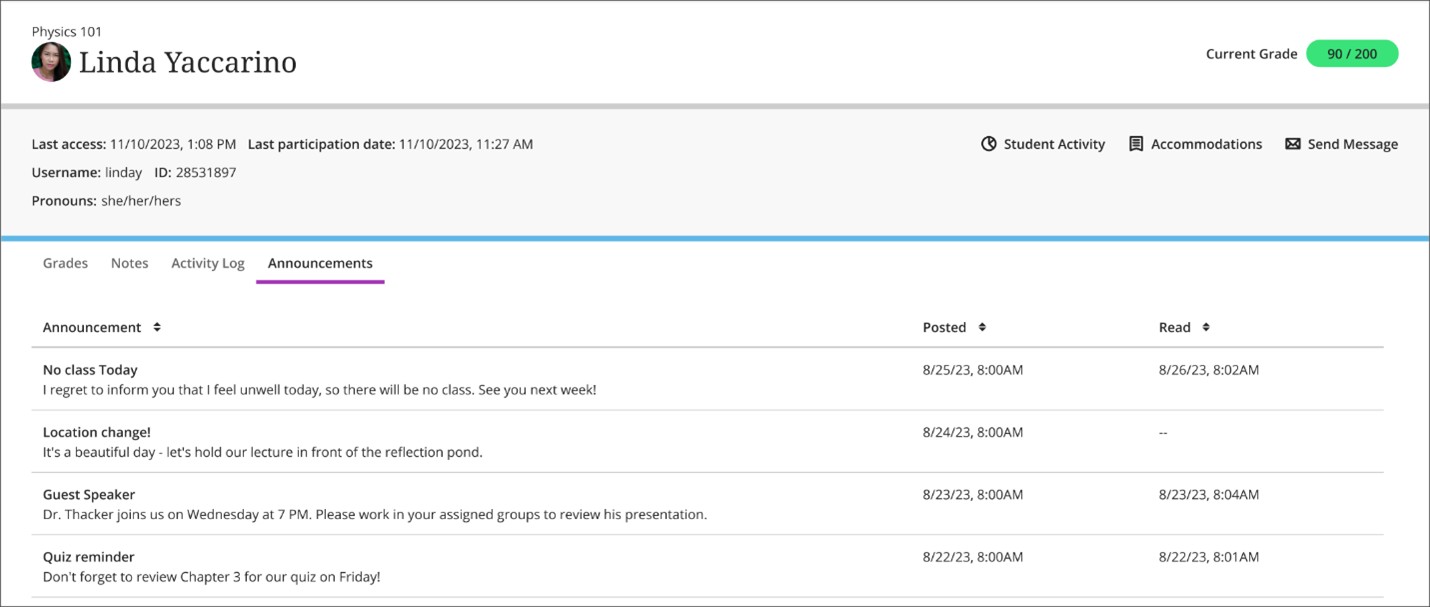
Instructors can now check which announcements a student has read or not read on the new ‘Announcements’ tab of the Student Overview page.
To access this feature, instructors should go to the ‘Class register’ under the ‘Details & Actions’ items on the right-hand side of a course landing page. After selecting a student, a log of whether or not a student has accessed an announcement will be visible for instructors under the new ‘Announcements’ tab of the Student Overview page.
Image 2: The Announcements tab on the Student Overview page shows when an Announcement was posted and when it was read.
If you have any enhancements to request from Blackboard, please get in touch with us via elearning@aber.ac.uk.
What’s new in Blackboard May 2026
Tags: Blackboard, Monthly Update, Ultra, Groups, Discussions, Grading, Gradebook, MCQs, Release Conditions, Screen reader, Accessibility, course catalogue
In the May update, we want to draw your attention to the following Blackboard enhancements:
- Changes to managing groups
- Graded discussions and flexible grading
- Tests and questions
- Content and release conditions
- Course searching
Changes to managing groups
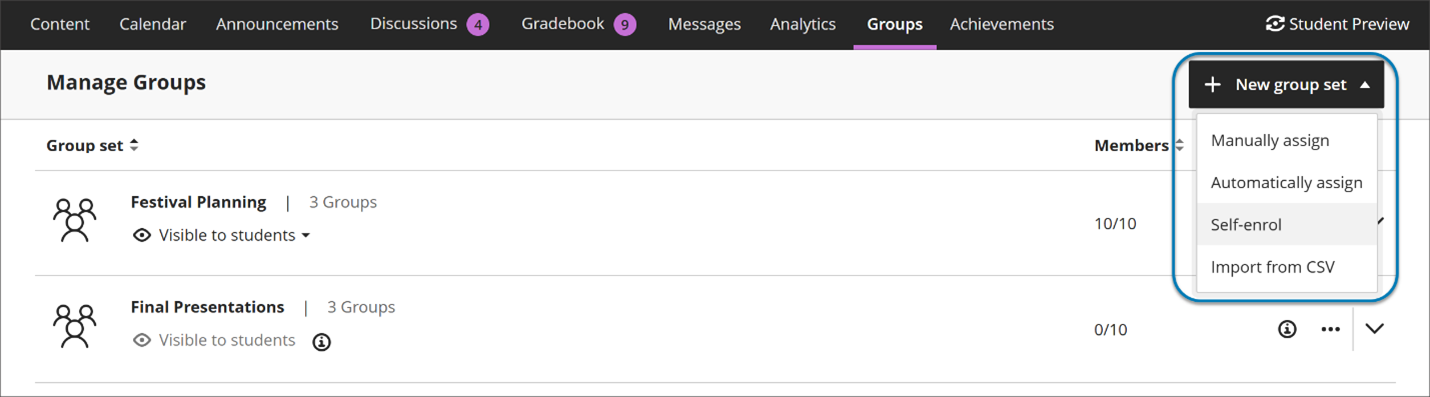
Instructors now start by choosing how they want to structure groups—before managing individual members. The options include:
- manual assignment
- automatic assignment
- self‑enrollment
- import
Image 1: Instructors now start by creating a group set by choosing how they want to structure groups—before managing individual members.
Automatic enrollment with clearer controls
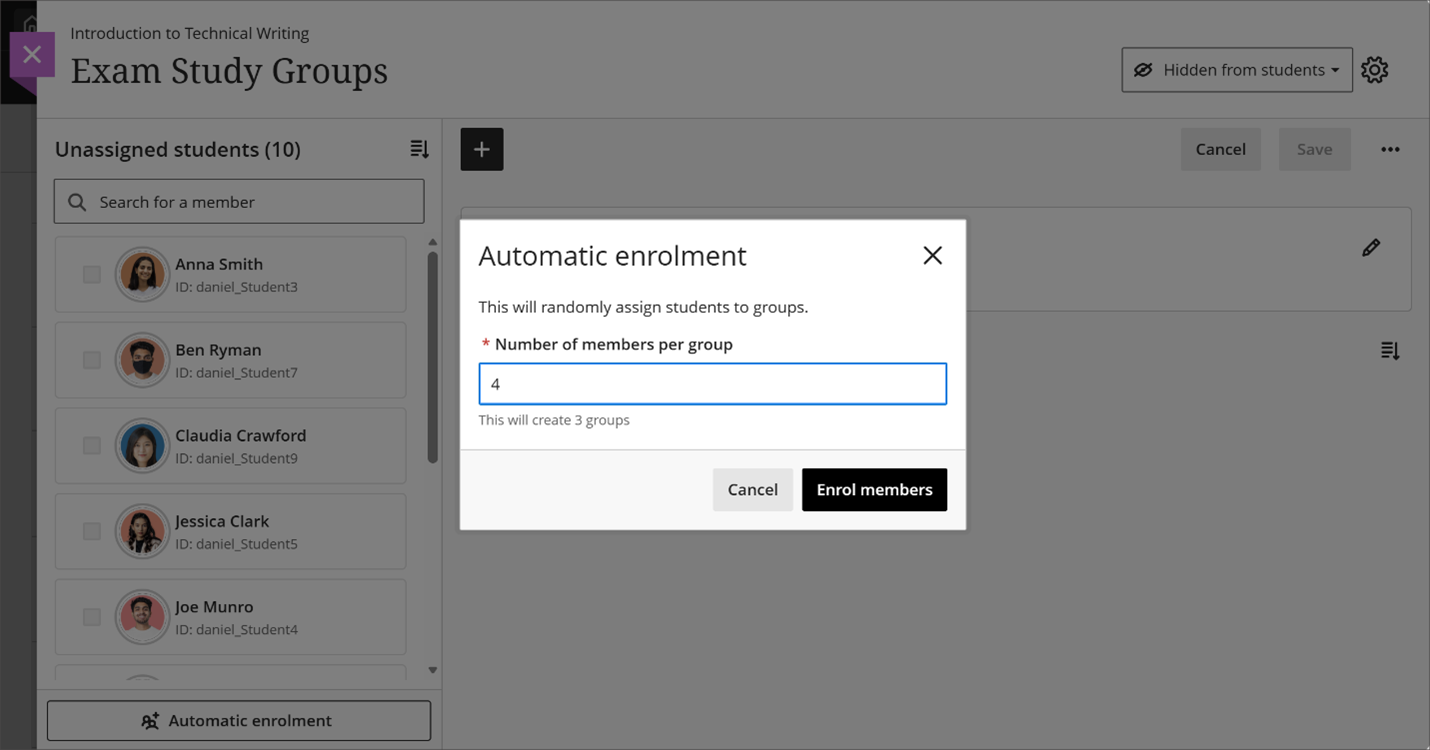
Instructors can automatically assign students to groups by specifying the number of members per group. Blackboard creates the required number of groups and assigns students randomly in a single step, reducing setup time for large courses.
Image 2: Instructors can now automatically assign students to groups by specifying the number of members per group.
More flexible ways to assign students
Instructors can assign and unassign students using multiple methods:
- Assign students directly from the unassigned list
- Assign selected students to a specific group
- Add or remove members from within a group
This flexibility reduces repetitive actions and makes it easier to focus on populating one group at a time or balancing membership across groups.
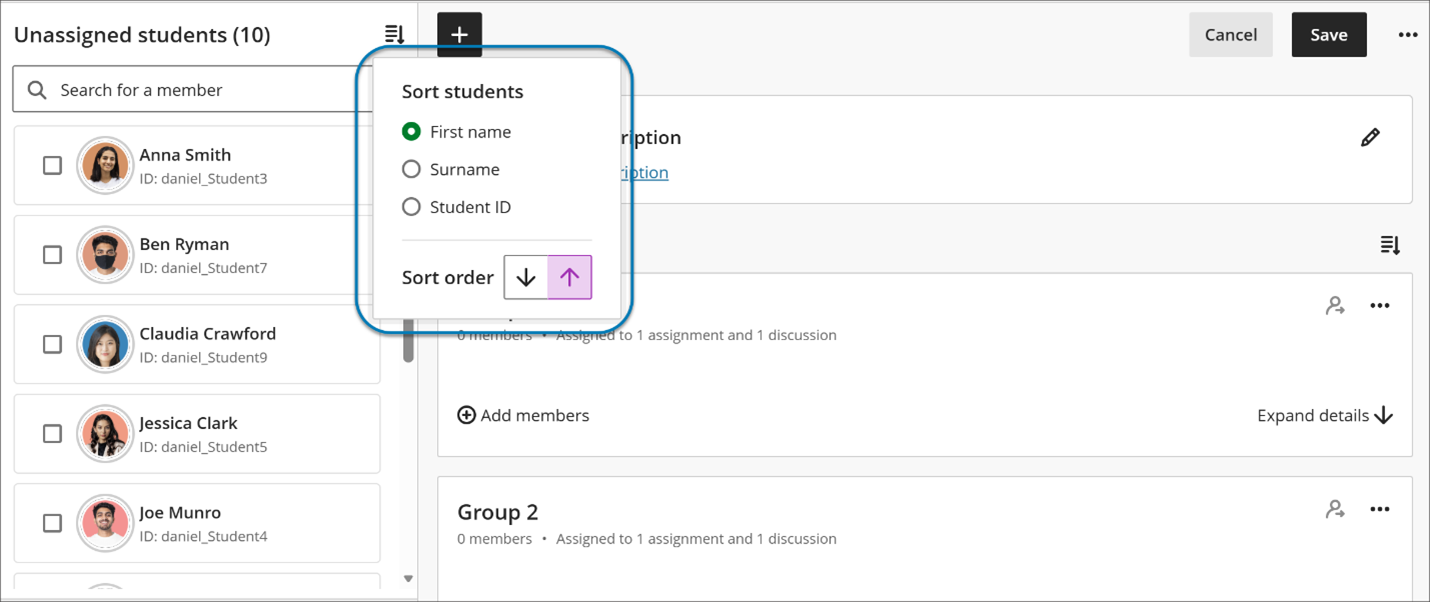
Sorting for group members and groups
Instructors can now sort:
- Students by first name or last name (A–Z or Z–A)
- Student ID
- Groups by group name
- Groups by number of members
Image 3. Instructors can now sort group members by first or last name, student ID and sort groups by group name or number of members.
Performance and reliability improvements
Managing groups in large courses is now significantly faster. Save operations that previously took several minutes—especially in courses with thousands of students—now complete in seconds. When a group is being saved, an instructor can close out the page and be assured that it is continuing to save in the background, allowing instructors to continue working without interruption.
Additionally, the previous maximum limits of 5,000 students and 1,000 groups are removed.
These improvements reduce frustration and improve confidence when managing groups at scale.
Second due date for Discussions visible in Gradebook
The second discussion due date now appears in the following pages in Gradebook:
- Overview
- Gradable Items
Under Due Date on the Discussion item on each Gradebook page, the item’s second, final due date is displayed. Next to that date is a circle icon with a lower case i inside. Hover over or tab to this icon, and a pop-up bubble displays details of both due dates. For example: This discussion has 2 due dates: Due date 1: 5/1/26, 12:00 PM Due date 2: 5/8/26, 12:00 PM
Image 1: The second discussion due date now appears on the Overview and Gradable Items pages in Gradebook.
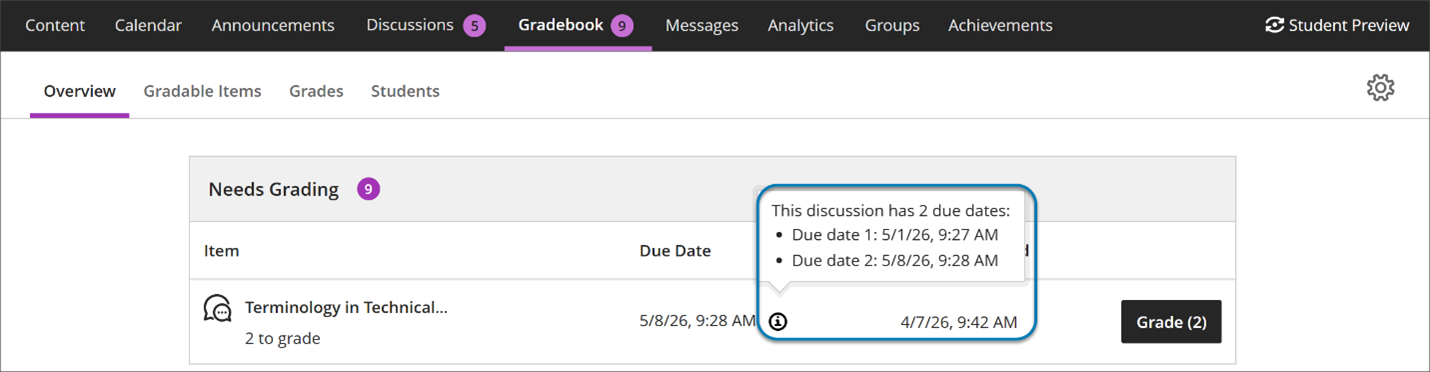
Instructors benefit from clearer communication of discussion expectations, reducing the need to clarify deadlines and helping ensure students understand how and when their contributions are graded.
Carry group filter into Flexible Grading
The group filter selected in the Gradebook grid view now carries over into Flexible Grading. Instructors who filter by a group in the Gradebook will find only the students from that group when they enter Flexible Grading, and the active group filter is displayed within the Flexible Grading view. This update reduces the need to re-filter after switching views and keeps instructors focused on the most relevant students for their current grading task.
Provide answer-level feedback for multiple choice and multiple answer questions
Instructors can now add feedback for each answer option in multiple choice and multiple answer questions. This helps students understand why each choice is correct or incorrect after an attempt is submitted.
Instructors can now add feedback for each answer option in multiple choice and multiple answer questions. This helps students understand why each choice is correct or incorrect after an attempt is submitted.
Instructors
When creating or editing a multiple choice or multiple answer question, instructors can turn on Option Feedback, which prompts Feedback textboxes to appear beneath each answer option. Instructors can enter the answer options and feedback for any of the options.
Image 1: Instructors can enter answer-level feedback.
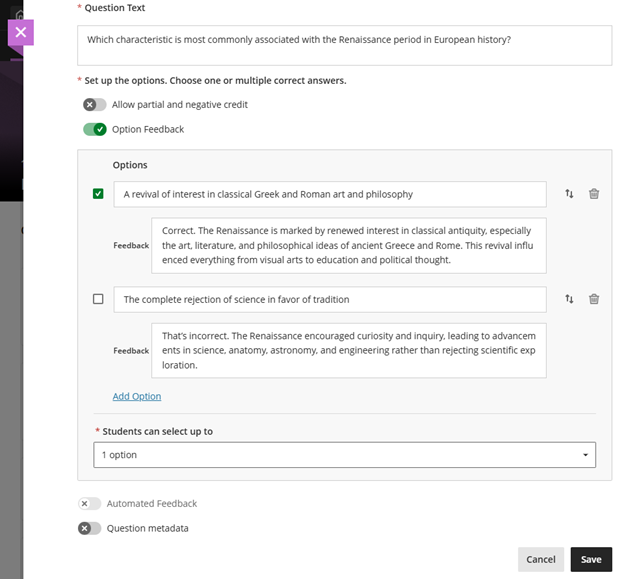
Turning on Option Feedback disables Automated Feedback option. The Automated Feedback option lets instructors provide feedback for the correct answer and for incorrect answers. Answer-level feedback also allows for automatic feedback, which instructors can configure in the Assessment results section of Assessment Settings.
For answer-level feedback to display for students, enable Show correct answers in the Assessment results section of Assessment Settings.
Students
After submitting an attempt, students receive feedback for each answer option they selected if the instructor has left feedback on that answer option. This helps students understand their performance at a more detailed level and supports learning from incorrect choices.
Lock answer options in a fixed position for multiple choice and multiple answer questions
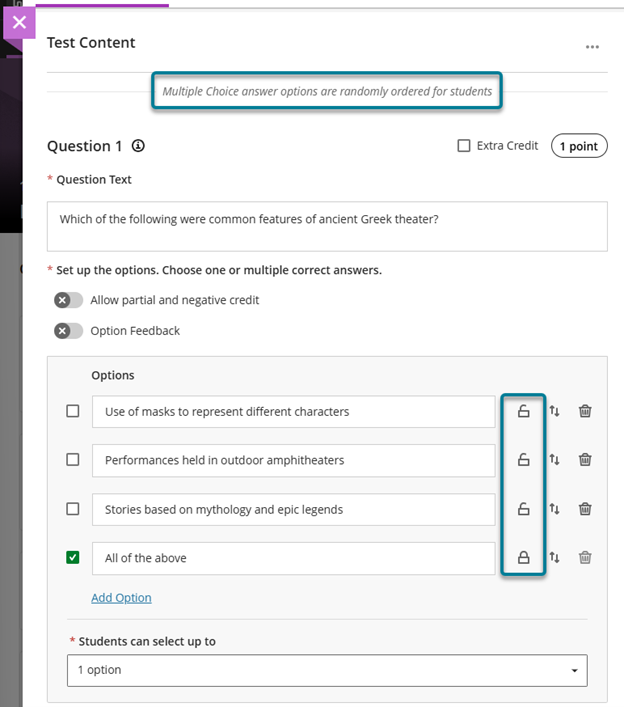
When creating or editing a multiple choice or multiple answer question, instructors can designate specific answer options as locked. To lock an option in place, select Randomise answers in the Assessment Settings, then select the lock icon next to the answer option. Locked options remain in their set position during randomisation while all other options shuffle as expected.
Instructors can remove a lock any time while editing the question. Locking designations can also be updated as part of a regrading flow.
Image 1: Instructors can select the lock icon next to the answer option to lock that option in place. To trigger the lock icons, select Randomise answers in the Assessment Settings.
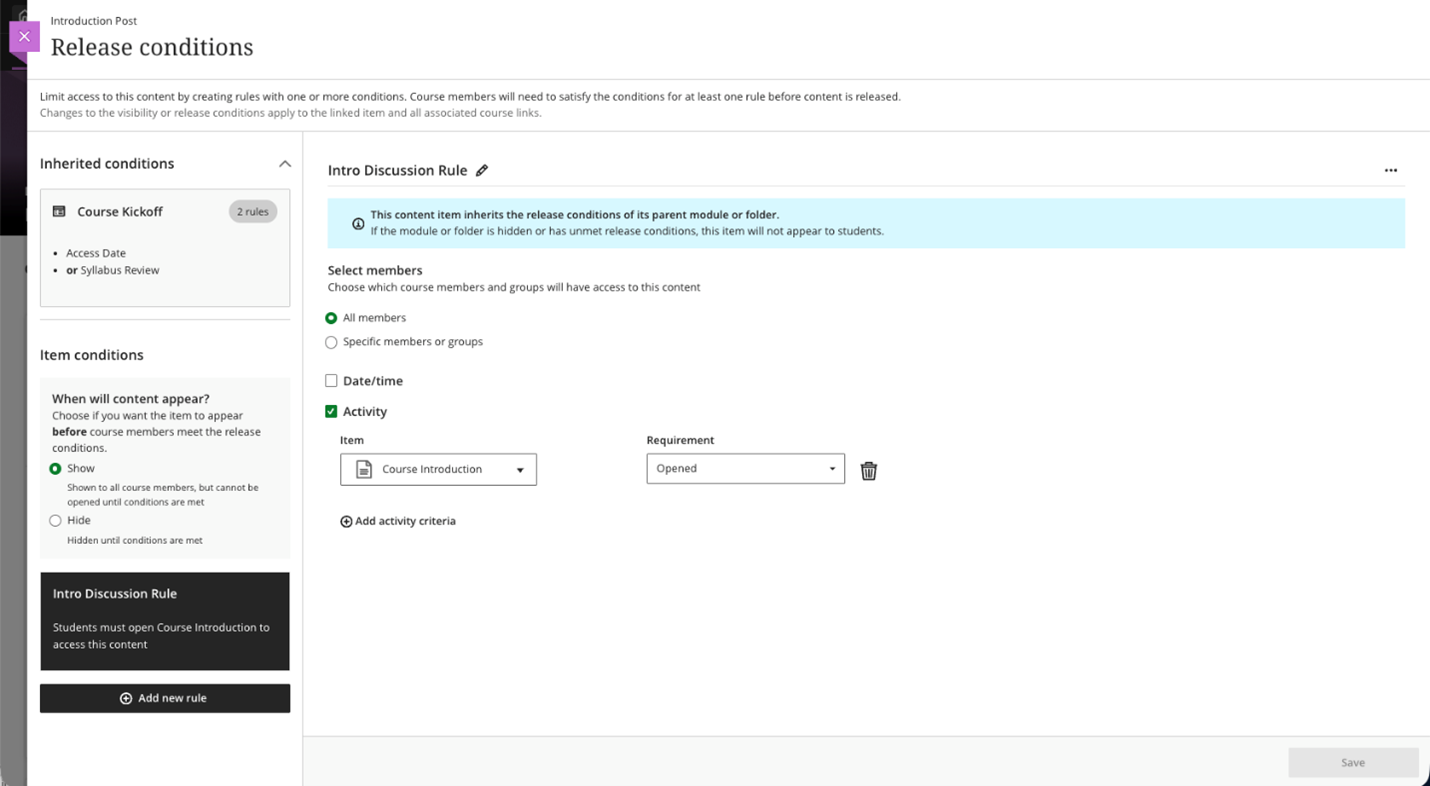
Visualize release conditions inherited by items in learning modules and folders
Instructors can now view release conditions inherited from a parent learning module or folder directly within the release conditions panel of individual items. Inherited conditions appear in a read-only format, giving instructors a clear picture of all conditions that apply to an item, including those set directly on the item and those cascading from a parent container.
This update also ensures that discussions hidden within a learning module are no longer accessible from the Discussions tab. Discussions now respect the release conditions applied at the learning module level.
Instructors
When instructors open the Release Conditions panel for an item inside a learning module or folder, a read-only summary of any conditions inherited from the parent container appears alongside any conditions applied directly to the item. This helps instructors understand the full set of access rules in place and determine whether additional conditions are needed.
Image 1: Read-only summary of conditions inherited from the parent container and conditions applied directly to the item appear in the Release Conditions panel.
Improved screen reader experience in Document view mode
Screen reader users now have a cleaner, more focused experience when navigating documents in view mode. Unnecessary row and column announcements have been removed to allow access to primary content in the correct order, left to right, across rows, columns, and blocks. Edit mode behavior is unchanged.
Improved search and navigation in Course Switcher
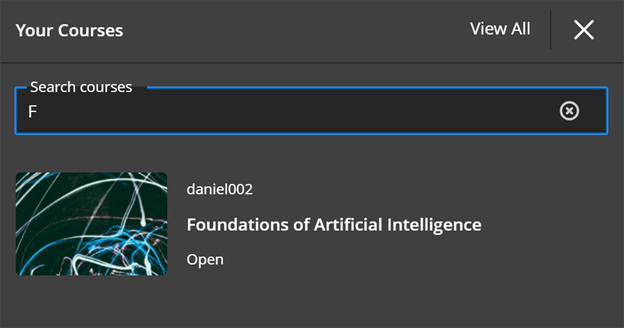
We’ve enhanced the Course Switcher in Blackboard Ultra Course View to make it faster and easier to move between courses. Users can now search for a course directly from the Course Switcher and navigate to it without first returning to the Courses page.
This update builds on the existing quick access to recent courses and helps reduce navigation friction when working across multiple courses.
Instructors and Students
The Course Switcher now includes a search box that allows users to quickly find and open any course they have access to. Instead of browsing the full Courses page, users can open the Course Switcher, search by course name or course ID and navigate directly to the selected course.
This enhancement complements existing options in the Course Switcher:
- Quick access to the four most recent courses
- A View All link that opens the full Courses page
By combining search with recent‑course access, the Course Switcher provides a centralised and efficient way to move between courses—helping users stay focused on their tasks rather than managing navigation.
Image 1: Course Switcher now has a Search courses capability allowing users to search for courses by course name or course ID.
If you have any enhancements to request from Blackboard, please get in touch with us via elearning@aber.ac.uk.
What’s new in Blackboard April 2026
In the April update, we want to draw your attention to the following Blackboard enhancements:
- Assignments
- Assignment submission type
- SafeAssign file size
- Adjusting individual grades in group submissions
- Tests
- AI Conversations
- Discussions
- Announcements
Blackboard Assignment
Specify assignment submission type
Instructors
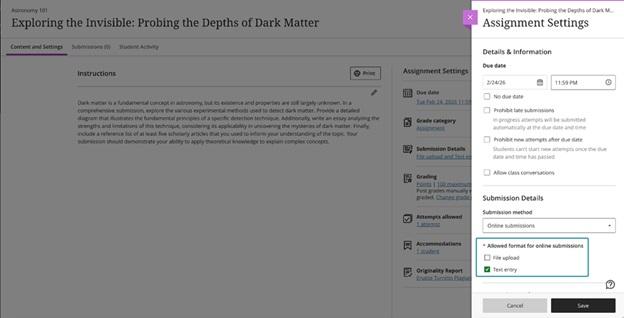
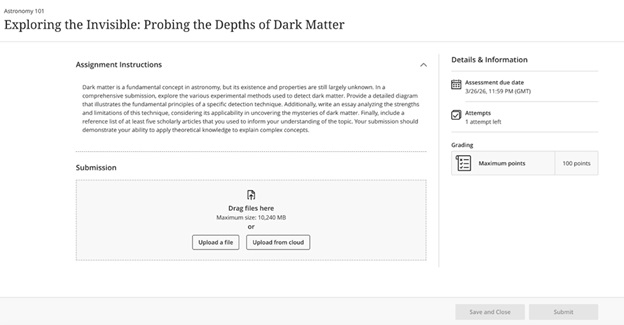
When creating or editing an assignment, instructors can define the expected submission type to guide how students submit their work. Selecting a specific submission type streamlines the student experience and reduces ambiguity about what is required.
Instructors can select one or more expected submission types when configuring an assignment:
- File upload
- Text entry
By default, File upload and Text entry are both selected.
The selected submission type is visible in assignment settings and student‑facing details. Instructors can change the selected submission type until students have started submitting attempts.
Image 1: Instructors can choose one or more submission types when configuring an assignment.
Students
Students are informed of the expected submission type and see a submission workflow optimized for that format.
- File submissions display a dedicated file drop zone where students can upload, preview (when supported), and remove files.
- Text submissions provide a streamlined rich text editor experience without a general file attachment option and include access to the Content Market for supported tools.
Image 2: Students have a submission workflow optimized for the selected submission type.
Note that if you are using Blackboard for Panopto assignments, you need to have Text entry enabled.
Increased SafeAssign file size limit to 25 MB for Direct Submit
The SafeAssign file size limit for DirectSubmit submissions increased to 25MB. This change supports larger documents that include images, tables, and complex formatting, reducing submission issues for students.
Existing submissions and SafeAssign reports remain fully compatible, and related system limits were reviewed to ensure continued stability.
Adjust grades for individual student attempts in group submissions
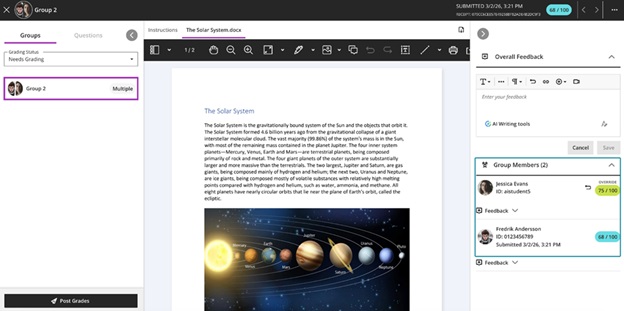
Flexible Grading has been extended to allow instructors to adjust attempt grades for individual students within a group submission. This update ensures that grades for group submissions can accurately reflect each student’s individual contribution, even when work is submitted as a single group attempt.
Instructors can override a group attempt score for individual group members directly from the grading interface. The interface clearly indicates when grades differ across group members, and adjustments can be removed by restoring a student’s grade to match the group attempt score.
Image 1: Instructors can adjust grades for individual students within a group submission.
Tests
Improvements to multiple choice and multiple answer questions
See below for changes to multiple choice and multiple answer questions:
- For the multiple choice question, the default number of answer options a student can select from 4 to 1 has been modified.
- When creating or editing a multiple choice or multiple answer question, instructors can change the number of answer options that a student can select.
- Multiple choice answer options alphabetical labels (A, B, C, D) have also been restored.
AI Conversations
Use Message Limits
Instructors can now guide the length of AI‑supported conversations, including Socratic Questioning, by setting message limits. These controls help students understand when to complete an interaction and keep conversations focused on the intended learning activity.
Instructors
When instructors configure an AI conversation, they can set a maximum message cap to shape the conversation duration.
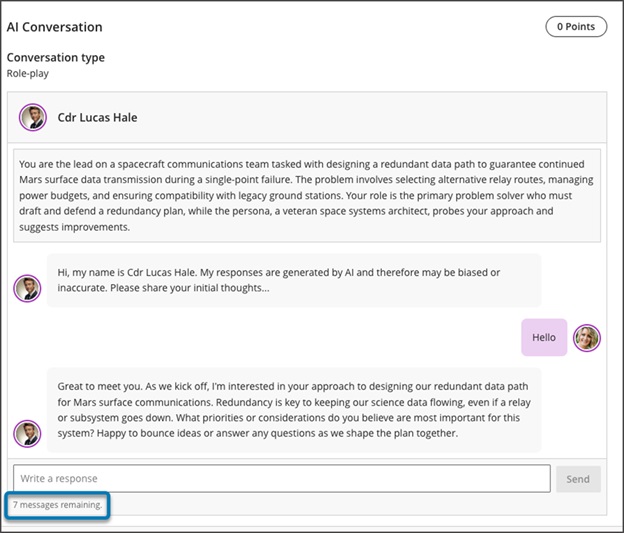
Image 1: Message limit settings for an AI conversation
Students
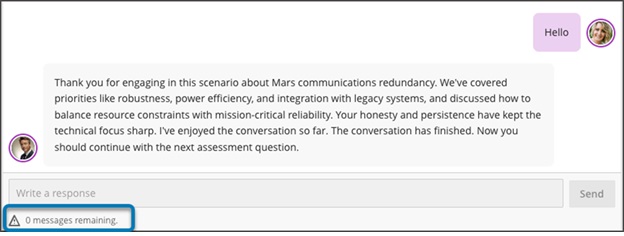
Students track their remaining responses during a conversation through a dynamic label. The label shows a caution icon when two responses remain. After the conversation reaches the message cap, students cannot add more responses. The message limit sets clear expectations for participation and completion.
Image 2: Student messaging guidance during an active interaction.
Discussions
Review both sets of Discussion due dates across multiple views in Blackboard
Blackboard now surfaces both sets of due dates and participation requirements for Discussions across key areas of the application. This improvement builds on the recent addition of a second due date and participation requirement. Instructors and students get clearer expectations wherever they access Discussion details.
Instructors and Students
When instructors create a discussion with two due dates and participation requirements, both sets of requirements appear on the Course Content page, Discussion pages, the Gradebook student and instructor views, and the instructor’s Discussion analysis panel. Students can track expectations throughout the workflow without navigating back to the discussion itself.
Image 1: On the Course Content page, both due dates and participation requirements are displayed. For all entry points for Discussions, both dates and requirements are displayed.
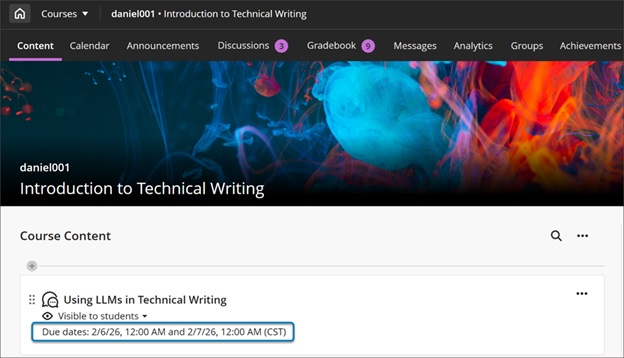
- On the Course Content and Discussion pages, both due dates and their requirements appear together for quick reference.
- In the Gradebook student view, both dates appear.
- Instructors also get a new Due Dates and Requirements section in the grading view for an individual student. This section shows both due dates and the student’s progress toward each requirement.
Announcements
Handle images as thumbnail links in Announcement emails
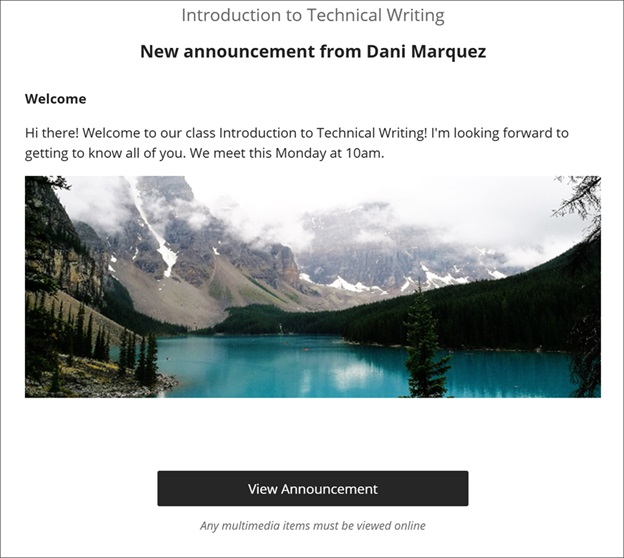
Announcement emails now show images as thumbnail links instead of long URLs. This update gives users a clearer preview of announcement content and provides a direct path back to the full announcement in Blackboard. When users select a thumbnail, the system opens the original announcement so they can read it with full context.
Instructors and students
Announcement emails display a small thumbnail for each image instructors include in an announcement. Each thumbnail links to the announcement in Blackboard, so users return to the complete content instead of opening the image file by itself. Instructors continue to create announcements the same way they have before.
Image 1: Announcement email showing images as thumbnail links that open the announcement in Blackboard.
If you have any enhancements to request from Blackboard, please get in touch with us via elearning@aber.ac.uk.
What’s new in Blackboard March 2026
In the March update, we want to draw your attention to the following Blackboard enhancements:
- Updates to tests:
- Anonymous grading by question
- Question title field relocated
- Partial credit Multiple Choice Questions and Multiple Answer
- AI Design Assistant Content Editor
- Graded Discussions
- Blackboard Assignment file limits
Anonymous Grading by Question in Blackboard Tests
Instructors can now grade anonymous by question in addition to grading anonymously by student.
When grading anonymous test submissions in Question View, the interface replaces the student’s name, avatar, and ID with an anonymous identifier and a blank avatar. All functionality available when grading non‑anonymous submissions by question is also available when grading anonymously. When anonymous grading is enabled, related APIs no longer return identifying information. This applies to the Essay Question.
Question Title field relocated
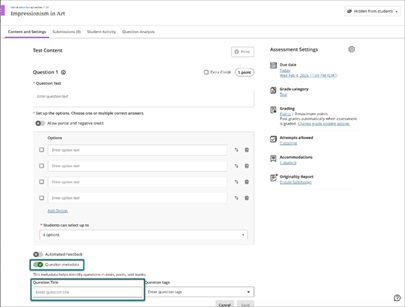
We moved the Question Title field from the beginning of the question authoring workflow to the bottom, underneath the Question metadata field. Moving this field ensures that titles remain an optional metadata element and reduces cognitive load during question creation.
Image 1: Before this enhancement, the Question Title field was at the top of the question authoring workflow.
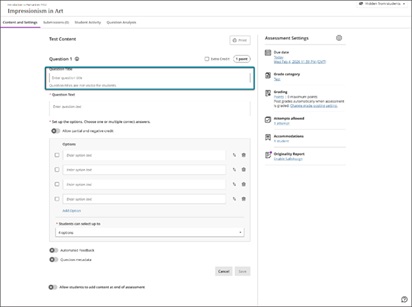
Image 2: Now, the Question Title field is at the bottom of the question authoring workflow, underneath the Question Metadata field.
Partial credit limits removed for Multiple Choice and Multiple Answer
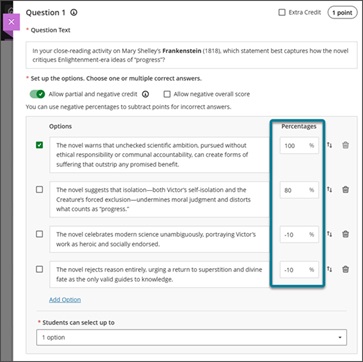
We updated the partial credit system for Multiple Choice and Multiple Answer questions to allow instructors to assign credit values without the requirement that all designated values sum to 100%. This change supports more flexible grading strategies and enables instructors to represent varying levels of conceptual understanding without adjusting values to meet a fixed total.
The system now allows instructors to enter any partial credit value for each option within a range of –100% to +100%. Validation continues to warn instructors if total values exceed 100%, but it no longer blocks question setup. Instructors may now also enter positive credit values for options that are not marked as the correct answer The total partial credit value for correct answers should be at least 100%, and it may exceed 100%. Negative marking continues to operate when enabled. Instructors can adjust credit values during regrading as well.
Image 1: Instructors can have answer options that do not sum to 100%.
Generate Knowledge Checks with AI
We expanded AI‑assisted authoring to support generating multiple choice Knowledge Checks within Documents. This enhancement allows instructors to create just‑in‑time formative assessments using AI‑generated questions based on the content of their Document and any selected course materials.
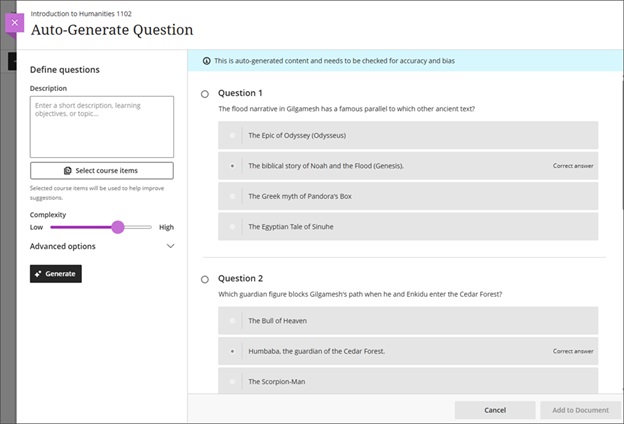
When inserting a Knowledge Check, instructors are now presented with two options: Enter my question or Auto generate question. Selecting Auto-generate question opens the Auto-Generate Question panel, which adapts the existing Question panel used in tests and question banks.
When using the Auto generate question option, instructors can define generation inputs with the following fields:
- A description text field
- A selector to choose course items to inform generation
- A complexity level slider with a range from Low to High
- Advanced options including an output language selector
- An informational banner that states: “This is auto-generated content and needs to be checked for accuracy and bias.”
The system generates four multiple choice questions at a time. Each generated question displays with a radio button so that the instructor can select one question to add to the Document. The instructor can then modify the question, answer options, and feedback after insertion. If the instructor opens the Knowledge Check option but does not add a question, the placeholder block remains empty and behaves as other empty content blocks do.
All questions are generated using only text content from the Document. Consideration of additional media or files will be handled as part of a future release.
Image 1: Instructors can select Enter my question or Auto-generate question when creating a knowledge check.
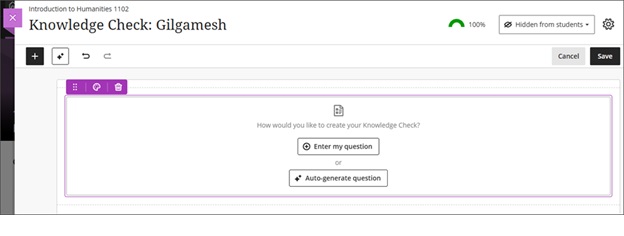
Image 2: After the system generates questions, the instructor selects which question to add to the Document. After adding a question, instructors can edit the question, question options, and question settings.
Use the AI Design Assistant to suggest Document layouts
If you’re looking for ways in which you can make your Blackboard Documents more visually appealing, then use the AI Design Assistant to suggest Document layouts.
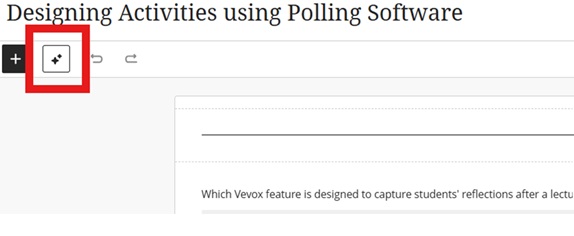
Go to your Document and click to edit the content. Then select the AI Design Assistant icon:
Image 1: AI Design Assistant icon highlighted.
You can provide further information to define the layout:
Image 2: Options available in the layout.
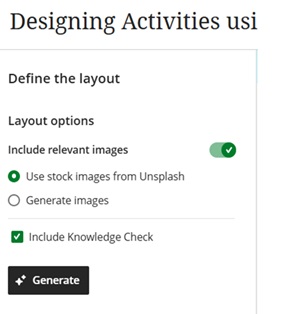
Select Apply layout to save the suggested layout.
Add a second participation requirement and due date in Discussions
Instructors can now add a second due date with participation requirements for Discussions. This update builds on recent enhancements for discussion participation requirements and gives instructors clearer ways to set expectations for discussion activity. Students get transparent guidance for discussion expectations and progress indicators for their participation.
Instructors
Instructors can set how many posts and replies that students must complete across two due dates.
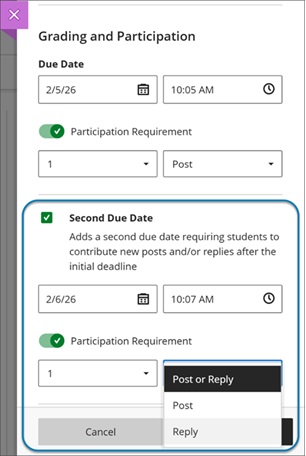
The option Grade discussion must be selected to add a due dates and participation requirements. Enter a time and date under Due Date and specify participation requirements. Selecting Second Due Date adds another due date with its own requirements.
Instructors can disallow student posts or replies after the final due date by selecting Stop discussion activity after last due date.
Image 1: Instructors can now add a second due date for Discussions. They can also specify the number and type of posts or replies that a student is required to make.
Students
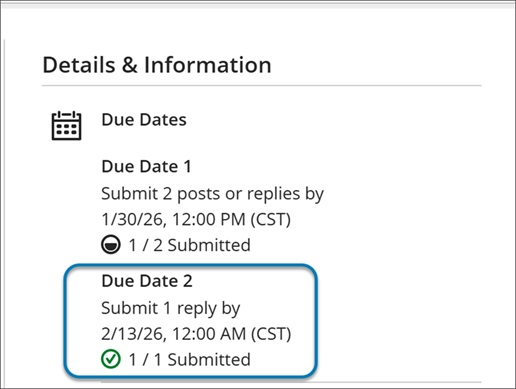
When students open a discussion, they find two clear participation requirements with separate due dates. As they post and reply, progress indicators update in real time.
Students can complete requirements in any order, but contributions after a due date won’t count toward that requirement. Once all requirements are met, the discussion is marked complete and Progress Tracking updates.
Image 2: In a Discussion, a student can find due dates in the Details & Information section in the discussion assignment.
Blackboard Assignment file limits
We increased the maximum supported SafeAssign file size from 10 MB to 25 MB. This enhancement supports modern academic workflows in which students frequently submit large documents. The increased file size applies to assignments and tests. Direct Submit will be included in a later release.
If you have any enhancements to request from Blackboard, please get in touch with us via bbbstaff@aber.ac.uk.
Peer Assessment Tools available in our virtual learning environment

We recently ran our E-learning Enhanced: Using Turnitin for Peer Assessment training session and wanted to highlight the different tools that are available for Peer Assessment across our Digital Education Platform.
Peer Assessment activities have several benefits to students:
- Allow students to invest in and manage their own learning
- Shared learning experiences
- Reflect on learning
- Consider communication and constructing feedback
- Develop conversation and collaboration skills
- Improve academic achievement
- Share responsibility for learning
- Develop employability skills around feedback
- In group scenarios, identify participants’ contributions
- Quick feedback
- Building a learning community
For Liu & Carless (2006), “peer assessment and peer feedback … enables students to take an active role in the management of their own learning” (280).
If you are interested in exploring this topic further, we recommend:
Liu, N.-F. & Carless, D. (2006) Peer feedback: the learning element of peer assessment. Teaching in higher education. [Online] 11 (3), 279–290.
Lynch, R., Mannix McNamara, P. & Seery, N. (2012) Promoting deep learning in a teacher education programme through self- and peer-assessment and feedback, European Journal of Teacher Education, 35:2, 179-197, DOI: 10.1080/02619768.2011.643396
Zhu, Q. & Carless, D. (2018) Dialogue within peer feedback processes: clarification and negotiation of meaning. Higher education research and development. [Online] 37 (4), 883–897.
We have several peer assessment tools that are available:
Blackboard Assignment for Peer Assignments
You can add a Rubric to the assignment – student will see this as part of their submission.
Workflow
- Create Assignment and set Peer Settings (see Peer Review for Qualitative Peer Assessments)
- Students submit their work as normal (see Blackboard web site)
- After Due date and time has passed, students review submissions see Blackboard web site
- After the Peer Review Due Date, staff complete marking (see Blackboard web site)
- Student view staff feedback, peer feedback and final mark
Note that:
- Students won’t be allocated any reviews if not enough assignments are submitted.
- Late submissions will be allocated to students. Late submission is allowed automatically as part of the peer assessment process.
- Students do not see any names as part of the review process. You should advise all students not to include personal information on their documents.
- Students can provide written feedback in the review process but can’t assign a mark (unless this is included in the text feedback box)
- You can add a Rubric to the assignment – student will see this as part of their submission and can refer to it while reviewing. However, they can’t use it to mark work.
- You can hide peer reviews if you feel the content isn’t appropriate
Turnitin PeerMark
Workflow
- Create a Turnitin Assignment and enable PeerMark
- Go back into Turnitin Assignment to set up Peer Mark Settings
- Students submit to Turnitin submission point
- After PeerMark start date, students are able to view another student’s assignment and leave feedback / scores to questions
- PeerMark feedback is visible to students immediately
- Lecturer needs to allocate a final mark manually
Guidance:
Overview of PeerMark: https://help.turnitin.com/feedback-studio/turnitin-website/instructor/peermark/about-peermark-assignments.htm
Creating a PeerMark Assignment: https://help.turnitin.com/feedback-studio/turnitin-website/instructor/peermark/creating-a-peermark-assignment.htm
Student guidance on Using PeerMark: https://help.turnitin.com/feedback-studio/turnitin-website/student/student-category.htm#peermark
Discussions
Discussions are available in every course in Blackboard – these are a great way for students to engage asynchronously with their peers; they can post comments and respond to each others’ posts.
Workflow
- Instructor creates a Discussion
- Students contribute to the Discussion
- Students respond to other Discussion posts
For further advice on creating discussions, please see below for Blackboard guidance:
Journals
Workflow
- Instructor creates a Journal (private between instructor and student)
- Students reflect weekly on their contributions to project
- Instructor has overview and monitors
- Can be used for students to give an idea on group contributions throughout process of peers
Create Journals: https://help.blackboard.com/Learn/Instructor/Ultra/Interact/Journals
Guidelines for students
https://journals.sagepub.com/doi/full/10.1177/1469787416654794 – contains guidance for students. Suggests providing a session for students on how to write feedback.
https://www.tandfonline.com/doi/full/10.1080/02602938.2019.1697424
“For peer review in the classroom to be effective, there is clear evidence that the process needs structure, clear and accessible assessment criteria and appropriate scaffolding sessions for students (Mangelsdorf Citation1992).”
https://www.ctl.ox.ac.uk/peer-feedback – includes some useful questions and prompts that could be used to structure feedback.
- https://www.plymouth.ac.uk/uploads/production/document/path/2/2404/7_steps_to_Peer_and_Self_Assessment.pdf
- https://blogs.qub.ac.uk/digitaldiscovery/2020/08/07/a-student-guide-to-peer-feedback/
- https://serc.carleton.edu/sp/library/peerreview/tips.html
Peer feedback has been used widely within group assessment work, for example, when it comes to ascertaining student participation, and factoring in group contributions. For an example of a group peer marksheet, see this sample template from Carnegie Mellon University.
Our Academy Forum handout on Peer Assessment provides further information and Aberystwyth University Case Studies.
What’s new in Blackboard February 2026
In the February update, we want to draw your attention to the following Blackboard enhancements:
- Use automations to remind students to check their feedback
- Stack blocks vertically in Documents
- Enhanced achievement usability
Use automations to remind students to check their feedback
Automations are a relatively new feature in Blackboard. The latest feature allows you to automatically send a reminder message to students who have unread feedback after an instructor-defined number of days. This feature saves time by automatically encouraging students to review their feedback, promoting student engagement.
Instructors
This release adds the Send feedback reminder option to the Automation gallery. Go to Automations:
Image 1: View automations under Course Assistants highlighted
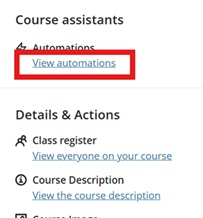
Image 2: The Automation gallery now includes Send feedback reminder.
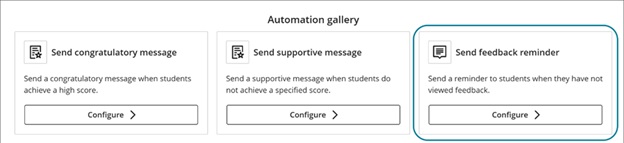
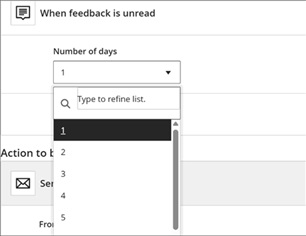
For the automation trigger, instructors select how many days feedback must remain unread before the message is sent.
Image 3: The Automation trigger includes a dropdown menu for the number of unread days.
A default reminder message is provided, and instructors can fully customise it at this stage. The message is sent to the student when the rule is triggered.
Stack blocks vertically in Documents
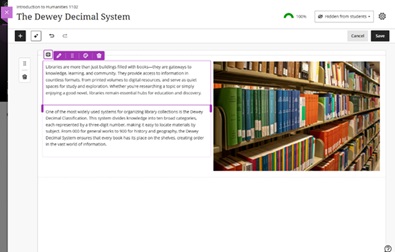
instructors can stack blocks in a single column in Documents to create cleaner layouts and reduce whitespace. A new toggle in the block toolbar allows switching between column-level and block-level editing. In column mode, actions apply to the entire column. In block mode, instructors can resize, move, or delete individual blocks.
Columns can also be dropped into another block’s area for more flexible layouts. These changes work with existing features such as undo/redo, printing, and AI layout generation. This enhancement also includes accessibility improvements for screen readers.
Image 1: Instructors can stack blocks in a single column, such as next to an image in a column.
Enhanced achievement usability
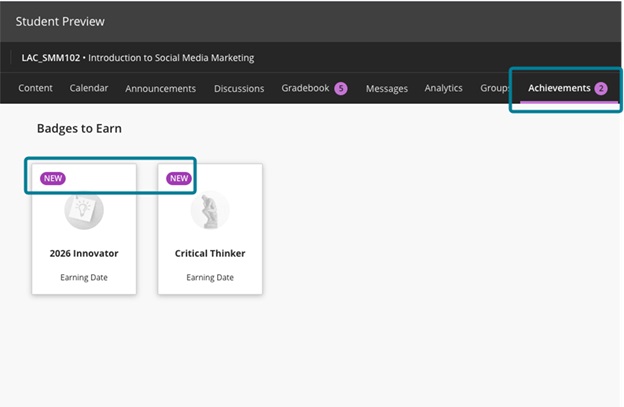
For students, the Achievements tab displays a count of unread badges. The New pill appears consistently in Earned and To Earn sections. The Delete Badge dialog uses clearer wording. Instructors and students can more easily distinguish between Course Badges and Open Badges with improved labels, icons, and descriptions.
Accessibility updates include improved aria-labels and alt-text. Styling for OpenBadge images has been updated to remove forced round shapes.
Image 1: In the student view, the Achievements tab displays a count of unread badges, and the new badges have a New pill.
If you have any enhancements to request from Blackboard, please get in touch with us via elearning@aber.ac.uk.
What’s new in Blackboard January 2026
Happy New Year! In the January update, we want to draw your attention to the following Blackboard enhancements:
- Minor Update to the Blackboard Interface
- Improvements to Document’s layouts
- More options for true and false questions
- Changes to multiple choice and multiple answer workflows
Minor Update to the Blackboard Interface
There is no downtime associated with this update, and Blackboard will continue to function normally during this period.
These changes include:
- Change in order of menu items on the main navigation menu:
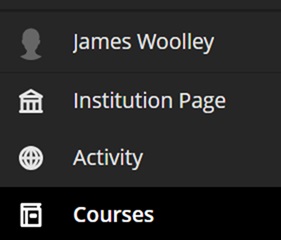
- A new home button in a course to take you back to the landing page:
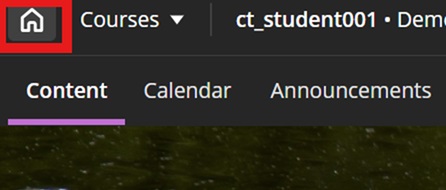
- A quick link to navigate to your recently accessed courses
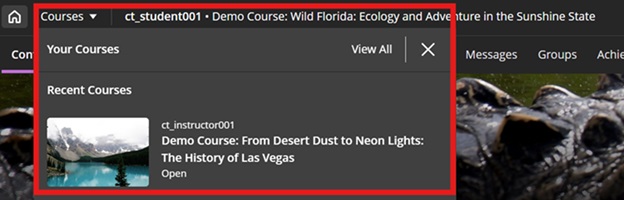
In addition to this, to maximise screen space, Blackboard will remove the nested folder view.
Improvements to Document’s layouts
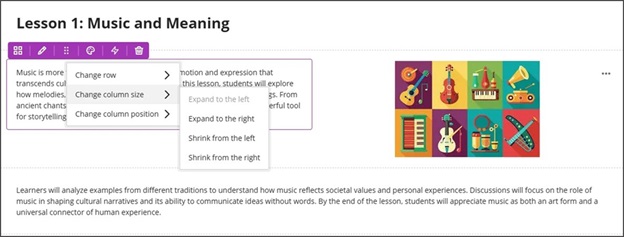
To improve usability and accessibility, we restructured the menu for document block layout. Previously, all options for changing the row, size, or position of a block were in a single dropdown list. Now, these options are organized by type of change (row, size, and position).
Selecting the edit icon for a block prompts a menu with three options: Change row, Change [block/column] size, and Change [block/column] position. Each of these options have a sub-menu, with the related actions.
- Change row
- Move to row above
- Move to row below
- New row above
- Change [block/column] size
- Expand to the left
- Expand to the right
- Shrink from the left
- Shrink from the right
- Change [block/column] position
- Move to the left
- Move to the right
Image 1: How document block styling options displayed before
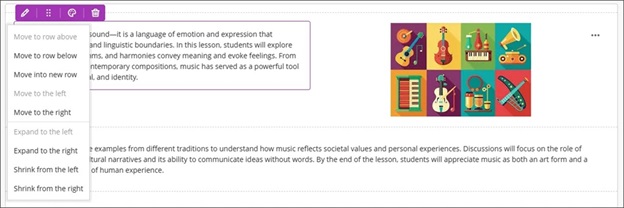
Image 2: How document block styling options display now
More options for true and false questions
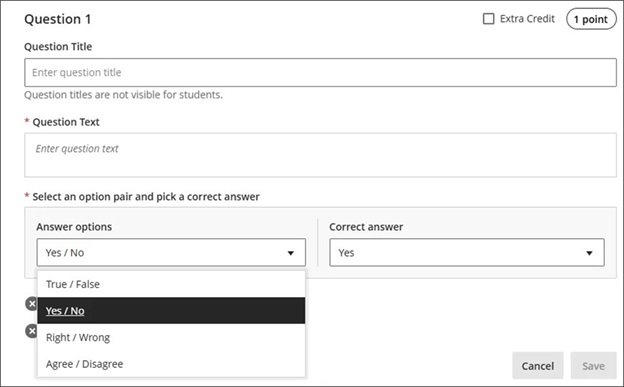
We expanded the display options for true/false questions to include:
- True/False
- Yes/No
- Right/Wrong
- Agree/Disagree
These additional answer options display when:
- Instructors create or edit this question type when building a test or in a question bank
- Students answer the question
- Instructors grade the question
- Students review their submission or graded question
Image 1: True/false questions now include additional options.
Changes to multiple choice and multiple answer workflows
ow students interact with questions. These changes support greater flexibility in assessment design and an improved experience for students.
Instructors
To reduce setup time when creating a multiple choice question, we changed the default number of answer options from three to four. Instructors can add or remove answer options.
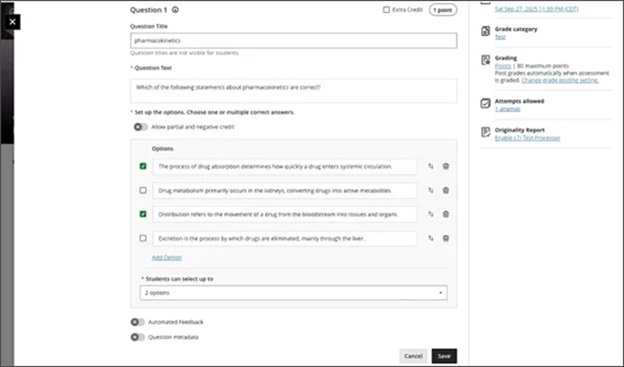
Instructors can now define the number of answer selections that a student can make for each multiple choice question. When the student takes the assessment, the system enforces the instructor’s selection limit.
The default is:
- 4 answer options
- partial/negative credit is off (no additional changes made to partial/negative credit for this release)
- students can select up to 4 answers
- if additional answers are added, selection limit remains at 4
- if answers are removed, instructor must select the selection limit
Image 1: Instructors can define the number of answer selections for each multiple choice question.
Students
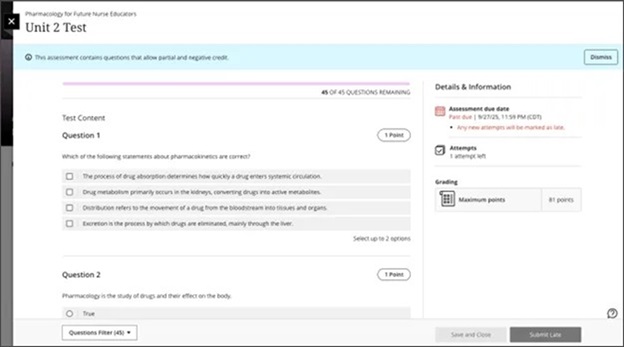
For questions where students can select only one answer, the selection mechanism is radio buttons. For questions where students can select more than one answer, the selection mechanism is checkboxes.
Image 2: The student’s selection mechanism of checkbox or radio button is determined by how many answers they can select.
If you have any enhancements to request from Blackboard, please get in touch with us via elearning@aber.ac.uk.
What’s new in Blackboard December 2025
In the December update, we want to draw your attention to the following Blackboard enhancements:
- Specify participation requirements for Discussions
- Support Inline and Display Formulas in MathJax
- Learning Module Table of Contents
- Set release conditions for open or started and for non-assessment content items
- Improved handling of group membership changes for group assignments
- Improved Automations experience
Specify participation requirements for Discussions
Instructors now have greater flexibility when managing student participation in graded Discussions.
With this update, instructors can specify required student responses for a Discussion topic.
Instructors
Instructors can now make clear participation requirements to students. The initial release adds participation requirements to the existing due date(s) for discussions. Instructors can set requirements on the number of required posts and/or replies for a student to fulfil the requirement.
The status of participation requirements is updated through to completion, giving a student a clear understanding of progress made. Participation requirements are linked to progress tracking, so that will be accurately displayed for the student to monitor.
This update does not affect grading workflows or Gradebook structure.
Image 1: Instructors being able to set participation requirements in discussion settings.

Students
The new participation requirements in Discussions give students a clearer understanding of instructor expectations in an assigned Discussions topic. Students can monitor their progress both in the assigned Discussions topic as well as in Progress Tracking.
Image 2: Showing the complete state when all the requirements have been met.

Support Inline and Display Formulas in MathJax
MathJax support in the Content Editor now includes additional LaTeX delimiters for rendering mathematical formulas. This update improves compatibility with standard STEM workflows and simplifies uploading exam content without changing source files.
Instructors and students can now use:
- \(…\) for inline equations
- \[…\] for display equations
These options are in addition to the existing $ delimiters. Expanded support improves the experience of working with mathematical notation in Ultra courses and enhances visual clarity for complex expressions such as integrals, sums, and products.
Learning Module Table of Contents
Instructors now have access to a collapsible Table of Contents panel in Learning Modules. This update mirrors the student experience and supports consistent navigation across roles.
The Table of Contents panel includes all items in a learning module. Select Contents to open or collapse the panel. Instructors can navigate the full module structure and align course design with the student experience.
Image 1: Instructor view of a Learning Module with the Table of Contents panel open.

For smaller screen sizes, when an instructor sets up an assignment within a learning module, the settings panel moves from the right-hand side into the header bar. This is signified by a settings cog.
The change has been made to allow more space on the screen with the left-handed table of contents available. Users accessing that board on smaller screens, you will notice that the settings cog has moved to the header bar for that particular piece of assessment.
Set release conditions for open or started and for non-assessment content items
We expanded release conditions to include activity on items including non-assessment content. This enhancement allows conditions to be based on whether a student has opened or started content items such as documents, media, or course links. Instructors can now control access based on whether a student has opened or started a prerequisite content item.
Key options for release conditions:
- Unopened: The student has not accessed the item.
- Opened or Started: The student has accessed the item.
For example, an instructor can require students to open a reading or watch a video before an assessment becomes available.
Improved handling of group membership changes for group assessments
We’ve enhanced Flexible Grading and the Submissions page for group assessments to better handle changes in group memberships. These improvements ensure grading accuracy and reduce confusion when groups are modified after submissions:
- On the Submissions page, if all members are removed from a group:
- The group avatar displays a ? icon.
- A No members label appears.
- The group name becomes non-selectable.
- For active groups, the Flexible Grading interface always shows the current group members for each attempt.
Image 1: On the Submissions page, a No Members label appears in groups with no members.

Image 2: The Flexible Grading interface shows the current group members for each attempt.

Improved Automations experience
Back in October we launched automations – an automated messaging tool to contact students based on marks in the gradebook.
Several enhancements have been made to automations in this month’s updated:
Instructors
- Better visibility of Automations actions
- Users can now check the status of each automation directly from the list.
- Each automation now displays who executed it, increasing transparency in multi-instructor courses.
- Cleaner interface and more intuitive interactions, including:
- Pagination on the automation list for smoother navigation.
- Improved error messaging and validation when configuring numeric inputs.
- Minor layout and usability improvements for the automation rules panel.
- String and localisation improvements.
Image 1: There is an indicator of the status of each automation in the list (active or inactive). The last person to execute the action is stated under each automation, and an error message is displayed for an automation that is incorrectly configured.

If you have any enhancements to request from Blackboard, please get in touch with us via elearning@aber.ac.uk.