We’ve had an issue the past couple of years with some colleagues unable to locate a folder to record into in Panopto.
When the Panopto recorder opens in a lecture theatre, the folder does not appear on the dropdown, forcing colleagues to record offline.
We have been liaising with ITS and Panopto over this matter.
If you are experiencing this issue, there are a couple of things you could try:
Adding a link to All Panopto recordings in your Blackboard Course. Panopto permissions are synced across all modules if instructors engage with this link. See our FAQ on how to do this.
Accessing Panopto from Blackboard.
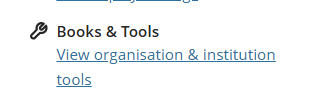
Go to your module in Blackboard and click Books & Tools from the right-hand menu.
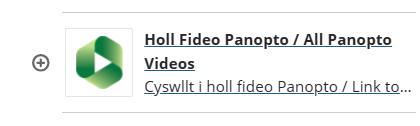
Choose Holl Fideo Panopto / All Panopto Videos
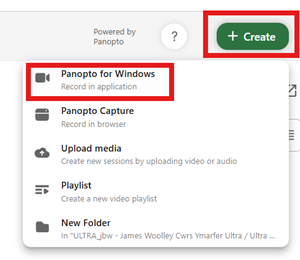
Choose Create and Panopto for Windows
This will open the Panopto recorder and you should be able to choose the folder from the dropdown.
If you are still having difficulties, record offline, and contact the Digital Education Team (elearning@aber.ac.uk) with the following information:
Location
Time and date of lecture
Module code
We’ll retrieve the recording and upload as soon as possible.
In the October update, we want to draw your attention to the following Blackboard enhancements:
Improvements to the beta Content Editor in Blackboard Documents
Start AI Conversations in a new immersive experience
Lock an AI Conversation to a specific language
Manage rubrics from a dedicated course rubrics page
Export and import rubrics
Display username and last access date in the gradebook grid view
Display points possible in the gradebook list view
Reveal student identity for anonymous assessments
Improvements to the beta Content Editor in Blackboard Documents
The beta Content Editor has received a broad set of updates aimed at making editing smoother, more accessible and more reliable. Improvements focus on navigation, formatting controls, file handling and support for mathematical content.
Keyboard navigation and accessibility
Instructors can now move around menus and toolbars more intuitively using keyboard controls. Menu behaviour is more predictable, shortcuts are easier to read, and paragraph indentation can be reduced using Delete or Backspace.
Toolbar and menu updates
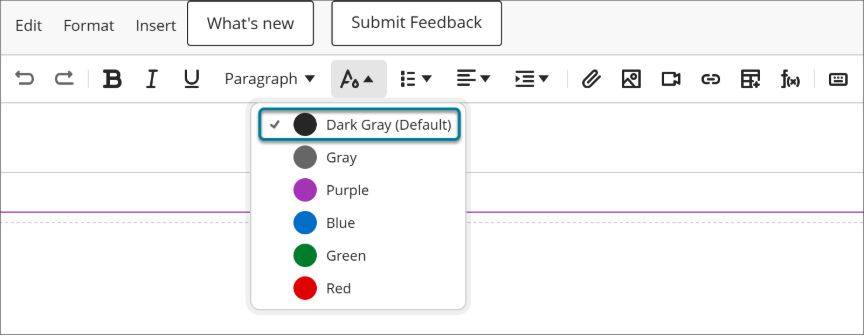
Toolbar updates make it clearer which formatting options are currently active.
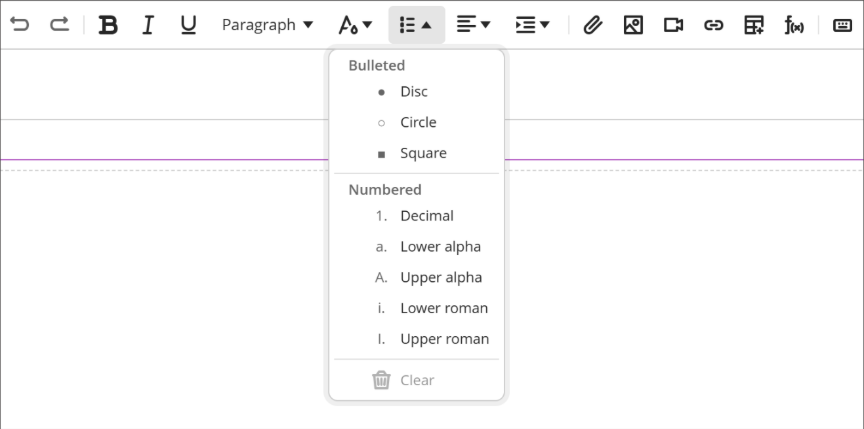
Image 1: The List menu includes the section headers Bulleted and Numbered.
Image 2: The default color is labeled Dark Gray (Default).
List behaviour
List controls are easier to understand, and list editing now behaves more consistently when items are removed.
Image and file handling
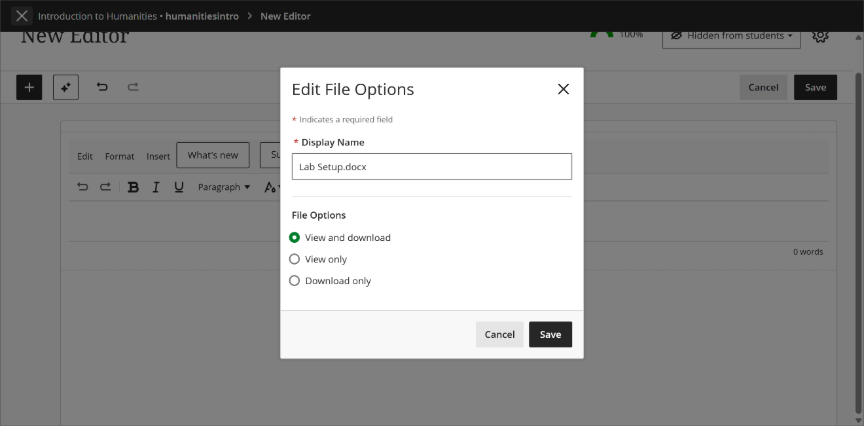
Image and file handling has also been improved. Resized images retain their dimensions after conversion, file settings can be reviewed before insertion, and attachments are preserved when content is migrated to the new editor. Direct file copy-and-paste between editors is currently blocked to avoid permission issues.
Image 3: The Edit File Options window appears when a file is attached.
Code formatting
Code formatting is cleaner, with multiple selected lines now forming a single code block.
Maths authoring
The final very useful update that Blackboard has introduced to its new content editor is the first stage of enhanced maths support. This will allow LaTeX and MathJax equations to display automatically within documents, without having to enter the maths editor.
Start AI Conversations in a new immersive experience
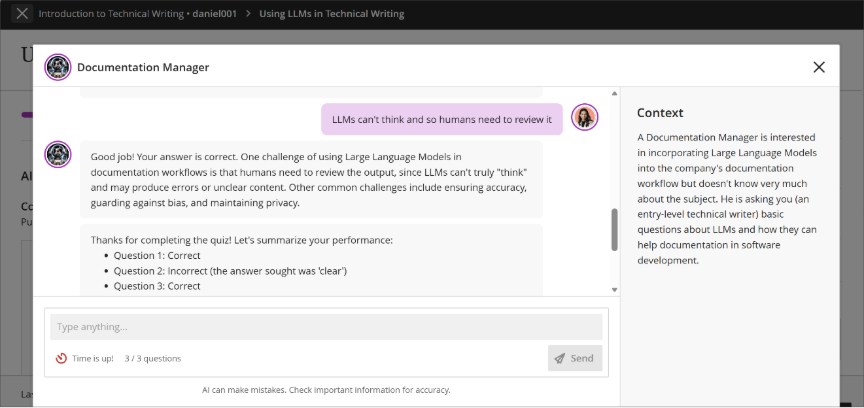
AI Conversations now launch in a dedicated workspace designed to keep students focused on the discussion. Instead of opening immediately, conversations begin when students choose Start conversation.
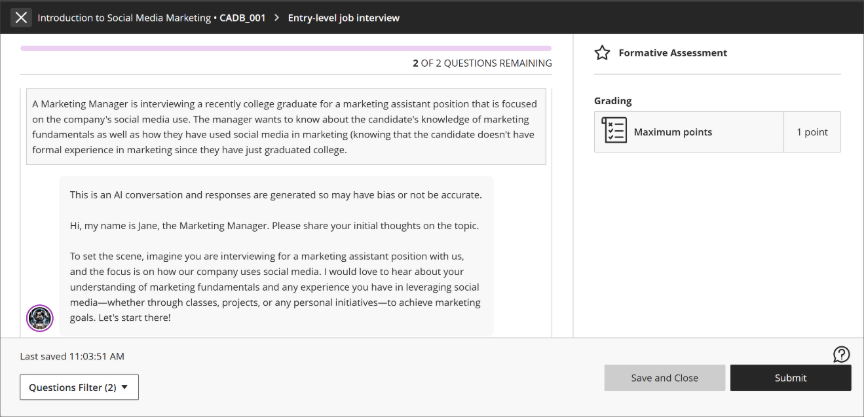
The new layout removes configuration details and assessment information that can distract from the activity. Students have more space for interacting with the AI while still seeing the standard AI-generated content warning.
The updated experience works across Socratic, Roleplay and AVA Pulse Quiz activities. The instructor setup process remains unchanged.
Image 1: The new AI Conversation immersive experience fills a larger area to help students stay focused on their conversation.
Image 2: The previous student experience of AI conversation included a view of assignment details that were irrelevant to a student’s active participation in a conversation.
Lock an AI Conversation to a specific language
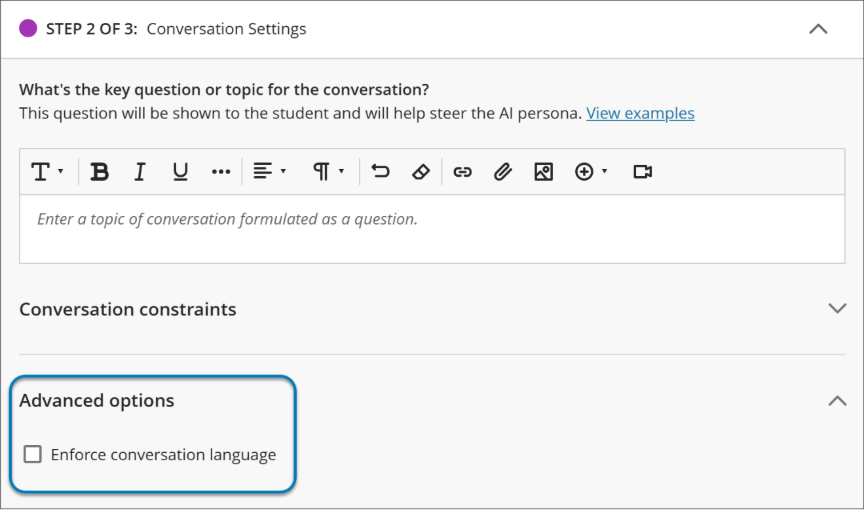
Instructors can now lock AI Conversations to a chosen language. Once enabled, the AI will communicate exclusively in that language throughout the activity.
This is especially useful for language-learning activities where students need to remain immersed in a target language. Even if a student requests a different language, the AI continues using the language selected by the instructor.
The setting is available through Advanced Options and applies to all supported AI Conversation types.
This update may be particularly useful for courses taught in Welsh, or foreign language courses at the university.
Image 1: Instructors can now select the option to enforce a conversation language in AI Conversation.
Manage rubrics from a dedicated course rubrics page
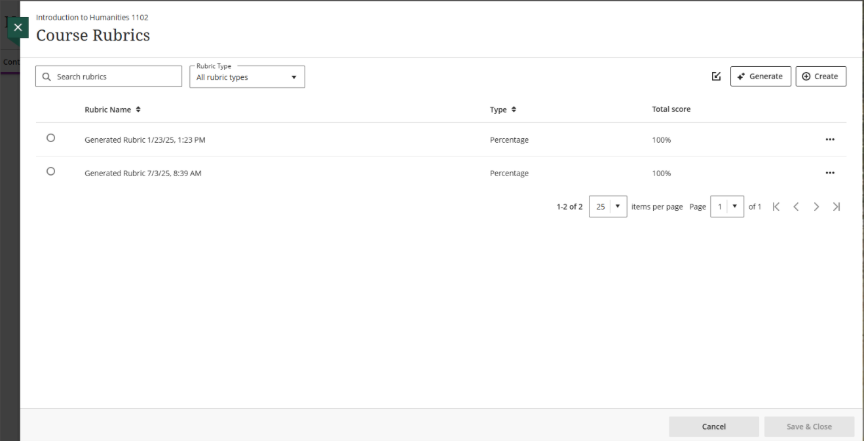
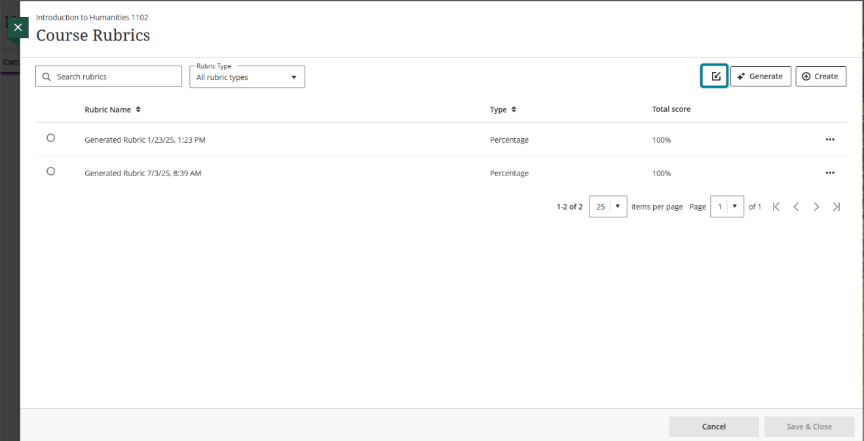
Rubrics now have their own dedicated management page. The new area provides a searchable and sortable view of all rubrics within a course.
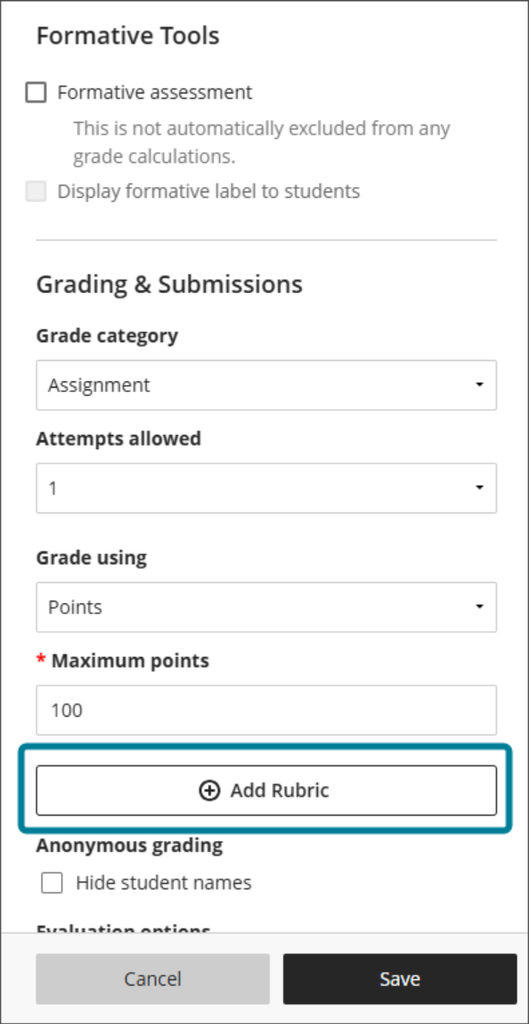
From this page, instructors can create, generate, import, export and manage rubrics more efficiently. Rubrics can also be linked directly to assignments through a simplified workflow.
Note: these rubrics are those used for Blackboard tests and assignments, not those used in Turnitin.
Image 1: The Course Rubrics page displays all rubrics in a sortable, searchable table.
Image 2: Instructors select Add Rubric in Assignment Settings to open the Course Rubrics page.
Export and import rubrics
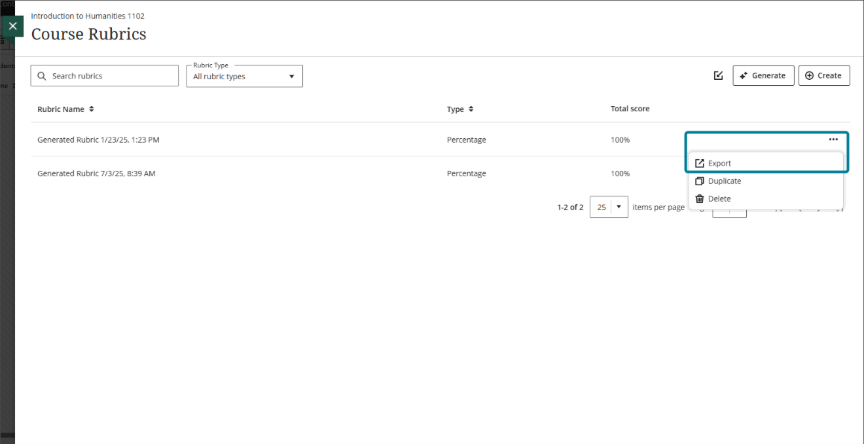
Blackboard now allows rubrics to be exported and imported between courses, making it easier to reuse assessment criteria across modules.
Exported rubrics are downloaded as ZIP files and can later be imported into another Blackboard course. Duplicate imports are prevented automatically to help keep courses organised.
Note: these rubrics are those used for Blackboard tests and assignments, not those used in Turnitin.
Image 1: The ellipsis menu on a rubric shows the Export option.
Image 2: The Import icon on the Course Rubrics page.
Display username and last access date in the gradebook grid view
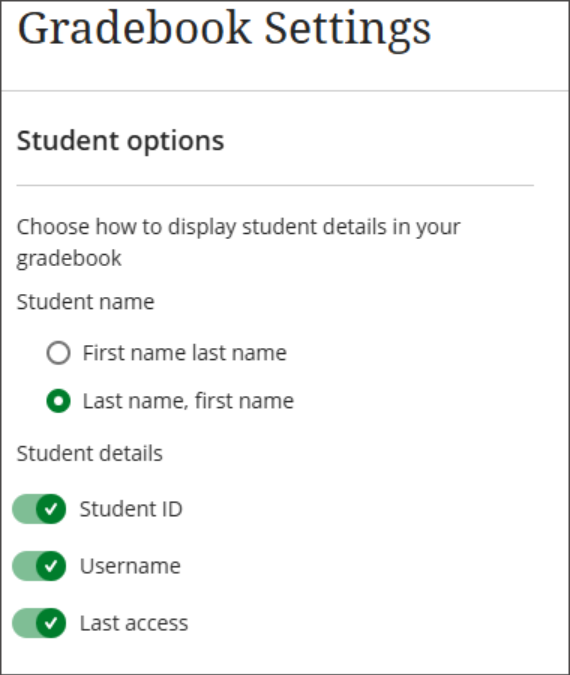
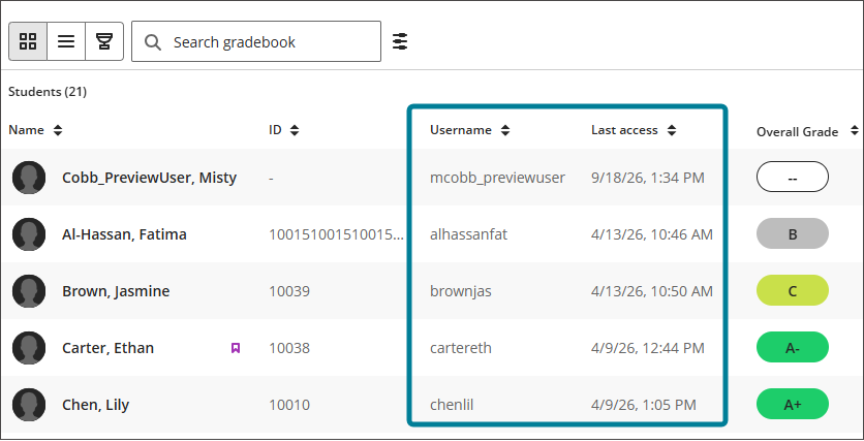
Two new optional columns are available in the Gradebook grid view: Username and Last Access. Both are disabled by default and can be enabled through Gradebook Settings.
Once activated, the columns appear alongside student names and can be sorted, helping instructors identify users and monitor engagement more easily.
Image 1: The Student options section in Gradebook Settings shows toggles for Student ID, Username, and Last access.
Image 2: The gradebook grid view, including the Username and Last access columns.
Display points possible in the gradebook list view
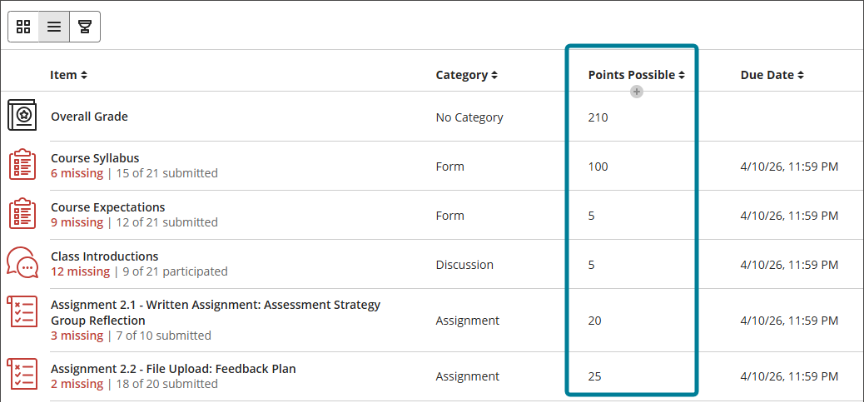
The Gradebook list view now includes a sortable Points Possible column. This gives instructors a quick overview of the value assigned to each gradable item.
The column is populated automatically from existing assessment settings, while items without a points value remain blank.
Image 1: The list view displays a sortable Points Possible column.
Reveal student identity for anonymous assessments
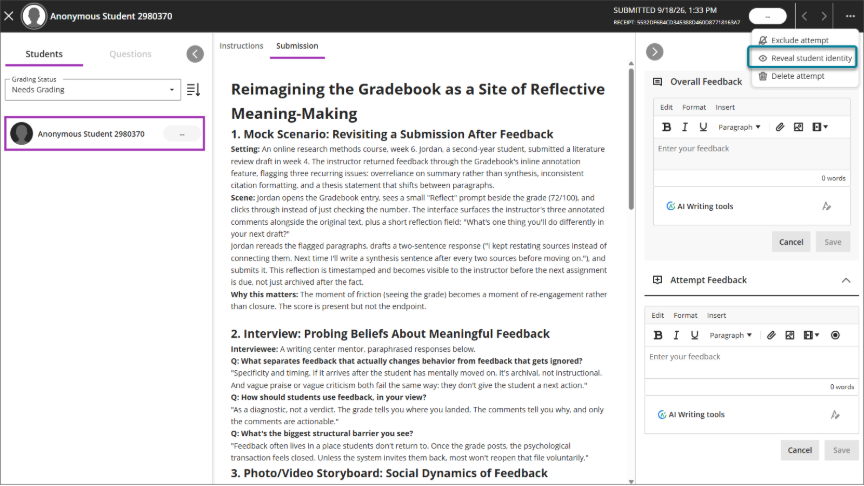
Staff with the right permissions can now temporarily reveal a student’s identity for an individual anonymous submission when needed. Anonymous marking remains in place for everyone else, and all actions are logged so there’s a clear audit trail.
In Flexible Grading, authorised users will see new Reveal student name and Hide student name options for anonymous assessments. When a name is revealed, the student’s profile card, including their name, ID and avatar, is displayed in both Student and Question views.
Image 1: The ellipsis menu in Flexible Grading shows the Reveal student identity option.
The reveal only applies to that user and session. Student details are automatically hidden again if the user logs out, refreshes the page, closes the browser, or the session times out. If a grader sees a student’s identity while marking any part of a submission, Blackboard records that submission as having been graded non-anonymously.
Note: this feature relates to Blackboard tests and assignments, not Turnitin.
On November 10, Aberystwyth University will be joining institutions worldwide for Anthology’s Fix Your Content Day 2026, and we need your help! Join the Digital Education Team for a drop-in session in B23 Llandinam and improve the accessibility of your digital course content using Blackboard Ally. Every fix – big or small – makes a difference to our students.
In this blogpost, we want to draw your attention to one of the lesser-known features of Turnitin: it’s peer assessment functionality. Peer assessment helps students take greater ownership of their learning by encouraging reflection, shared responsibility, and active participation in a supportive learning community. It also develops valuable communication, collaboration, and feedback skills, while providing timely feedback that can improve academic performance and employability. This blogpost will show how you can use Turnitin’s PeerMark functionality to achieve some of these outcomes in your assessments.
Create a Turnitin Assignment and enable PeerMark
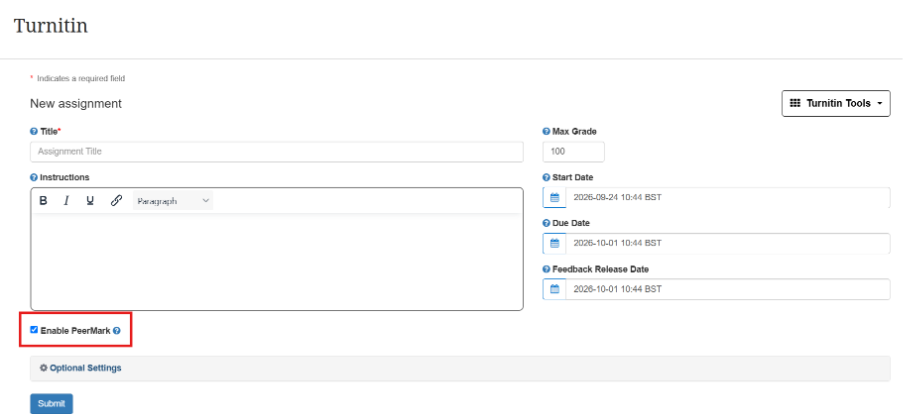
To create a Turnitin Assignment, follow the usual steps on Blackboard by clicking the purple plus sign to create context, then select ‘Additional Tools’ before choosing the option for Turnitin. When configuring the settings for the Turnitin Assignment, remember to tick the Enable PeerMark box before submitting.
Go back into Turnitin Assignment to set up PeerMark Settings
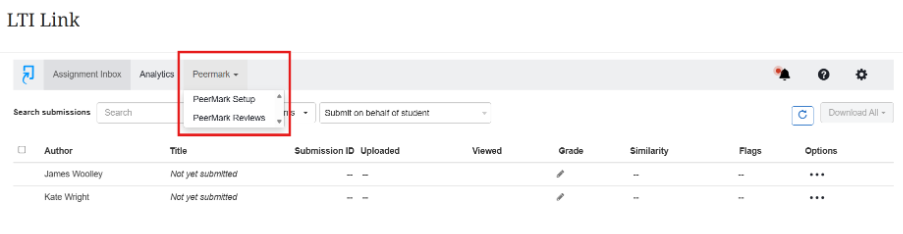
After the Turnitin Assignment has been set up, go back to this assignment on the Blackboard course page and click on the assignment to begin setting up the PeerMark settings. The settings for the PeerMark can be changed by clicking on the PeerMark Setup option under the PeerMark Tab.
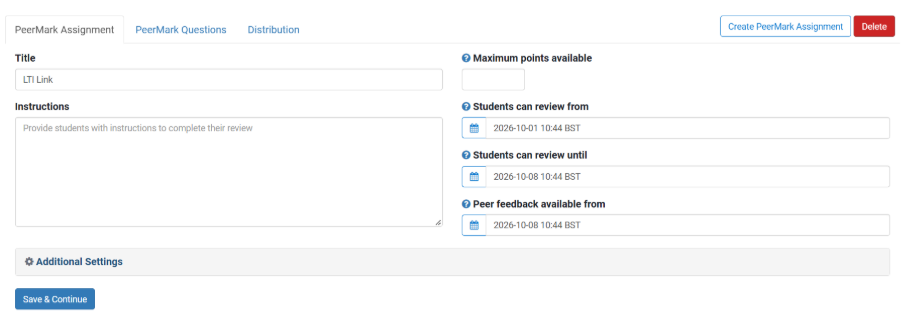
After clicking on this option, you will be presented with three separate tabs relating to the PeerMark setup. More information about these tabs is noted below.
a.PeerMark Assignment Settings
The PeerMark Assignment settings will allow you to select the start, end and feedback release date for the assignment. The maximum points available for the peer marking, the title given for the assignment and any further instructions for the students can also be entered here. This page looks very similar to the usual Turnitin setup. However, it is worth keeping in mind that these are the settings for Peer marking, rather than the overall assignment settings.
b.PeerMark Question Settings
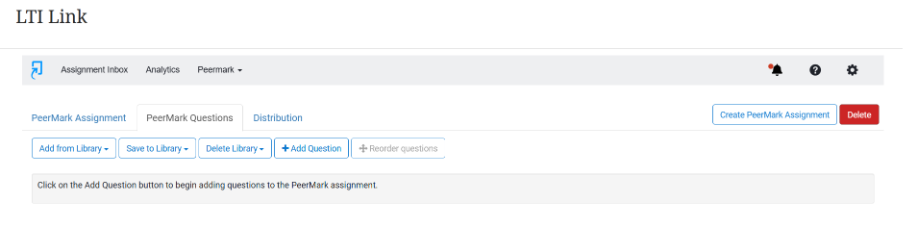
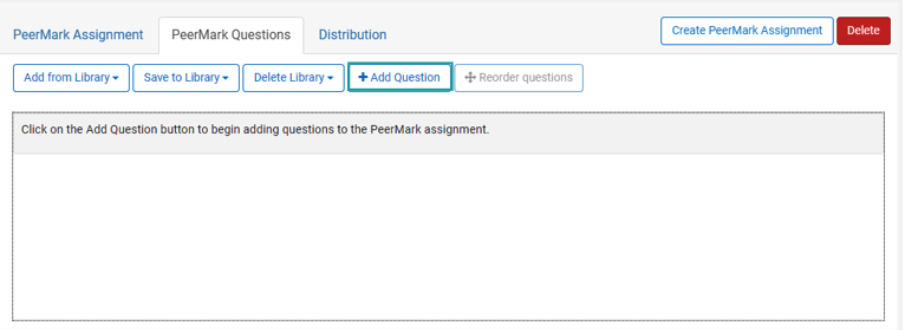
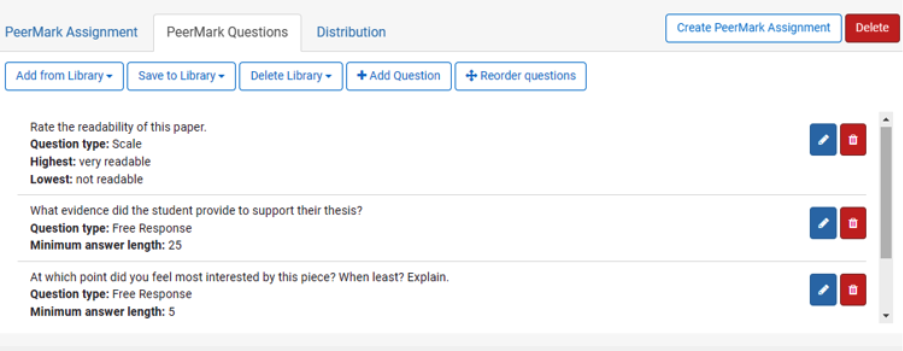
The PeerMark questions tab allows instructors to support and guide the peer marking process through questions and scoring.
To manually add questions for peer marking, select and add questions to create a new question.
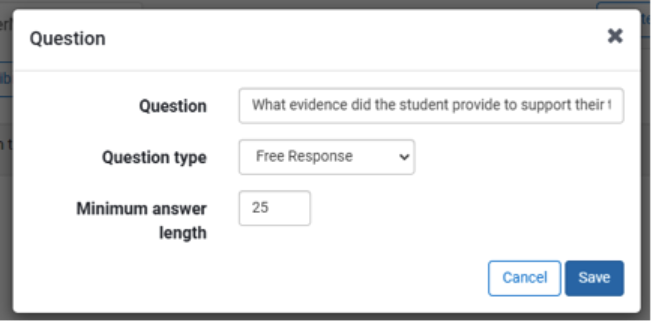
This then prompts you to type your question in the question field. After this, you will be prompted to select the question type from the drop-down menu.
There are two options available for question types. The first of these is a Free response. With a free response, students receive an open text field to record their responses. For this type of question, you must also provide a minimum answer length (in words).
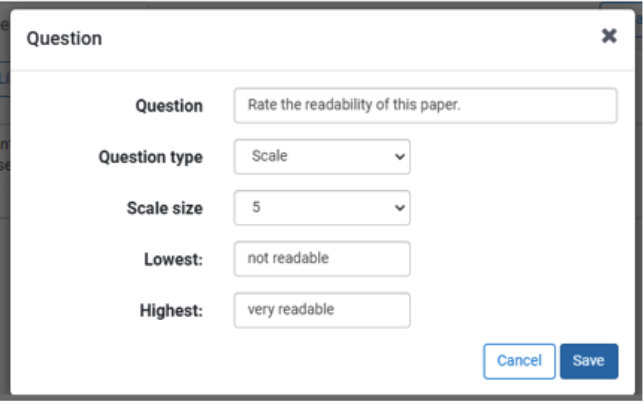
The second type of question that can be selected is a scale response. Scale responses mean that students receive a sliding scale with which to rate the question. For this type of question, you must also provide a scale size and the names for the lowest and highest values.
After you have created your questions, you can select Save to add the question to the PeerMark assignment. There is also the option to add these questions to the PeerMark library for future reuse. Once the PeerMark assignment has been submitted, it can no longer be edited. There are no late submissions allowed with PeerMark.
Editing, deleting, and reordering PeerMark questions
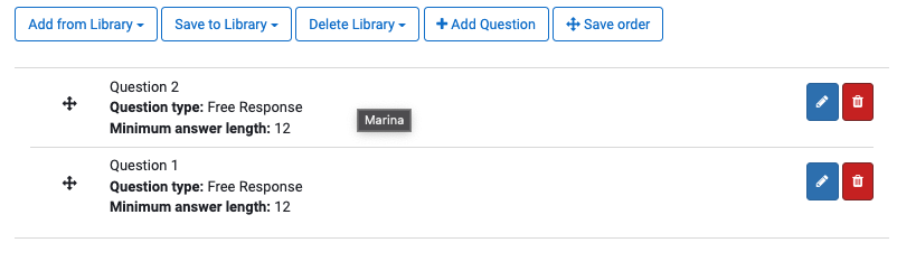
After you initially set up the PeerMark questions, there are options to edit, delete and reorder questions. To edit a question, select the blue pencil button in the same row. To delete a question, select the red rubbish can icon in the same row. To reorder a question, the first step is to select the reorder questions button from the top. Secondly, you have the option to select and drag to reorder PeerMark questions. Finally, click the save order button to save the new order.
c. Distribution Settings
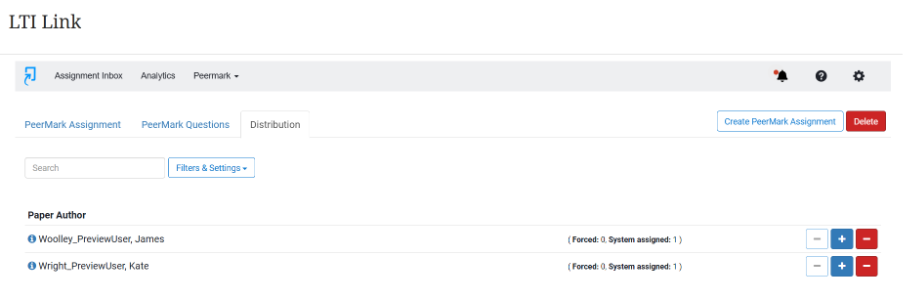
The distributions will allow you to see a list of students enrolled for the assignment. The blue ‘+’ sign and the white ‘-‘ sign will allow instructors to manually assign students to one another for peer marking. If this option is not chosen, Turnitin will automatically and randomly assign students to one another. The information to the right of the student’s names will allow you to see whether the students has been assigned a peer marking partner manually or automatically.
Students submit to Turnitin submission point
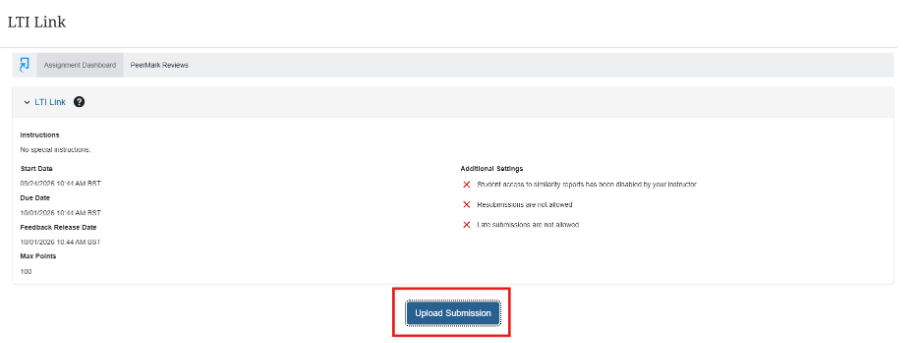
Once the settings have been configured, students will be able to submit to the Turnitin submission point as usual. To do this, students should access the Turnitin submission point from the Blackboard course page. Like other assignments, the submission will then be submitted by selecting upload submission, then choosing a file for upload from your documents before submitting the assignment.
After PeerMark start date, students are able to view another student’s assignment and leave feedback / scores to questions
Once work has been submitted and the PeerMark start date has passed, students will then be able to view another student’s assignment and leave feedback and scores to questions.
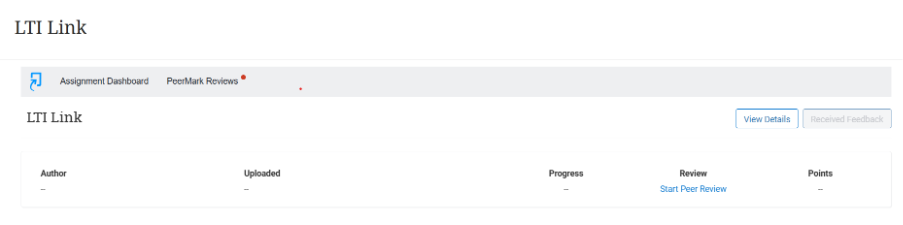
To do this, students should access the Turnitin submission point from the Blackboard page. When they open the submission point, there should be a PeerMark Reviews tab alongside the Assignment Dashboard. Click on that tab to begin the PeerMark review process.
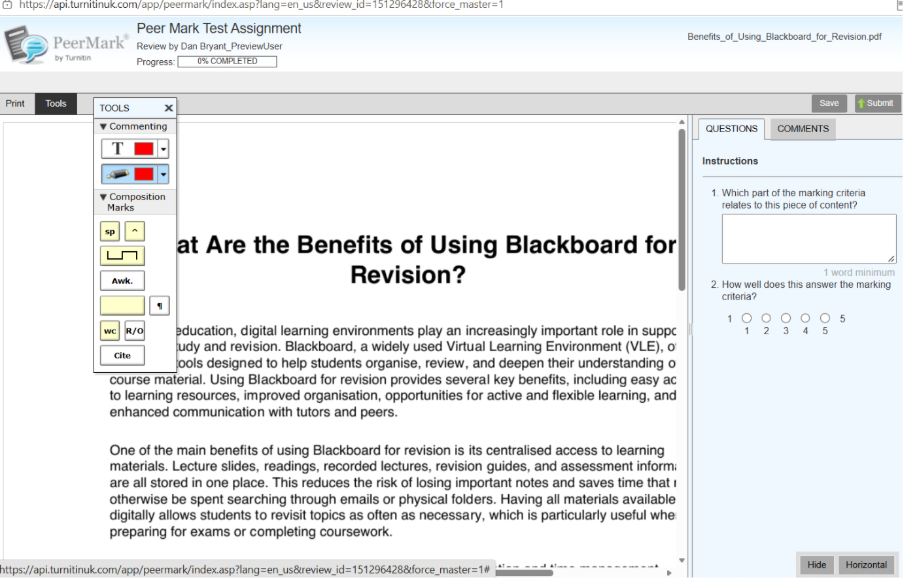
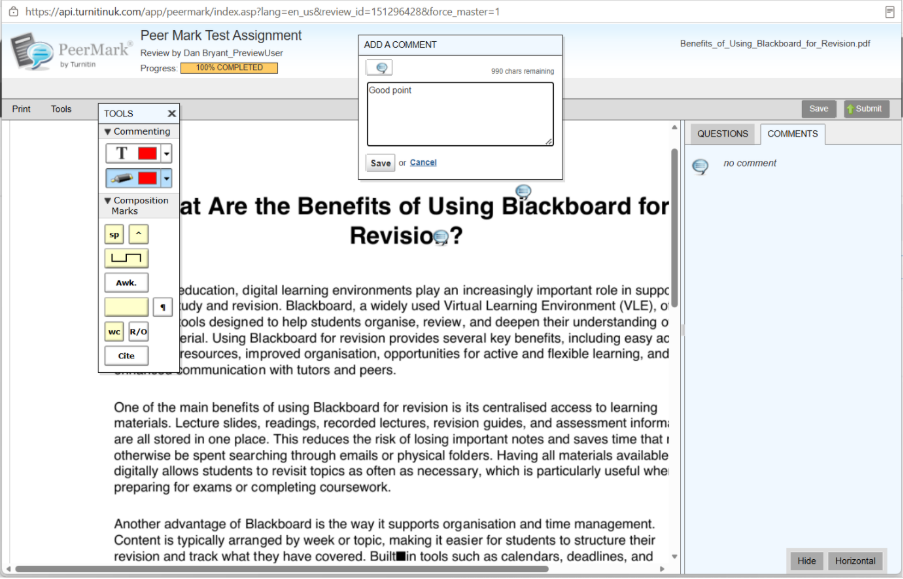
Clicking on Start Peer Review should open up the assignment that has been assigned to the student for reviewing. Once the assignment is open, you will be able to peer mark by providing answers to the preprepared questions set by the instructor and leaving comments on the page by double clicking on the text. Under the tools tab there are also more options to annotate on the assignment, by adding or highlighting text, for example.
PeerMark feedback is visible to students immediately
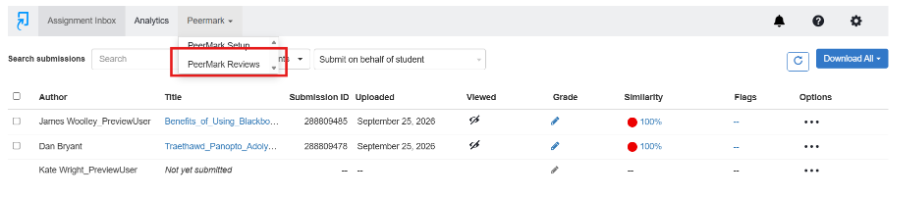
PeerMark feedback is visible to students as long as feedback has been submitted for them. To view the feedback, students should navigate back to the Turnitin submission point and click on PeerMark Reviews under the drop-down options of the PeerMark.
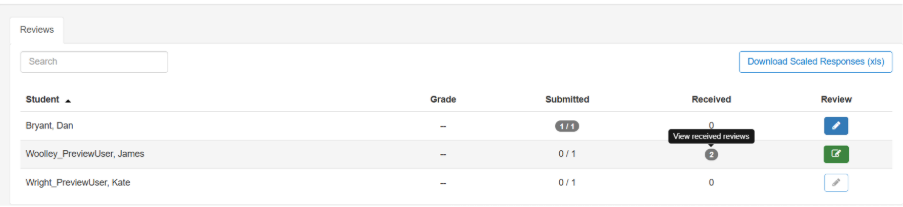
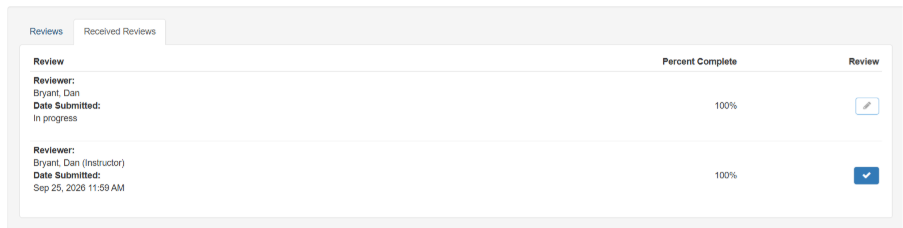
After clicking on this tab, you will be able to see the peer mark reviews by clicking on view received reviews.
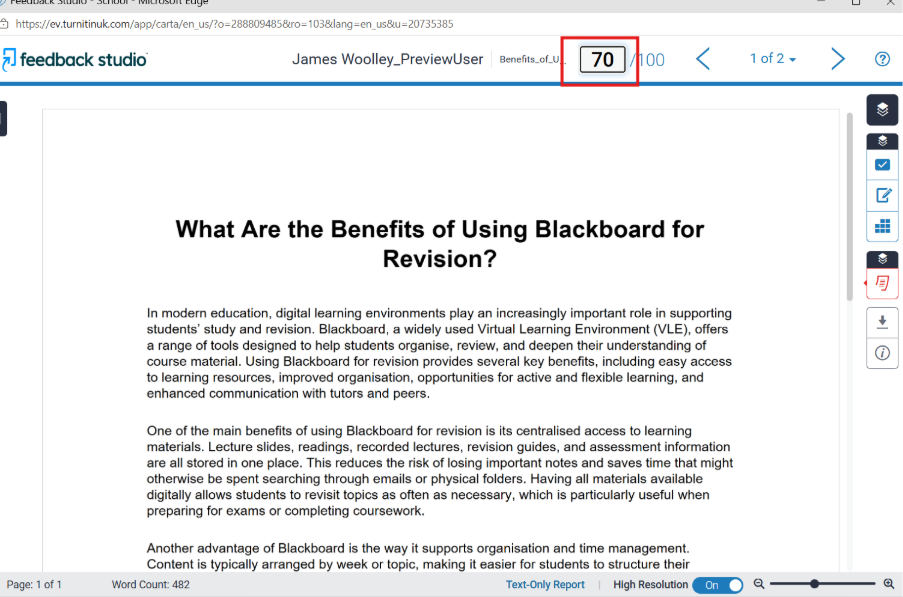
Clicking the review that you want to access from the list will reopen the assignment and should include the feedback from the peer reviewer.
Lecturer needs to allocate a final mark manually
Taking into account the PeerMark feedback and scores to questions, the lecturer will then need to enter marks manually in each Turnitin Assignment. This will be done in the usual method by accessing the students’ submissions in the assignment inbox and adding a grade on the top of the Turnitin marking studio.
How are staff and students enrolled onto Blackboard modules?
Where can I find the AI Essentials content?
How do I link Panopto recordings to Blackboard?
Guidance on merging modules in Blackboard
How do I merge modules?
You can merge modules using the Blackboard Ultra Module Partner tool accessible through myadmin.aber.ac.uk. -> Blackboard Ultra Module Partner.
The Blackboard Ultra Module Partner tool allows you to share the same content across multiple modules by assigning one module as the Primarymodule and linking one or more modules as a Secondary module.
There is no limit to the number of secondary modules that can be linked, but there can only be one primary module.
Merging modules automatically makes content from the primary module available in all linked secondary modules. This means that you won’t need to upload the same materials to multiple modules. Alternatively, you can email elearning@aber.ac.uk.
An in-depth guide for the Blackboard partner tool can be found by following the link below which will take you to our FAQs:
Merging modules allows module coordinators to link the same content between two or more modules in Blackboard. This is useful for modules that share the same materials, some examples where this could be useful include:
Taught modules that are available for both 2nd and 3rd year cohorts
Modules that use the same content across different degree schemes
Modules that use identical learning materials and reading lists
How do I unmerge modules?
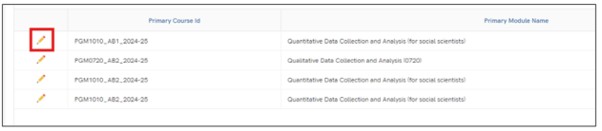
Modules can be unmerged by clicking the pencil icon in the Primary Course ID section and then Click Delete -> Delete
When modules are unlinked, previous submissions, marks etc are retained for students on the module. They will be hidden from staff (to avoid confusion), but if you need to view them contact elearning@aber.ac.uk for advice
What to consider?
All content can be viewed as soon as the modules are merged (if students are enrolled on the module). In addition to PowerPoints and lecture materials, this also includes Announcements and other interactive tools on your primary module.
Historical student interactions on a secondary module (such as using blogs or discussion board posts) won’t be available once the modules have been merged.
Any submission points created on a secondary module before the merge takes place will no longer be able to be viewed. We would advise creating these again in the primary module.
How do I make module content visible to specific cohorts?
All content is automatically visible once modules are merged. Groups and adaptive release can be used if you only want the content to be visible to a specific module cohort.
This may be useful if you have merged a 2nd year and 3rd year module but your students on the different modules have separate assignments. You can use one group for 2nd year students and one for 3rd year students. You can also limit who can see the assignment information and submission point.
After merging, all students will be visible within the primary module’s gradebook. You can, however, view the primary and secondary modules gradebooks separately using the Merged Modules filter found within the primary module’s gradebook.
If you’d like further information on merging modules or have any questions, please email us at elearning@aber.ac.uk.
How are staff and students enrolled onto Blackboard modules?
Overview Enrolment
Staff enrolments onto Blackboard modules can by managed through the Module Management System or by emailing elearning@aber.ac.uk.
Students will be automatically enrolled onto their Blackboard modules via AStRA once they have completed registration and any outstanding enrolment tasks. Students should be directed their Student Record to check
Module Management System
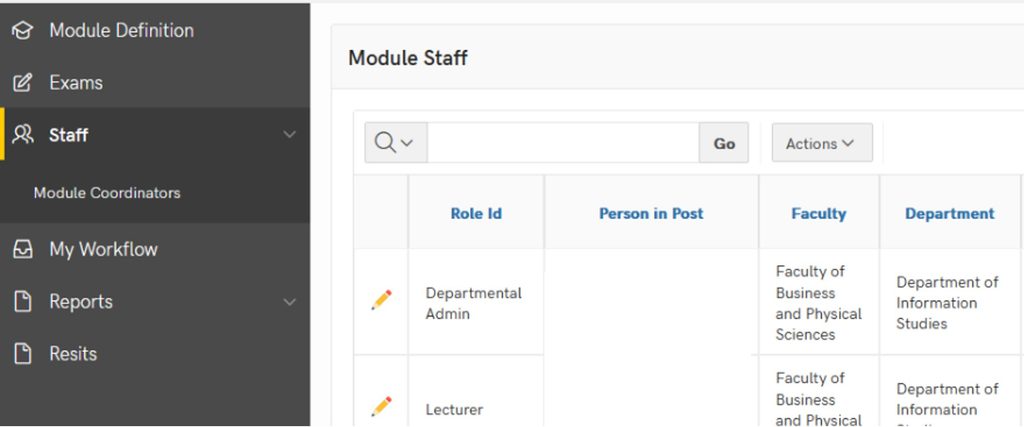
The Module Management System can be used to enrol staff and departmental admins
The staff section can be found by searching staff
The staff section will show you what staff have access to and what they have updated
Individual staff can be added too:
A module
All modules in the department
All modules in a faculty
All modules at the institution
The role with the highest level of permission will take priority for, example instructor over grader
How do staff roles appear in the Module Management System and Blackboard?
Students can change or withdraw from courses using their student record, if this happens the student will be automatically removed from their current Blackboard course on a Monday night.
Staff who are removed using the Module management system will also be automatically removed from modules on a Monday night (23.59)
Modules will still be visible to both staff and students before Monday night (23.59). This means that if a staff member or student is removed on a Tuesday their modules will still be visible.
I can’t see my course in Blackboard?
(Students) Check your Student Record for missing tasks and outstanding registration then contact your department.
(Staff) Contact the registry staff in your department
Staff should only be enrolled using the Module Management System.
Technical issues are likely if staff and students are enrolled via the class register in Blackboard.
It may take up to an hour for changes to appear in Blackboard
If changes have not appeared after one hour, please contact elearning@aber.ac.uk.
Where can I find the AI Essentials content in Blackboard?
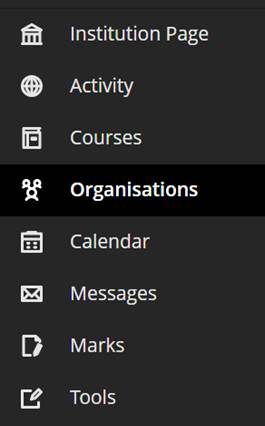
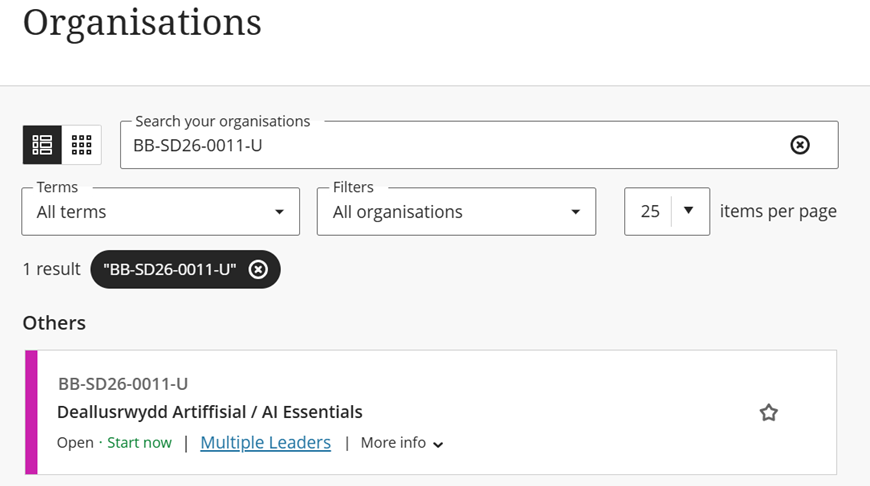
· The AI essentials content can be found in the Organisation section of Blackboard:
· From here you can use the search feature to search for
BB-SD26-0011:
How do I Link Panopto Recordings to Blackboard?
You can create a link to the Panopto folder in your Blackboard course. This means that students will be able to see the recordings for the course all in one place.
Finding your Panopto folder
Panopto folders for all 2026-27 modules can be found within the 2026-27 folder.
To find the Panopto folder you want to record into:
Click the dropdown button on the right-hand side of the Folder box.
Click the dropdown arrow to the left of the academic year folder to expand it.
Select the Panopto folder you want to record into.
You can also search for the Panopto folder you want to record into:
In the Folder box start typing the module code or name of the Panopto folder you want to record into.
Select the folder you want to record into.
What to do if you can’t see your Panopto folder
In a small number of courses, the Panopto folder wasn’t created over the summer. If you can’t find your Panopto folder using the steps above, you can create a folder from Blackboard:
Login to Blackboard and find your course
Click on Books and Tools [Llyfrau ac Offer] > View course and institution tools [Gweld cwrs ac offer sefydliad]
Click on Holl Fideo Panopto / All Panopto Videos
You should then be able to find the Panopto folder to make a recording.
If you have any questions, please contact the Digital Education Team on elearning@aber.ac.uk.
Further to our previous blogpost, Turnitin has now released a statement to address the concerns that staff and students have over the proposed user license agreement changes:
In response to concerns raised by UK universities and colleges, which have been channelled through UCISA, Turnitin postponed the issue of a new End-User Licence Agreement (EULA) until September 2027.
Turnitin have also committed to redrafting the EULA and will work in partnership with UCISA who represent educational institutions across the UK to address any concerns and clarify key questions.
Turnitin has confirmed that no student or staff data has been used to develop any generative artificial intelligence (AI) models or large language models (LLM), and that they have no plans to use student essays in this way.
Turnitin recognise the growing concerns around data privacy and AI. They are therefore fully committed to the collective work that they are engaged with through the UCISA representation group and their institutional members.
This working partnership demonstrates Turnitin’s commitment to protecting student and staff data.
If you have any questions or concerns about this, you are welcome to contact the Digital Education Team on elearning@aber.ac.uk.
In the September update, we want to draw your attention to the following Blackboard enhancements:
New Content Editor for Blackboard Documents
Restrict accepted file types for assignment submissions
Updated Blackboard Gradebook
Note: The September update was delayed by Blackboard to allow more time for testing.
New Content Editor for Blackboard Documents
Blackboard has introduced a new content editor for Documents, giving staff a more modern and streamlined way to create content. The new editor offers a simpler editing experience, improved formatting tools and better accessibility. The key features are:
Simplified menus and a cleaner toolbar make editing easier.
Enhanced list and table formatting provides greater flexibility.
Improved keyboard navigation and accessibility features support a wider range of users.
The editor remains in beta stage until November and will continue receiving updates until then.
Instructors
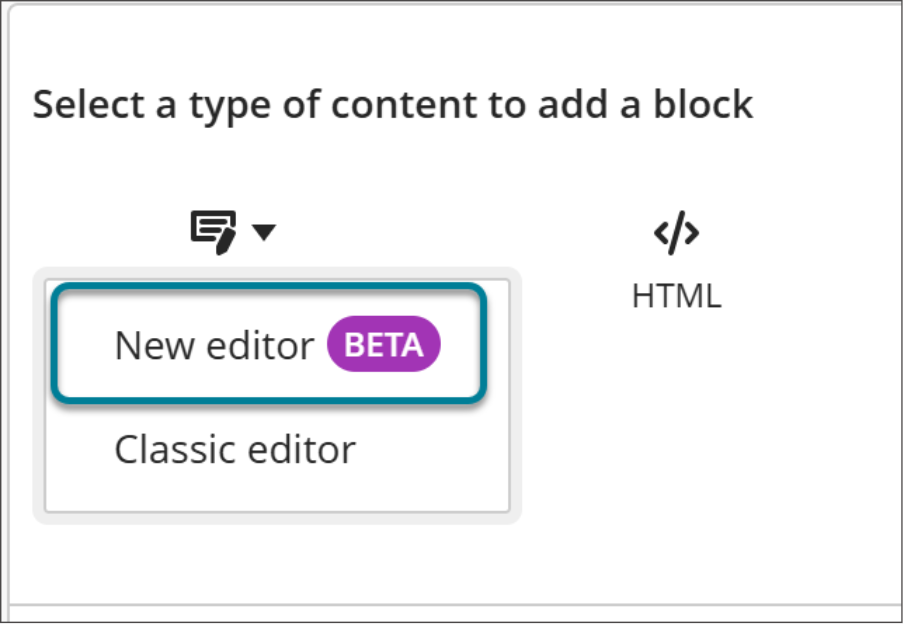
Staff can currently choose between the new and classic editor. The classic editor will remain available until December.
Image 1: The new Content Editor appears alongside the classic editor when adding Document blocks.
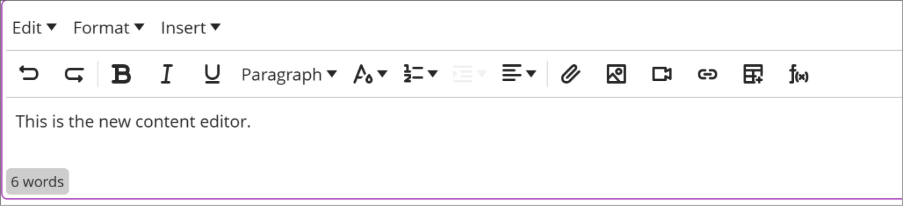
Image 2: The new Content Editor has a redesigned toolbar and menu structure.
A Content Editor Comparison Table is available if you would like to see the differences between the two editors side by side.
Since the new editor became available for institutions to switch-on in August, Blackboard has already released several usability, accessibility, and functionality improvements based on feedback from early adopters. These can be seen below:
Paragraph indentation
New indentation controls allow first-line or full-paragraph indentation directly within the editor, providing greater formatting flexibility.
Image 1: Instructors select Increase indent or Decrease indent.
Responsive toolbar
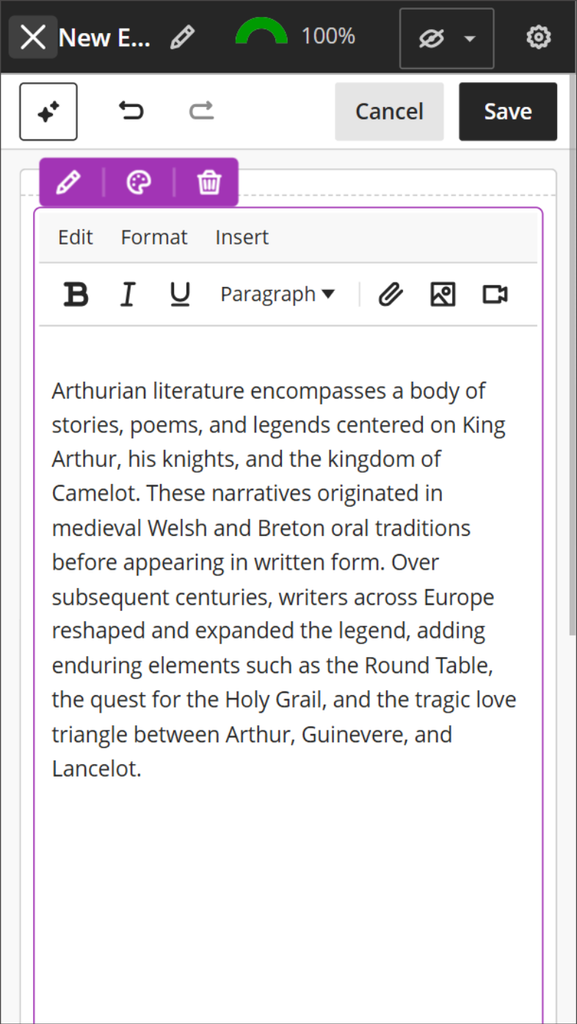
The toolbar now stays on a single row regardless of screen size. Less-used buttons are hidden on smaller screens, but all tools remain available through the menus.
Image 2: On small screens, less frequently used toolbar buttons are hidden.
Keyboard shortcuts and navigation
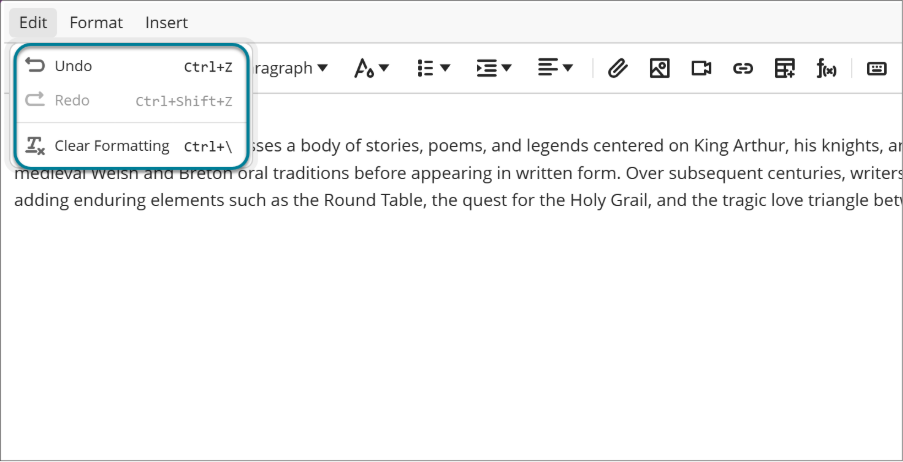
The Edit and Insert menus now display more keyboard shortcuts next to common actions, making them easier to discover for keyboard users and anyone learning the editor.
Image 3: The Edit menu displays keyboard shortcuts next to actions.
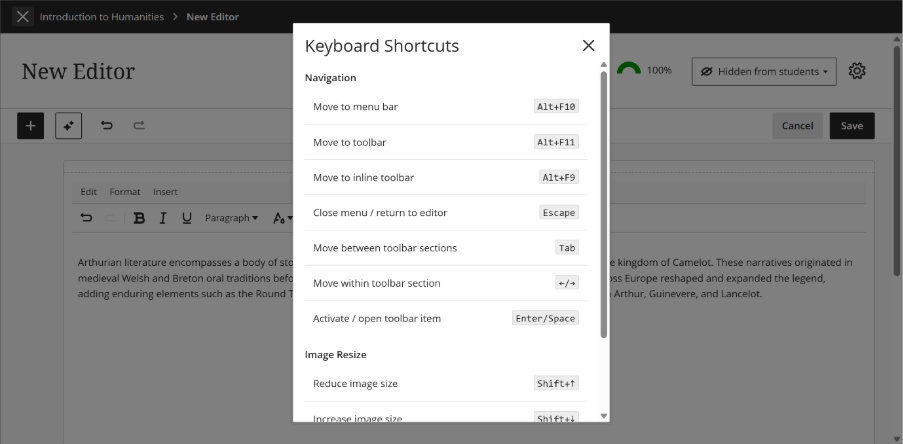
A new Keyboard Shortcuts button, located at the end of the toolbar, opens a centralised reference covering navigation between the Menu Bar, Toolbar, Inline Toolbar, and editor, as well as keyboard-based image resizing
Image 4: A list of keyboard shortcuts appears when the keyboard shortcuts button on the toolbar is selected.
Together, these updates make the editor’s full functionality easier to discover and use without a mouse.
Toolbar tooltips
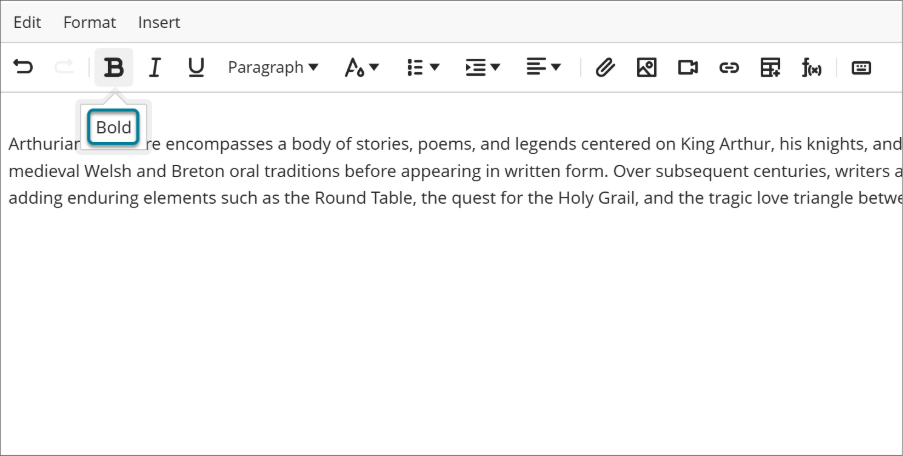
Tooltips now appear below toolbar buttons, preventing them from obscuring menu options.
Image 5: The tooltip appears below the button.
Refreshed look and feel
The editor has also received a visual refresh, bringing it more in line with Blackboard’s wider design style.
Image from URL
Images added from a web address are now copied into the course rather than linked externally. This ensures images remain available even if the original source changes or is removed.
Restrict accepted file types for assignment submissions
Instructors can now specify which file types they will accept for file submissions on assignments. Students are informed of any restrictions before submitting and receive a warning message if they attempt to upload a file type that is not permitted.
Instructors
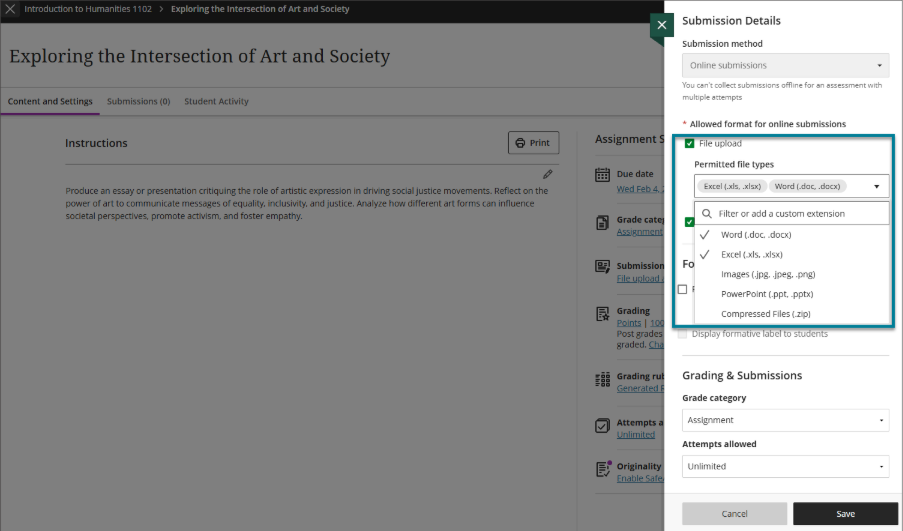
When configuring an assignment with file submission enabled, instructors can restrict accepted file types in two ways:
Select from a list of common permitted file types, including Word, Excel, PowerPoint, and ZIP formats.
Enter custom file extensions manually. For the moment, to restrict according to PDF you will need to type in .pdf in the filter or add a custom extension box.
Instructors can modify file type restrictions after students have started submitting. Existing submissions remain gradable, and students with drafts in progress can still submit.
Image 1: In the Permitted file types dropdown list, instructors can specify one or more file types allowed.
Students
The expected file types for an assignment are displayed in the Details & Actions section before submission. If a student attempts to upload a file type that is not permitted, a warning message should inform them that the file type is not accepted.
Updated Blackboard Gradebook
In the August update, we drew your attention to the restructured Gradebook grid view that has been rolled out by Blackboard. This is a reminder to take a look at our separate Update to Blackboard Gradebook August 2026 blogpost so that you can familiarise yourself with this new layout.