What’s new in Blackboard July 2026 

In the July update, we want to draw your attention to the following Blackboard enhancements: 

  • Add supplemental content to Learning Object Repository folders and learning modules  
  • Add descriptions to Discussions and Journals  
  • Run a Rubric Evaluation Report for graded activities  
  • Control AI Conversation duration with time limits  
  • Find your favourite courses faster with Course Switcher  

Add supplemental content to Learning Object Repository folders and learning modules 

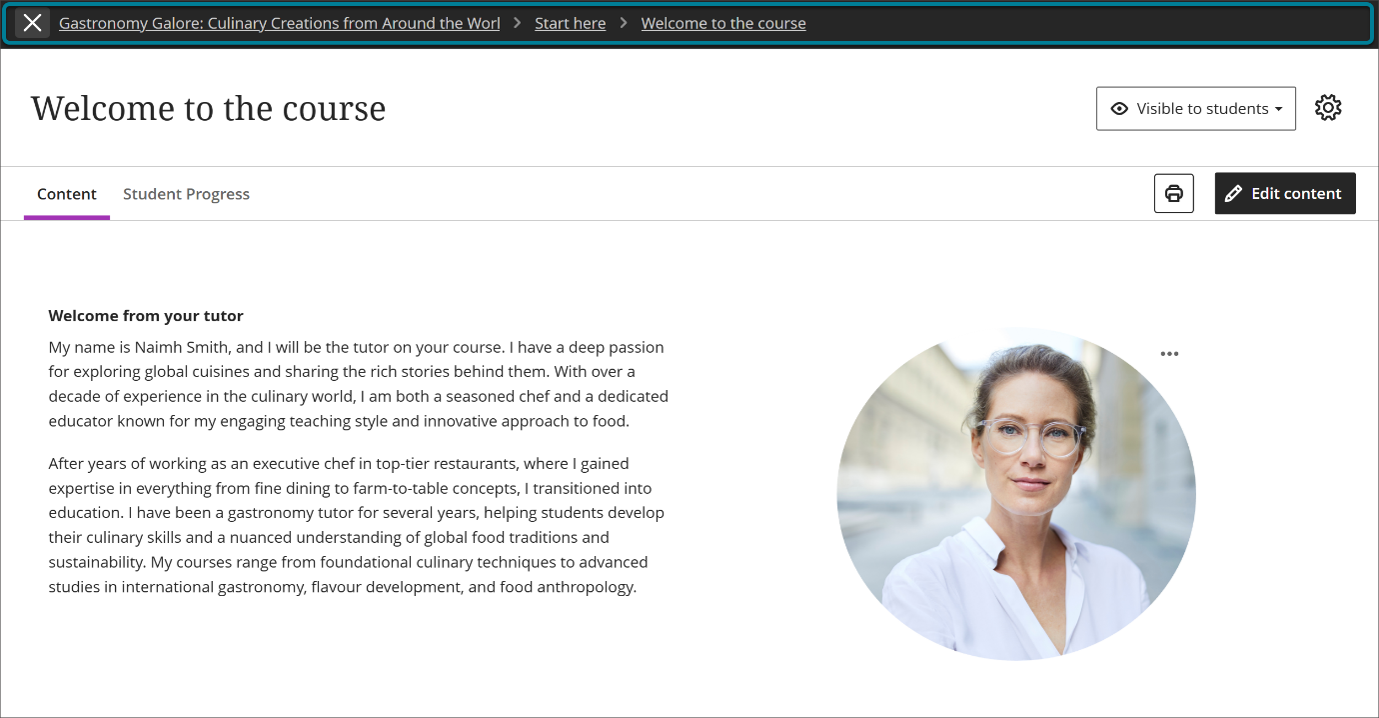
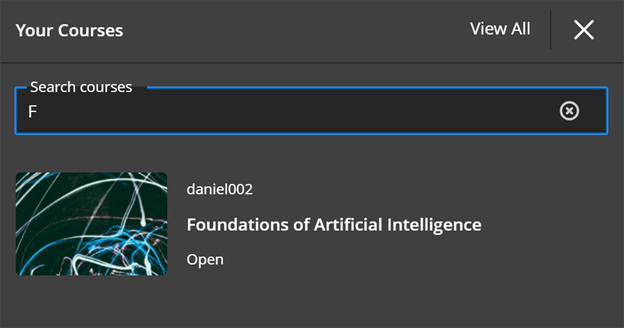
Instructors can now add their own content to folders and learning modules pulled from the LOR. Before, these were locked—you could view them but couldn’t add anything. Now, you can add in your own course-specific materials while the original LOR content stays locked and still updates across courses. Your additions work like normal course content, so you can edit, update, or remove them anytime without affecting other courses. LOR content will always stay at the top, and anything you add appears underneath—it can’t be moved around within the original LOR materials. 

Image 1: The Course Content page will show a learning module added from the LOR, with an instructor document at the bottom. LOR-owned items have the label “This item is managed by your institution.” 

Add descriptions to Discussions and Journals 

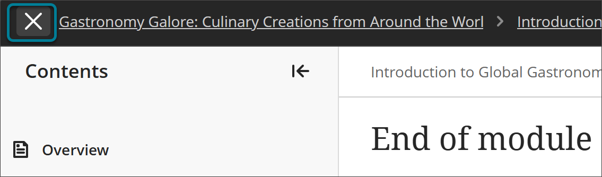
Discussions and Journals now have a Description field, just like other course content, which makes everything on the Course Content page more consistent and easier to scan. Instructors can use this optional field to give quick context or set expectations before students start an activity, while keeping the actual prompt focused on the task or question. The prompt itself no longer shows on the main content page. For students, this means they’ll see a clear, simple overview of what each Discussion or Journal is about before opening it, making it easier to understand what’s coming next. 

Image 2: Instructors can add a description in the Description field for a Discussion. 

Run a Rubric Evaluation Report for graded activities 

Instructors can now run a Rubric Evaluation Report straight from the gradebook for any graded activity that uses a rubric. It pulls together data from all student submissions, giving a quick, clear view of how students are doing against each criterion. 

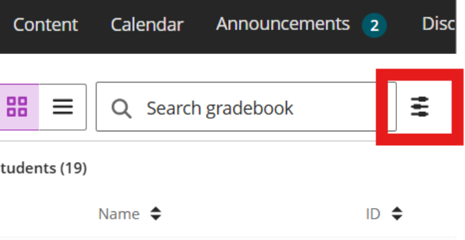
To use it, open the gradebook, find a column with a rubric, and launch the report from the menu in either Grid or Gradable Items view. You can download it as a PDF or CSV.  

Marks need to already have been posted in order to view the report. If there aren’t enough posted grading data yet, you’ll see a message letting you know. 

The report includes an overview of the assignment, overall average scores, a visual breakdown comparing possible vs achieved points, and a detailed table showing how students performed across criteria, including stats like average, median, and standard deviation. 

Control AI Conversation duration with time limits  

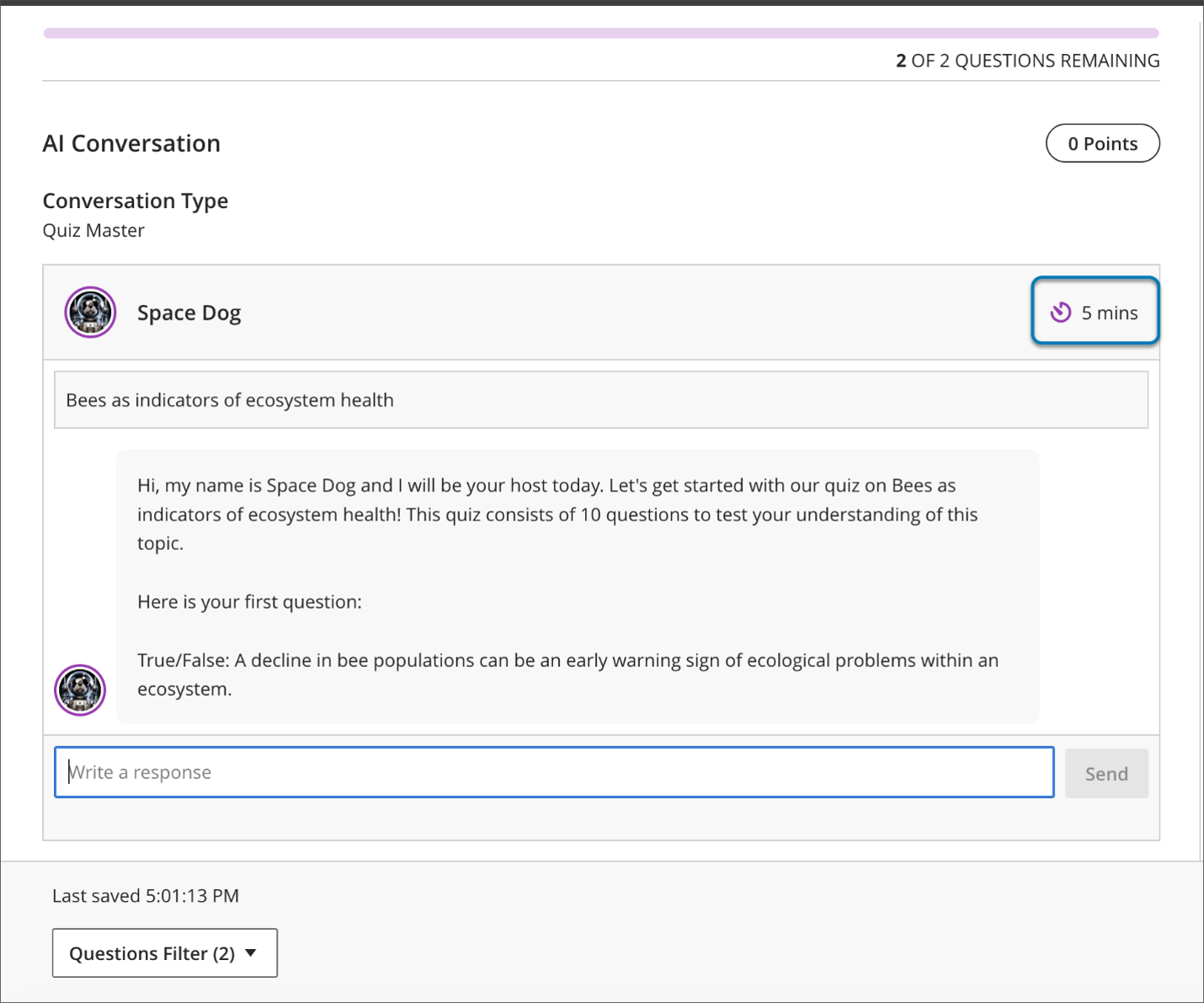
Instructors can now control how long AI Conversations last by adding time limits, making things a bit more structured and easier to manage. There are two different ways to do this, depending on what you want to time — the whole activity or just the conversation part. 

An AI Conversation has two parts: the chat itself and a reflection question that follows. You can either set a time limit for the entire assessment (which includes both parts) or just for the conversation. The full assessment timer already existed — if time runs out, it either auto-submits or gives students extra time, depending on your settings. The new option is a conversation-only timer, which stops the chat after a set time but does not limit students’ time on the reflection question afterward. 

You can’t use both timers at once — it’s one or the other. If you turn one on, the other is automatically disabled. 

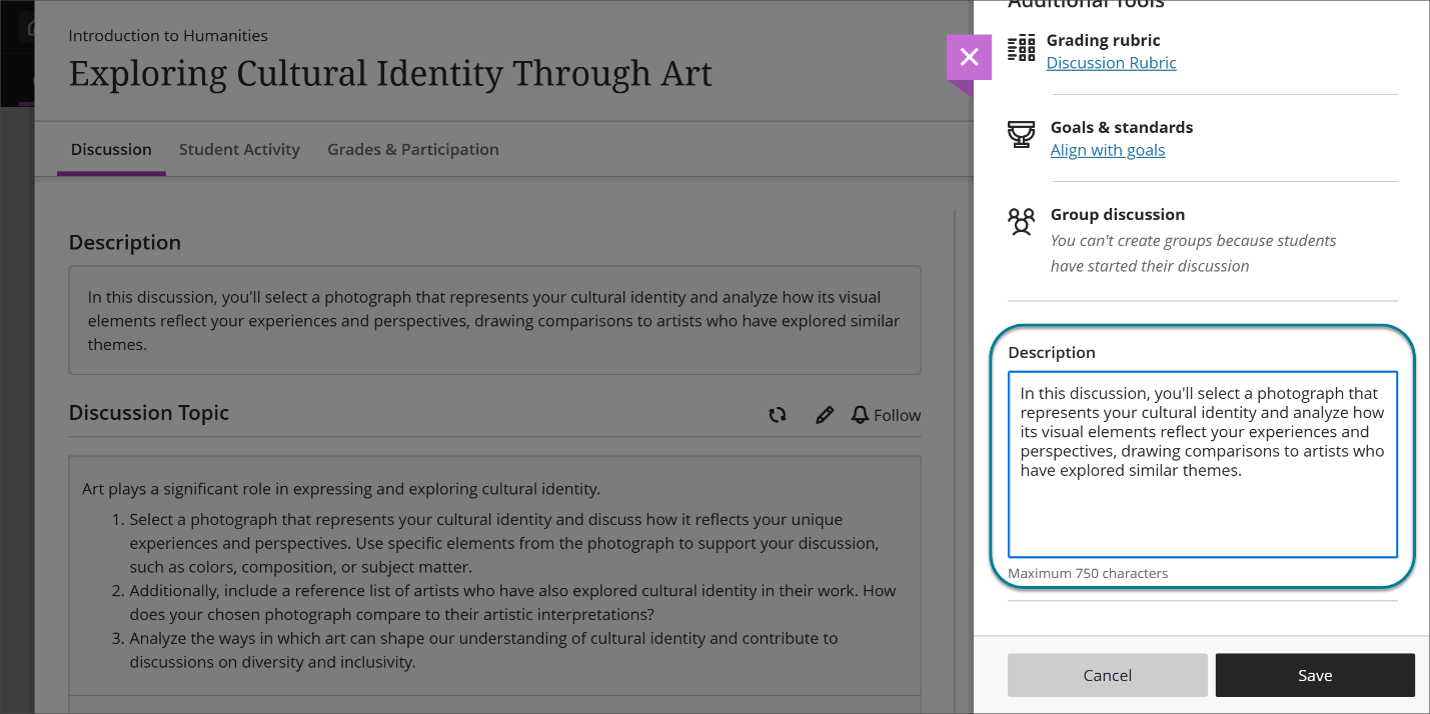
Within the conversation constraints, you’ll also now see two controls: a message limit (how many replies students can send) and the new time limit. You can use either, both, or neither. Just note: once a student starts, the time limit is locked in. 
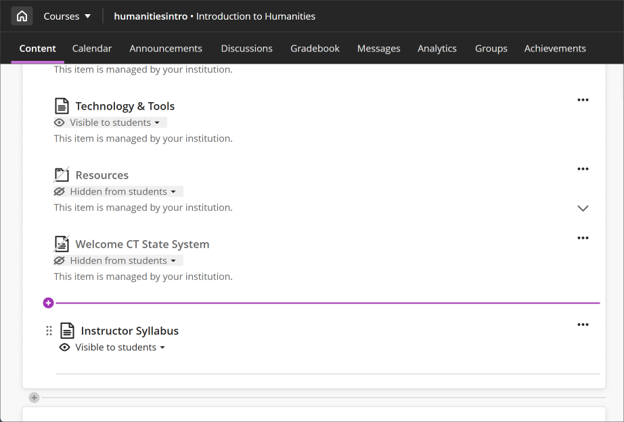
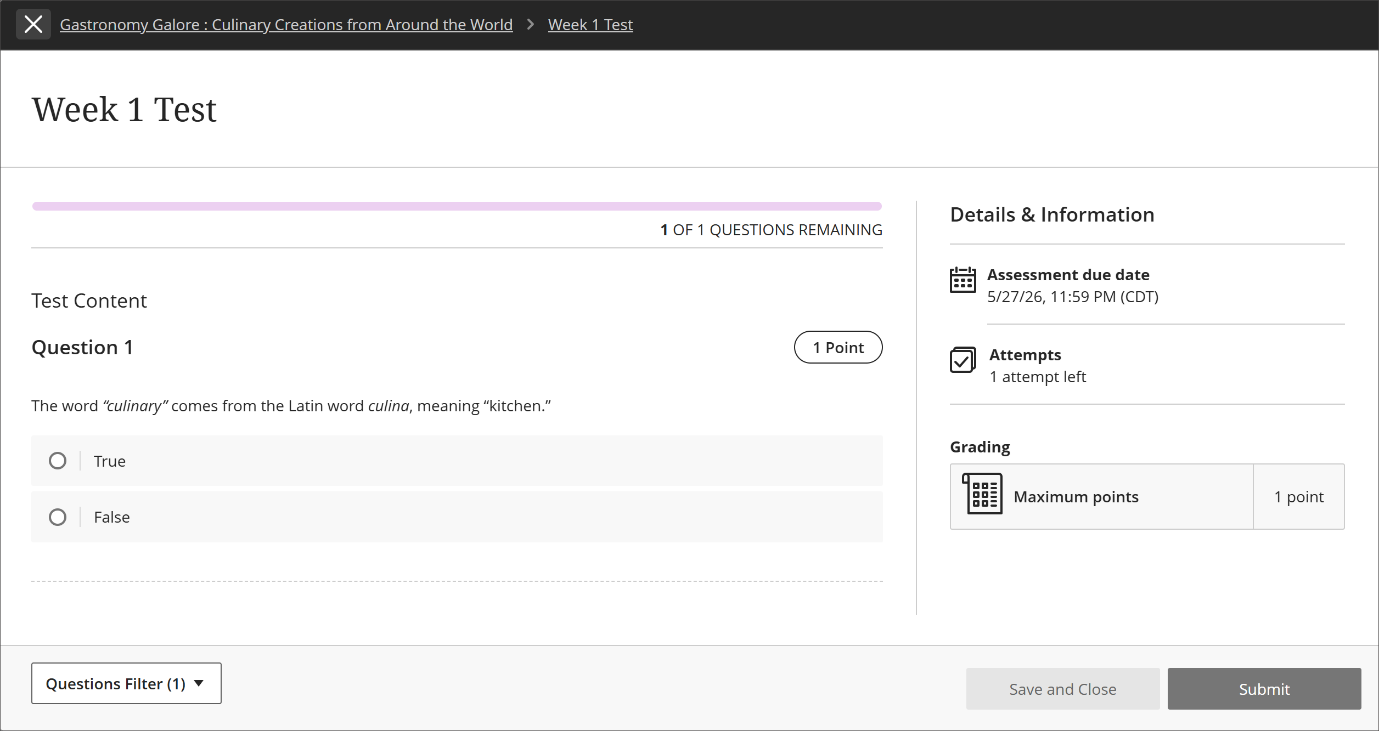
Image 3: You can now set a time limit for either a student’s AI conversation, or their written reflection after the chat. 

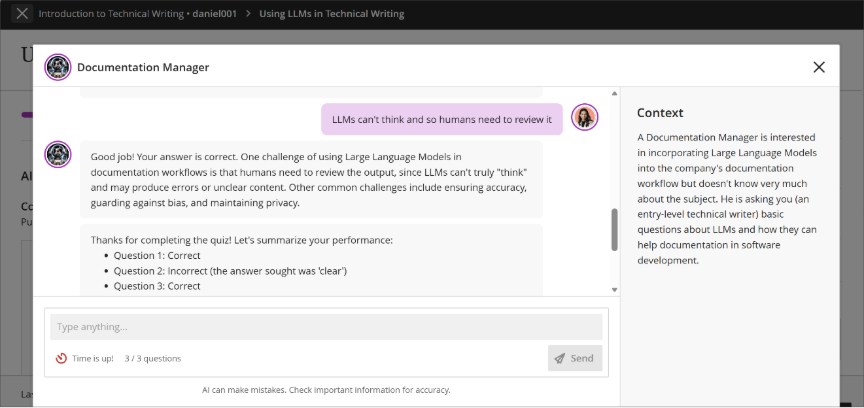
For students, a visible countdown helps them keep track of time. Where it shows up depends on the timer you picked — either inside the chat or at the top of the whole assessment. If only the conversation is timed, they can still complete the reflection question without time pressure. 

Image 4: Depending on the instructor’s settings, the timer is shown when students are completing their chat or during their reflection. 
Overall, this makes expectations clearer, supports accessibility needs, and gives instructors more flexibility when designing AI-based activities. 
Find your favourite courses faster with Course Switcher  

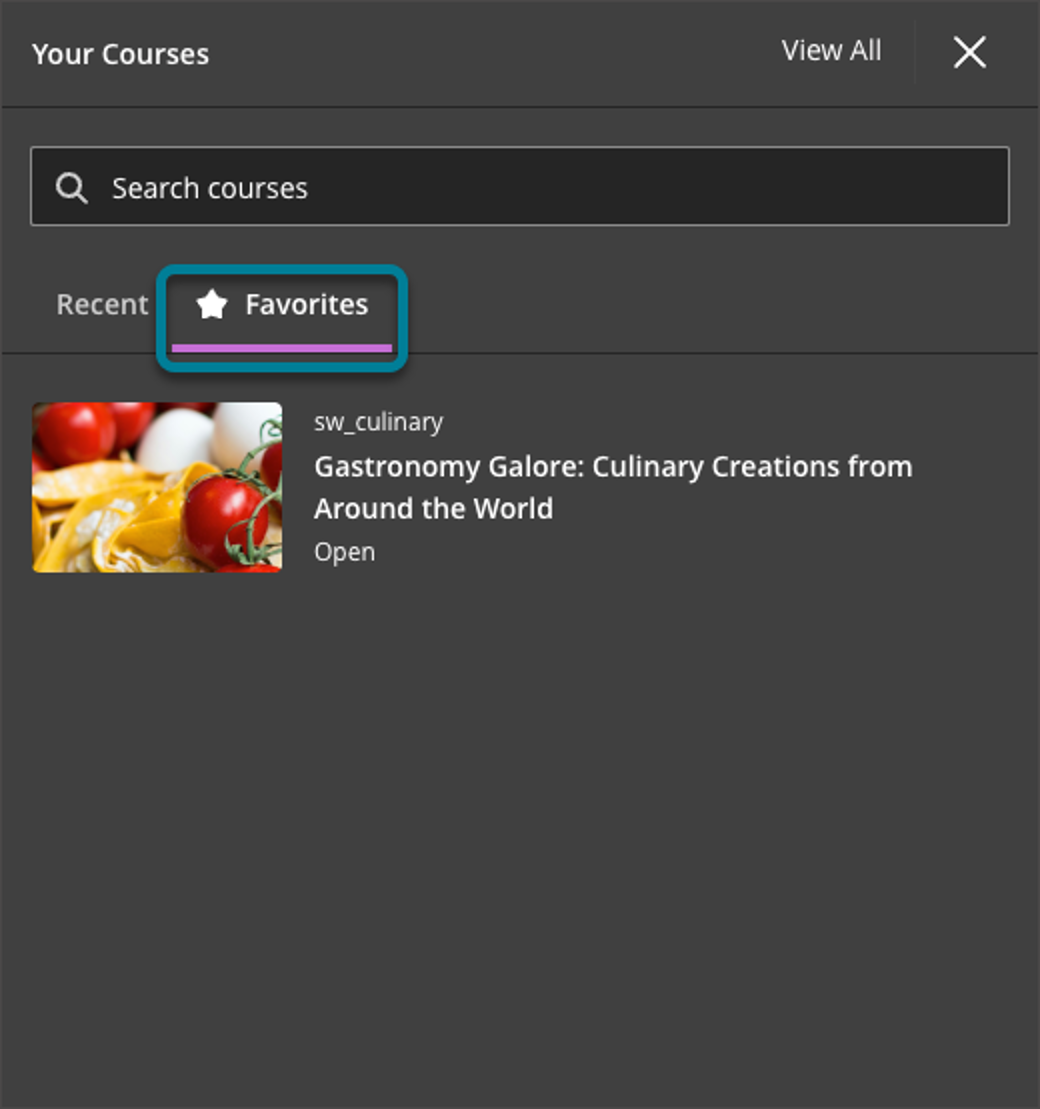
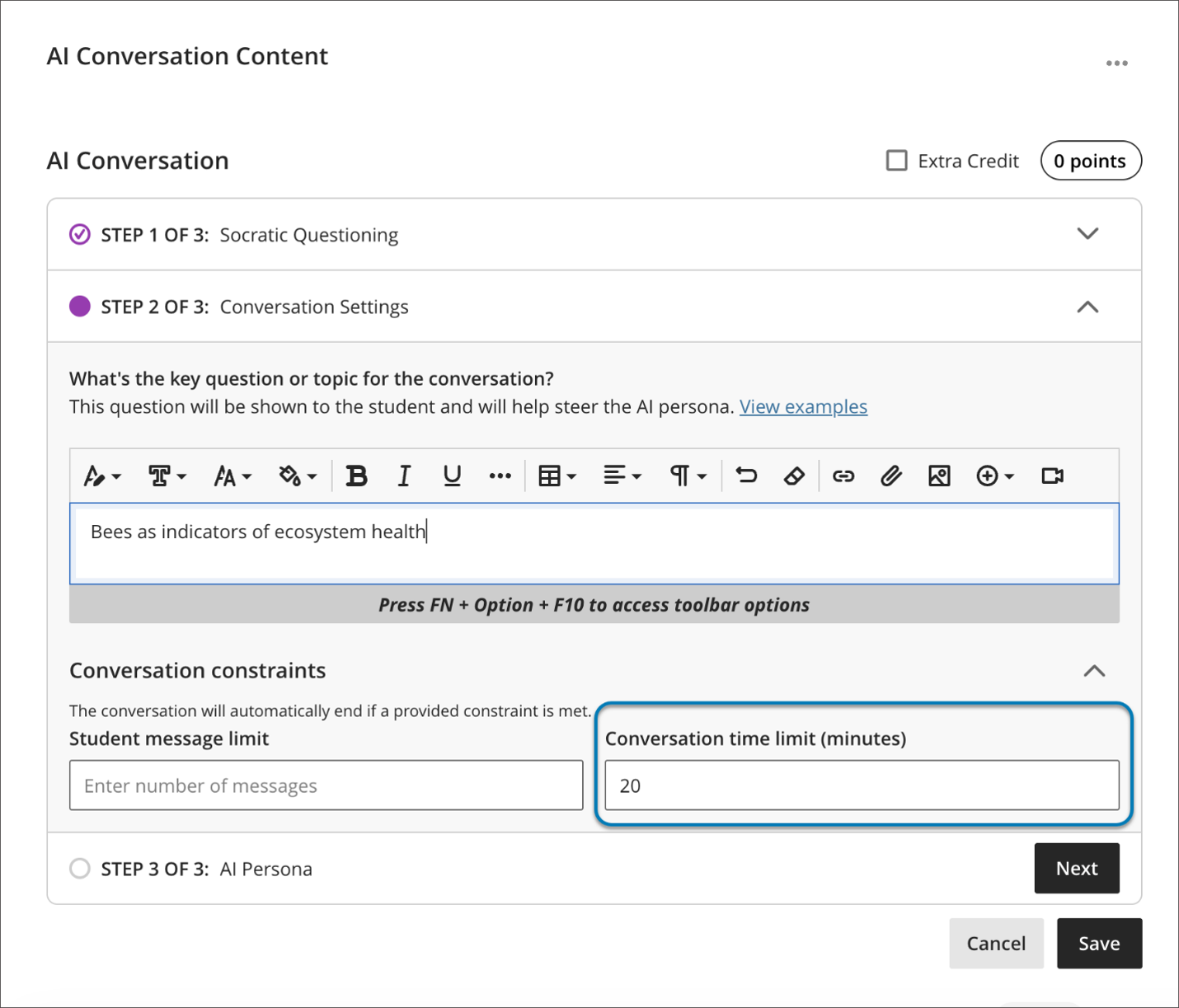
Finding your favourite courses is now easier with the updated Course Switcher. You can now see all your favourited courses right there, so there’s no need to keep jumping back to the Courses page. This builds on recent updates like search and recent courses, making it quicker to move around. 

There’s a new Favourites tab that automatically shows what courses you have chosen as your favourites on the main Courses page. It sits alongside Recent and Search, so everything’s in one place. Overall, it’s a simpler, faster way to jump between courses and stay focused without the extra clicks. 

Image 5: The Course Switcher now has a Favourites tab, allowing you to add a personalized list of frequently used courses.. 

What’s new in Blackboard June 2026

In the June update, we want to draw your attention to the following Blackboard enhancements:

  • Grading with rubric
  • Student engagement with announcements

Changes to grading with rubric

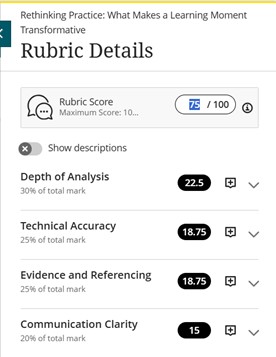
To improve rubric usability, instructors can now edit the rubric grade directly. Changes to the rubric component grades will also update the overall grade immediately.

Image 1: Improved rubric usability when adding or adjusting grades.

In the past, instructors would have been blocked from changing the overall grade via the rubric. Now, the locking mechanism that previously prevented instructors from using the rubric to override a grade has been removed. Otherwise, grades entered into the rubric grade components will update the overall grade immediately.

The update also includes some changes in wording, such as updating the rubric score box label from “Submission” to “Rubric Score”, in order to improve consistency with the Flexible Grading page.

Student engagement with announcements

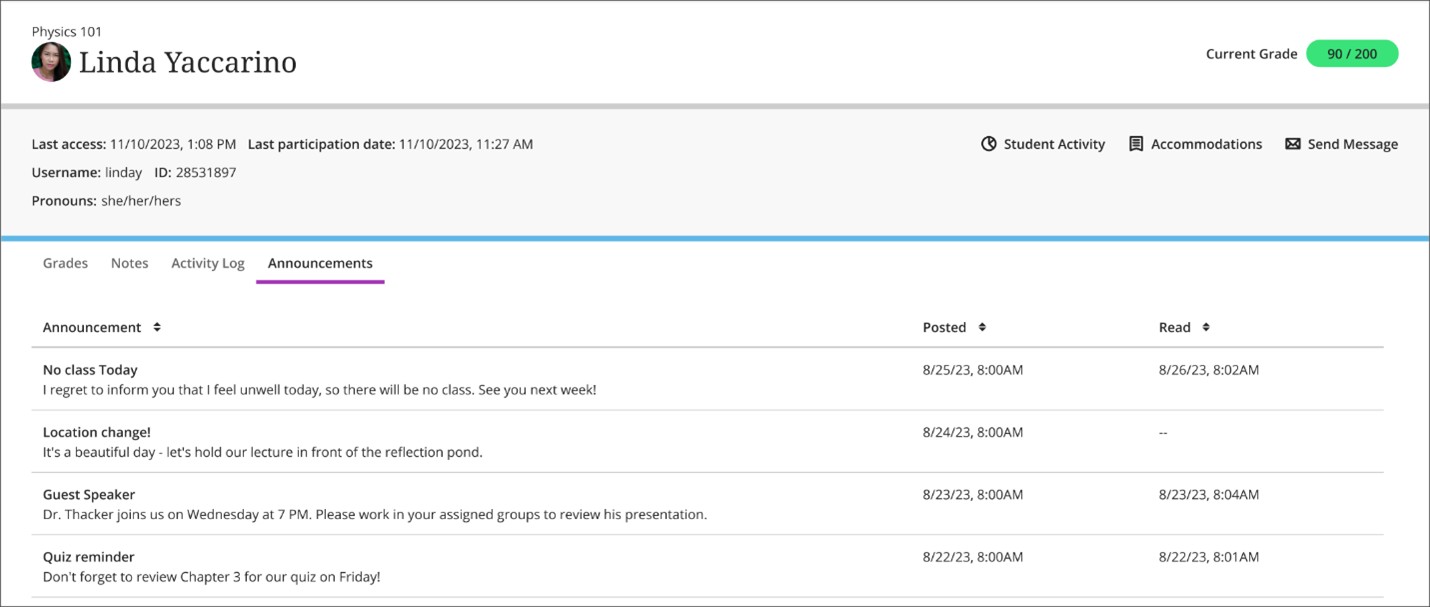
Instructors can now check which announcements a student has read or not read on the new ‘Announcements’ tab of the Student Overview page.

To access this feature, instructors should go to the ‘Class register’ under the ‘Details & Actions’ items on the right-hand side of a course landing page. After selecting a student, a log of whether or not a student has accessed an announcement will be visible for instructors under the new ‘Announcements’ tab of the Student Overview page.

Image 2: The Announcements tab on the Student Overview page shows when an Announcement was posted and when it was read.

If you have any enhancements to request from Blackboard, please get in touch with us via elearning@aber.ac.uk.

What’s new in Blackboard May 2026

Tags: Blackboard, Monthly Update, Ultra, Groups, Discussions, Grading, Gradebook, MCQs, Release Conditions, Screen reader, Accessibility, course catalogue

In the May update, we want to draw your attention to the following Blackboard enhancements:

  • Changes to managing groups
  • Graded discussions and flexible grading
  • Tests and questions
  • Content and release conditions
  • Course searching

Changes to managing groups

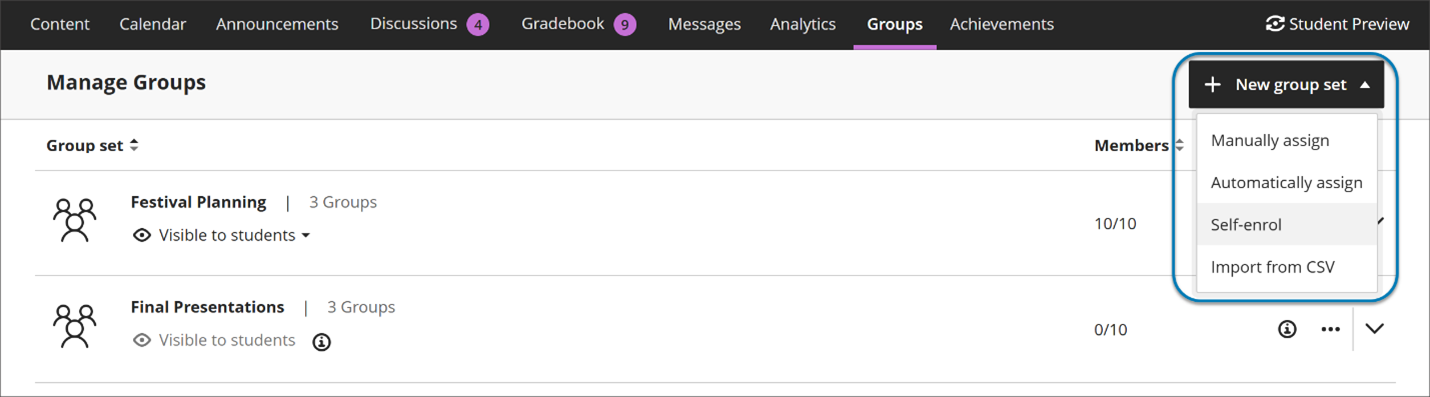
Instructors now start by choosing how they want to structure groups—before managing individual members. The options include:

  • manual assignment
  • automatic assignment
  • self‑enrollment
  • import

Image 1: Instructors now start by creating a group set by choosing how they want to structure groups—before managing individual members.

Automatic enrollment with clearer controls

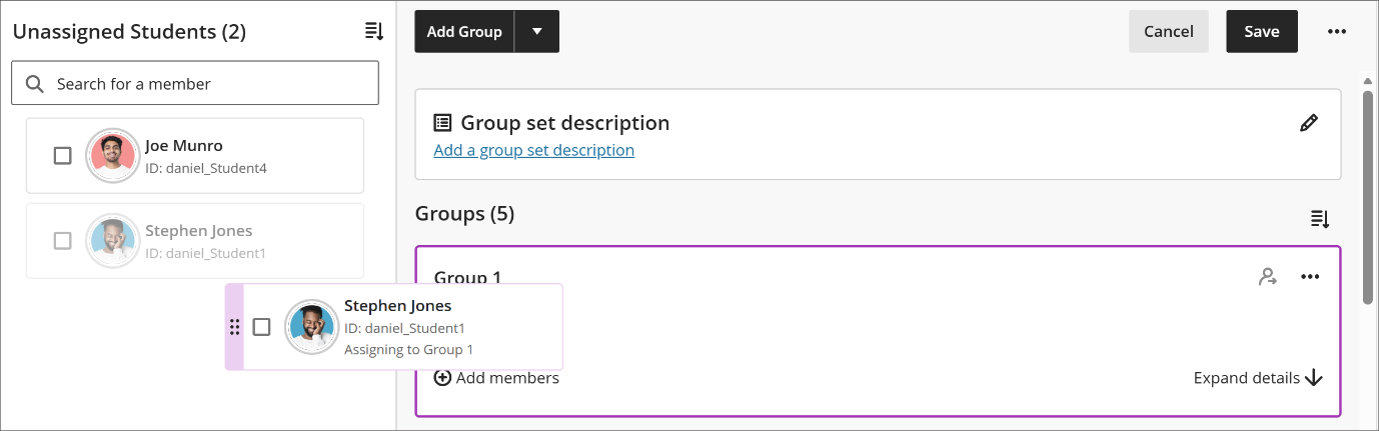
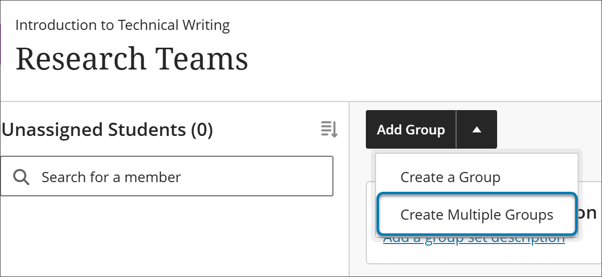
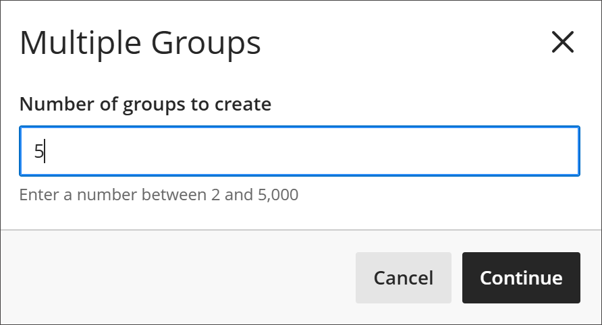
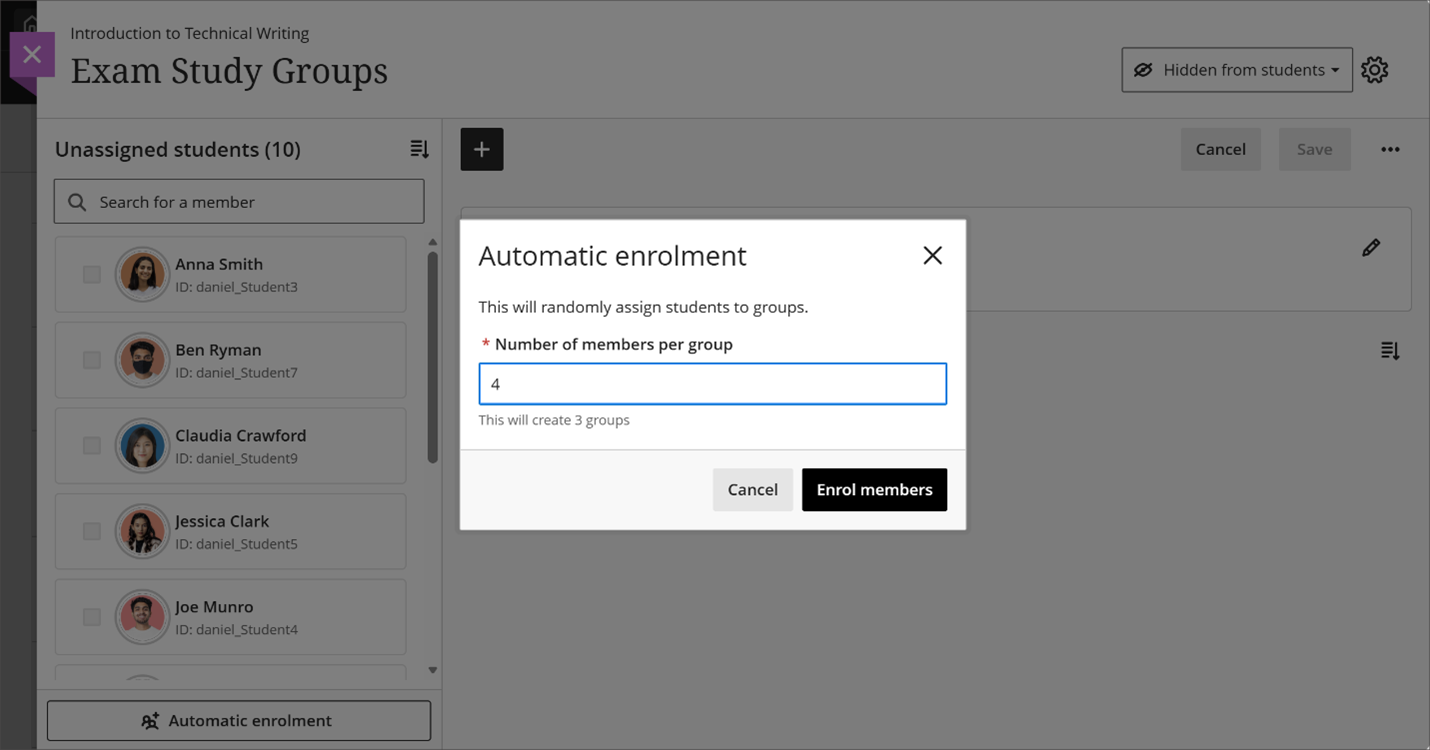
Instructors can automatically assign students to groups by specifying the number of members per group. Blackboard creates the required number of groups and assigns students randomly in a single step, reducing setup time for large courses.

Image 2: Instructors can now automatically assign students to groups by specifying the number of members per group.

More flexible ways to assign students

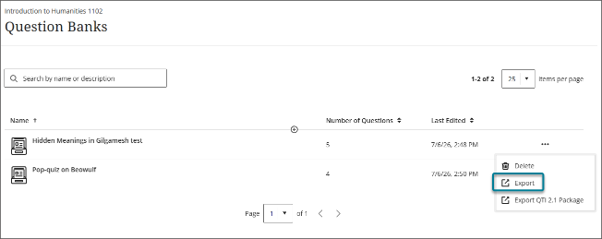
Instructors can assign and unassign students using multiple methods:

  • Assign students directly from the unassigned list
  • Assign selected students to a specific group
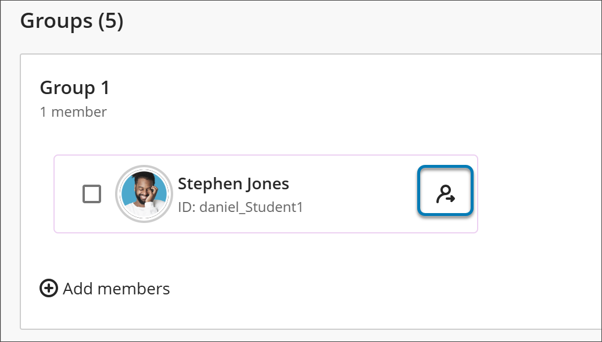
  • Add or remove members from within a group

This flexibility reduces repetitive actions and makes it easier to focus on populating one group at a time or balancing membership across groups.

Sorting for group members and groups

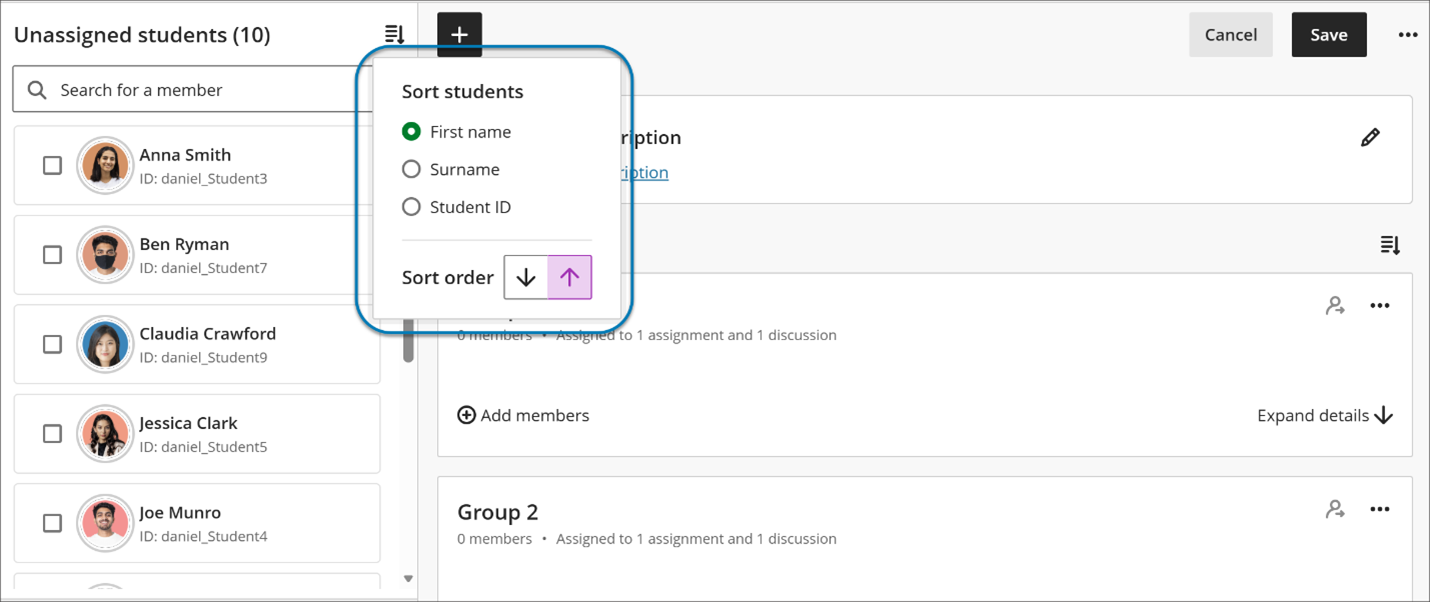
Instructors can now sort:

  • Students by first name or last name (A–Z or Z–A)
  • Student ID
  • Groups by group name
  • Groups by number of members

Image 3. Instructors can now sort group members by first or last name, student ID and sort groups by group name or number of members.

Performance and reliability improvements

Managing groups in large courses is now significantly faster. Save operations that previously took several minutes—especially in courses with thousands of students—now complete in seconds. When a group is being saved, an instructor can close out the page and be assured that it is continuing to save in the background, allowing instructors to continue working without interruption.

Additionally, the previous maximum limits of 5,000 students and 1,000 groups are removed.

These improvements reduce frustration and improve confidence when managing groups at scale.

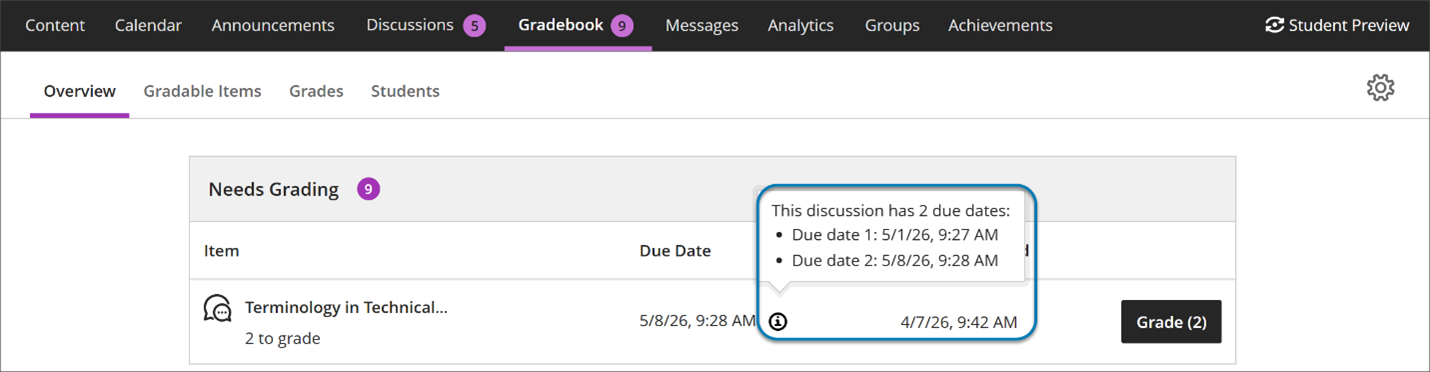
Second due date for Discussions visible in Gradebook

The second discussion due date now appears in the following pages in Gradebook:

  • Overview
  • Gradable Items

Under Due Date on the Discussion item on each Gradebook page, the item’s second, final due date is displayed. Next to that date is a circle icon with a lower case i inside. Hover over or tab to this icon, and a pop-up bubble displays details of both due dates. For example: This discussion has 2 due dates: Due date 1: 5/1/26, 12:00 PM Due date 2: 5/8/26, 12:00 PM

Image 1: The second discussion due date now appears on the Overview and Gradable Items pages in Gradebook.

Instructors benefit from clearer communication of discussion expectations, reducing the need to clarify deadlines and helping ensure students understand how and when their contributions are graded.

Carry group filter into Flexible Grading

The group filter selected in the Gradebook grid view now carries over into Flexible Grading. Instructors who filter by a group in the Gradebook will find only the students from that group when they enter Flexible Grading, and the active group filter is displayed within the Flexible Grading view. This update reduces the need to re-filter after switching views and keeps instructors focused on the most relevant students for their current grading task.

Provide answer-level feedback for multiple choice and multiple answer questions

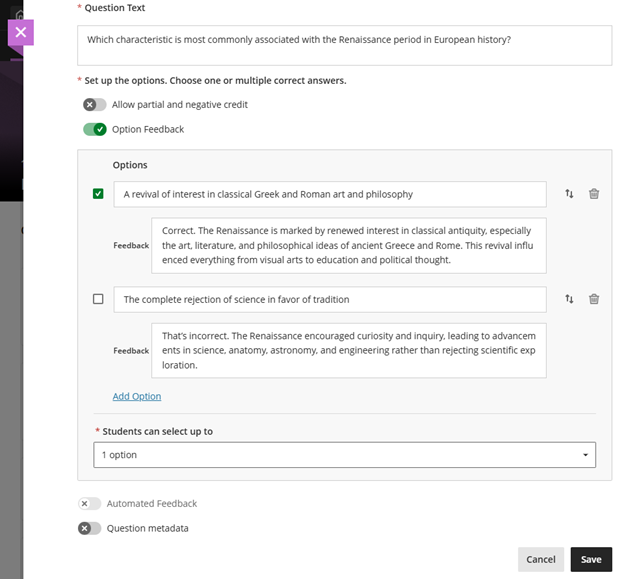
Instructors can now add feedback for each answer option in multiple choice and multiple answer questions. This helps students understand why each choice is correct or incorrect after an attempt is submitted.

Instructors can now add feedback for each answer option in multiple choice and multiple answer questions. This helps students understand why each choice is correct or incorrect after an attempt is submitted.

Instructors

When creating or editing a multiple choice or multiple answer question, instructors can turn on Option Feedback, which prompts Feedback textboxes to appear beneath each answer option. Instructors can enter the answer options and feedback for any of the options.

Image 1: Instructors can enter answer-level feedback.

Turning on Option Feedback disables Automated Feedback option. The Automated Feedback option lets instructors provide feedback for the correct answer and for incorrect answers. Answer-level feedback also allows for automatic feedback, which instructors can configure in the Assessment results section of Assessment Settings.

For answer-level feedback to display for students, enable Show correct answers in the Assessment results section of Assessment Settings.

Students

After submitting an attempt, students receive feedback for each answer option they selected if the instructor has left feedback on that answer option. This helps students understand their performance at a more detailed level and supports learning from incorrect choices.

Lock answer options in a fixed position for multiple choice and multiple answer questions

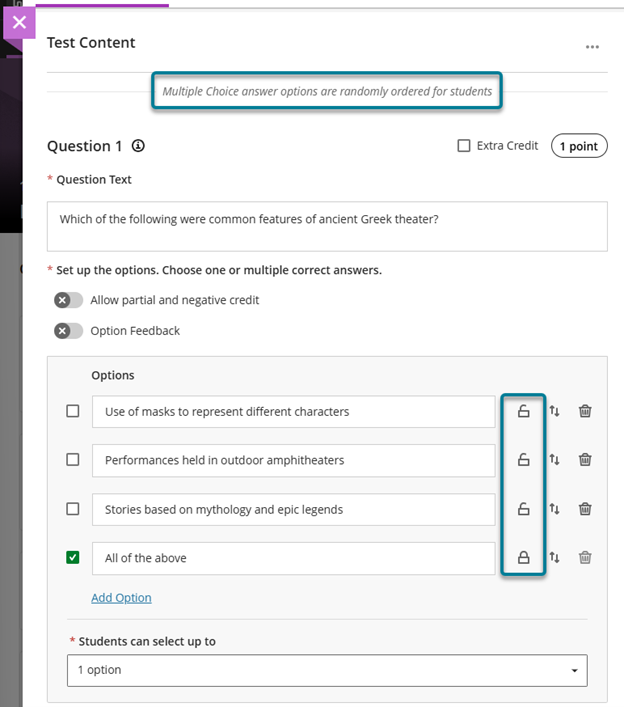
When creating or editing a multiple choice or multiple answer question, instructors can designate specific answer options as locked. To lock an option in place, select Randomise answers in the Assessment Settings, then select the lock icon next to the answer option. Locked options remain in their set position during randomisation while all other options shuffle as expected.

Instructors can remove a lock any time while editing the question. Locking designations can also be updated as part of a regrading flow.

Image 1: Instructors can select the lock icon next to the answer option to lock that option in place. To trigger the lock icons, select Randomise answers in the Assessment Settings.

Visualize release conditions inherited by items in learning modules and folders

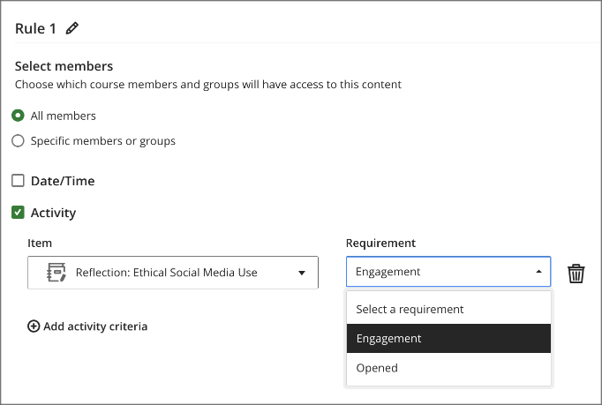
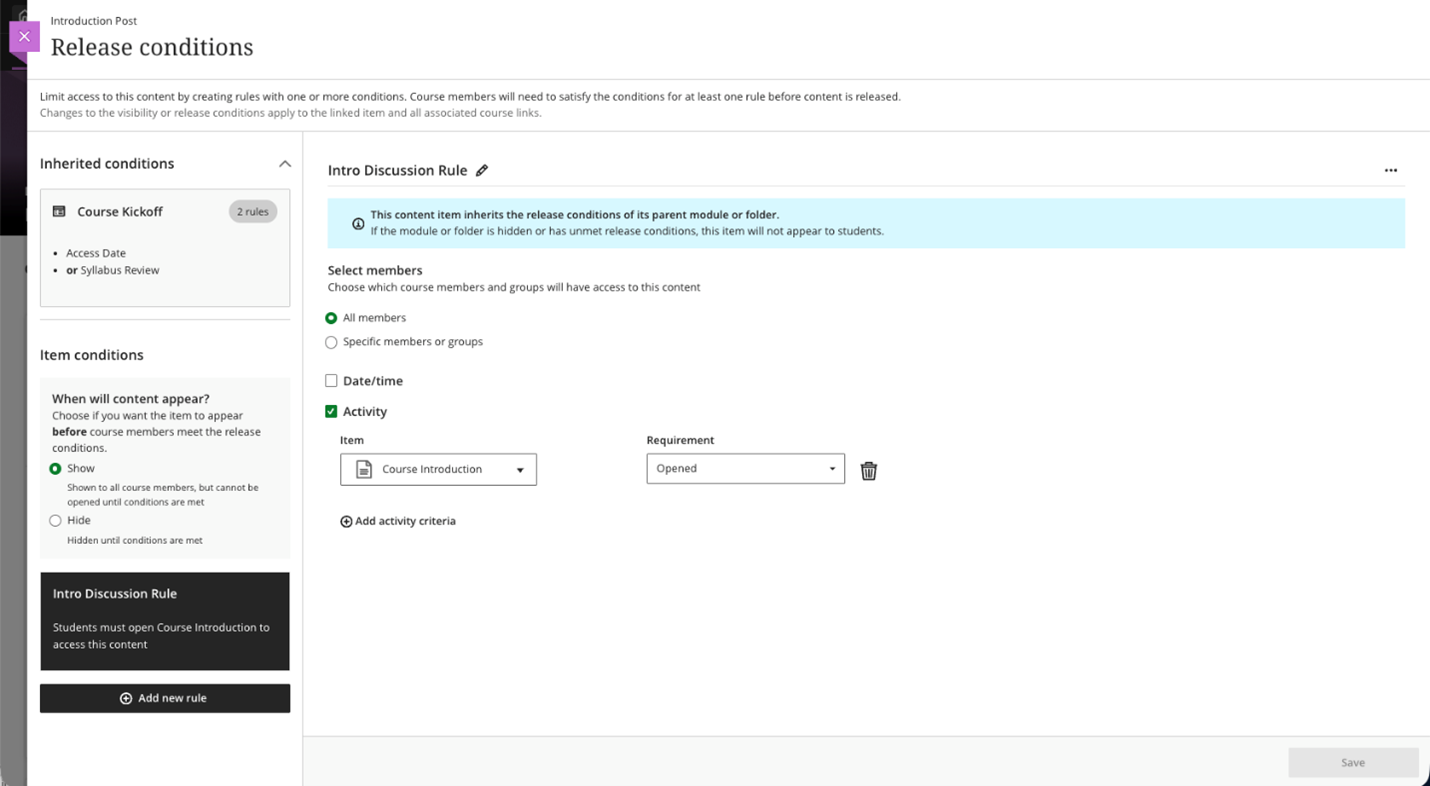
Instructors can now view release conditions inherited from a parent learning module or folder directly within the release conditions panel of individual items. Inherited conditions appear in a read-only format, giving instructors a clear picture of all conditions that apply to an item, including those set directly on the item and those cascading from a parent container.

This update also ensures that discussions hidden within a learning module are no longer accessible from the Discussions tab. Discussions now respect the release conditions applied at the learning module level.

Instructors

When instructors open the Release Conditions panel for an item inside a learning module or folder, a read-only summary of any conditions inherited from the parent container appears alongside any conditions applied directly to the item. This helps instructors understand the full set of access rules in place and determine whether additional conditions are needed.

Image 1: Read-only summary of conditions inherited from the parent container and conditions applied directly to the item appear in the Release Conditions panel.

Improved screen reader experience in Document view mode

Screen reader users now have a cleaner, more focused experience when navigating documents in view mode. Unnecessary row and column announcements have been removed to allow access to primary content in the correct order, left to right, across rows, columns, and blocks. Edit mode behavior is unchanged.

Improved search and navigation in Course Switcher

We’ve enhanced the Course Switcher in Blackboard Ultra Course View to make it faster and easier to move between courses. Users can now search for a course directly from the Course Switcher and navigate to it without first returning to the Courses page.

This update builds on the existing quick access to recent courses and helps reduce navigation friction when working across multiple courses.

Instructors and Students

The Course Switcher now includes a search box that allows users to quickly find and open any course they have access to. Instead of browsing the full Courses page, users can open the Course Switcher, search by course name or course ID and navigate directly to the selected course.

This enhancement complements existing options in the Course Switcher:

  • Quick access to the four most recent courses
  • View All link that opens the full Courses page

By combining search with recent‑course access, the Course Switcher provides a centralised and efficient way to move between courses—helping users stay focused on their tasks rather than managing navigation.

Image 1: Course Switcher now has a Search courses capability allowing users to search for courses by course name or course ID.

If you have any enhancements to request from Blackboard, please get in touch with us via elearning@aber.ac.uk.

Welcome, Daniel Bryant – Digital Education Co-ordinator

Hello! It’s great to be able to introduce myself in my first blog post in my new role. I’m Dan, and I joined the Digital Education Team just after Easter as a part-time Digital Education Co-ordinator. I’ve taken on this role alongside my PhD, which I am studying at the Department of International Politics.

I moved to Aberystwyth in 2022 to start my 1+3 research course at the university. After completing the research training component of the course, I began my PhD project on ‘the multi-level governance of second homes’ in 2023. During my time as a research student at the university, I have also gained valuable experience as a seminar teacher in the Department of International Politics, and as a Study Skills Tutor with Student Services.

As I head into the final straight of my PhD project, I’m very much looking forward to taking on this exciting new role. I’m very grateful for all the opportunities that the university has given me so far and I can’t wait to contribute to the excellent work of the Digital Education Team.

Before coming to Aberystwyth, I studied my previous degrees at Cardiff University and then worked in a couple of jobs in the politics sector of Cardiff Bay. Politics is never far from my mind, so I’ll be keeping a beady eye on the Senedd election campaign over the next month!

Other than politics, I have a keen interest in sports. As someone originally from Burry Port in Carmarthenshire, I am a big fan of the Scarlets and Swansea City FC. I also enjoy participating in sport myself, and over the summer I will be using the beautiful terrain of Ceredigion to help me train for a number of triathlons that I have entered in the Welsh Super Series. Last year, I also decided to come out of my rugby retirement to join Tregaron rugby club, where I play as a full-back.

When I want to take a more leisurely break from work, I enjoy going for a walk with my partner to see the farm animals near our flat in Lovesgrove, or going for a stroll down the prom in Aberystwyth to eat some ice cream.

I’m looking forward to getting to know more staff and students from across the university over the coming weeks and months!