
- How do I merge Blackboard modules?
- How are staff and students enrolled onto Blackboard modules?
- Where can I find the AI Essentials content?
- How do I link Panopto recordings to Blackboard?
Guidance on merging modules in Blackboard
How do I merge modules?
You can merge modules using the Blackboard Ultra Module Partner tool accessible through myadmin.aber.ac.uk. -> Blackboard Ultra Module Partner.
The Blackboard Ultra Module Partner tool allows you to share the same content across multiple modules by assigning one module as the Primary module and linking one or more modules as a Secondary module.
There is no limit to the number of secondary modules that can be linked, but there can only be one primary module.
Merging modules automatically makes content from the primary module available in all linked secondary modules. This means that you won’t need to upload the same materials to multiple modules. Alternatively, you can email elearning@aber.ac.uk.
An in-depth guide for the Blackboard partner tool can be found by following the link below which will take you to our FAQs:
How do I merge modules in Blackboard (staff)?
Why merge modules?
Merging modules allows module coordinators to link the same content between two or more modules in Blackboard. This is useful for modules that share the same materials, some examples where this could be useful include:
- Taught modules that are available for both 2nd and 3rd year cohorts
- Modules that use the same content across different degree schemes
- Modules that use identical learning materials and reading lists
How do I unmerge modules?
Modules can be unmerged by clicking the pencil icon in the Primary Course ID section and then Click Delete -> Delete
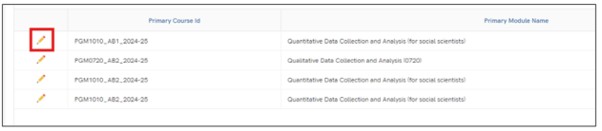
When modules are unlinked, previous submissions, marks etc are retained for students on the module. They will be hidden from staff (to avoid confusion), but if you need to view them contact elearning@aber.ac.uk for advice
What to consider?
- All content can be viewed as soon as the modules are merged (if students are enrolled on the module). In addition to PowerPoints and lecture materials, this also includes Announcements and other interactive tools on your primary module.
- Historical student interactions on a secondary module (such as using blogs or discussion board posts) won’t be available once the modules have been merged.
- Any submission points created on a secondary module before the merge takes place will no longer be able to be viewed. We would advise creating these again in the primary module.
How do I make module content visible to specific cohorts?
All content is automatically visible once modules are merged. Groups and adaptive release can be used if you only want the content to be visible to a specific module cohort.
This may be useful if you have merged a 2nd year and 3rd year module but your students on the different modules have separate assignments. You can use one group for 2nd year students and one for 3rd year students. You can also limit who can see the assignment information and submission point.
See official guidance from the Blackboard help centre on Creating Groups and Release Conditions.
How does merging affect the Gradebook?
After merging, all students will be visible within the primary module’s gradebook. You can, however, view the primary and secondary modules gradebooks separately using the Merged Modules filter found within the primary module’s gradebook.
If you’d like further information on merging modules or have any questions, please email us at elearning@aber.ac.uk.
How are staff and students enrolled onto Blackboard modules?
Overview Enrolment
- Staff enrolments onto Blackboard modules can by managed through the Module Management System or by emailing elearning@aber.ac.uk.
- Students will be automatically enrolled onto their Blackboard modules via AStRA once they have completed registration and any outstanding enrolment tasks. Students should be directed their Student Record to check
Module Management System
- The Module Management System can be used to enrol staff and departmental admins
- The staff section can be found by searching staff
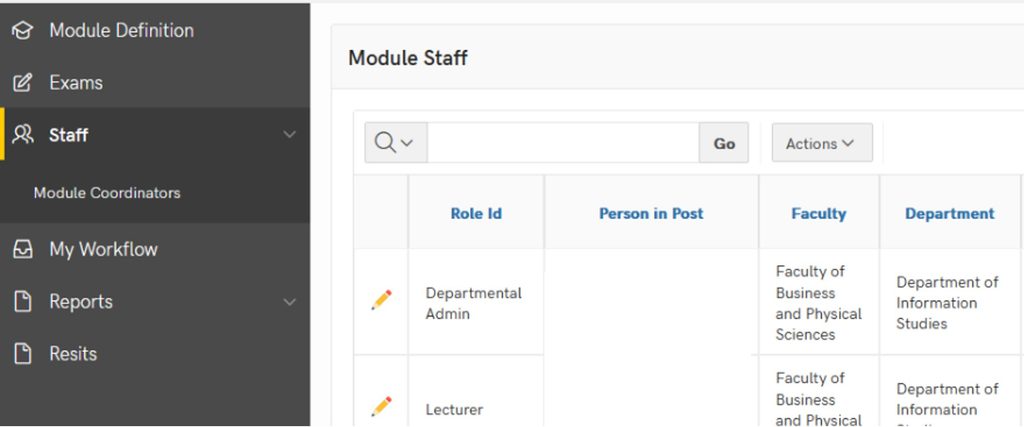
The staff section will show you what staff have access to and what they have updated
Individual staff can be added too:
- A module
- All modules in the department
- All modules in a faculty
- All modules at the institution
The role with the highest level of permission will take priority for, example instructor over grader
How do staff roles appear in the Module Management System and Blackboard?
| Module Management | Blackboard |
| Lecturer | Instructor |
| Tutor | Instructor |
| Assistant | Teaching Assistant |
| Grader | Grader |
| Builder | Course Builder |
| Departmental Administrator | Facilitator |
| Subject Librarian | Course Builder |
| Course Viewer | Viewer |
| External Examiner | Facilitator |
See official guidance from the Blackboard help centre on permissions for each role.
Removing staff and students from courses
- Students can change or withdraw from courses using their student record, if this happens the student will be automatically removed from their current Blackboard course on a Monday night.
- Staff who are removed using the Module management system will also be automatically removed from modules on a Monday night (23.59)
- Modules will still be visible to both staff and students before Monday night (23.59). This means that if a staff member or student is removed on a Tuesday their modules will still be visible.
I can’t see my course in Blackboard?
- (Students) Check your Student Record for missing tasks and outstanding registration then contact your department.
- (Staff) Contact the registry staff in your department
Feel free to also contact elearning@aber.ac.uk.
What to consider?
- Staff should only be enrolled using the Module Management System.
- Technical issues are likely if staff and students are enrolled via the class register in Blackboard.
- It may take up to an hour for changes to appear in Blackboard
If changes have not appeared after one hour, please contact elearning@aber.ac.uk.
Where can I find the AI Essentials content in Blackboard?
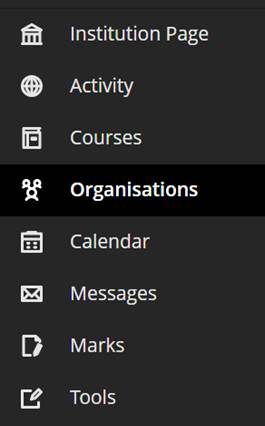
· The AI essentials content can be found in the Organisation section of Blackboard:
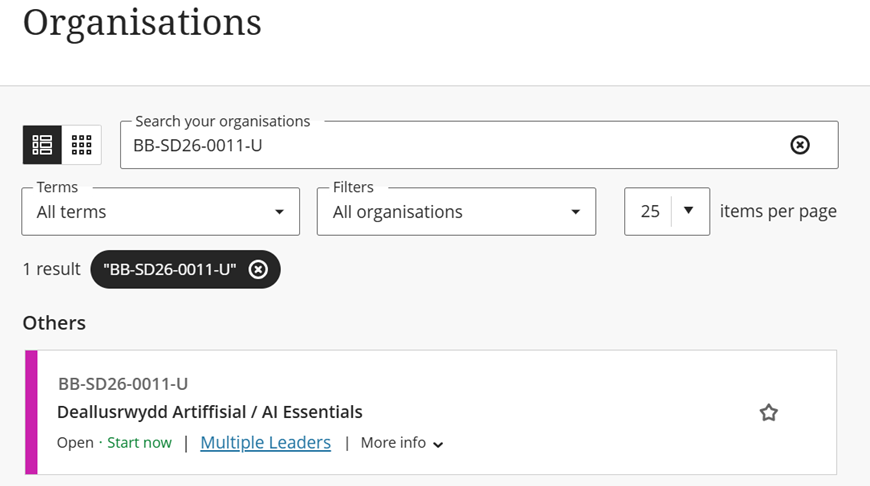
· From here you can use the search feature to search for
BB-SD26-0011:
How do I Link Panopto Recordings to Blackboard?
You can create a link to the Panopto folder in your Blackboard course. This means that students will be able to see the recordings for the course all in one place.
Finding your Panopto folder
Panopto folders for all 2026-27 modules can be found within the 2026-27 folder.
To find the Panopto folder you want to record into:
- Click the dropdown button on the right-hand side of the Folder box.
- Click the dropdown arrow to the left of the academic year folder to expand it.
- Select the Panopto folder you want to record into.
You can also search for the Panopto folder you want to record into:
- In the Folder box start typing the module code or name of the Panopto folder you want to record into.
- Select the folder you want to record into.
What to do if you can’t see your Panopto folder
In a small number of courses, the Panopto folder wasn’t created over the summer. If you can’t find your Panopto folder using the steps above, you can create a folder from Blackboard:
- Login to Blackboard and find your course
- Click on Books and Tools [Llyfrau ac Offer] > View course and institution tools [Gweld cwrs ac offer sefydliad]
- Click on Holl Fideo Panopto / All Panopto Videos
You should then be able to find the Panopto folder to make a recording.
If you have any questions, please contact the Digital Education Team on elearning@aber.ac.uk.