

In just over a week’s time, the August Blackboard update will be released. This includes an overhaul of the Gradebook. Please see below for further information.
The monthly August Blackboard release has a new user interface for the Gradebook.
Given the nature of this update, we have a separate blogpost dedicated to it.
If you have any questions about the updated Gradebook or grading, please contact the Digital Education Team (elearning@aber.ac.uk).
Every course has the Gradebook, which is used to manage all aspects of the administration of marks. It can be accessed via the top menu of Blackboard courses.
As part of this update, the following processes are not changing:
- Grades, calculations, and overall grade configuration
- Grade schemas and grading settings
- Course-level accommodations
- The List View
- All existing grades and submission history
The component marks transfer process also remains unchanged.
Change 1: Default view
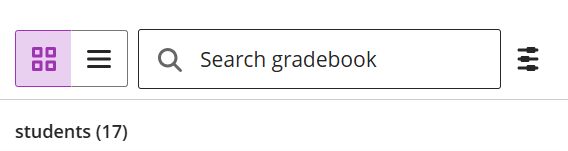
The default view of the Gradebook is now the grid view
You can swap between the grid view and the list view by clicking between the views:
Change 2: To do list
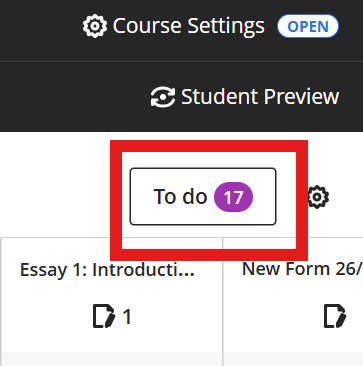
The Gradebook Overview is now called the To Do List which is available in grid and list views:
From here, you can see what work there is to mark and post:
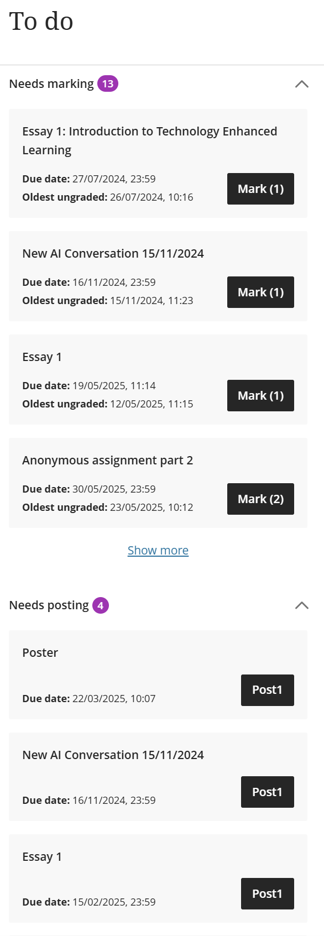
A reminder that marks need to be posted in order to be included in the marks transfer.
Change 3: Entering Grades
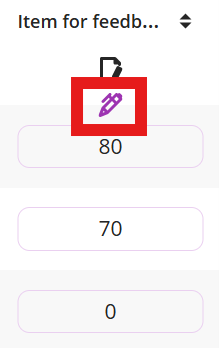
The ways to enter grades into columns has changed.
Click on the pencil icon to change and enter the grade:
You can then post the marks from this screen by clicking on the post icon:
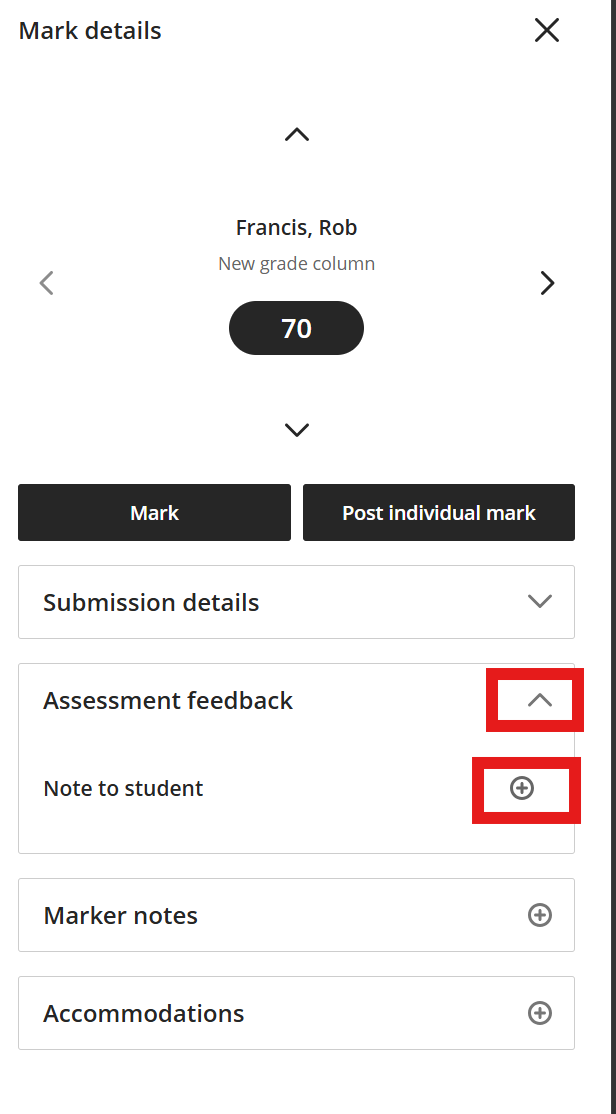
You can also leave feedback from this view by clicking on the mark
If you want to mark and leave feedback on all Blackboard marked items, click on this icon:
This will then open the assignment mark screen.
Change 4: Updating and editing columns
Editing columns now take place via the list view.
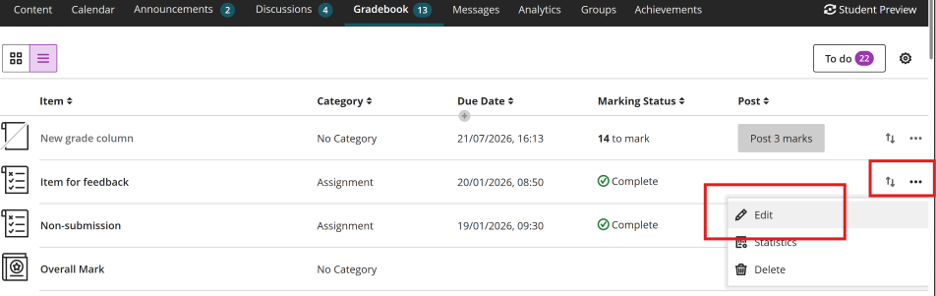
Change 5: Filtering by merged module
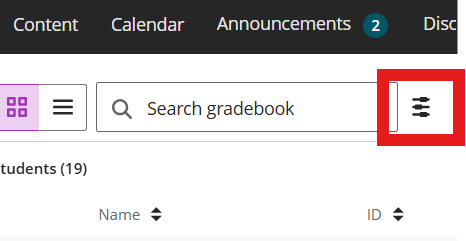
It is possible to filter the gradebook using Merged Modules so that you only see the information for students on the relevant modules.
Click the filter button highlighted below and choose from the dropdown for merged courses:
Change 6: File upload and download gradebook
The functionality for downloading and uploading to the gradebook has moved.
Click on the settings cog:
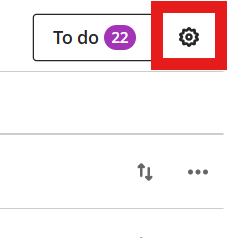
Choose Download marks or Upload marks depending on what you want to do.
Change 7: Checking the visibility of a column
The visibility status of columns can no longer be seen in the grid view.
To check the visibility of the column, navigate to the list view:

You can amend the visibility of the column by clicking on the ….
We are now working to update our guidance to reflect the changes in the Gradebook.
If you need any further information or have any questions, please contact us on elearning@aber.ac.uk.