
- Panopto offline uploads and other general Panopto advice
- Adding / removing Staff from modules
- Generative AI assessment good practice event information
Panopto offline uploads and other general Panopto good practices:
Our top enquiries of October were around Panopto, more specifically an issue affecting some teaching machines across the University. Which meant that some recordings were saved offline to the teaching machine rather than their desired location.
We have received fewer requests to assist with retrieving lost Panopto recordings recently. However, we will continue to monitor the situation and keep you up to date. For now, please see our guidance on locating Panopto folders to record into and similar useful FAQs surrounding Panopto.
Panopto, locating folders to record into:
When the Panopto recorder opens in a lecture theatre, the folder does not appear on the dropdown, forcing colleagues to record offline.
If you are experiencing this issue, there are a couple of things you could try:
- Adding a link to All Panopto recordings in your Blackboard Course. Panopto permissions are synced across all modules if instructors engage with this link. See our FAQ on how to do this.
- Accessing Panopto from Blackboard.
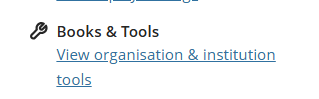
Go to your module in Blackboard and click Books & Tools from the right-hand menu.
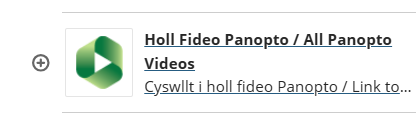
Choose Holl Fideo Panopto / All Panopto Videos
Choose Create and Panopto for Windows
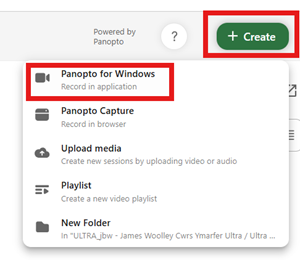
This will open the Panopto recorder, and you should be able to choose the folder from the dropdown.
If you are still having difficulties, record offline, and contact the Digital Education Team (elearning@aber.ac.uk) with the following information:
- Location
- Time and date of lecture
- Module code
How do I move a Panopto recording from one Panopto module folder to another? (Staff)
Moving Panopto recordings from one module folder to another:
- Log in to Panopto.aber.ac.uk
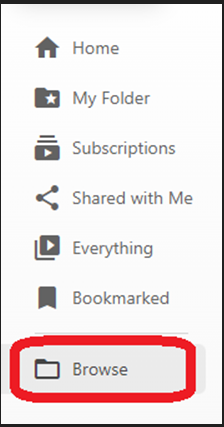
- Use Browse in the left-hand menu to locate the folder from which you want to move the recording .
- Alternatively use the search bar at the top of the page.
- Select the video(s) you would like to move.
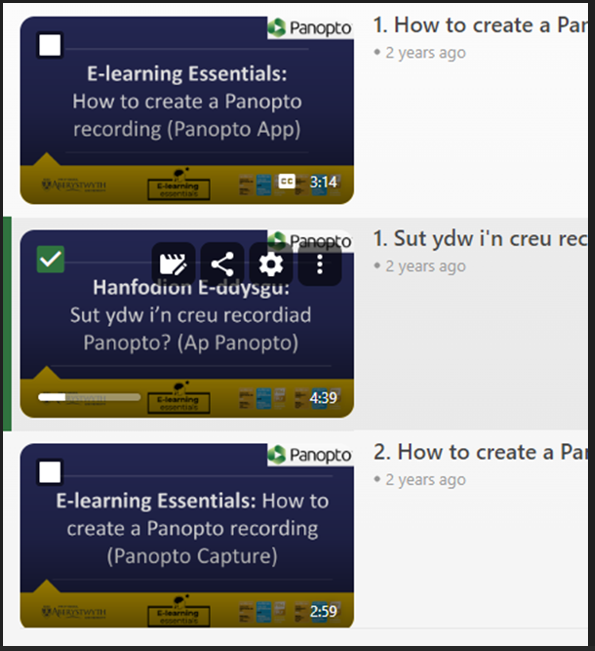
- Press the Move button.

- Locate and select the folder you want to copy the video to in the dropdown menu that appears and select Move
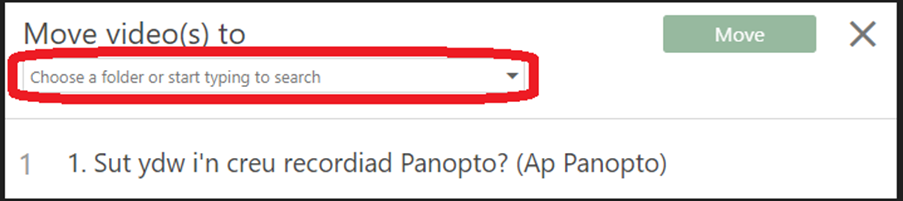
- Press the Move button.
How do I Restore Archived Panopto Content?
Please follow the link below for guidance:
How to Restore Archived Content
How do I delete a Panopto recording?
- Log into Panopto: Panopto.aber.ac.uk
- Locate the recording you want to delete
- Select the recording you want to delete
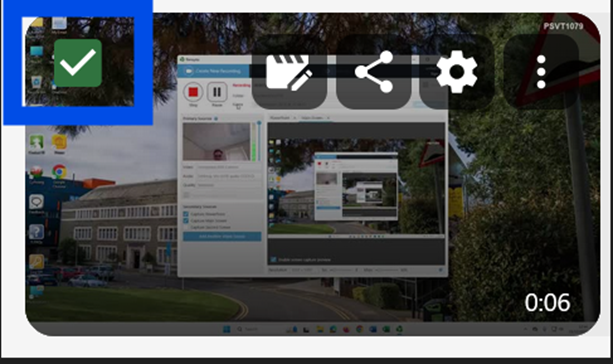
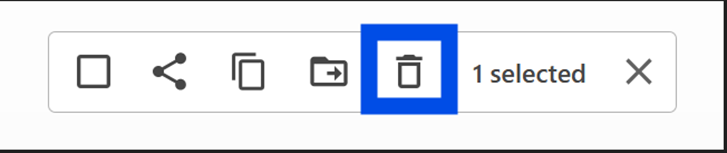
- Click the Delete button in the action menu
Using the module management system to add and remove staff:
The module management system can be used to add and remove staff from Blackboard modules please feel free to email us at elearning@aber.ac.uk for support.
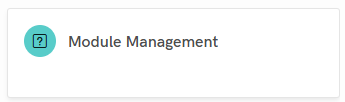
Module Management System:
- The Module Management System can be used to enrol staff and departmental admins
- It can be accessed through myadmin
- The staff section is visible on the left-hand side
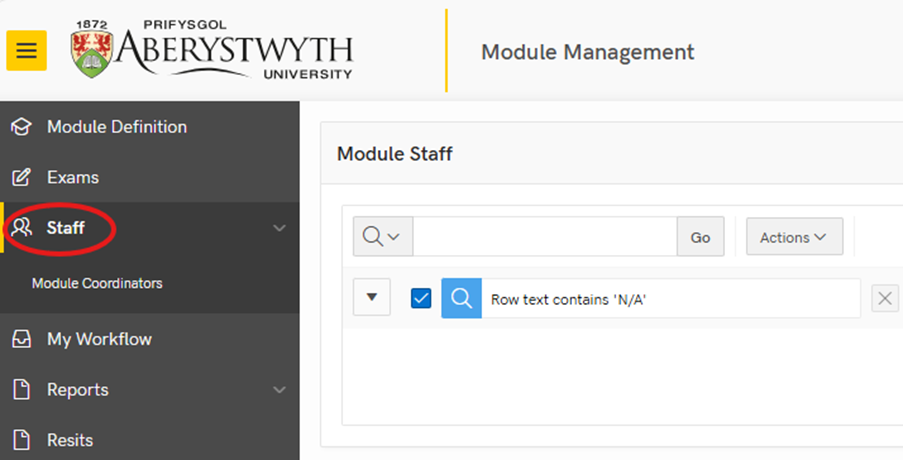
Note: The staff section will show you what staff have access to and what staff have updated
Too add a member of staff:
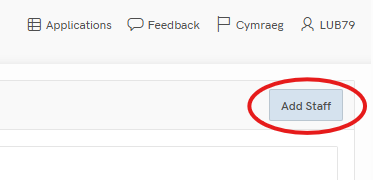
- Navigate too and click on Add Staff on the right-hand side
- This will bring up the Staff Maintenance window:
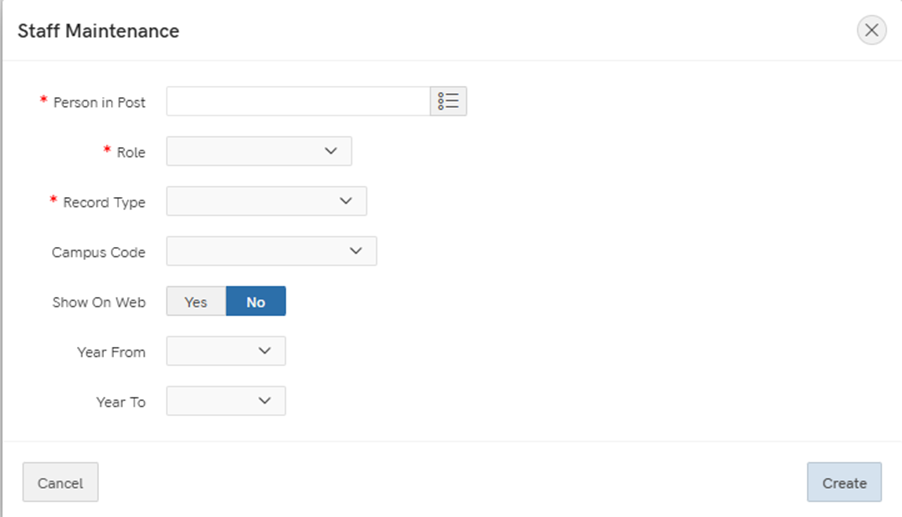
*Note to add the person in post you must click this >
This will show a list of all members of staff at the university:
- Make sure to make a note of the person in posts Aber email address and job title if they have more than one
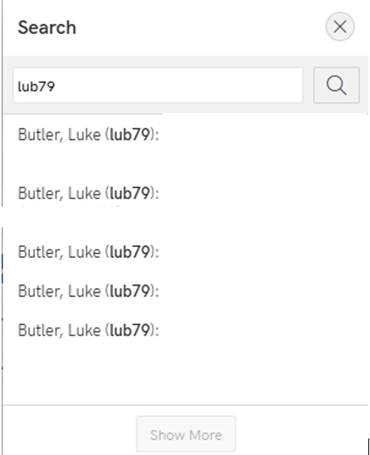
- Click on the person that you would like to assign to a module.
- Then select the role that you would like to assign to the staff member
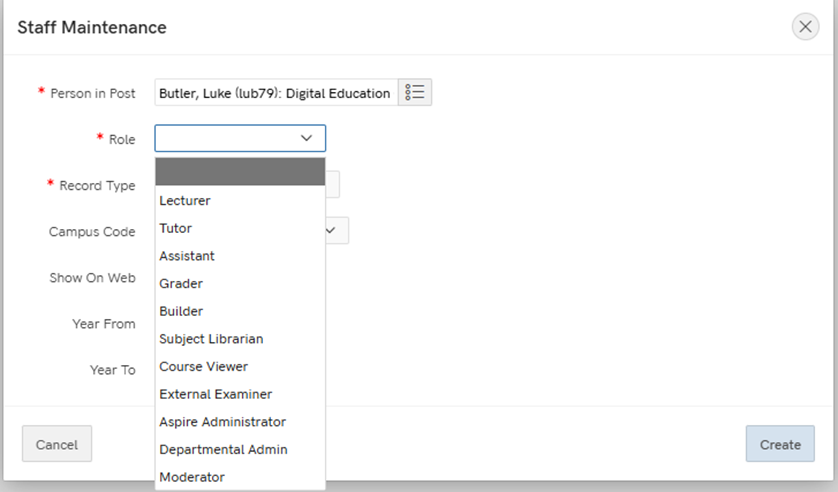
This is how roles appear in Blackboard and the Module Management System:
| Module Management: | Blackboard: |
| Lecturer | Instructor |
| Tutor | Instructor |
| Assistant | Teaching Assistant |
| Grader | Grader |
| Builder | Course Builder |
| Departmental Administrator | Facilitator |
| Subject Librarian | Course Builder |
| Course Viewer | Viewer |
| External Examiner | Facilitator |
See official guidance from the Blackboard help centre on permissions for each role.
The role with the highest level of permission will take priority for, example instructor over grader
Too add a person to a single module:
- Navigate to Record Type select > Single module
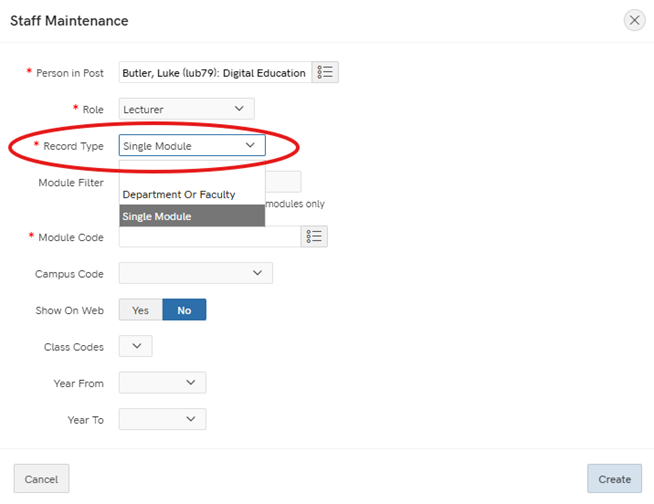
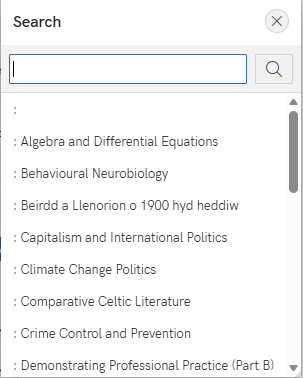
Then navigate to Module code and click this >
- This will open a list of all modules in the University search for the desired module code:
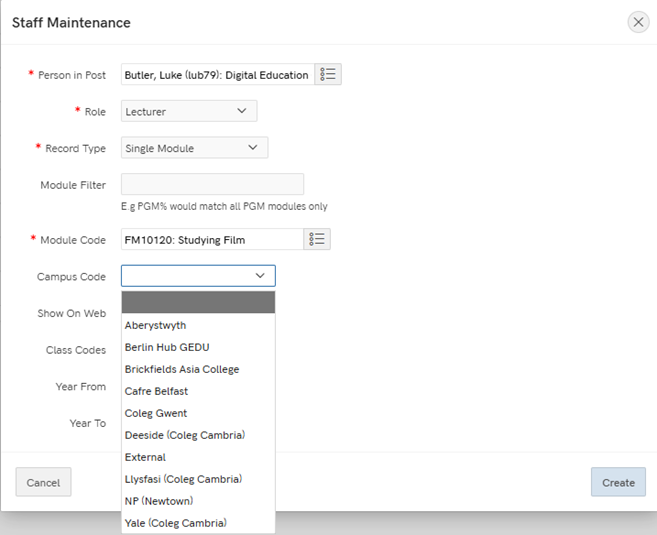
Select the correct campus code:
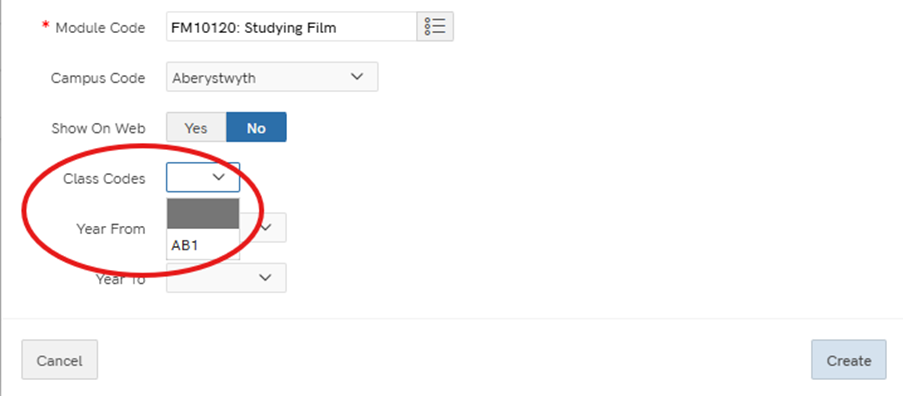
Once this is done make sure that the class code matches that of the course on Blackboard:
Note some modules have multiple class codes e.g. AB1 and AB2, they must match exactly.
- You can then select the year that you would like that person to see e.g 2023/2024 to see past content to present or future
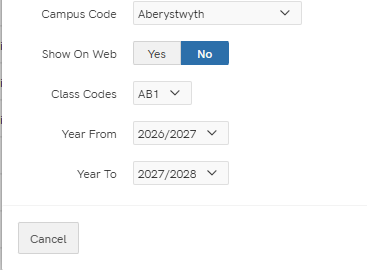
Note: if these are left blank the person will see every instance of the module
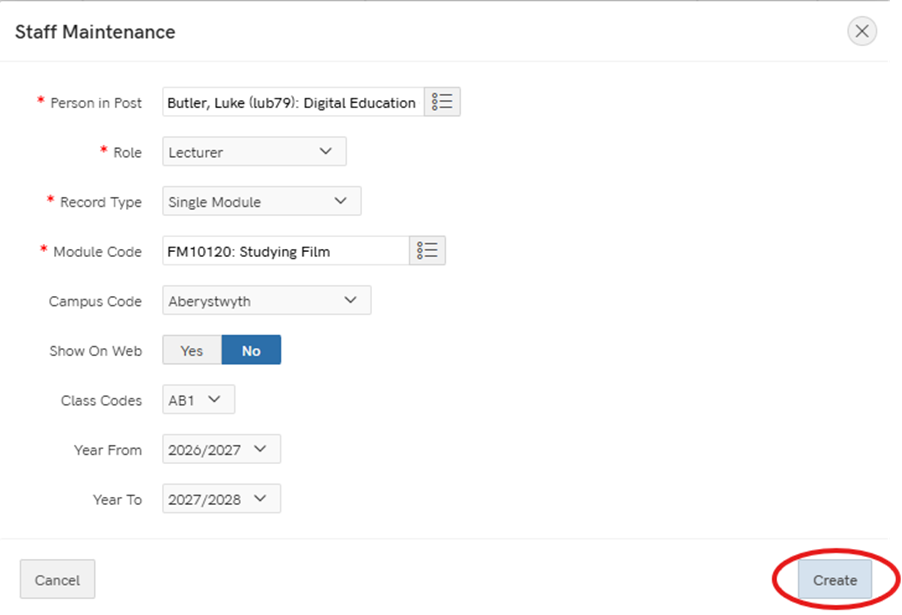
- Once you are finished click create and the member of staff will be added to that module
Removing staff from courses:
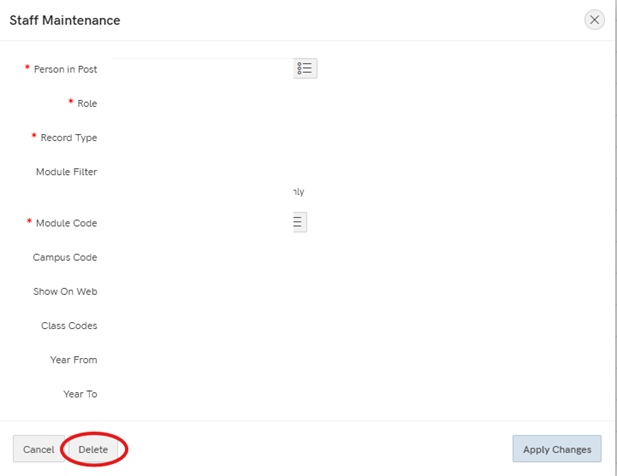
Staff can be removed from a module by clicking on the person’s name in module management by clicking delete in the staff maintenance panel. This will remove the staff member from that specific module
Keep in mind:
- Staff who are removed using the Module management system will be automatically removed from modules on a Monday night.
- Modules will still be visible to staff before Monday night. This means that if a staff member is removed on a Tuesday their modules will still be visible until the system updates on the following Monday
Generative AI Assessment Good Practice Event information:
We are delighted to confirm our programme for the Generative AI Assessment Good Practice Event that will be taking place on Wednesday 25 November.
The event will be held between 13:15 and 17:00 in the Visualisation Centre building on the Penglais campus – with presentations taking place in Tŷ Trafod, as well as VC rooms 0.03 and VC 0.06.
An exciting line up of presenters from across the university will be joining us for the event. In the first round of presentations, we will be hearing from:
- Daniel Bryant from the Digital Education Team within Library, Academic and Digital Services.
- Bernie Tiddeman and Christine Zarges from the Department of Computer Science.
- Rhys Dafydd Jones, Emma Butler-Way, Tom Holt from the Department of Geography and Earth Sciences.
Academics from across the university will then present more areas of good practice relating to generative AI and assessments. The other speakers that we have lined up are:
- Miguel Hernandez from the Department of History & Welsh History.
- Louise Chennel from the School of Art.
- Lauren Harvey from Department of Law & Criminology.
- Cennydd Jones and Hazel Davey from the Department of Life Sciences.
- Daniel Peck from the Department of Mathematics.
- Jamie Harris from the Department of English & Creative Writing.
- Steve Atherton from the School of Education.
- Alex Mangold from the Department of Modern Languages.
The full programme and abstracts will be announced on the university webpage soon. In the meantime, you can book your place clicking on this link.