
Tags: Blackboard, Monthly Update, Ultra, Groups, Discussions, Grading, Gradebook, MCQs, Release Conditions, Screen reader, Accessibility, course catalogue
In the May update, we want to draw your attention to the following Blackboard enhancements:
- Changes to managing groups
- Graded discussions and flexible grading
- Tests and questions
- Content and release conditions
- Course searching
Changes to managing groups
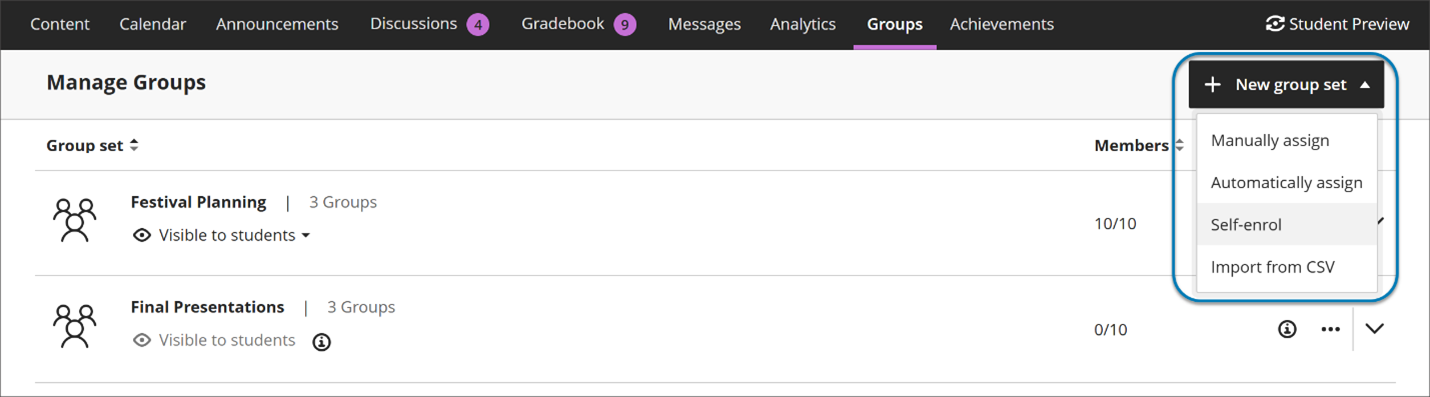
Instructors now start by choosing how they want to structure groups—before managing individual members. The options include:
- manual assignment
- automatic assignment
- self‑enrollment
- import
Image 1: Instructors now start by creating a group set by choosing how they want to structure groups—before managing individual members.
Automatic enrollment with clearer controls
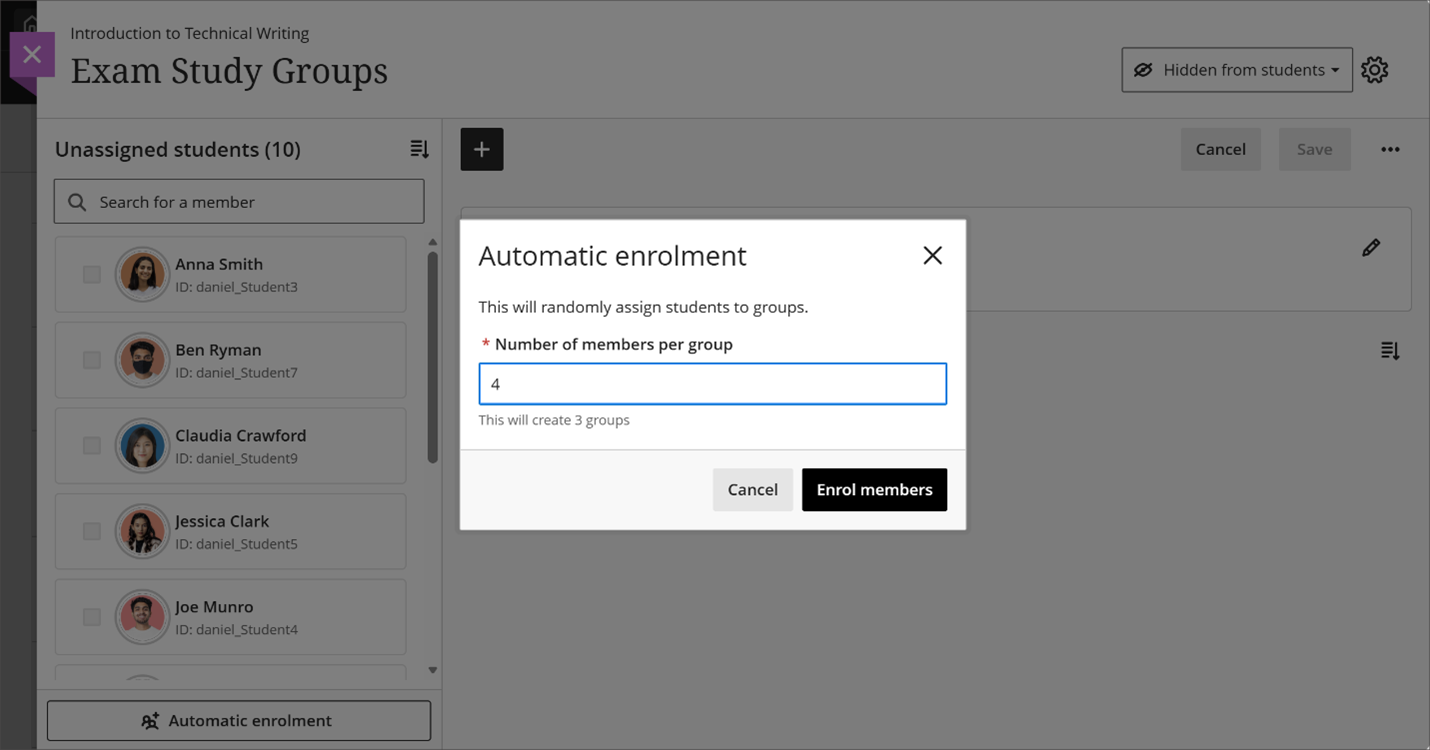
Instructors can automatically assign students to groups by specifying the number of members per group. Blackboard creates the required number of groups and assigns students randomly in a single step, reducing setup time for large courses.
Image 2: Instructors can now automatically assign students to groups by specifying the number of members per group.
More flexible ways to assign students
Instructors can assign and unassign students using multiple methods:
- Assign students directly from the unassigned list
- Assign selected students to a specific group
- Add or remove members from within a group
This flexibility reduces repetitive actions and makes it easier to focus on populating one group at a time or balancing membership across groups.
Sorting for group members and groups
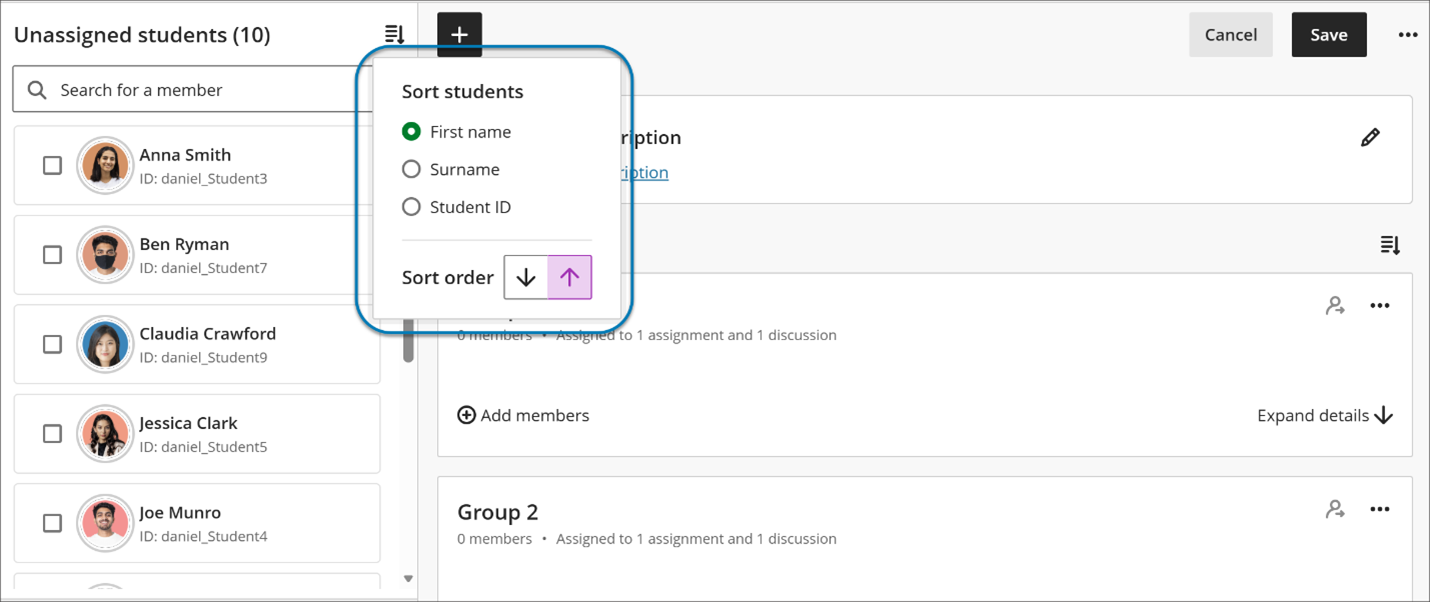
Instructors can now sort:
- Students by first name or last name (A–Z or Z–A)
- Student ID
- Groups by group name
- Groups by number of members
Image 3. Instructors can now sort group members by first or last name, student ID and sort groups by group name or number of members.
Performance and reliability improvements
Managing groups in large courses is now significantly faster. Save operations that previously took several minutes—especially in courses with thousands of students—now complete in seconds. When a group is being saved, an instructor can close out the page and be assured that it is continuing to save in the background, allowing instructors to continue working without interruption.
Additionally, the previous maximum limits of 5,000 students and 1,000 groups are removed.
These improvements reduce frustration and improve confidence when managing groups at scale.
Second due date for Discussions visible in Gradebook
The second discussion due date now appears in the following pages in Gradebook:
- Overview
- Gradable Items
Under Due Date on the Discussion item on each Gradebook page, the item’s second, final due date is displayed. Next to that date is a circle icon with a lower case i inside. Hover over or tab to this icon, and a pop-up bubble displays details of both due dates. For example: This discussion has 2 due dates: Due date 1: 5/1/26, 12:00 PM Due date 2: 5/8/26, 12:00 PM
Image 1: The second discussion due date now appears on the Overview and Gradable Items pages in Gradebook.
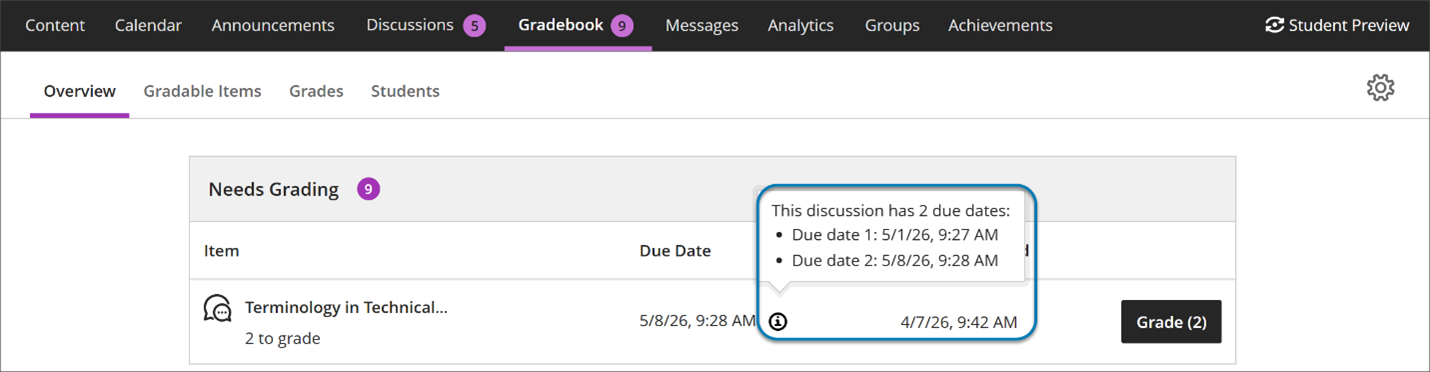
Instructors benefit from clearer communication of discussion expectations, reducing the need to clarify deadlines and helping ensure students understand how and when their contributions are graded.
Carry group filter into Flexible Grading
The group filter selected in the Gradebook grid view now carries over into Flexible Grading. Instructors who filter by a group in the Gradebook will find only the students from that group when they enter Flexible Grading, and the active group filter is displayed within the Flexible Grading view. This update reduces the need to re-filter after switching views and keeps instructors focused on the most relevant students for their current grading task.
Provide answer-level feedback for multiple choice and multiple answer questions
Instructors can now add feedback for each answer option in multiple choice and multiple answer questions. This helps students understand why each choice is correct or incorrect after an attempt is submitted.
Instructors can now add feedback for each answer option in multiple choice and multiple answer questions. This helps students understand why each choice is correct or incorrect after an attempt is submitted.
Instructors
When creating or editing a multiple choice or multiple answer question, instructors can turn on Option Feedback, which prompts Feedback textboxes to appear beneath each answer option. Instructors can enter the answer options and feedback for any of the options.
Image 1: Instructors can enter answer-level feedback.
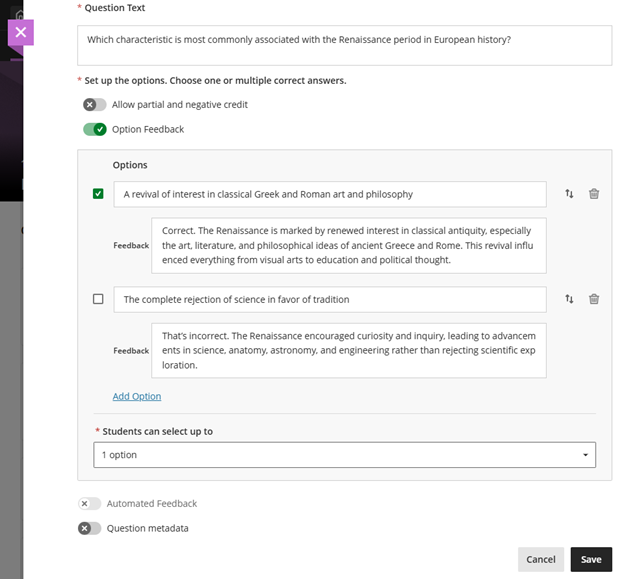
Turning on Option Feedback disables Automated Feedback option. The Automated Feedback option lets instructors provide feedback for the correct answer and for incorrect answers. Answer-level feedback also allows for automatic feedback, which instructors can configure in the Assessment results section of Assessment Settings.
For answer-level feedback to display for students, enable Show correct answers in the Assessment results section of Assessment Settings.
Students
After submitting an attempt, students receive feedback for each answer option they selected if the instructor has left feedback on that answer option. This helps students understand their performance at a more detailed level and supports learning from incorrect choices.
Lock answer options in a fixed position for multiple choice and multiple answer questions
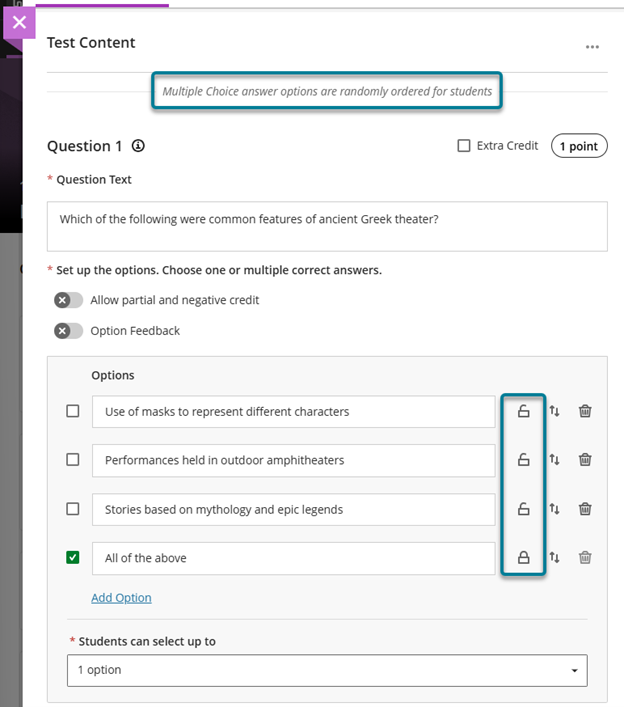
When creating or editing a multiple choice or multiple answer question, instructors can designate specific answer options as locked. To lock an option in place, select Randomise answers in the Assessment Settings, then select the lock icon next to the answer option. Locked options remain in their set position during randomisation while all other options shuffle as expected.
Instructors can remove a lock any time while editing the question. Locking designations can also be updated as part of a regrading flow.
Image 1: Instructors can select the lock icon next to the answer option to lock that option in place. To trigger the lock icons, select Randomise answers in the Assessment Settings.
Visualize release conditions inherited by items in learning modules and folders
Instructors can now view release conditions inherited from a parent learning module or folder directly within the release conditions panel of individual items. Inherited conditions appear in a read-only format, giving instructors a clear picture of all conditions that apply to an item, including those set directly on the item and those cascading from a parent container.
This update also ensures that discussions hidden within a learning module are no longer accessible from the Discussions tab. Discussions now respect the release conditions applied at the learning module level.
Instructors
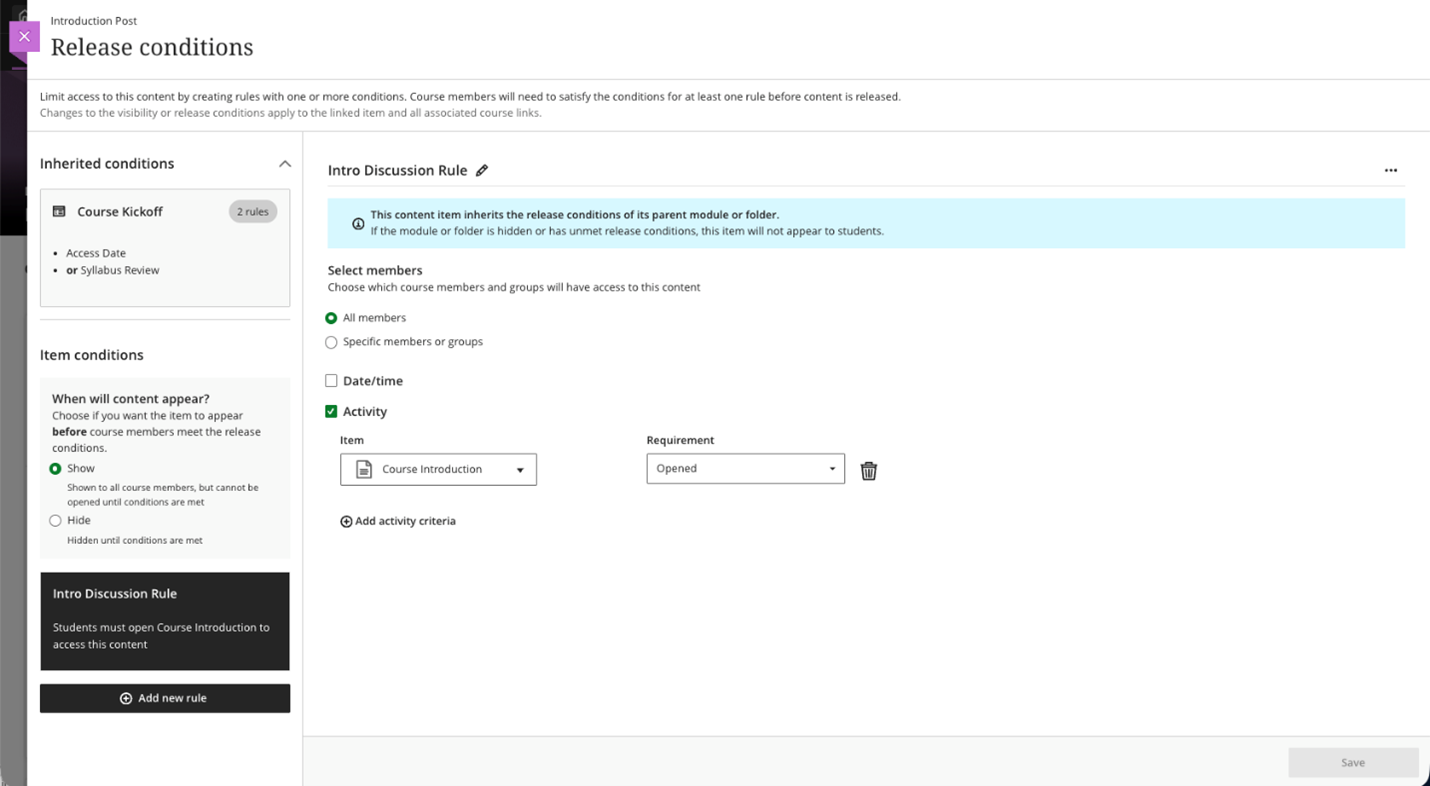
When instructors open the Release Conditions panel for an item inside a learning module or folder, a read-only summary of any conditions inherited from the parent container appears alongside any conditions applied directly to the item. This helps instructors understand the full set of access rules in place and determine whether additional conditions are needed.
Image 1: Read-only summary of conditions inherited from the parent container and conditions applied directly to the item appear in the Release Conditions panel.
Improved screen reader experience in Document view mode
Screen reader users now have a cleaner, more focused experience when navigating documents in view mode. Unnecessary row and column announcements have been removed to allow access to primary content in the correct order, left to right, across rows, columns, and blocks. Edit mode behavior is unchanged.
Improved search and navigation in Course Switcher
We’ve enhanced the Course Switcher in Blackboard Ultra Course View to make it faster and easier to move between courses. Users can now search for a course directly from the Course Switcher and navigate to it without first returning to the Courses page.
This update builds on the existing quick access to recent courses and helps reduce navigation friction when working across multiple courses.
Instructors and Students
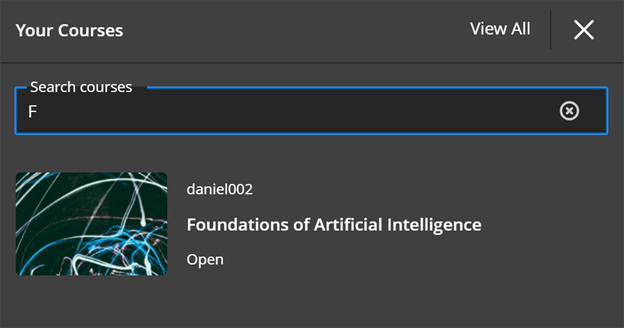
The Course Switcher now includes a search box that allows users to quickly find and open any course they have access to. Instead of browsing the full Courses page, users can open the Course Switcher, search by course name or course ID and navigate directly to the selected course.
This enhancement complements existing options in the Course Switcher:
- Quick access to the four most recent courses
- A View All link that opens the full Courses page
By combining search with recent‑course access, the Course Switcher provides a centralised and efficient way to move between courses—helping users stay focused on their tasks rather than managing navigation.
Image 1: Course Switcher now has a Search courses capability allowing users to search for courses by course name or course ID.
If you have any enhancements to request from Blackboard, please get in touch with us via elearning@aber.ac.uk.