In the August update, we want to draw your attention to the following Blackboard enhancements:
- Manage group membership with drag and drop
- Create multiple groups at once
- Make notifications more accurate and reliable
- Add sorting controls for users in Discussions
- Restructured Gradebook grid view (Instructors)
- Export question banks (Instructors)
- Display answer-level feedback for selected options only (Instructors and Students)
- Navigate courses faster with an improved user interface
- Set release conditions based on journal submissions
Manage group membership with drag and drop
Managing groups is now quicker thanks to new drag-and-drop functionality.
Instructors
From the Groups management area, instructors can now:
- Drag students directly from the unassigned list into a group.
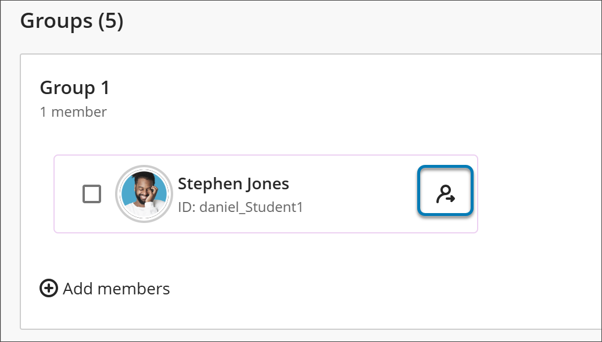
- Remove individual students from a group without having to clear all members.
- Continue using existing assignment methods alongside drag and drop.
This makes it much easier to create and adjust groups, particularly when making small changes to membership or balancing students across several groups.
Image 1: Instructors can drag and drop students to assign them to a group.
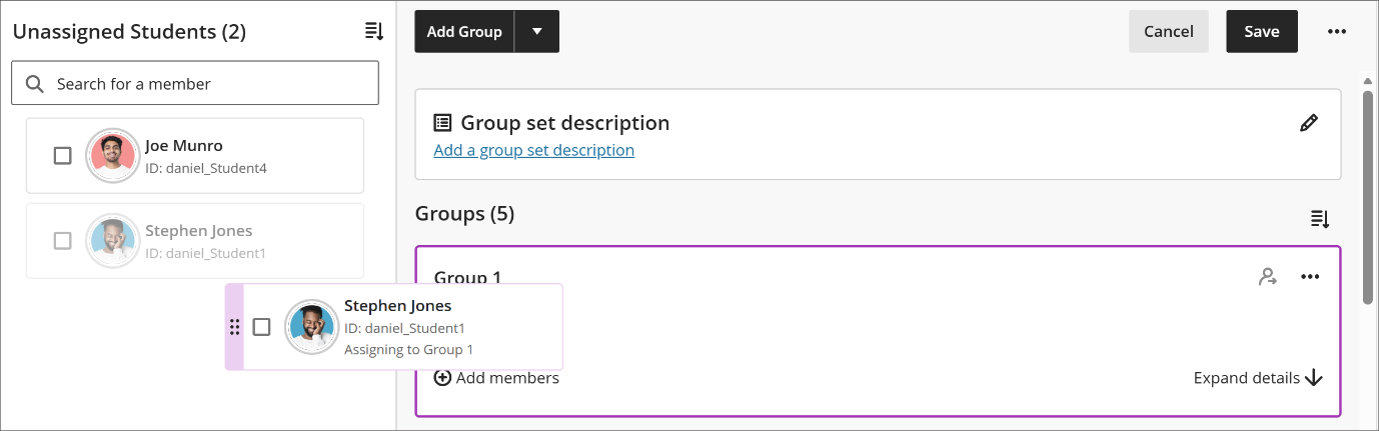
Image 2: Instructors can remove individual students from a group instead of removing them all at once.
Create multiple groups at once
Setting up groups has also become much more efficient.
Instructors
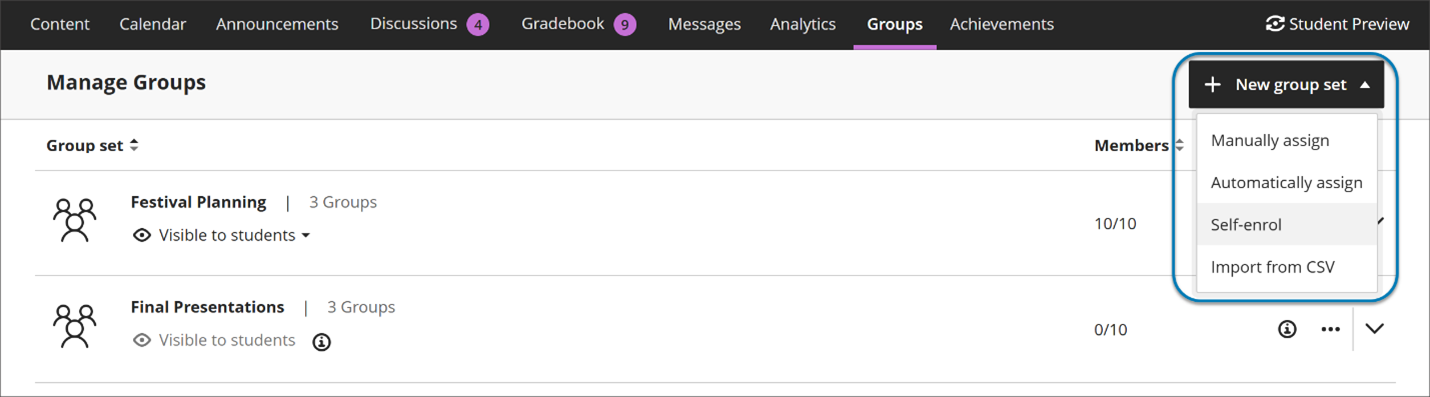
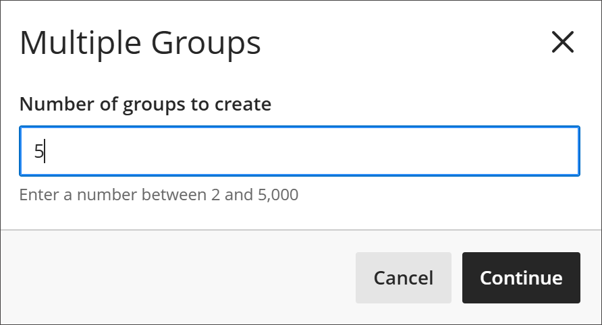
Instead of creating groups one by one, instructors can now create multiple groups in a single action. Anywhere from two to 5,000 groups can be generated at once, making setup much faster for large modules.
After groups are created, members can be added manually, imported, or assigned automatically.
A few things to note:
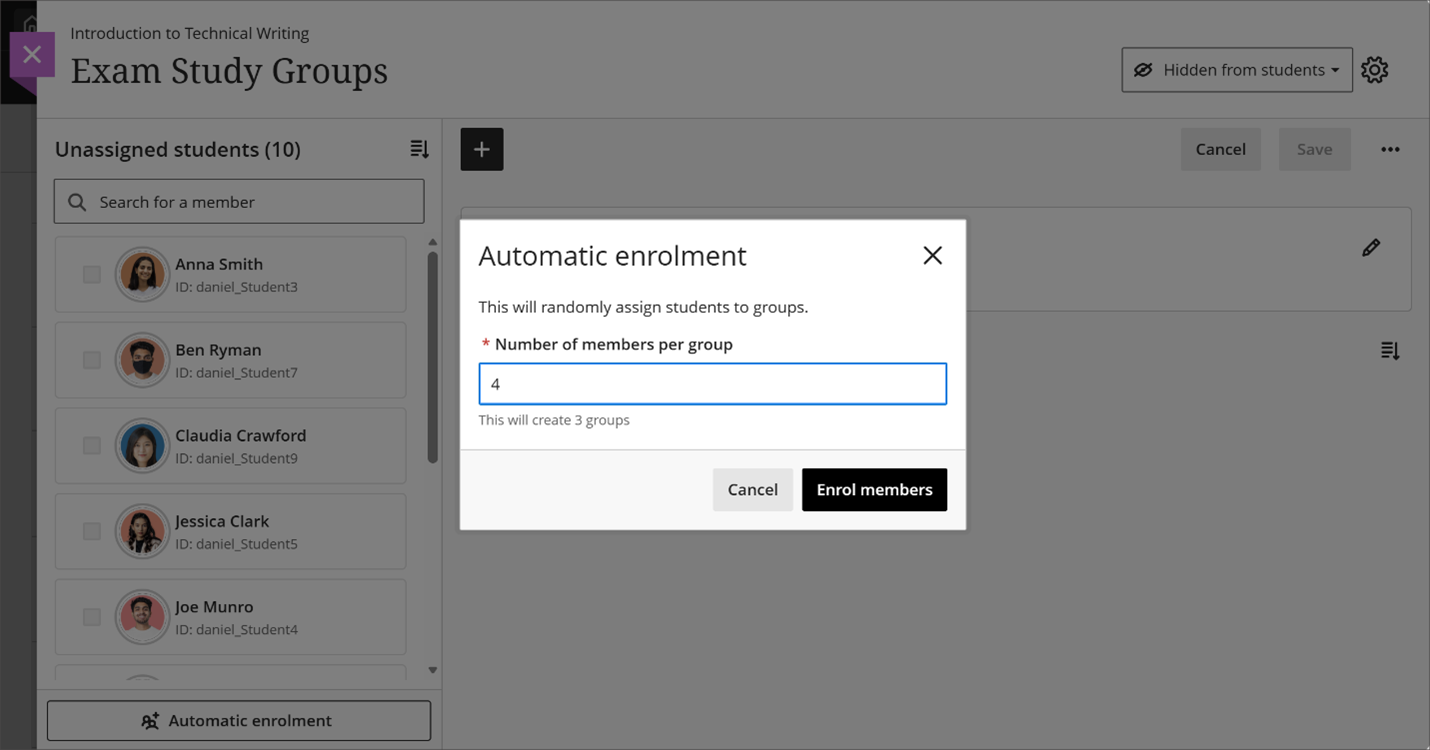
- When using Automatically assign, Blackboard creates the required number of groups based on your chosen group size.
- When using Self-enrol, three groups are created automatically. Any additional groups created through the bulk creation option are added to those existing groups.
This update significantly reduces the amount of repetitive setup required when preparing collaborative activities.
Image 1: Instructors can now create multiple groups at once instead of adding them one at a time.
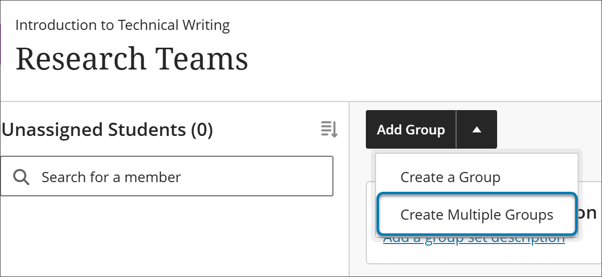
Image 2: Instructors can indicate how many groups to create at once, with the minimum 2 and the maximum 5,000.
Make notifications more accurate and reliable
Blackboard has improved the reliability of its notification system by fixing several issues that previously caused missing, duplicated, or mistimed notifications.
Instructors and Students
Improvements include:
- Students only receive due and overdue notifications for groups they are actually assigned to.
- Duplicate notifications for copied Group Discussions have been removed.
- Notifications for discussions, blogs, journals, and wikis now work correctly after course content is copied.
- Digest emails now include information about grade updates and cleared grades.
- Failed digest emails are no longer incorrectly marked as delivered.
- Announcement emails are sent only after their configured start date, ensuring students do not receive messages before content becomes available.
These changes should reduce unnecessary notification traffic while increasing confidence that alerts reflect what is happening in a course.
Add sorting controls for users in Discussions
Discussion areas now include sorting controls to help users navigate long conversations more easily.
Instructors and Students
Users can now:
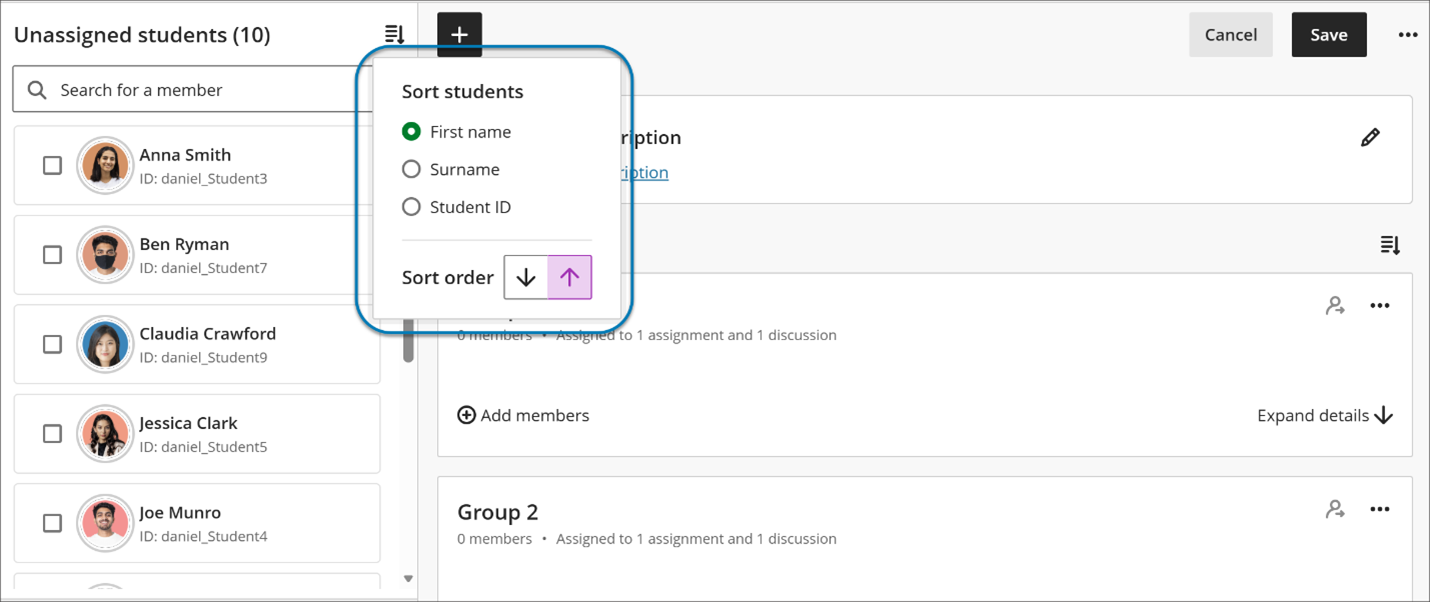
- Sort posts by Newest first or Oldest first.
- Return to discussions and find them displayed in the same order they previously selected.
Sorting applies throughout the discussion, including reply threads, and works consistently on mobile devices.
This makes it easier to follow active discussions, review contributions, and find recent activity.
Restructured Gradebook grid view
The Gradebook Grid View has been reorganised to provide a more streamlined grading experience for instructors.
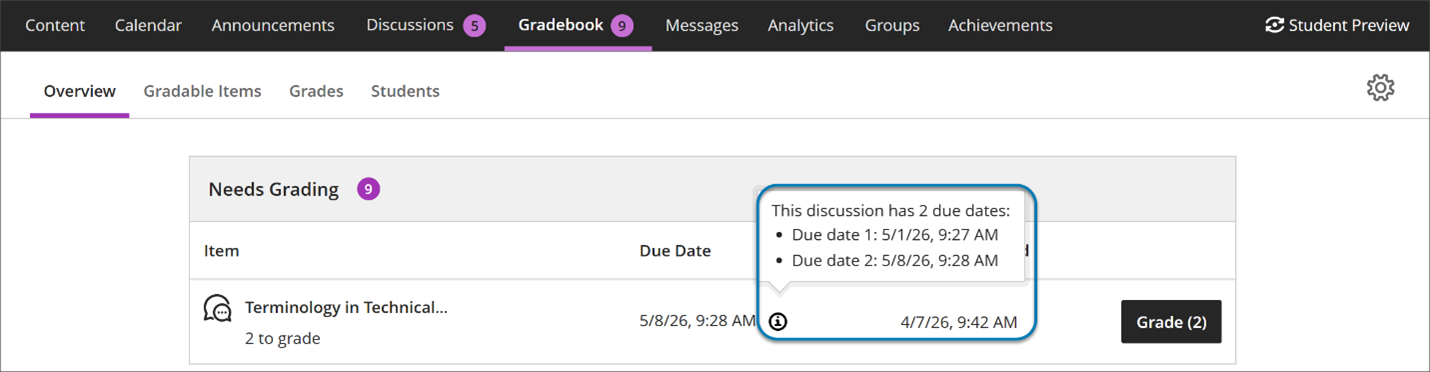
A separate Blackboard update article covers these changes in greater detail, but the overall goal is to make grading tasks easier to manage via a clearer layout and workflow.
Export question banks
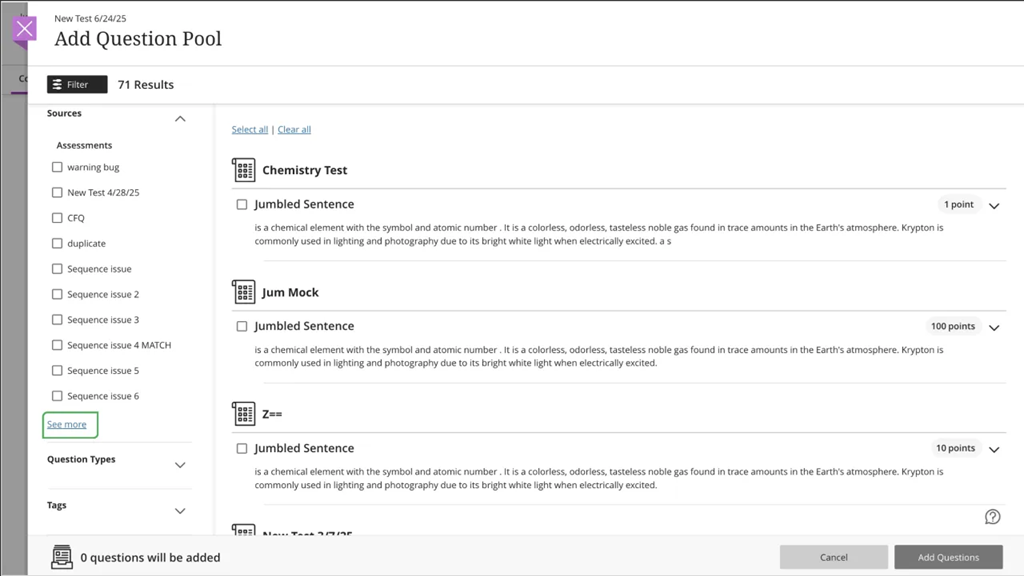
Question banks can now be exported directly from Blackboard.
Instructors
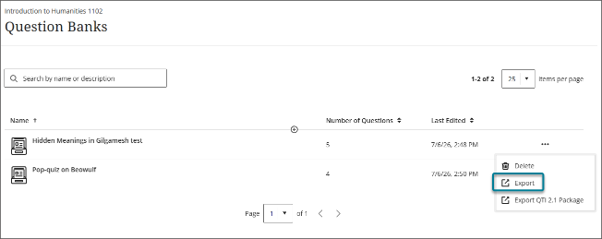
From the question bank management page, instructors can export a question bank as a file and save it locally.
This allows staff to:
- Create backups of assessment content.
- Share question banks with colleagues.
- Reuse content across multiple courses.
The export process gives instructors greater flexibility when managing and preserving assessment materials.
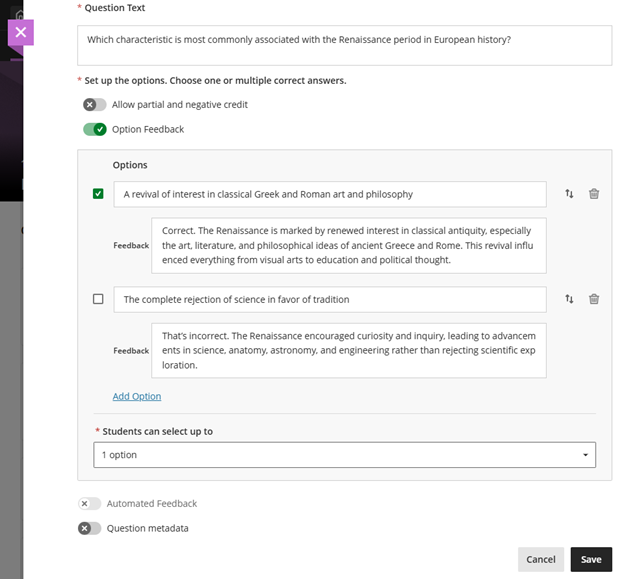
Display answer-level feedback for selected options only
Blackboard has changed how feedback is displayed for multiple-choice questions.
Instructors
There are no changes to the way feedback is created. Staff can continue adding feedback to individual answer options using the existing workflow.
Students
After submitting an assessment attempt, students now only see feedback for the answer options they selected.
Previously, students could see feedback for all options. The new approach provides more focused guidance while preventing students from viewing feedback linked to answers they did not choose.
This allows feedback to remain targeted and relevant to individual responses.
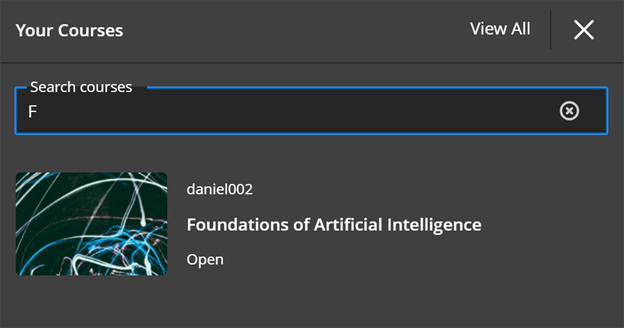
Navigate courses faster with an improved user interface
Blackboard has continued its work to improve navigation and overall user experience.
These changes are intended to:
- Make it easier to understand where you are within a course.
- Reduce accidental navigation mistakes.
- Improve consistency and performance.
- Help students stay focused during assessments.
Importantly, course structures and content remain unchanged, so instructors do not need to redesign anything.
Full-page content navigation
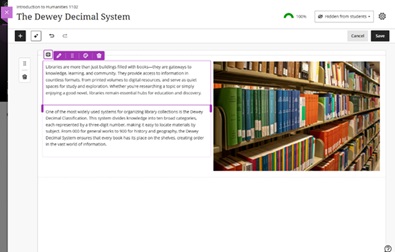
Learning modules, folders, documents, assessments, media, and other content items now open as full pages rather than in overlay panels.
Opening content in a dedicated page creates a more consistent experience and makes it easier to move back through course materials without losing your place.
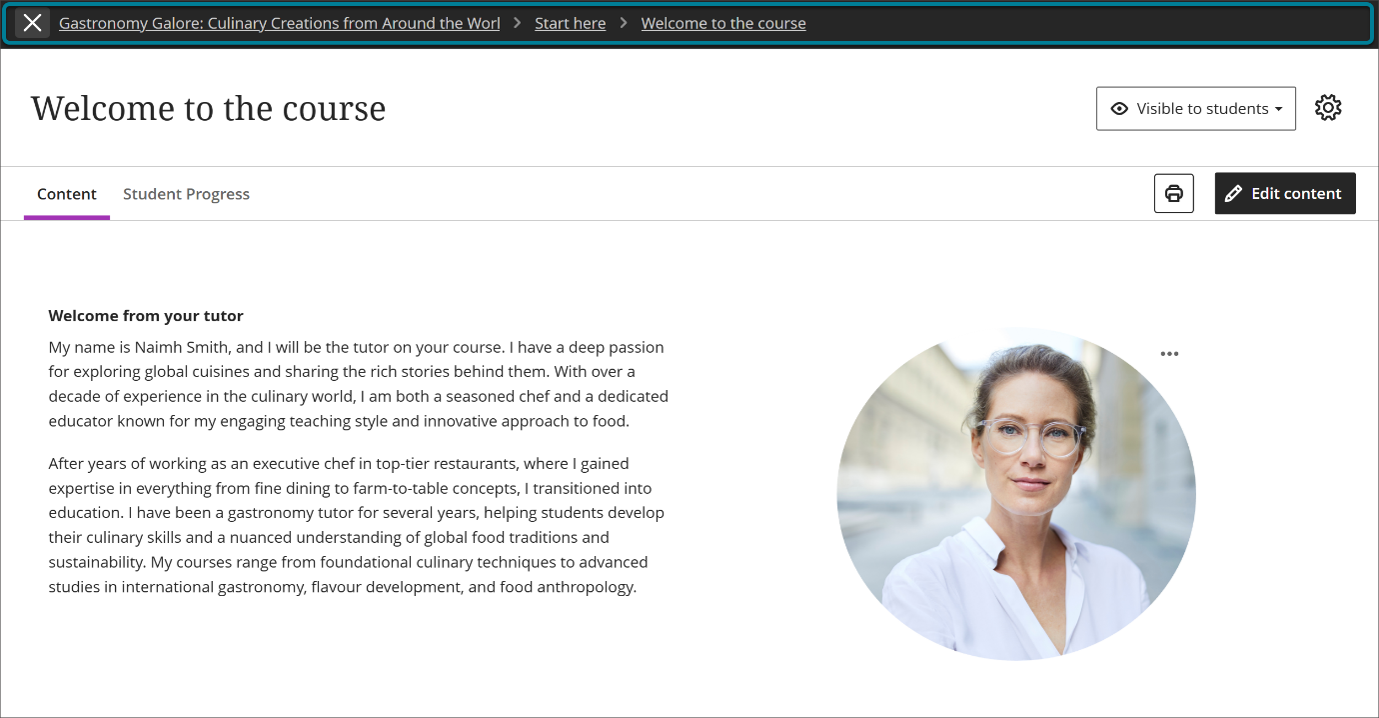
Image 1: Content now opens as a full page with consistent headers and navigation, rather than as stacked overlay panels.
Breadcrumbs for contextual clarity
Content pages now include breadcrumb navigation.
Breadcrumbs show where an item sits within a course structure and provide quick access back to parent folders and modules. They are automatically generated and require no setup from instructors.
This additional context helps users keep track of their location within a course and move around more efficiently.
Image 2: Breadcrumbs on a content page show the user’s location and allow quick movement back through modules and folders.

Clearer, intentional exit from content
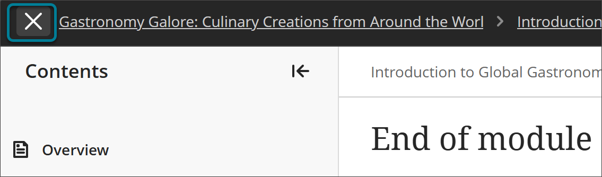
The purple “X” previously used to leave content has been replaced with a clearly labelled exit option in the navigation area.
Making the exit control more visible and deliberate helps reduce accidental page closures and makes navigation more predictable.
Image 3: The exit option now sits within the navigation banner, reducing accidental exits.
Focus state for tests and assignments (Students)
When students open a test or assignment, Blackboard automatically switches to a focus state.
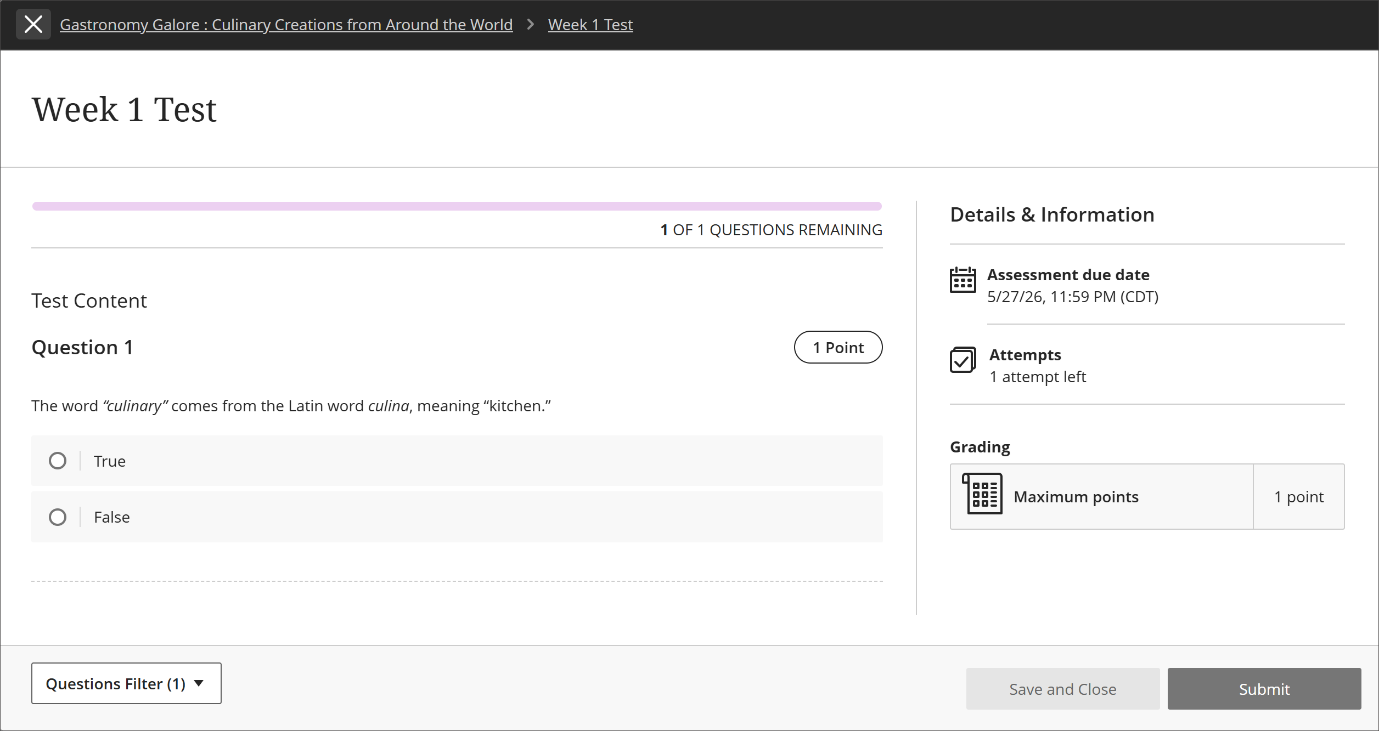
This view reduces visual distractions by minimising non-essential navigation elements and presenting a cleaner assessment screen.
The feature:
- Helps students concentrate on assessments.
- Does not affect grading or functionality.
- Still allows students to navigate elsewhere if needed.
- Requires no action from instructors.
Focus state is enabled automatically and cannot be switched off.
Image 4: In focus state, nonessential navigation is minimized so students can concentrate on completing an assessment.
Set release conditions based on journal submissions
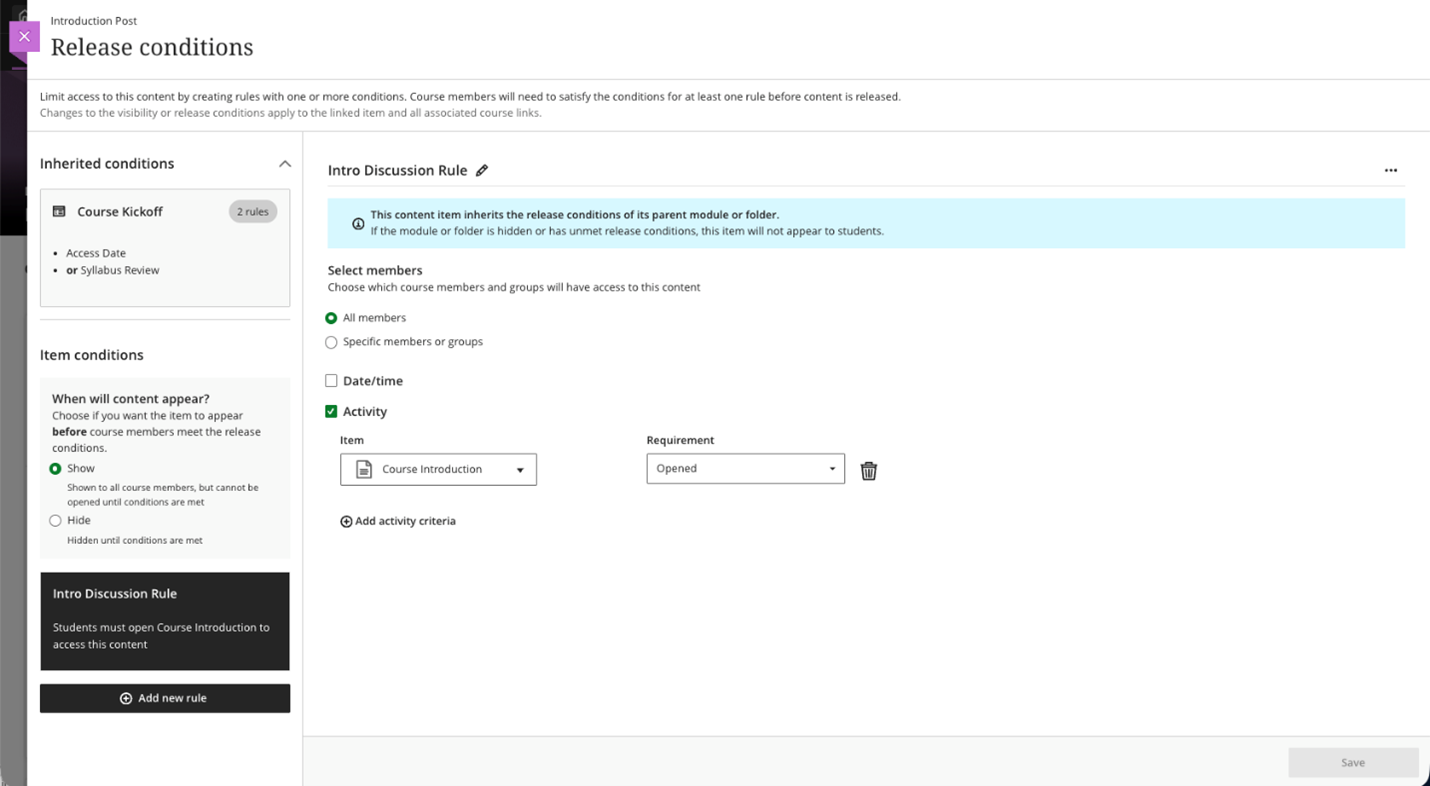
Release conditions can now be linked to journal submissions.
Instructors
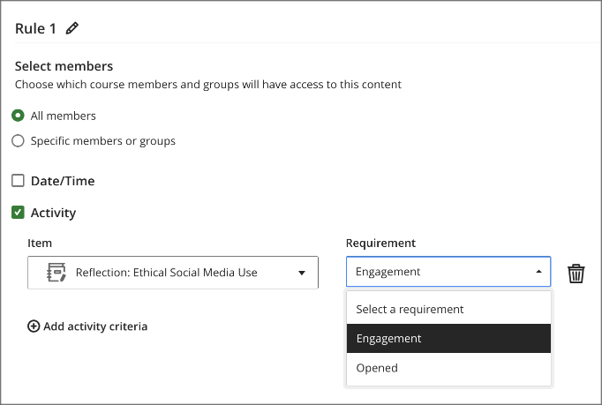
When configuring release conditions, instructors can choose journal submission status as a requirement. Once a student submits the required journal entry, the associated content becomes available automatically.
Importantly, instructors do not need to grade the journal before content is released. Blackboard records the submission as complete within progress tracking and uses that status to trigger content release.
This provides greater flexibility when designing structured learning pathways and prerequisite activities.
Image 1: Instructors select Engagement as the activity requirement for a journal.
Students
Students automatically gain access to new content once they submit the journal entry linked to a release condition.
There is no need to wait for marking or instructor approval before progressing, creating a smoother learning experience and reducing delays between activities.