We’ve got topics on neurodiversity and ai, neurodiversity and employability, and improving teaching for neurodiverse students amongst many other topics.
In the afternoon, we are running a series of workshops which delegates can sign up to attend.
We are delighted to announce the winner of this year’s annual Exemplary Course Award.
Congratulations to our joint winners:
Dr Christopher Phillips from International Politis for the award-winning course: IP25320: Warfare after Waterloo: Military History 1815-1918
Dr Catrin Wyn-Edwards from International Politics for the award-winning course: IPM3120: Race, (Im)mobility, and Incarceration.
The panel noted exemplary practices in the following areas:
Community ethos and student co-creation activities
Seminar packs with clear guidance and additional materials to expand on the main topic
Ethos of the module as part of the welcome and orientation
Clear and accessible module structures
Variety of source types
A range of assessment and feedback opportunities
Optional exercises for developing essay writing and critical thinking skills
Reading list organised into different sections
Embedding learning outcomes throughout the course
Many congratulations to our highly commended and commended recipients:
Department of Geography and Earth Sciences’ Dr Tristram Irvine-Fynn and Dr Hywel Griffiths for the course GS25520: Glacial and Fluvial Processes and Theatre Film and Television Studies’ Dr Lara Kipp for the course FM22120: Production Design Skills.
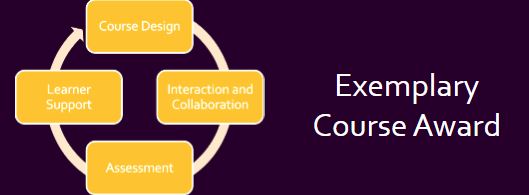
These 2 courses demonstrated some excellent practices, including innovative virtual field trip activities, anonymous student feedback mechanisms, authentic assessment design, and clarity on generative AI usage. The award is assessed based on a rubric across four areas:
Course Design
Interaction and Collaboration
Assessment
Learner Support
The courses were of such a high standard, and we look forward to sharing their practices with you in due course.
Many congratulations to this year’s well-deserved recipients.
Please complete this form no later than 22 May 2026.
The theme for this year’s conference is:
Co‑Creating Inclusive Futures: Flexible, Diverse, and Competency‑Driven Learning
The main strands of this year’s conference are:
Diversifying the Curriculum for Equity and Belonging
Building inclusive, decolonised curricula that reflect diverse identities and experiences, advancing the Race Equality Charter.
Flexible Learning for a Changing Landscape
Hybrid, blended, and accessible learning designs that support varied learner needs through thoughtful pacing, structure, and technology.
Competency‑Driven Learning
Clear, meaningful integration of skills, graduate attributes, and real‑world application of competencies.
Students as Co‑Creators and Collaborators
Authentic student–staff collaboration in curriculum design, assessment, research, and decision‑making.
Staff and students are welcome to propose sessions on any topic relating to learning and teaching, especially those that focus on the incorporation and use of technology. Even if your suggestion doesn’t fit into a particular strand, other topics are welcome.
We seek to encourage presenters to consider using alternative formats that reflect and suit the content of their sessions. As such, we are not specifying a standardised presentation format.
In the March update, we want to draw your attention to the following Blackboard enhancements:
Updates to tests:
Anonymous grading by question
Question title field relocated
Partial credit Multiple Choice Questions and Multiple Answer
AI Design Assistant Content Editor
Graded Discussions
Blackboard Assignment file limits
Anonymous Grading by Question in Blackboard Tests
Instructors can now grade anonymous by question in addition to grading anonymously by student.
When grading anonymous test submissions in Question View, the interface replaces the student’s name, avatar, and ID with an anonymous identifier and a blank avatar. All functionality available when grading non‑anonymous submissions by question is also available when grading anonymously. When anonymous grading is enabled, related APIs no longer return identifying information. This applies to the Essay Question.
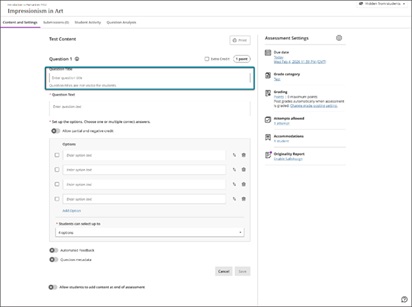
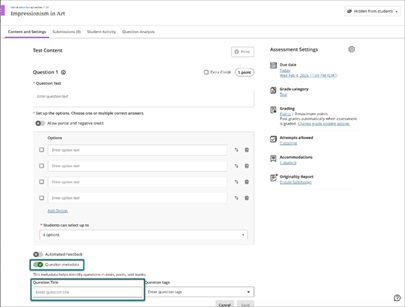
Question Title field relocated
We moved the Question Title field from the beginning of the question authoring workflow to the bottom, underneath the Question metadata field. Moving this field ensures that titles remain an optional metadata element and reduces cognitive load during question creation.
Image 1: Before this enhancement, the Question Title field was at the top of the question authoring workflow.
Image 2: Now, the Question Title field is at the bottom of the question authoring workflow, underneath the Question Metadata field.
Partial credit limits removed for Multiple Choice and Multiple Answer
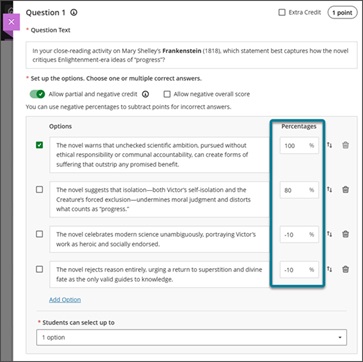
We updated the partial credit system for Multiple Choice and Multiple Answer questions to allow instructors to assign credit values without the requirement that all designated values sum to 100%. This change supports more flexible grading strategies and enables instructors to represent varying levels of conceptual understanding without adjusting values to meet a fixed total.
The system now allows instructors to enter any partial credit value for each option within a range of –100% to +100%. Validation continues to warn instructors if total values exceed 100%, but it no longer blocks question setup. Instructors may now also enter positive credit values for options that are not marked as the correct answer The total partial credit value for correct answers should be at least 100%, and it may exceed 100%. Negative marking continues to operate when enabled. Instructors can adjust credit values during regrading as well.
Image 1: Instructors can have answer options that do not sum to 100%.
Generate Knowledge Checks with AI
We expanded AI‑assisted authoring to support generating multiple choice Knowledge Checks within Documents. This enhancement allows instructors to create just‑in‑time formative assessments using AI‑generated questions based on the content of their Document and any selected course materials.
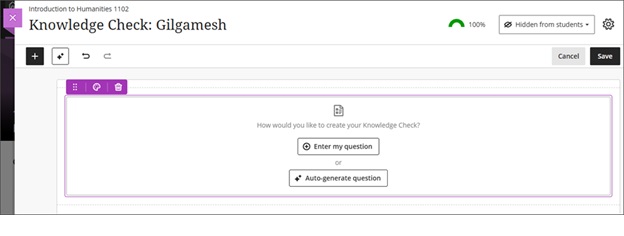
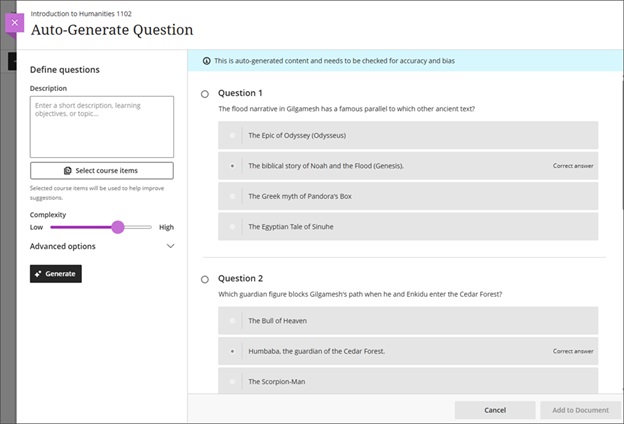
When inserting a Knowledge Check, instructors are now presented with two options: Enter my question or Auto generate question. Selecting Auto-generate question opens the Auto-Generate Question panel, which adapts the existing Question panel used in tests and question banks.
When using the Auto generate question option, instructors can define generation inputs with the following fields:
A description text field
A selector to choose course items to inform generation
A complexity level slider with a range from Low to High
Advanced options including an output language selector
An informational banner that states: “This is auto-generated content and needs to be checked for accuracy and bias.”
The system generates four multiple choice questions at a time. Each generated question displays with a radio button so that the instructor can select one question to add to the Document. The instructor can then modify the question, answer options, and feedback after insertion. If the instructor opens the Knowledge Check option but does not add a question, the placeholder block remains empty and behaves as other empty content blocks do.
All questions are generated using only text content from the Document. Consideration of additional media or files will be handled as part of a future release.
Image 1: Instructors can select Enter my question or Auto-generate question when creating a knowledge check.
Image 2: After the system generates questions, the instructor selects which question to add to the Document. After adding a question, instructors can edit the question, question options, and question settings.
Use the AI Design Assistant to suggest Document layouts
If you’re looking for ways in which you can make your Blackboard Documents more visually appealing, then use the AI Design Assistant to suggest Document layouts.
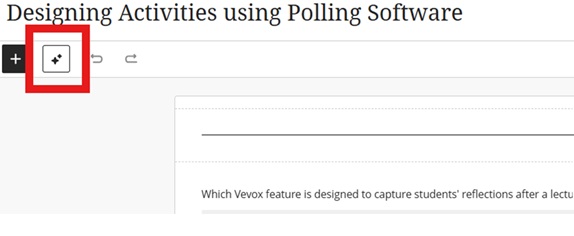
Go to your Document and click to edit the content. Then select the AI Design Assistant icon:
Image 1: AI Design Assistant icon highlighted.
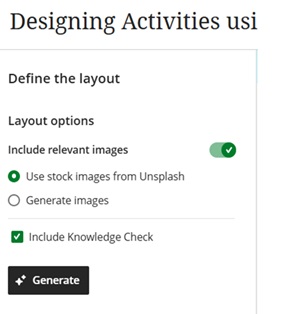
You can provide further information to define the layout:
Image 2: Options available in the layout.
Select Apply layout to save the suggested layout.
Add a second participation requirement and due date in Discussions
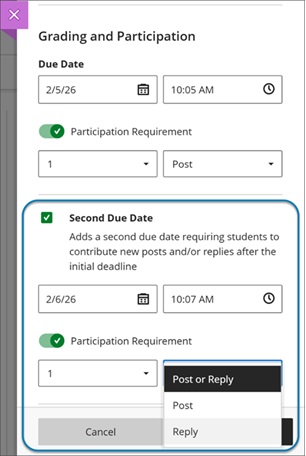
Instructors can now add a second due date with participation requirements for Discussions. This update builds on recent enhancements for discussion participation requirements and gives instructors clearer ways to set expectations for discussion activity. Students get transparent guidance for discussion expectations and progress indicators for their participation.
Instructors
Instructors can set how many posts and replies that students must complete across two due dates.
The option Grade discussion must be selected to add a due dates and participation requirements. Enter a time and date under Due Date and specify participation requirements. Selecting Second Due Date adds another due date with its own requirements.
Instructors can disallow student posts or replies after the final due date by selecting Stop discussion activity after last due date.
Image 1: Instructors can now add a second due date for Discussions. They can also specify the number and type of posts or replies that a student is required to make.
Students
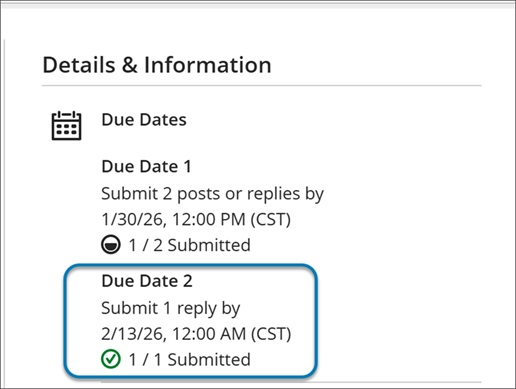
When students open a discussion, they find two clear participation requirements with separate due dates. As they post and reply, progress indicators update in real time.
Students can complete requirements in any order, but contributions after a due date won’t count toward that requirement. Once all requirements are met, the discussion is marked complete and Progress Tracking updates.
Image 2: In a Discussion, a student can find due dates in the Details & Information section in the discussion assignment.
Blackboard Assignment file limits
We increased the maximum supported SafeAssign file size from 10 MB to 25 MB. This enhancement supports modern academic workflows in which students frequently submit large documents. The increased file size applies to assignments and tests. Direct Submit will be included in a later release.
If you have any enhancements to request from Blackboard, please get in touch with us via bbbstaff@aber.ac.uk.
We recently ran our E-learning Enhanced: Using Turnitin for Peer Assessment training session and wanted to highlight the different tools that are available for Peer Assessment across our Digital Education Platform.
Peer Assessment activities have several benefits to students:
Allow students to invest in and manage their own learning
Shared learning experiences
Reflect on learning
Consider communication and constructing feedback
Develop conversation and collaboration skills
Improve academic achievement
Share responsibility for learning
Develop employability skills around feedback
In group scenarios, identify participants’ contributions
Quick feedback
Building a learning community
For Liu & Carless (2006), “peer assessment and peer feedback … enables students to take an active role in the management of their own learning” (280).
If you are interested in exploring this topic further, we recommend:
Liu, N.-F. & Carless, D. (2006) Peer feedback: the learning element of peer assessment. Teaching in higher education. [Online] 11 (3), 279–290.
Lynch, R., Mannix McNamara, P. & Seery, N. (2012) Promoting deep learning in a teacher education programme through self- and peer-assessment and feedback, European Journal of Teacher Education, 35:2, 179-197, DOI: 10.1080/02619768.2011.643396
Zhu, Q. & Carless, D. (2018) Dialogue within peer feedback processes: clarification and negotiation of meaning. Higher education research and development. [Online] 37 (4), 883–897.
We have several peer assessment tools that are available:
Blackboard Assignment for Peer Assignments
You can add a Rubric to the assignment – student will see this as part of their submission.
After Due date and time has passed, students review submissions see Blackboard web site
After the Peer Review Due Date, staff complete marking (see Blackboard web site)
Student view staff feedback, peer feedback and final mark
Note that:
Students won’t be allocated any reviews if not enough assignments are submitted.
Late submissions will be allocated to students. Late submission is allowed automatically as part of the peer assessment process.
Students do not see any names as part of the review process. You should advise all students not to include personal information on their documents.
Students can provide written feedback in the review process but can’t assign a mark (unless this is included in the text feedback box)
You can add a Rubric to the assignment – student will see this as part of their submission and can refer to it while reviewing. However, they can’t use it to mark work.
You can hide peer reviews if you feel the content isn’t appropriate
Turnitin PeerMark
Workflow
Create a Turnitin Assignment and enable PeerMark
Go back into Turnitin Assignment to set up Peer Mark Settings
Students submit to Turnitin submission point
After PeerMark start date, students are able to view another student’s assignment and leave feedback / scores to questions
PeerMark feedback is visible to students immediately
Discussions are available in every course in Blackboard – these are a great way for students to engage asynchronously with their peers; they can post comments and respond to each others’ posts.
Workflow
Instructor creates a Discussion
Students contribute to the Discussion
Students respond to other Discussion posts
For further advice on creating discussions, please see below for Blackboard guidance:
“For peer review in the classroom to be effective, there is clear evidence that the process needs structure, clear and accessible assessment criteria and appropriate scaffolding sessions for students (Mangelsdorf Citation1992).”
Peer feedback has been used widely within group assessment work, for example, when it comes to ascertaining student participation, and factoring in group contributions. For an example of a group peer marksheet, see this sample template from Carnegie Mellon University.