
In the April update, we want to draw your attention to the following Blackboard enhancements:
- Assignments
- Assignment submission type
- SafeAssign file size
- Adjusting individual grades in group submissions
- Tests
- AI Conversations
- Discussions
- Announcements
Blackboard Assignment
Specify assignment submission type
Instructors
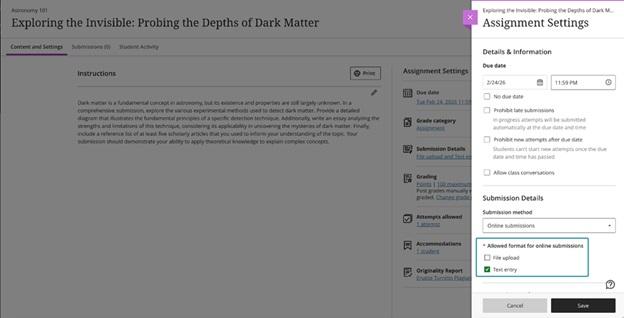
When creating or editing an assignment, instructors can define the expected submission type to guide how students submit their work. Selecting a specific submission type streamlines the student experience and reduces ambiguity about what is required.
Instructors can select one or more expected submission types when configuring an assignment:
- File upload
- Text entry
By default, File upload and Text entry are both selected.
The selected submission type is visible in assignment settings and student‑facing details. Instructors can change the selected submission type until students have started submitting attempts.
Image 1: Instructors can choose one or more submission types when configuring an assignment.
Students
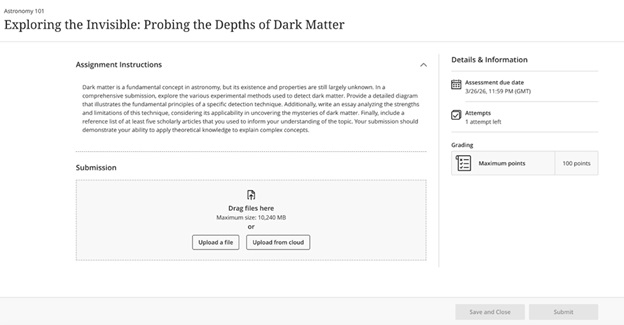
Students are informed of the expected submission type and see a submission workflow optimized for that format.
- File submissions display a dedicated file drop zone where students can upload, preview (when supported), and remove files.
- Text submissions provide a streamlined rich text editor experience without a general file attachment option and include access to the Content Market for supported tools.
Image 2: Students have a submission workflow optimized for the selected submission type.
Note that if you are using Blackboard for Panopto assignments, you need to have Text entry enabled.
Increased SafeAssign file size limit to 25 MB for Direct Submit
The SafeAssign file size limit for DirectSubmit submissions increased to 25MB. This change supports larger documents that include images, tables, and complex formatting, reducing submission issues for students.
Existing submissions and SafeAssign reports remain fully compatible, and related system limits were reviewed to ensure continued stability.
Adjust grades for individual student attempts in group submissions
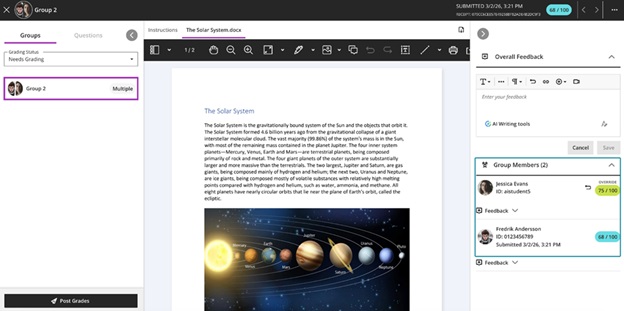
Flexible Grading has been extended to allow instructors to adjust attempt grades for individual students within a group submission. This update ensures that grades for group submissions can accurately reflect each student’s individual contribution, even when work is submitted as a single group attempt.
Instructors can override a group attempt score for individual group members directly from the grading interface. The interface clearly indicates when grades differ across group members, and adjustments can be removed by restoring a student’s grade to match the group attempt score.
Image 1: Instructors can adjust grades for individual students within a group submission.
Tests
Improvements to multiple choice and multiple answer questions
See below for changes to multiple choice and multiple answer questions:
- For the multiple choice question, the default number of answer options a student can select from 4 to 1 has been modified.
- When creating or editing a multiple choice or multiple answer question, instructors can change the number of answer options that a student can select.
- Multiple choice answer options alphabetical labels (A, B, C, D) have also been restored.
AI Conversations
Use Message Limits
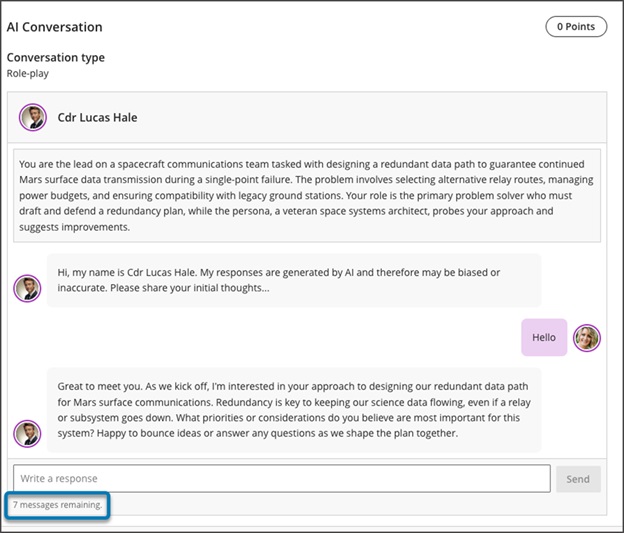
Instructors can now guide the length of AI‑supported conversations, including Socratic Questioning, by setting message limits. These controls help students understand when to complete an interaction and keep conversations focused on the intended learning activity.
Instructors
When instructors configure an AI conversation, they can set a maximum message cap to shape the conversation duration.
Image 1: Message limit settings for an AI conversation
Students
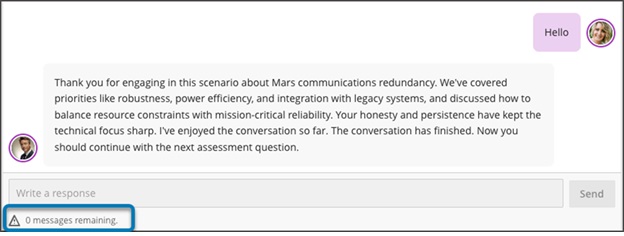
Students track their remaining responses during a conversation through a dynamic label. The label shows a caution icon when two responses remain. After the conversation reaches the message cap, students cannot add more responses. The message limit sets clear expectations for participation and completion.
Image 2: Student messaging guidance during an active interaction.
Discussions
Review both sets of Discussion due dates across multiple views in Blackboard
Blackboard now surfaces both sets of due dates and participation requirements for Discussions across key areas of the application. This improvement builds on the recent addition of a second due date and participation requirement. Instructors and students get clearer expectations wherever they access Discussion details.
Instructors and Students
When instructors create a discussion with two due dates and participation requirements, both sets of requirements appear on the Course Content page, Discussion pages, the Gradebook student and instructor views, and the instructor’s Discussion analysis panel. Students can track expectations throughout the workflow without navigating back to the discussion itself.
Image 1: On the Course Content page, both due dates and participation requirements are displayed. For all entry points for Discussions, both dates and requirements are displayed.
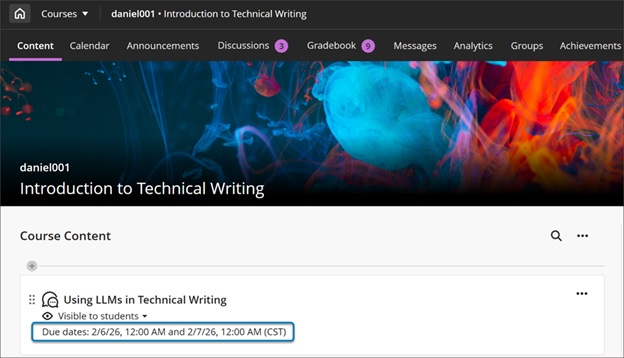
- On the Course Content and Discussion pages, both due dates and their requirements appear together for quick reference.
- In the Gradebook student view, both dates appear.
- Instructors also get a new Due Dates and Requirements section in the grading view for an individual student. This section shows both due dates and the student’s progress toward each requirement.
Announcements
Handle images as thumbnail links in Announcement emails
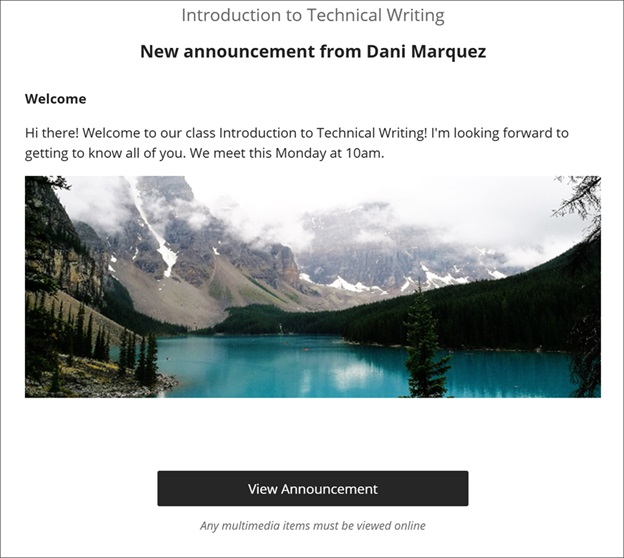
Announcement emails now show images as thumbnail links instead of long URLs. This update gives users a clearer preview of announcement content and provides a direct path back to the full announcement in Blackboard. When users select a thumbnail, the system opens the original announcement so they can read it with full context.
Instructors and students
Announcement emails display a small thumbnail for each image instructors include in an announcement. Each thumbnail links to the announcement in Blackboard, so users return to the complete content instead of opening the image file by itself. Instructors continue to create announcements the same way they have before.
Image 1: Announcement email showing images as thumbnail links that open the announcement in Blackboard.
If you have any enhancements to request from Blackboard, please get in touch with us via elearning@aber.ac.uk.