Each week we’ll be posting a useful DigiTip to help you make the best use of technology. To follow our DigiTips, subscribe to our Digital Skills Blog. Or alternatively, you can bookmark this webpage, where a new DigiTip will be added each week!
Do you want to be able to find the exact webpage you are looking for without wasting time going through several different webpages? For webpages that you visit often, you can bookmark them and even create folders for different categories of bookmarks, meaning that you will never have to navigate through the internet to find that specific webpage again!
Follow these steps to bookmark a webpage:
Open your choice of internet browser
Search for the webpage you would like to bookmark
Click on the star icon which is located on the right-hand side of the webpage address bar
Choose a name for the webpage you would like to bookmark and click Done
To manage your bookmarks:
Right click on the bookmarks bar and select Bookmarks manager
To create a new folder for your webpages, right click on the bookmarks bar and select Add folder
Blogpost by Jia Ping Lee (Digital Capabilities and Skills Development Coordinator)
I remember first stumbling across Code First Girls through their social media during the summer of 2023, and then I learnt of Aberystwyth University’s new partnership with them. Having had no prior experience of coding and not having much knowledge about the tech world, I was surprised at how easy it was to look through the courses that Code First Girls were offering and regardless of what level of coding you had – there would be an appropriate course for you.
Being a complete beginner with coding languages, I had a look through their introductory courses titled MOOCs (Code First Girls’ massive open online courses). These courses were designed to introduce and provide beginner level tech skills and help build up confidence in an area of your choice. What I thought was fantastic about these courses was how it was organised and rolled out. With MOOC Sprints, they were running over 4 weeks with 1 one-hour live session per week and after the Sprint ended, you had the opportunity to test your knowledge and experience real world problem solving with MOOC Challenges and receive a certificate of completion after passing the session quizzes. I experienced a variety of the introduction courses offered including coding, web development and solving problems with Python. As I was able to review what I learned at my own pace after classes, it wasn’t as overwhelming as I initially thought, and the course tutors were always available to contact if you needed extra help or guidance.
Having thoroughly enjoyed taking the first steps towards gaining some tech confidence, I am looking forward to developing the skills I’ve learnt from the introductory courses and progressing onto the next level. I think that the most important lesson I have taken away from this experience is to never be afraid of trying something new that is outside of your comfort zone. The coding world may initially seem scary and difficult to get into, especially if you hadn’t learned about it before. But with Code First Girls, they really are here to help guide and support us to achieve the best skillset we need for future exciting opportunities!
Take a look at this blogpost where you’ll find 5 reasons why you should take advantage of Aberystwyth University’s partnership with Code First Girls. To find out more information about all the opportunities available with Code First Girls, please visit their website.
Do you often get swept up with the amount of clutter and unused apps that keep building up on your phone?
With DigiTip 30, we can have a look at how to create folders on your phone and categorise your apps by types to help keep you organised. Example folder categories could include travel, finance, lifestyle, entertainment, social media and many more!
Let’s have a look at the videos below for a brief demonstration:
N.B. The videos will include an example for IOS devices and an example for Android devices.
Are you planning to work on a collaborative group project with your peers or do you want a co-worker to provide you with comments without permanently editing the document?
Today, we will look at how to add comments to collaborative documents that multiple people can edit. By utilising the comment function, others can understand your ideas behind any changes, ask any questions and offer alternatives without affecting the main document.
With the comment function, there are various features you can make the most of – replying to comments, reacting to comments, and resolving them through tracked changes.
Let’s have a look at the video below for a brief demonstration:
N.B. This video was recorded in Microsoft SharePoint. However, the process with SharePoint and OneDrive are very similar to each other.
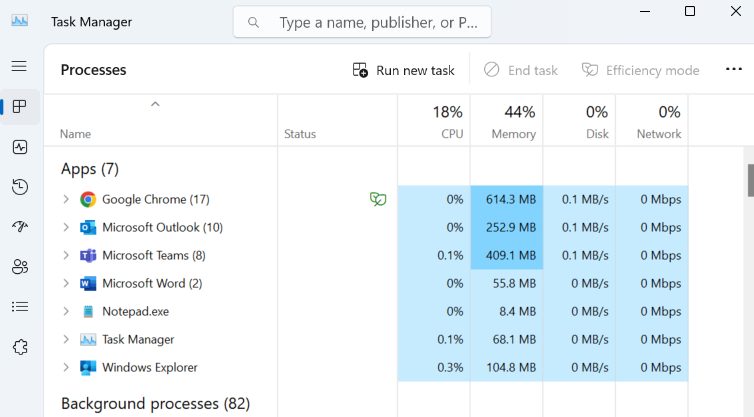
What is Task Manager for computers? And why is it important?
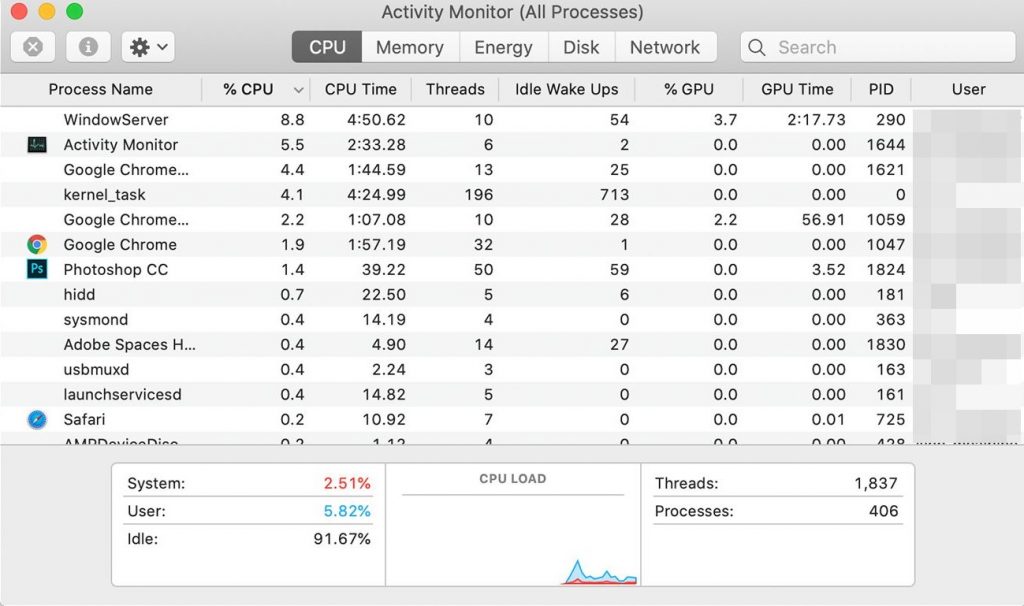
Task Manager (alternatively known as Activity Monitor for macOS systems) can show you what programs and applications are currently running on your computer right now, as of this moment.
If your computer is lagging in speed or overall performance, or maybe a program is needing some troubleshooting, you can use the Task Manager to review what’s happening in the background and even stop an app that has not been responding, without having to restart your computer!
For Windows operating systems, you can follow this shortcut to access the Windows Task Manager:
Ctrl + Shift + Esc
For macOS operating systems, you can follow this shortcut to access the Activity Monitor application:
Do you often feel frustrated with having to scroll back through your browser history to find your favourite tab? Or even accidentally closing the tab and not being able to remember the website?
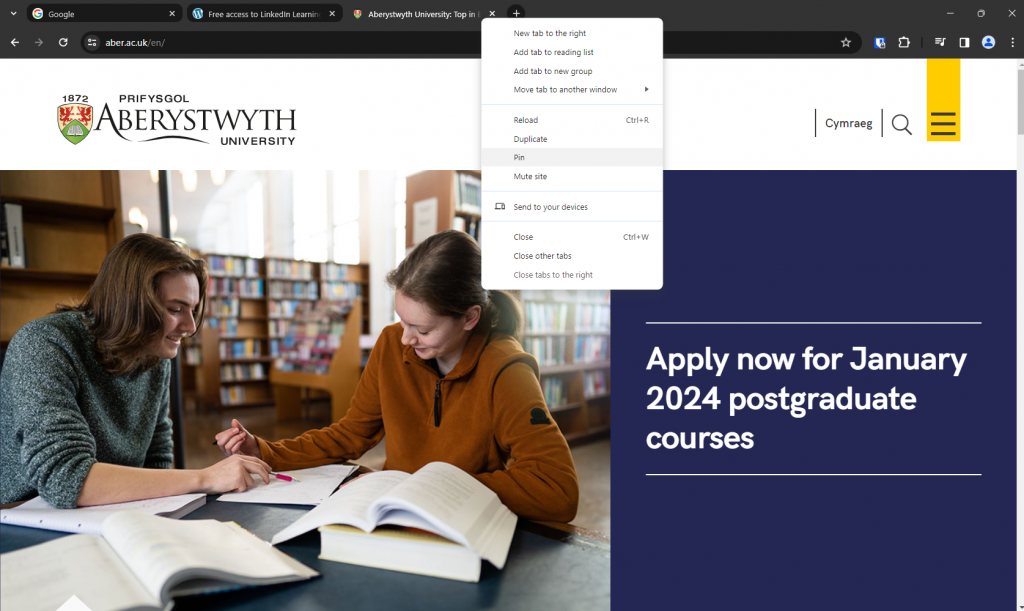
With DigiTip 22, you can now pin your favourite internet tabs and have it ready for you when you open your browser next.
For internet browsers such as Chrome and Firefox, you can follow these steps:
Open your internet browser and type in your chosen URL
Right-click on your URL tab and choose the option “Pin”
Do you want to be able to save time using Outlook by running multiple tasks efficiently?
With DigiTip 19, we will be having a look at how to set up your Quick Step recipe. When an email comes through to your inbox, with just one click you can mark it as read, move it to a specific folder, automatically send a reply and many other options.
We would like to extend a big thank you to all our speakers and participants who attended Aberystwyth University’s first Digital Skills Festival in November 2023.
With 28 different digital events being held over 5 days, it was fantastic to be able to offer a variety of sessions ranging from an introduction to learning how to code to understanding the importance of our digital wellbeing and digital identity.
From our Digital Skills Festival website, you are now able to access all the recordings and resources from the sessions during the week so please take a look if you would like to refresh your knowledge on what you learnt or if you were unable to attend.
We look forward to seeing you all at the next Digital Skills Festival in 2024!
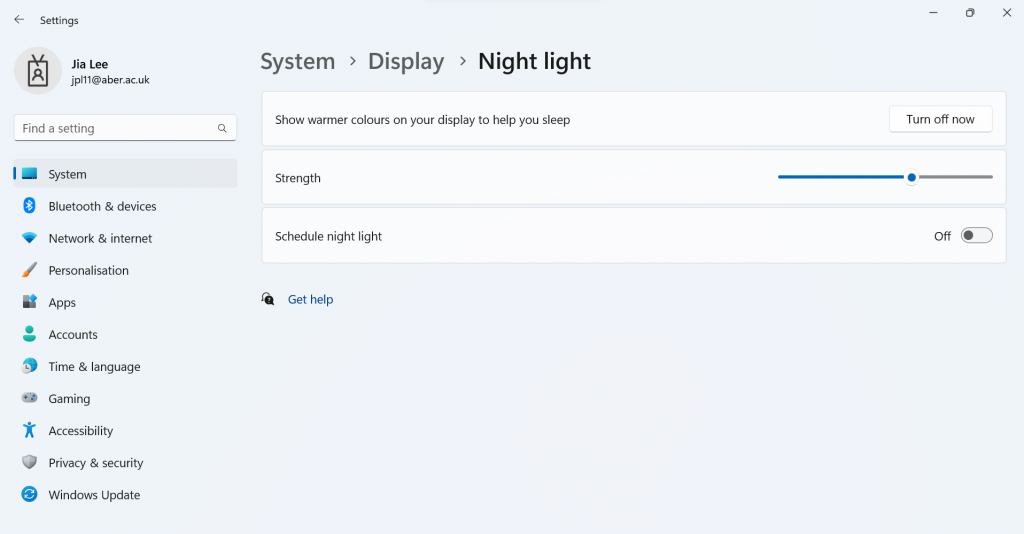
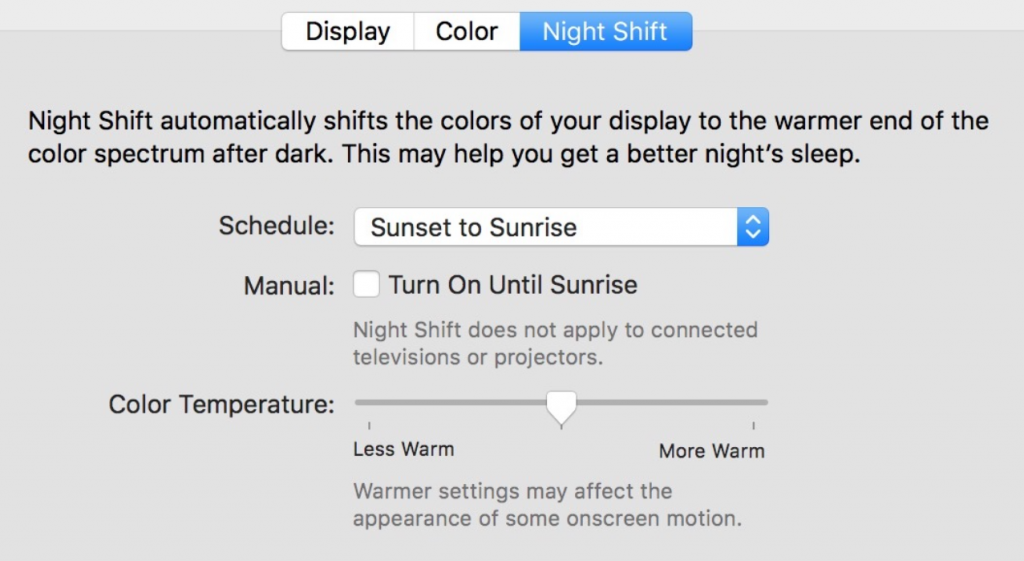
Do you often find yourself having tired eyes after looking at your device for too long? In DigiTip 16, we will be having a look at how to use a blue light filter setting, to reduce the amount of blue light emitted from your device’s screen.
On Windows devices, follow the system settings below to activate “Night light”:
Select Start on your windows taskbar and type in Settings in the search box
From Settings, then choose System before finding the Display option
Once you have chosen the Display option, select Night light
With “Night light” switched on, warmer colours will be used on your screen to help block out blue light
To personalise when “Night light” will be in use on your device, choose the Schedule night light option where you can either select Sunset to sunrise or select Set hours to choose your own custom times for it to begin and end before closing the window
On MacOS devices, follow the system settings below to activate “Night Shift”:
Go to the Apple menu to open the option System Preferences
Through System Preferences, select the Displays icon
On the top of the window, click on the Night Shift tab
Select the Schedule drop-down list before choosing Custom
To personalise when “Night Shift” will be in use on your device, you can either select Sunset to sunrise or select Custom to choose your own set times for it to begin and end, before clicking Done
Welcome to the start of 2024 and we hope you all had a fantastic Christmas holiday break!
From September 2023, the Digital Skills Team have been publishing short and sweet DigiTips that we think will help you make the most of technology – ranging from taking care of your mental wellbeing with the self-care Finch App to being able to brainstorm new ideas with the whiteboard in MS Teams!
Starting from Tuesday 9th January, we will continue to be posting weekly tips about all things digital and if you want to explore any of our previous DigiTips, you can access them from this webpage.