


Short one today, but helpful!
Continuing on from last week’s DigiTip on proof-reading, this tip is all about the text-to-speech function (or ‘read aloud’) in Microsoft Word!
Before we talk about exactly why this function is so useful, here’s how to make it work for you. To access it, you can either:
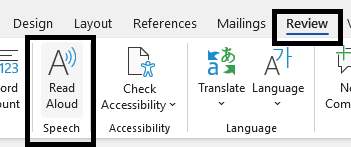
Navigate to Review and then to Read Aloud
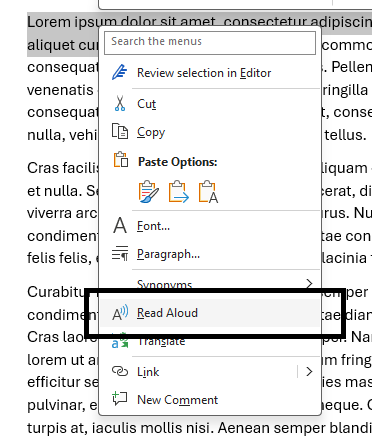
Highlight your chosen text, right click, and select Read Aloud
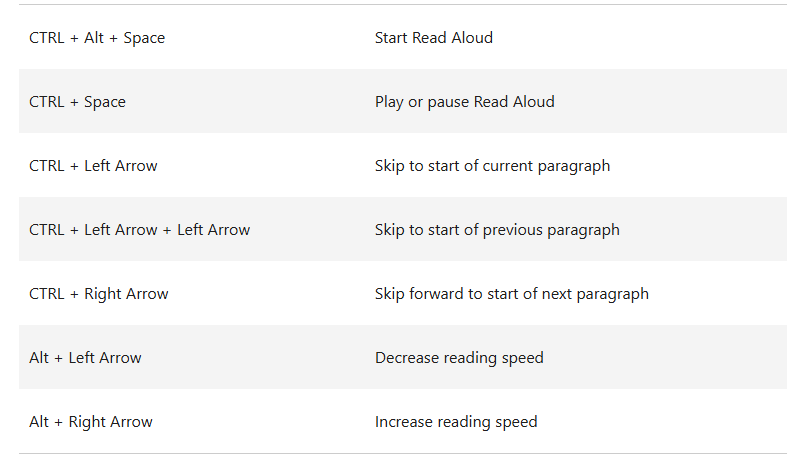
Or, finally, utilise any of the following keyboard shortcuts (sourced from Microsoft’s support page)
So, why would you want your computer to speak out loud to you?
Here are some reasons:
- Proof-reading
- Hearing your own writing repeated back to you can serve as a sort of ‘sanity check’ to ensure your writing makes sense and comes across the way you want it to
- Multitasking
- Utilising Read Aloud can let you work through written documents while you do other things.
- Assisting in comprehension
- Working through a text alongside an audible guide can keep you on-track and focused on what’s being said. This can be especially helpful for anyone who finds large walls of text daunting!
Finally, this isn’t the only TTS function in Word alone!
If you found this tip helpful, you might be just as interested in the Immersive Reader or Narrator functions, which are more focused on assisting comprehension and accessibility respectively.
To follow our DigiTips, subscribe to our Digital Skills Blog. Or alternatively, you can bookmark this webpage, where a new DigiTip will be added each week!