


You’ve probably been writing on your computer before – be it Microsoft’s Word or any other word processor – and seen that red squiggly line under your writing indicating that you’ve misspelled something. It’s pretty helpful, and makes it effortless to go back and correct yourself while you write.
However, in this blog you’ll see how to take it one step further. While double-checking your spelling, you can also get an overview of your grammar, tone, punctuation and other typographical errors. It’s all the work of one little button available from the Home tab of Microsoft Word:
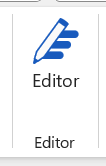
Clicking this brings up a side-window to go through everything that you might want to change with your document, and lets you work through them one by one. Let’s see what it does with this document:
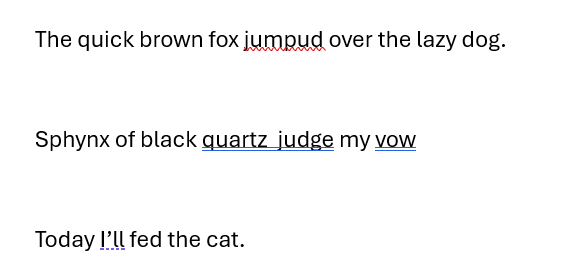
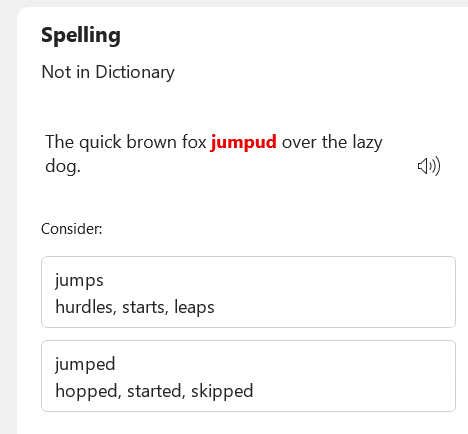
First, the Editor function alerts me to my embarrassing spelling mistake:
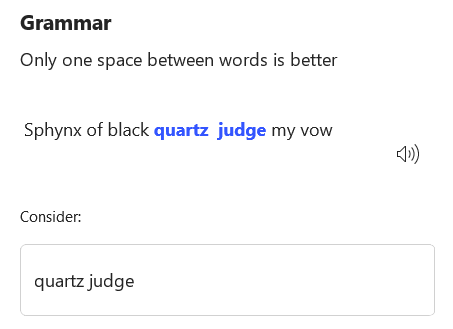
Next, the Editor has picked up on my awkward typesetting:
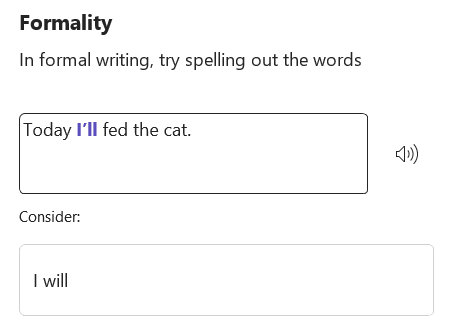
This next one is interesting, because it demonstrates what this kind of tool cannot do.
Tools like this are not aware of the context of sentences, and so long as words are put together sensibly and spelled properly, it will often miss grammatical or logical errors that humans can much more easily spot.
Here, the Editor suggests removing a contraction to improve the tone, while missing the mixed tenses of the sentence:
Hopefully these examples together demonstrate exactly what spellchecking tools such as Word’s Editor can and cannot help with.
It’s always a good idea to send your document through one of these to check for minor errors and awkward typesetting or tone, however they do not replace a proper proof-read with human eyes.
By making smart use of this tool, you can save time on your proof-reading and improve your writing all-round!
To follow our DigiTips, subscribe to our Digital Skills Blog. Or alternatively, you can bookmark this webpage, where a new DigiTip will be added each week!