Do you find yourself needing to take a screenshot of your computer screen? Maybe you need to add a page to your revision notes. There are multiple tools available but with DigiTip 26 we’re showing you a shortcut to quickly take a screenshot.
You can take a screenshot of your screen by using the shortcut “Windows key + Shift + S”. Then you can either open the screenshot in an editor or copy the image into a document, PowerPoint, OneNote and more!
Have you ever prematurely closed a tab you were using? Frantically searching your history to find your page again or even searching through webpages?
With DigiTip 23, you no longer have to worry.
Did you know you can open any tabs you have closed by simply selecting “Ctrl +Shift + T”. This will even work if you have closed down an entire window!
Blogpost by Shân Saunders (Digital Capabilities and Skills Development Coordinator)
You may use LinkedIn Learning for a variety of skills development, it could be learning to code, improving your Microsoft skills or even to learn something completely new. You can now learn on the go with the LinkedIn Learning mobile app. This means that you can learn wherever and whenever you want on your phone. Maybe you have hour breaks and want to use that time to learn a new skill without loading your computer. The LinkedIn Learning app means that you can continue your courses on your phone for easy and accessible content.
LinkedIn Learning on your phone also gives you the option to switch your courses into audio-only meaning if you’re a fan of podcasts you can now listen to your LinkedIn Learning courses during walks or while exercising. With the app, you can also download your course content for offline usage. Now, if you’re travelling on a long train journey you can download your course and watch as you travel. If you’re driving, you can download your content and turn on the audio-only feature to listen and learn while you drive!
How do I access LinkedIn Learning on my phone?
Go to your mobile app store and search for ‘LinkedIn Learning’
Download the LinkedIn Learning app
Sign in with your AU details
Start learning!
Further Questions?
For more information read our other blogposts about LinkedIn Learning. If you have any questions or problems accessing the LinkedIn Learning app, please contact the Digital Skills Team (digi@aber.ac.uk).
Blogpost by Shân Saunders (Digital Capabilities and Skills Development Coordinator)
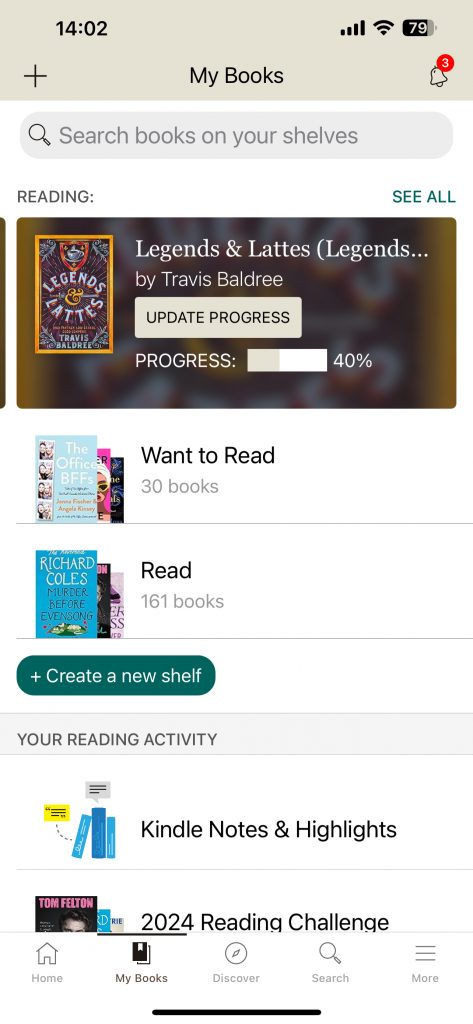
With the advancement of phones and technology there’s now an app for everything – including reading! As an avid reader I like to challenge myself with yearly goals, discuss books with fellow readers and gain reading stats. With my top three reading apps – all of these are possible!
Goodreads
Goodreads is great for tracking your current reads and staying on track for your reading goals.
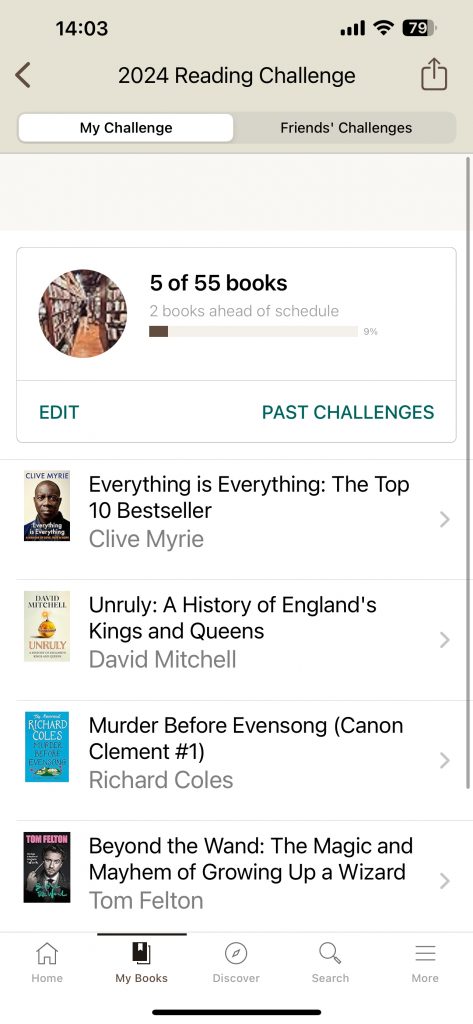
Set yourself a yearly reading challenge and Goodreads will tell you whether you’re on track.
Track your current reads to see how far through you are.
Receive a badge if you reach your goal.
View books you’ve read in previous years.
Create reading shelves for your needs like “want to read”.
Scan book covers instead of searching for them.
Discover new books based on your recent reads, new releases and trending books.
Have you struggled to write in Welsh on your computer? Used shortcuts or symbols to insert a circumflex and accents for Welsh letters? Struggle no more!
Free on all AU computers from the Company Portal you can now download the To Bach software. For personal computers, To Bach is available to download for free!
Once downloaded, to insert letters with a circumflex all you have to do is select “Alt Gr” and your respective vowel (e.g., â ê î ô û ŵ ŷ).
Are you a planner but struggling to be productive? Do you work better with a to-do list, but you want everything in one place? Introducing Microsoft Teams Task by planner!
You can create your own to-do lists, break these down into daily to-do lists and even view tasks that have been assigned to you in Microsoft Teams channels.
To create your To Do List:
Go to the Apps icon on the left-hand side of MS Teams
Search for and install the Tasks by Planner and To Do app
At the bottom of the planner, select‘+ New list or plan’
Enter any task, select the priority and due date
Once completed select the circle and the task will complete itself
To break down your to-do list to more achievable goals you can add tasks from your to-do list to “my day” which will refresh every day.
Watch the video below for a demo on how to use Microsoft Teams Tasks by planner.
Microsoft OneNote is a great way to store all your notes, organise your work and create lists all in one place.
You can create different tabs for different areas of work. Within this, you can add new pages to separate and organise your work, all with their own separate headers. You can colour code your sections to help organise and keep track of your work. You can also create check lists, highlight important information and much more using the ‘tag’ function.
Watch the video below for a demo on using Microsoft OneNote or follow the instructions below.
Click the ‘+’ icon to create a new section.
Right click on the section to change the colour.
Name the page anything you would like.
Hover on the right-hand side pane to insert new pages.
Add checkboxes either by selecting the To Do Tag or by using ctrl+1.
You can make pages, subpages by selecting the page, right clicking, and selecting ‘make subpage’.
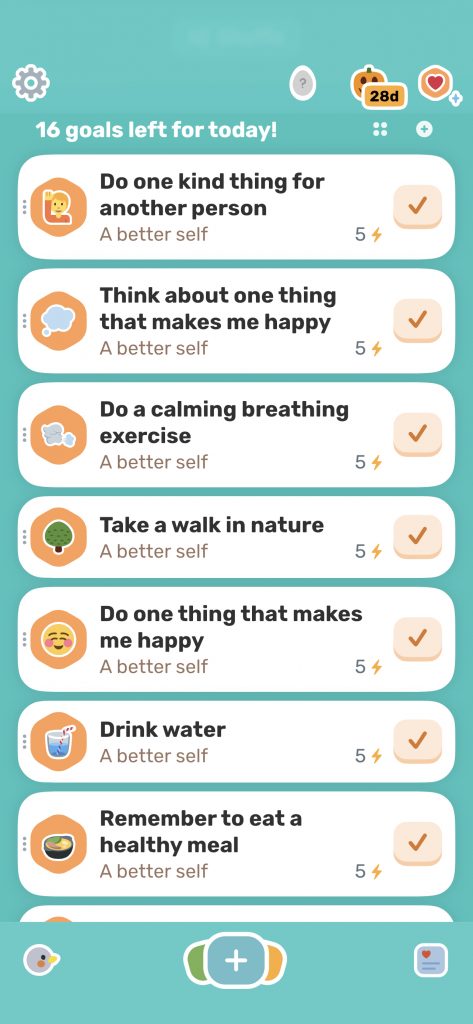
Finch is a self-care app designed to help you set realistic wellness goals to achieve throughout the day.
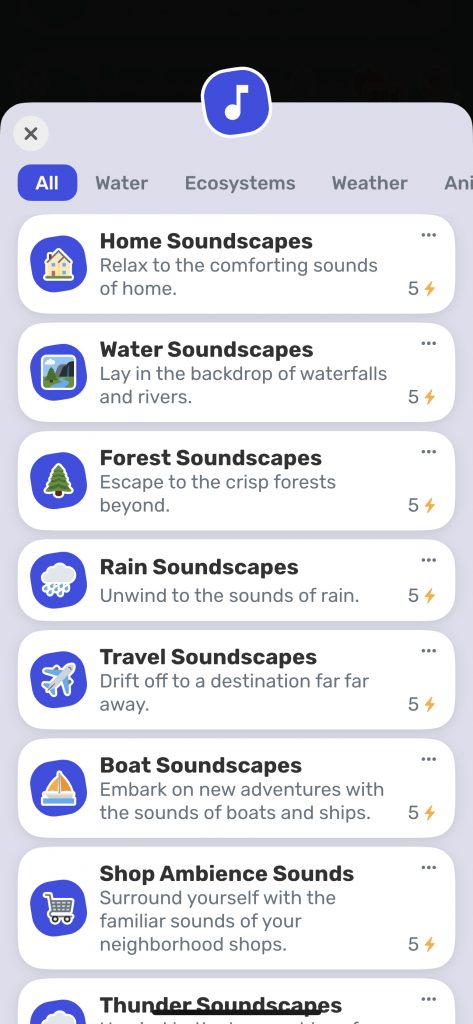
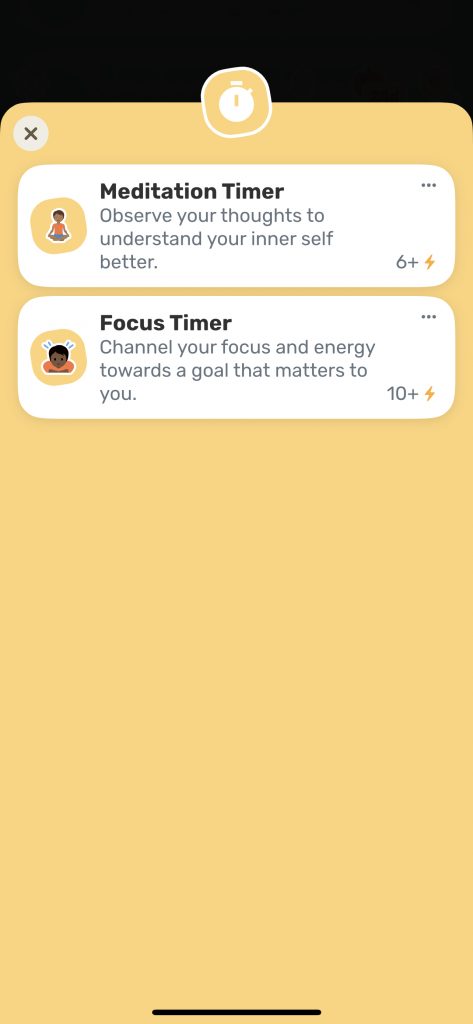
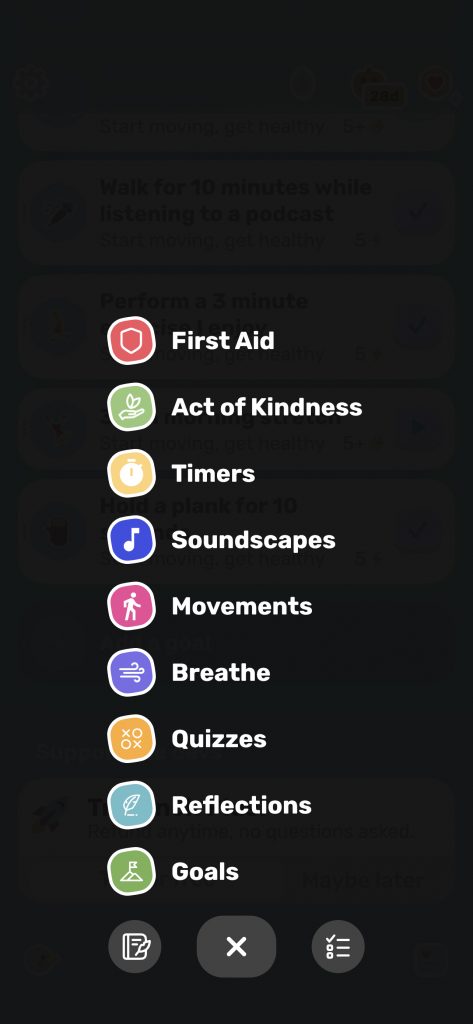
The app includes features such as a focus or meditation timer, reflection diaries, quizzes, and soundscapes.
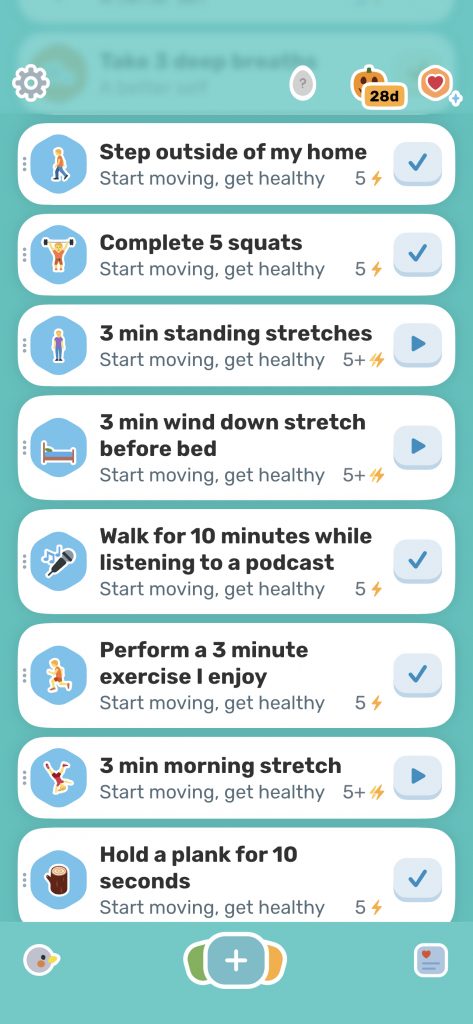
Help your Finch avatar grow by earning points through completing your daily goals. The daily goals can be remembering to drink water, taking a walk in nature to taking part in the apps movement section which holds a collection of stretching and yoga movements.
You can download the Finch app on Apple and Android devices.
Are you working on one screen and struggling? Are you tired of swapping between two windows?
Did you know that you can split your screen to view two things at once making it much easier to view two windows at the same time. This means that you can work on documents, tabs and much more side-by-side.
On your keyboard, to the left-hand side of the space bar there is the Windows button.
Hold the windows button and then tap any arrow key you would like. For example, hold the windows key and then tap the left arrow key.
This will move your document to the left-hand side of your screen.
You will be shown all the open windows you have to fill the remainder of the screen. Simply select which window you would like to open.