
Digitip 86 – Outlook Email Tagging 🏷️

If you’re like me, having an empty email inbox is both an incredible joy and an insurmountable goal.

Today i’ll share something that helps me feel more in control of my inbox by keeping track of what’s what – what you can delete, keep, respond to, or whatever else you need.

Introducing: Email tagging!

This is a feature in Microsoft’s Outlook program, but it’s also present in lots of other email readers in different forms, so poke around in the settings for yours to see if you can make it work for you.

In Outlook, click these coloured squares under the Home toolbar:
Then, click “All Categories”:

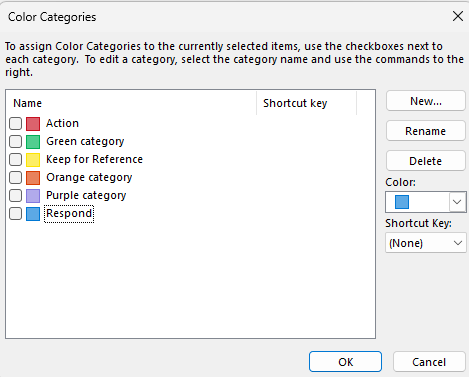
In this settings menu, you can rename and recolour the tags (or ‘categories’) that you’ll be applying to your emails.
From there, you can select the email you want to tag, then use the dropdown menu accessed by clicking <- this, and tag your emails as you wish!
You can also set custom keyboard shortcuts to apply tags, which can speed things up even more once you get used to sorting them.

To demonstrate why you might want to start tagging your emails, here’s an example inbox:
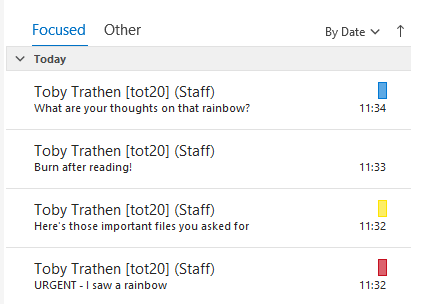
I’ve gone through these emails and quickly tagged them with how I want to deal with them. “Action (red)”, “Keep for reference (yellow)”, “Respond (blue)” and no tag.
Later, when I have the time to write some emails, I can look back through my inbox and sort by categories so I know exactly where each one is supposed to be. It acts as a visual indicator of what emails require further action, which ones are meant to remain in your inbox or archive, and which ones can be safely deleted.

Scaling this up to the hundreds of emails you may receive – some useful, some pointless, some neither – combined with the ability to sort by tags and deal with them all at once, and you may see how this can make managing a busy inbox much less of a daunting task!

To follow our DigiTips, subscribe to our Digital Skills Blog. Or alternatively, you can bookmark this webpage, where a new DigiTip will be added each week!  
TipDigi 86 – Tagio E-bost Outlook 🏷️

Os ydych chi fel fi, mae cael blwch derbyn e-bost gwag yn llawenydd anhygoel ac yn nod anorchfygol.

Heddiw byddaf yn rhannu rhywbeth sy’n fy helpu i deimlo bod gennyf fwy o reolaeth dros fy mewnflwch trwy gadw golwg ar beth yw beth – beth allwch chi ei ddileu, ei gadw, ymateb iddo, neu beth bynnag arall sydd ei angen arnoch.

Dyma gyflwyno: Tagio e-bost!

Mae hon yn nodwedd yn rhaglen Outlook Microsoft, ond mae hefyd yn bresennol mewn llawer o ddarllenwyr e-bost eraill mewn gwahanol ffurfiau, felly edrychwch ar y gosodiadau ar gyfer eich un chi i weld a allwch chi wneud iddo weithio i chi.

Yn Outlook, cliciwch ar y sgwariau lliw hyn o dan y bar offer Hafan:
Yna, cliciwch ar “Pob Categori”:

Yn y ddewislen gosodiadau hon, gallwch ailenwi ac ail-liwio’r tagiau (neu’r ‘categorïau’) y byddwch chi’n eu defnyddio i’ch e-byst.

O’r fan honno, gallwch ddewis yr e-bost yr hoffech ei dagio, yna defnyddiwch y gwymplen a geir trwy glicio ar <- hwn, a thagio’ch negeseuon e-bost fel yr hoffech!
Gallwch hefyd osod llwybrau byr bysellfwrdd arferol i gymhwyso tagiau, a all gyflymu pethau hyd yn oed yn fwy unwaith y byddwch chi’n dod i arfer â’u didoli.

I ddangos pam efallai yr hoffech chi ddechrau tagio eich negeseuon e-bost, dyma enghraifft o flwch derbyn:

Rydw i wedi mynd trwy’r e-byst hyn ac wedi eu tagio yn gyflym o ran sut rwyf eisiau ymdrin â nhw. “Gweithredu (coch)”, “Cadw er gwybodaeth (melyn)”, “Ymateb (glas)” a dim tag.
Yn ddiweddarach, pan fydd gen i amser i ysgrifennu rhai negeseuon e-bost, gallaf edrych yn ôl trwy fy mewnflwch a didoli yn ôl categorïau fel fy mod yn gwybod yn union ble mae pob un i fod. Mae’n gweithredu fel dangosydd gweledol o ba negeseuon e-bost sydd angen gweithredu arnynt, pa rai sydd i fod i aros yn eich mewnflwch neu archif, a pha rai y gellir eu dileu’n ddiogel.

Gan gymhwyso hyn i’r cannoedd o negeseuon e-bost y gallech eu derbyn – rhai’n ddefnyddiol, rhai’n ddibwrpas – ynghyd â’r gallu i ddidoli yn ôl tagiau ac ymdrin â nhw i gyd ar unwaith, efallai y byddwch chi’n gweld sut y gall hyn wneud rheoli mewnflwch prysur yn dasg llawer llai brawychus!

I ddilyn ein TipDigidol, tanysgrifiwch i’n Blog Sgiliau Digidol. Neu fel arall, gallwch lyfrnodi’r dudalen we hon, lle ychwanegir TipDigidol newydd bob wythnos!  

Digitip 85 – I or l: Avoid getting tricked 🔍

Imagine, for a moment, this harrowing scenario:

Hi, here's the important code you requested:
Az3971InwlI1mkEnDIWnl11Il

You'll have to enter this manually, using a remote control, one character at a time.
The input field will reset after 60 seconds, so better move fast.
Oh, and one last thing...
Some of those are lower-case Ls, and some are upper-case Is.

Good luck!
- Serious Business Co.

It’s impossible. It’s insurmountable. You’re doomed.
Unless…

I or L Checker

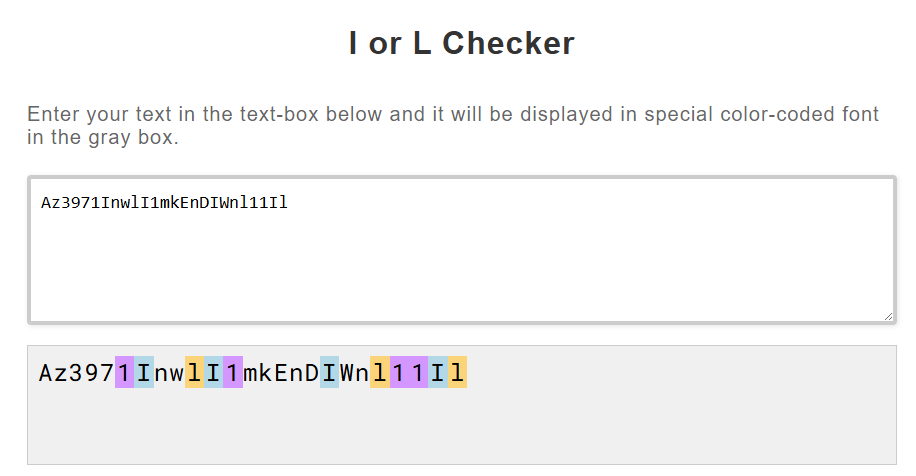
Using this site, you can see which characters in some text are I, L, or 1.

The code from before being seen through the web tool, with different letters highlighted.

(All in all, this is a pretty silly one. Still though, it’s helped me out at least twice in my life! Maybe it’ll help you some day?)

To follow our DigiTips, subscribe to our Digital Skills Blog. Or alternatively, you can bookmark this webpage, where a new DigiTip will be added each week!  

TipDigi 85 – I neu l: Osgowch gael eich twyllo 🔎

Dychmygwch am eiliad y senario dirdynnol hwn:

Helo, dyma'r cod pwysig y gwnaethoch gais amdano:
Az3971InwlI1mkEnDIWnl11Il

Bydd yn rhaid i chi fewnbynnu’r cod â llaw, gan ddefnyddio teclyn rheoli o bell, un nod ar y tro.
Bydd y maes mewnbynnu yn ailosod ar ôl 60 eiliad, felly rhaid symud yn gyflym.
O, ac un peth arall...
Mae rhai o'r nodau’n llythrennau ‘L’ fach a rhai yn briflythrennau ‘i’.


Pob lwc!
- Serious Business Co.

Mae’n amhosibl. Mae’n anorchfygol. Does dim gobaith.
Oni bai…

Gwiriwr I neu L

Gan ddefnyddio’r safle hwn, gallwch weld pa nodau mewn darn o destun sy’n I, L, neu 1.

Y cod o’r blaen cyn ei weld drwy’r adnodd gwe, gyda gwahanol lythrennau wedi’u hamlygu.

(Ar y cyfan, mae hwn yn un eithaf gwirion. Serch hynny, mae wedi fy helpu o leiaf ddwywaith yn fy mywyd! Efallai y bydd yn eich helpu chi ryw ddydd?)

I ddilyn ein TipDigidol, tanysgrifiwch i’n Blog Sgiliau Digidol. Neu fel arall, gallwch lyfrnodi’r dudalen we hon, lle ychwanegir TipDigidol newydd bob wythnos!  

DigiTip 4 – Increase your productivity whilst helping the planet with the Forest App 🌱

This image has an empty alt attribute; its file name is digitips-banner_61877145-2-1024x241.png

Do you want to increase your productivity whilst helping the planet? The Forest App will help reduce your procrastination and distractions whilst giving you the extra incentive to stay productive, by growing trees and earning virtual coins to unlock new plants depending on how long you have stayed productive for.

As your forest grows, you can see what your focused time distribution looks like over time, with various detailed charts included in the app. 

With the Forest App partnering with a real-tree-planting organisation, when users spend their virtual coins on planting new trees, the Forest team can donate to the real-tree-planting organisation to create planting orders!

You can download the Forest App through the App Store on iOS and Android devices. 

For a quick preview, take a look at these screenshots to see what the Forest App may look like on your mobile device.

To follow our DigiTips, subscribe to our Digital Skills Blog. Or alternatively, you can bookmark this webpage, where a new DigiTip will be added each week!  

TipDigi 4 – Cyfle i wella eich cynhyrchiant wrth helpu’r blaned, gyda’r Forest App 🌱


Ydych chi eisiau cynyddu eich cynhyrchiant wrth helpu’r blaned? Bydd y Forest App yn helpu i leihau oedi ac amhariadau a rhoi’r cymhelliant ychwanegol i chi aros yn gynhyrchiol, trwy dyfu coed ac ennill darnau arian rhithwir i ddatgloi planhigion newydd gan ddibynnu ar ba mor hir yr ydych chi wedi aros yn gynhyrchiol.

Wrth i’ch coedwig dyfu, gallwch weld sut olwg sydd ar eich dosbarthiad amser penodol dros amser, gyda siartiau manwl amrywiol wedi’u cynnwys yn yr ap. 

Gyda’r Forest App yn partneru â sefydliad plannu coed go iawn, pan fydd defnyddwyr yn gwario eu darnau arian rhithwir ar blannu coed newydd, gall tîm Forest App roi cyfraniad i’r sefydliad plannu coed go iawn i greu archebion plannu!

Gallwch lawrlwytho’r Forest App drwy’r Storfa Apiau ar ddyfeisiau iOS ac Android.

Am ragolwg cyflym, edrychwch ar y sgrin luniau uchod i weld sut gall yr Forest App edrych ar eich dyfais symudol.

I ddilyn ein TipiauDigi, tanysgrifiwch i’n Blog Sgiliau Digidol. Neu, gallwch hefyd ddilyn y dudalen hon, lle bydd TipDigi newydd yn cael ei ychwanegu bob wythnos!

DigiTip 84 – Read Aloud in Word 🗣️

Short one today, but helpful!
Continuing on from last week’s DigiTip on proof-reading, this tip is all about the text-to-speech function (or ‘read aloud’) in Microsoft Word!

Before we talk about exactly why this function is so useful, here’s how to make it work for you. To access it, you can either:

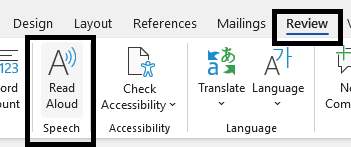
Navigate to Review and then to Read Aloud

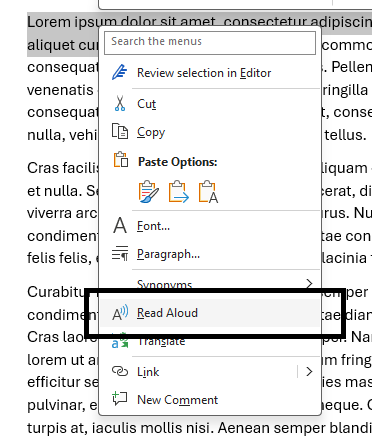
Highlight your chosen text, right click, and select Read Aloud

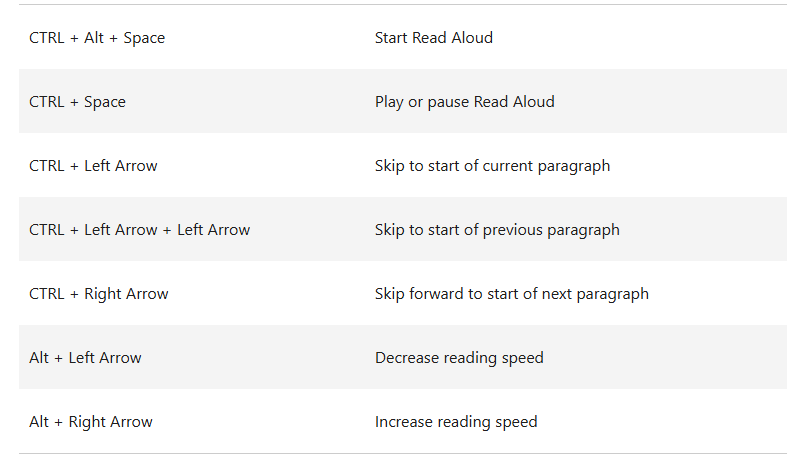
Or, finally, utilise any of the following keyboard shortcuts (sourced from Microsoft’s support page)

So, why would you want your computer to speak out loud to you?

Here are some reasons:

  • Proof-reading
    • Hearing your own writing repeated back to you can serve as a sort of ‘sanity check’ to ensure your writing makes sense and comes across the way you want it to
  • Multitasking
    • Utilising Read Aloud can let you work through written documents while you do other things.
  • Assisting in comprehension
    • Working through a text alongside an audible guide can keep you on-track and focused on what’s being said. This can be especially helpful for anyone who finds large walls of text daunting!

Finally, this isn’t the only TTS function in Word alone!
If you found this tip helpful, you might be just as interested in the Immersive Reader or Narrator functions, which are more focused on assisting comprehension and accessibility respectively.

To follow our DigiTips, subscribe to our Digital Skills Blog. Or alternatively, you can bookmark this webpage, where a new DigiTip will be added each week!  

TipDigidol 84 – Darllen yn Uchel yn Word 🗣️

Un byr, ond defnyddiol heddiw!
Gan barhau o DipDigidol yr wythnos diwethaf ar brawfddarllen, mae’r awgrym hwn yn ymwneud â’r nodwedd testun-i-lais (neu ‘darllen yn uchel’) yn Microsoft Word!

Cyn i ni drafod pam mae’r nodwedd hon mor ddefnyddiol, dyma sut mae’n gweithio. Er mwyn cael mynediad ato, gallwch naill ai:

Llywio i Adolygu ac yna i Darllen yn Uchel

Amlygu eich testun dewisol, clicio botwm de’r llygoden, a dewis Darllen yn Uchel

Neu, yn olaf, defnyddiwch unrhyw un o’r llwybrau byr bysellfwrdd canlynol (ffynhonnell:Tudalen gymorth Microsoft)

Felly, pam fyddech chi eisiau i’ch cyfrifiadur siarad yn uchel â chi?

Dyma rai rhesymau:

  • Prawf-ddarllen
    • Gall clywed yr hyn yr ydych wedi’i ysgrifennu yn cael ei ailadrodd yn ôl i chi fod yn rhyw fath o ‘wiriad synnwyr’ i sicrhau ei fod yn gwneud synnwyr ac yn dod drosodd yn y modd yr hoffech
  • Amldasgio
    • Gall defnyddio Darllen yn Uchel ganiatáu i chi weithio trwy ddogfennau ysgrifenedig tra byddwch chi’n gwneud pethau eraill.
  • Cynorthwyo i ddeall
    • Gall gweithio trwy destun ochr yn ochr â chanllaw clywadwy eich cadw ar y trywydd iawn a chanolbwyntio ar yr hyn sy’n cael ei ddweud. Gall hyn fod yn arbennig o ddefnyddiol i unrhyw un sy’n gweld waliau mawr o destun yn frawychus!

Yn olaf, nid dyma’r unig nodwedd testun i lais yn Word!
Os ydych chi’n gweld yr awgrym hwn yn ddefnyddiol, efallai y bydd gennych ddiddordeb yn y nodweddion Darllenwr Ymdrwytho neu Adroddwr, sy’n canolbwyntio fwy ar gynorthwyo dealltwriaeth a mynediad i’r rhai ag anabledd yn y drefn honno.

I ddilyn ein TipDigidol, tanysgrifiwch i’n Blog Sgiliau Digidol. Neu fel arall, gallwch lyfrnodi’r dudalen we hon, lle ychwanegir TipDigidol newydd bob wythnos!